
- Build in the crate
- 4.6.0
- Made by the team at
- Macroplant
- Menu languages offered
- English
- How you pay for it
- K'ed by TNT team
- macOS it plays on
- OS X 10.10 or later
- CPU it runs on
- Intel 64-bit
Screenshots
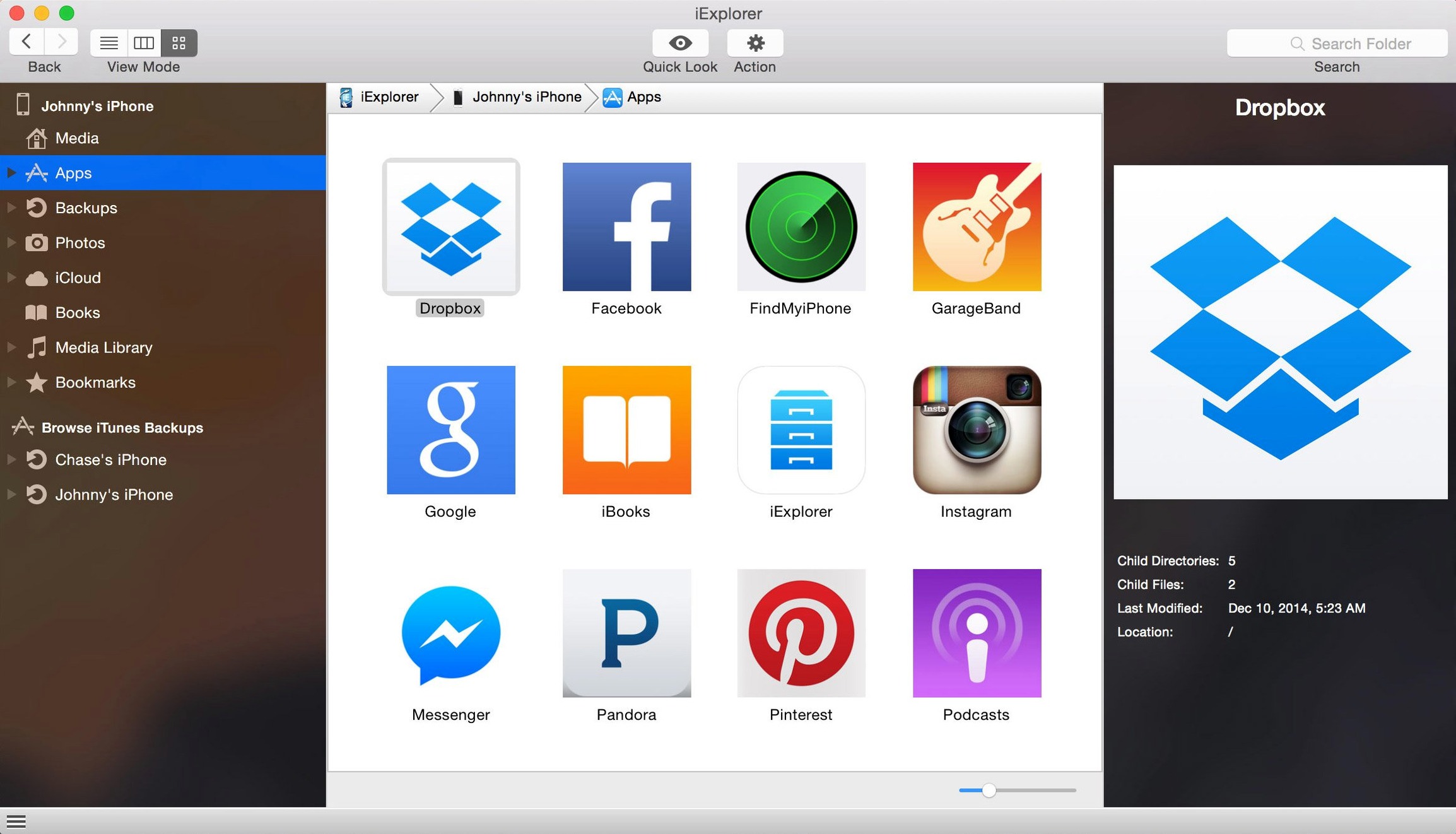
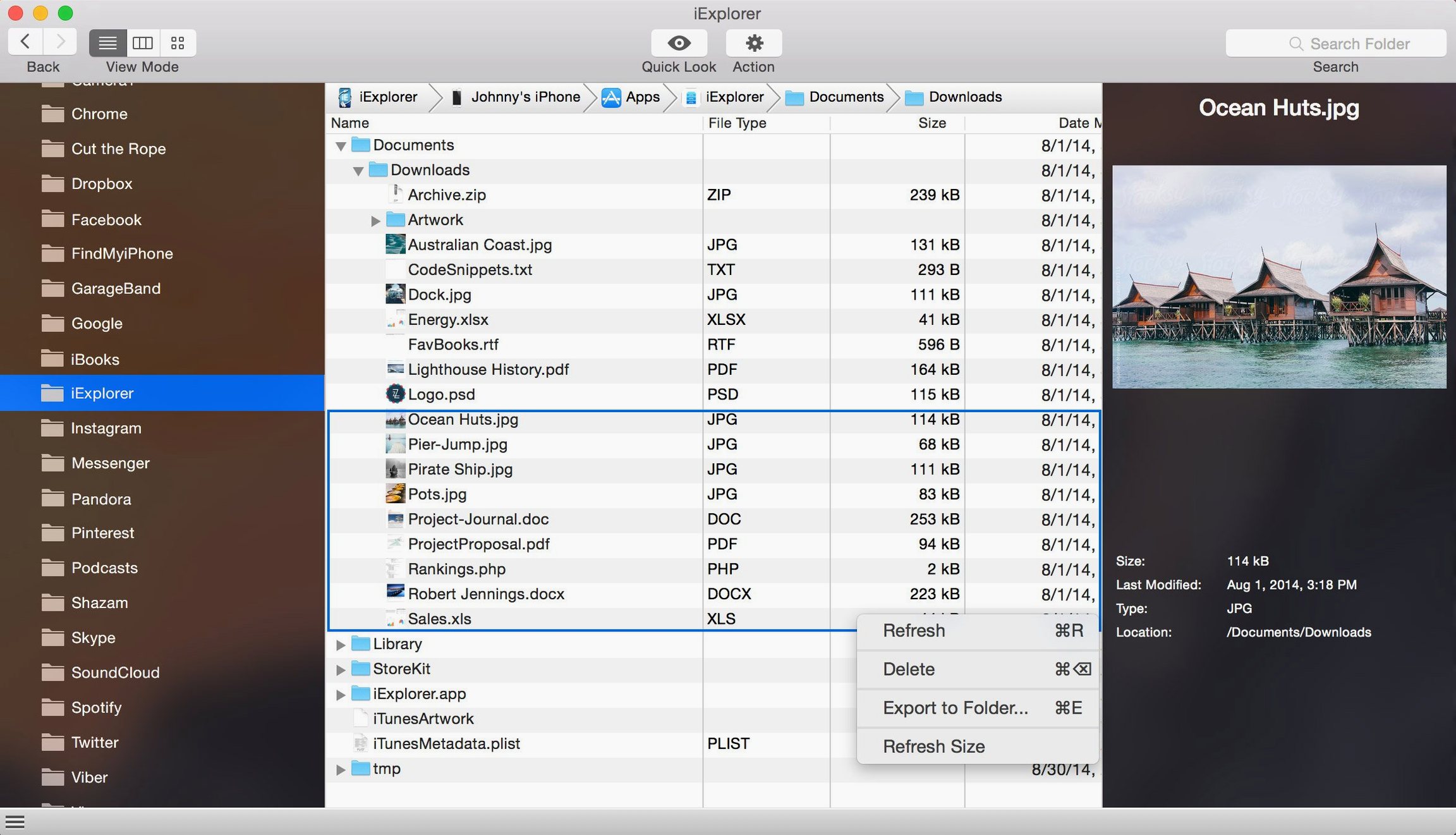
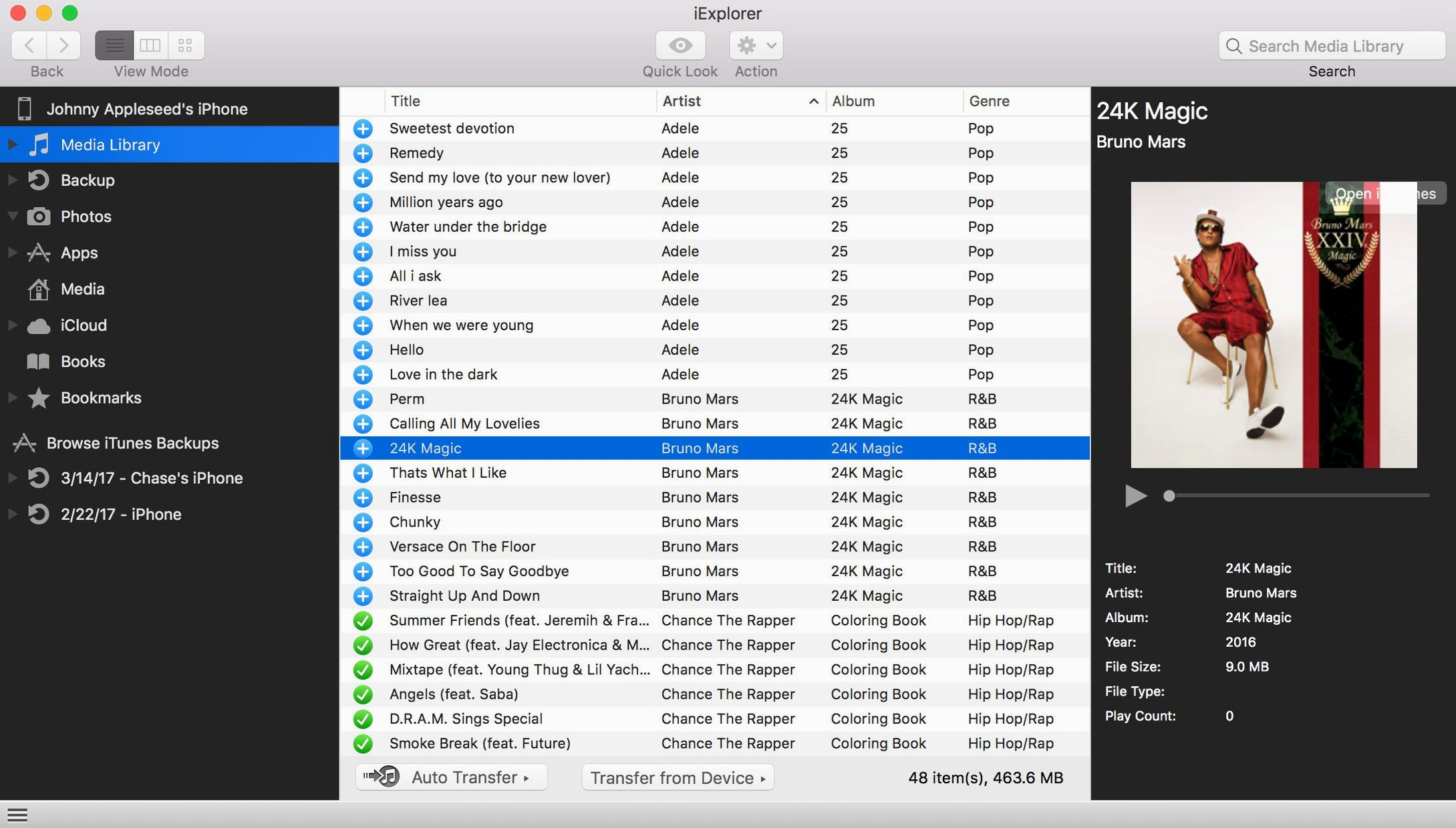
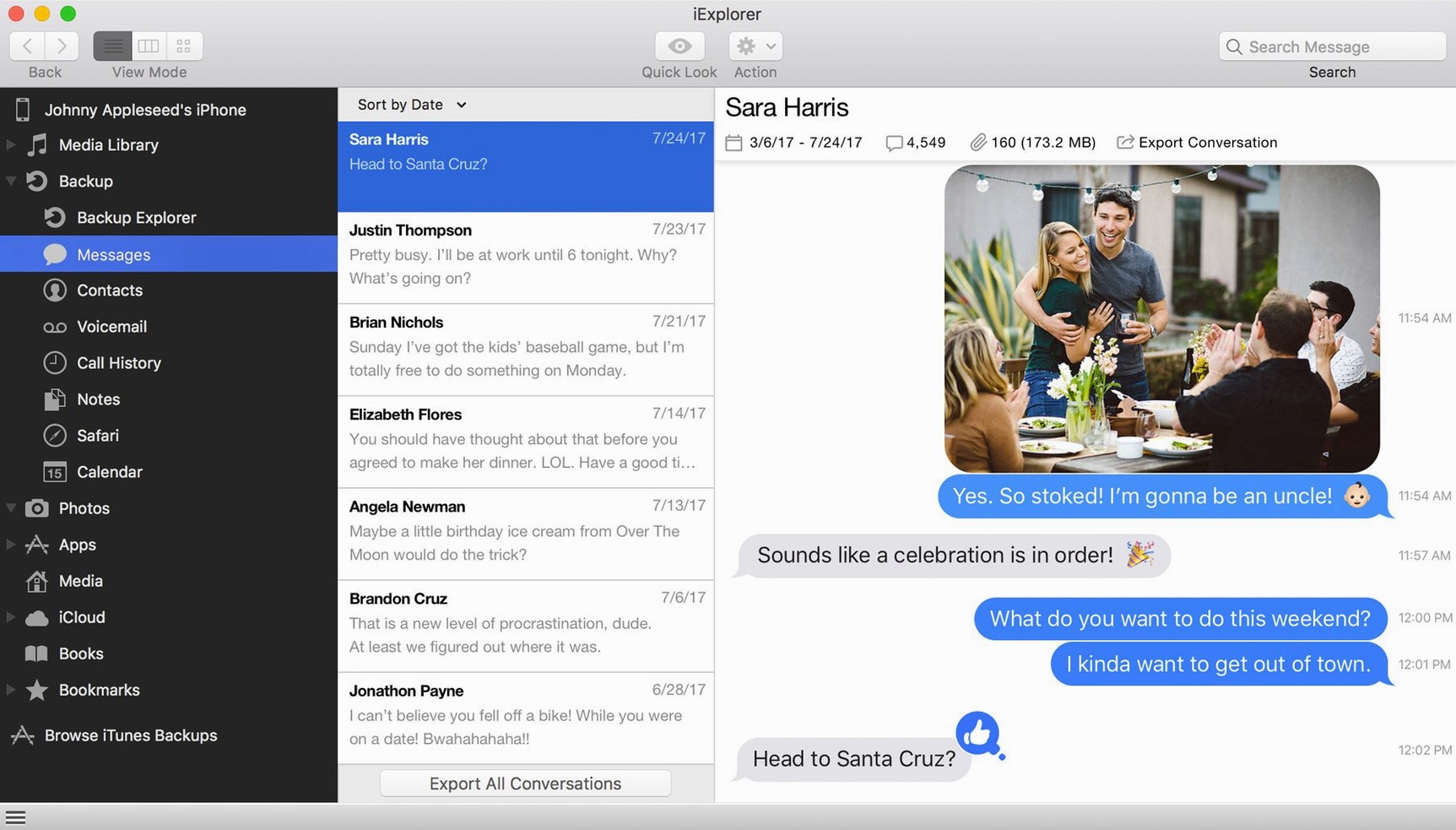
The backup viewer in iExplorer lets you open archives stored on your Mac and pull out individual messages, notes, or call logs without restoring the whole device. That alone saves time when you only need one contact or a single text thread.
Browse app data directly
You can dig into app containers and grab files, documents, and icons that iOS normally keeps hidden. Handy when you want to save a game save or extract a PDF from a notes app without syncing.
Add files without iTunes
Drop music, photos, or documents onto the device straight from the desktop. No library sync, no conversion — just drag and release.
Transfer messages and contacts
Export text messages, contacts, and notes to CSV, PDF, or plain text. Useful for archiving or moving data to a new phone without involving a cloud service.
A practical workflow: move photos from an iPhone to a Mac folder
Say you have a folder of screenshots and camera shots you want off the phone and into a project folder on your Mac. Here is how iExplorer handles it from start to finish.
- Connect the iPhone or iPad via USB and launch iExplorer. The device appears in the sidebar with its name and storage info.
- Click the device to see the top-level categories: Photos, Music, Messages, Backups, and App Data.
- Select Photos. iExplorer shows all albums including Camera Roll, Photo Stream, and any third-party app folders. You can browse thumbnails before transferring.
- Pick the album that holds the shots you need. Tick the ones you want — or select all with a single click — then click the export button.
- Choose a destination on your Mac. The files copy over as JPEG or PNG, keeping original filenames and dates. No resizing, no renaming.
- Once the transfer finishes, the photos sit in the folder you picked. You can close iExplorer and work with them in Finder or any editor.
The same steps work for voice memos, downloaded documents, or any file that lives in the device storage. No intermediate sync library needed.
Cables that charge but don't transfer data
Most problems with iExplorer come down to connection or permission issues. Here are the ones I see most often and what fixes them.
- Device not showing up. Check the cable first. Some third-party cables charge but don't carry data. Also make sure iTunes is installed and running — iExplorer relies on its drivers. If the device still doesn't appear, unplug and plug it back in, then unlock the screen and tap "Trust This Computer" if prompted.
- Transfer stops halfway. Large files or many small files can stall. Try transferring albums in batches rather than all at once. If it keeps hanging, restart iExplorer and reconnect the device.
- Backup export produces empty files. This usually means the backup is encrypted with a password that iExplorer cannot read. Open iTunes, go to device settings, and turn off encrypted backups, then create a new unencrypted backup before using iExplorer to browse it.
- App Data folder shows nothing. Some apps lock their containers. iExplorer can only show what iOS permits. If a folder looks empty, the app likely uses encrypted storage. Nothing to do there except use the app's own export feature.
- iCloud content not loading. iExplorer can access iCloud storage, but it needs you to sign in with your Apple ID inside the app. If it shows an error, double-check the credentials and that two-factor authentication allows app access.
Direct file-browser for those who skip iTunes
iExplorer suits a few types of Mac users, and not everyone needs every feature.
Anyone who avoids iTunes. If you find the sync process slow or confusing, iExplorer gives you a direct file-browser view of the device. You grab what you need and leave the rest.
People switching phones. Moving contacts, messages, and notes to a new device or to a backup file is straightforward. Export to a format you can import elsewhere without cloud dependency.
Users who manage multiple devices. If you handle an iPhone for work and a personal iPad, being able to browse each one as a disk and pull files individually saves the hassle of maintaining separate sync libraries.
Those who need app-level file access. Game saves, downloaded PDFs, app-specific documents — if you ever wondered where that file went on the phone, iExplorer lets you find and extract it.
Backup hoarders. The backup viewer alone makes it worthwhile if you keep old device archives and occasionally need a single message or photo from months ago. No need to restore a whole backup to get one item.
For anyone else — people happy with iTunes and iCloud, or those who rarely move data off the device — iExplorer is a nice tool but not essential. For the scenarios above, it fills a gap that Apple's own tools leave open.
- iOS 16 compatibility improvement
- macOS 10.10 or later
- Intel 64-bit processor
- iTunes installed
Kit check at a glance
| System | OS X 10.10 or later |
| Chip | Intel 64-bit |
| Download | 30 MB |








Chat from the booth
Sign in or grab a free account to leave a comment.
Nobody has said a word in the booth yet. If you played a set with this build, tell the next person how it went.