

- Build in the crate
- 2.0.4
- Made by the team at
- Haptyk
- Menu languages offered
- English
- How you pay for it
- Not required
- macOS it plays on
- macOS 13 or later
- CPU it runs on
- Apple Silicon, Intel 64-bit
Screenshots
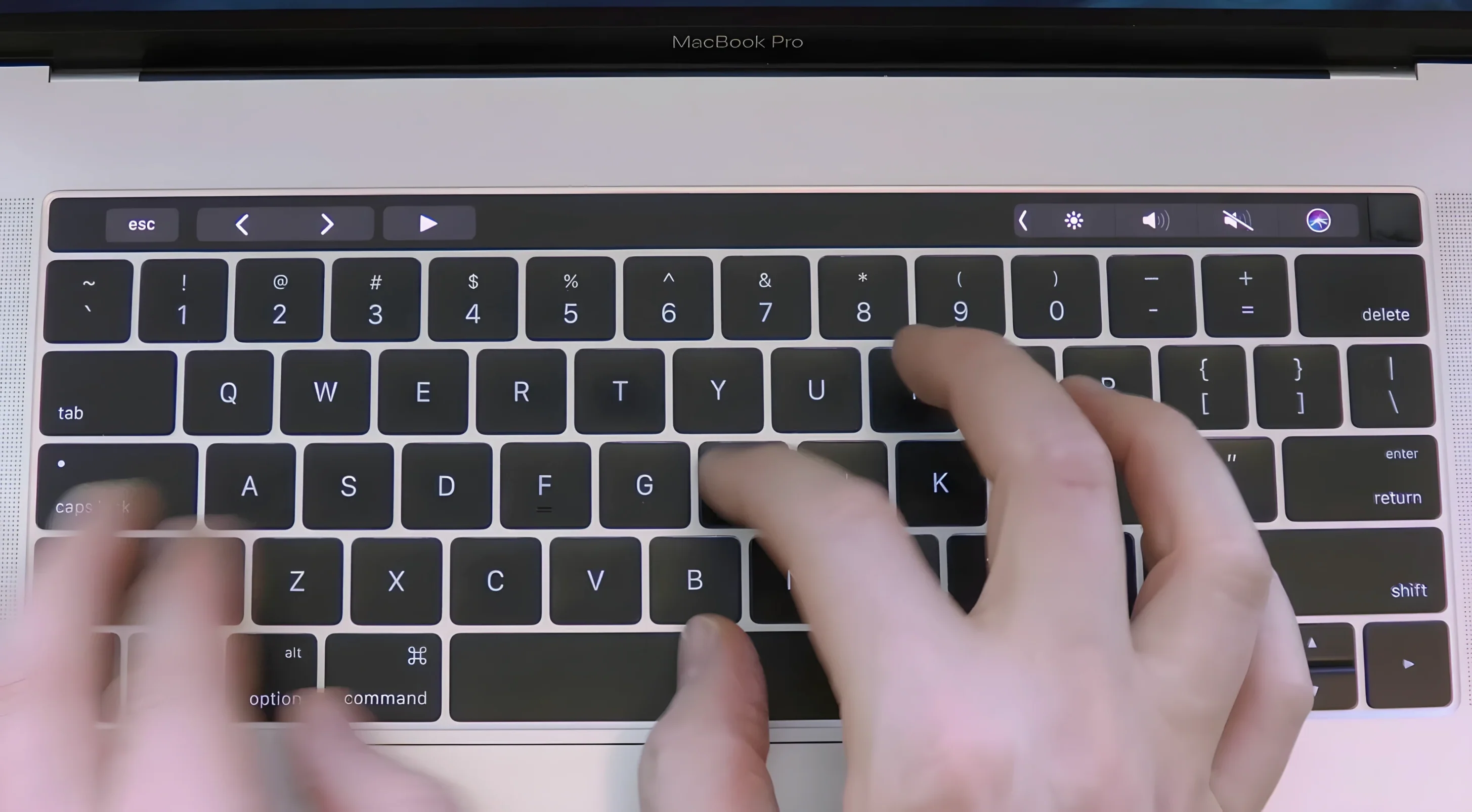
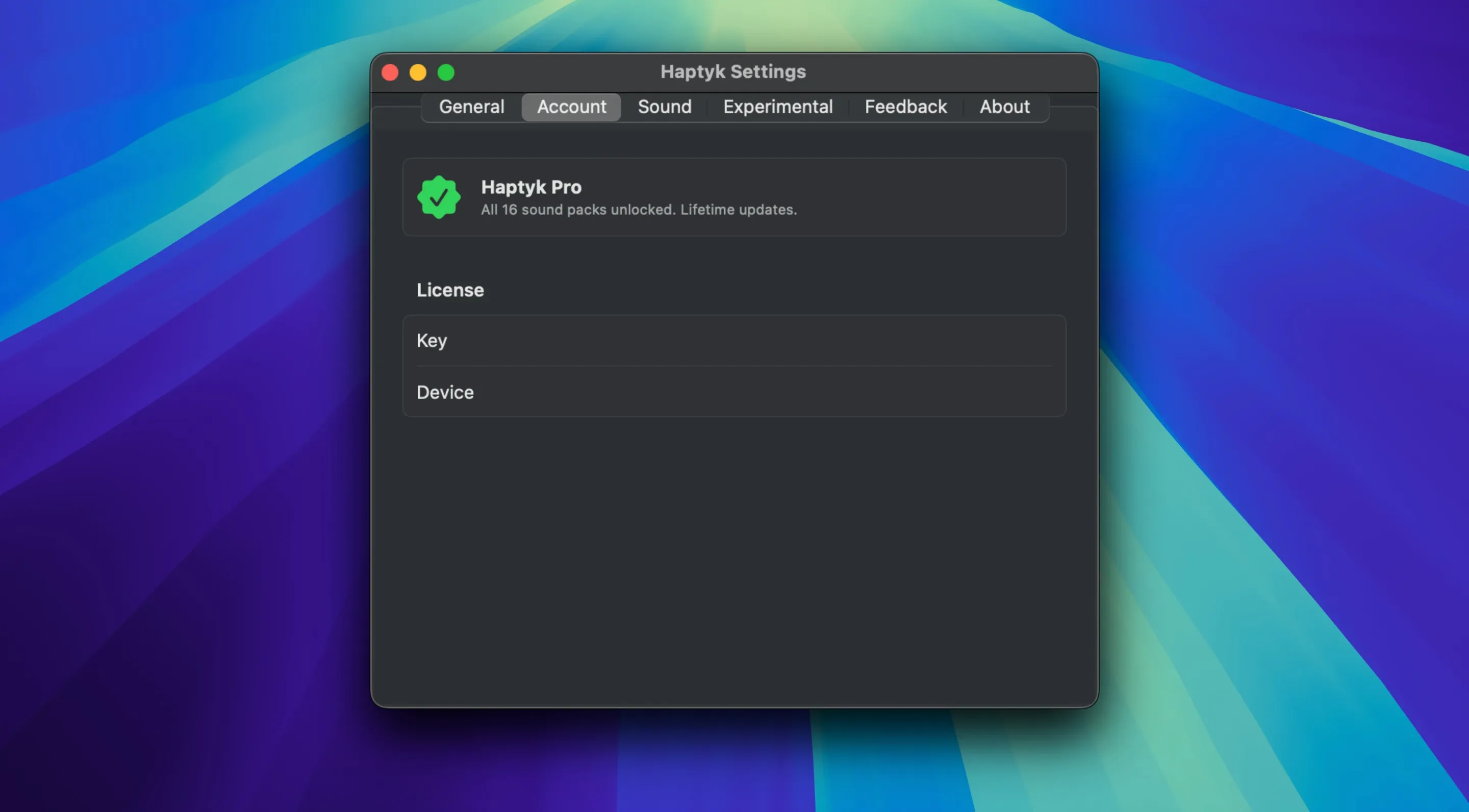
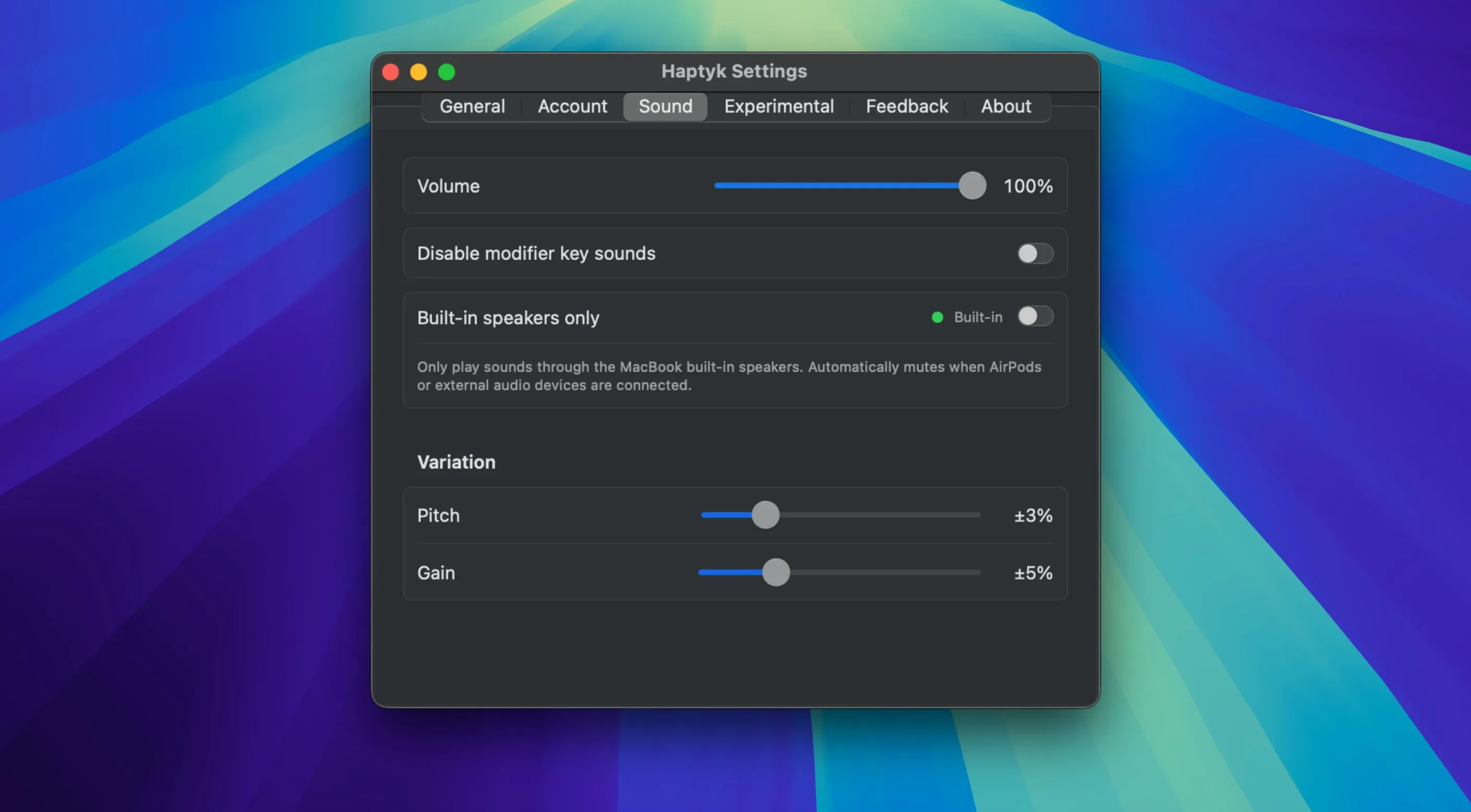
Haptyk is a Mac app that plays typing sounds based on how hard you press each key on the built-in MacBook keyboard.
Before you grab it, make sure your machine fits. The app uses the hidden accelerometer inside Apple Silicon MacBooks to detect typing force. That means the M1 MacBook Air and 13-inch M1 MacBook Pro are out – they lack the sensor. You’ll also need macOS 13 Ventura or newer.
Once it’s running, Haptyk adds sound to each keystroke, and the volume follows your touch. Press harder, hear a louder thock. Type lightly, get a softer tick. It’s a simple way to make your typing feel more alive, whether you’re writing notes or just want some feedback while you work.
For anyone who wants more feedback from a modern MacBook keyboard
This app is made for a specific crowd: anyone who spends hours typing on a modern MacBook keyboard and wishes it gave more back. The butterfly-to-scissor-switch transition made the keys quieter, but also less expressive. Haptyk puts some of that personality into the sound alone.
If you write code all day, the auditory feedback can help you feel the rhythm of your typing without looking at the screen. Writers and journalists who draft long pieces get a similar benefit – the sound becomes a subtle cue that you're making progress, even when you're deep in a rewrite. Students taking lecture notes on a MacBook Air will find the variable volume helpful: light taps for quiet moments, firmer presses when the professor says something worth marking.
People who miss the feel of a mechanical keyboard but don't want to carry a separate board will appreciate what Haptyk does with the built-in keys. It's not the same as real switches, but the sound adds a layer of feedback that the silent keyboard doesn't offer. And because it's just a Mac app, you don't need extra gear.
One group that gets a lot out of Haptyk is remote workers in shared spaces. The sound can be set low enough to give you feedback without annoying the person on the other end of a video call. It's also handy for anyone who types with varied force naturally – the app rewards that variation by making each keystroke sound different.
First check your MacBook model if you hear no sound at all
Most issues come down to a few things. Here are the ones people tend to hit first.
- No sound at all. Check that your MacBook model is supported. Haptyk needs an M2 Pro or later chip with the right accelerometer. If you're on an M1 Air or 13-inch M1 Pro, it won't work. Also make sure the app is running and not hidden in the background.
- Sound doesn't change with force. The accelerometer needs a flat surface to detect keystroke force properly. If your MacBook is on a soft surface like a duvet or your lap, the sensor might not pick up the difference between light and hard presses. Put it on a desk or a hard table.
- Sound is too quiet or too loud. Adjust your Mac's system volume first, then check if Haptyk has its own output level (if the app includes a slider). If you're using headphones, the perceived volume may differ from the built-in speakers.
- The app doesn't launch. Make sure you dragged it to the Applications folder and not just run it from the disk image. macOS sometimes blocks apps opened directly from a mounted volume. Launch it from Launchpad or the Applications folder after copying.
- Sound cuts out or lags. Close other apps that might be using audio or system resources heavily. Haptyk is lightweight, but if your Mac is under load from video rendering or large file transfers, audio can stutter.
Start with the sound profile before you settle in to type
Before you settle into typing, take a minute to adjust a few things. The default settings are fine for a quick test, but a little tweaking makes the experience much better.
Start with the sound profile. Haptyk comes with a handful of keyboard sound sets. Try a few – the difference between a sharp click and a deeper thock changes how the whole keyboard feels. Pick one that matches the kind of work you do. For quiet environments, a softer set works. For personal use, the louder mechanical-style sounds are more satisfying.
Next, check the force sensitivity. This is the core of the app. If you type lightly, lower the threshold so that even gentle presses produce sound. If you hammer the keys, raise it so you only hear feedback on deliberate presses. The right setting stops the sound from feeling too busy or too sparse.
Finally, decide whether you want the app to start automatically when you log in. If you use Haptyk every day, adding it to your login items saves you from remembering to launch it. If you only want it for certain sessions, leave it off and start it manually.
These three adjustments – sound set, sensitivity, and auto-launch – take about two minutes to dial in and make the difference between a novelty and something you'll keep using.
- macOS 13 Ventura or later
- Apple Silicon MacBook with M2 Pro or later
- English interface
Kit check at a glance
| System | macOS 13 or later |
| Chip | Apple Silicon, Intel 64-bit |
| Download | 18 MB |
| Older pressings | 3 in the crate |







Chat from the booth
Sign in or grab a free account to leave a comment.
Nobody has said a word in the booth yet. If you played a set with this build, tell the next person how it went.