

- Build in the crate
- 10.15.0
- Made by the team at
- iTubeGo
- Menu languages offered
- Russian, English, German, Vietnamese, Indonesian, Spanish, Italian, Chinese (Traditional), Chinese (Simplified), Korean, Portuguese, French, Japanese
- How you pay for it
- K'ed by TNT team
- macOS it plays on
- OS X 10.10 or later
- CPU it runs on
- Intel 64-bit
Screenshots
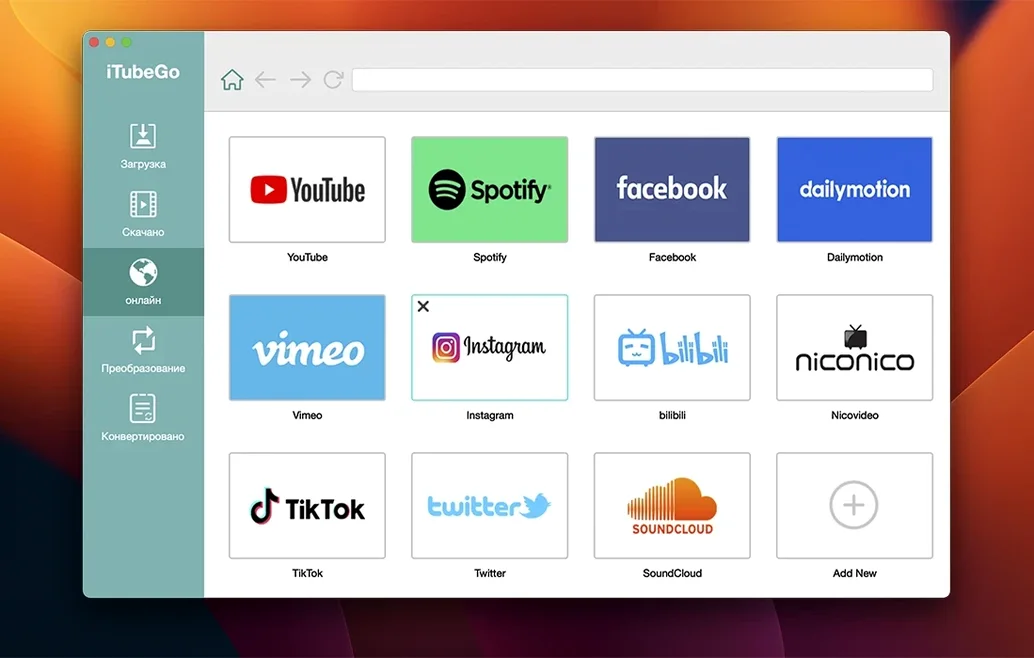
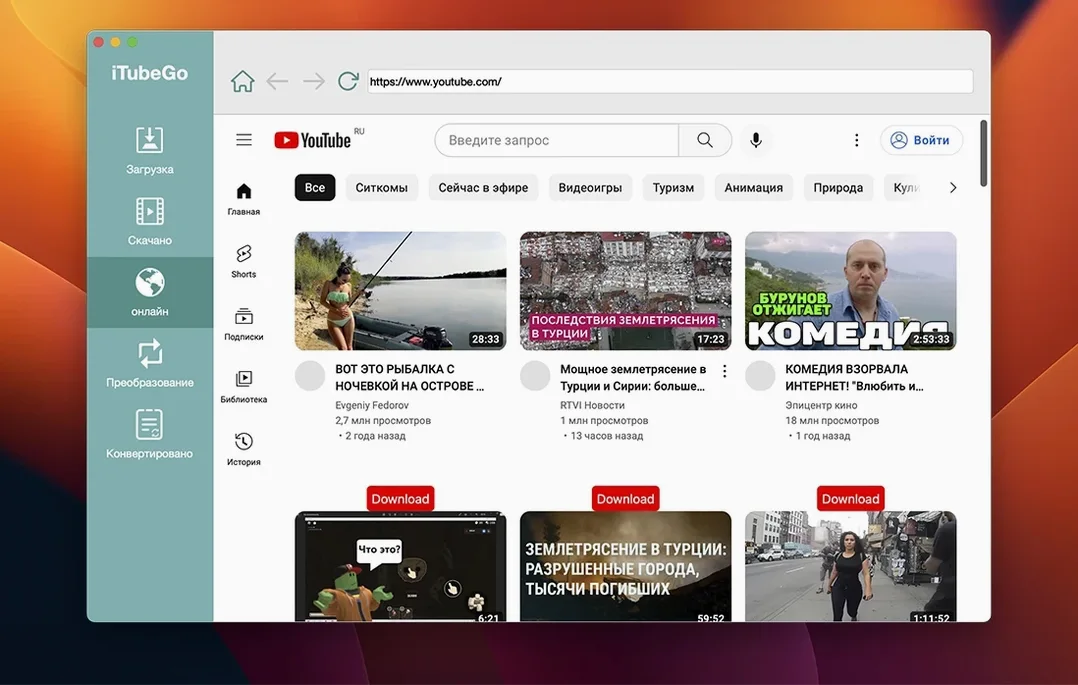
Version 10.15.0 of iTubeGo keeps the same job it has always had: pulling video and audio from the web and turning it into files you can keep.
iTubeGo YouTube downloader — downloads videos from YouTube and a dozen other sites, including Facebook, Instagram, Dailymotion, Vimeo, TikTok, and a few adult platforms. Quality goes from 480p up to Full HD, 4K, and 8K, depending on what the source offers.
Audio converter — extracts the soundtrack from a video and saves it as MP3 at up to 320 kbps. Handy for podcast clips or a track you want on your phone without the video file.
Who is it for? Anyone who keeps a local library of music or video and prefers a desktop tool over a browser. It runs on Intel Macs with macOS 10.10 or later, so older machines are covered.
First things after installation
Once iTubeGo is in your Applications folder and running, take a minute to set the output folder. The app defaults to a generic download directory, but you will save time later if you point it to a dedicated music or video folder from the start. Open the preferences and pick a location you actually use.
Next, try a single download before queuing a batch. Paste a YouTube link into the built-in browser, pick a quality like 1080p, and let the file finish. This confirms everything works — your permissions, your internet connection, the file format you chose. It is also a good moment to check the audio-only option. A quick MP3 extraction at 320 kbps from a music video shows you how the converter behaves.
For music collectors and DJs
iTubeGo fits best with two kinds of Mac users.
Music collectors who still buy CDs or rip vinyl and want digital backup copies from streaming platforms. A DJ or radio producer might grab dozens of tracks a week for reference or sample hunting, and the bulk download mode at up to 10x speed spares them waiting through each video. Similarly, anyone running a podcast needs clean audio extraction from interview clips or archival footage — iTubeGo handles that in one step without re-encoding software.
Offline video viewers with limited or unreliable internet. If you travel often or work in a place with data caps, downloading videos at 720p or 1080p during off-peak hours means you can watch later without buffering. The 4K and 8K options matter less for offline viewing on a laptop screen, but they are there when you want the best quality for an editing project or a presentation.
Avoid region-blocked video errors
The first one is trying to download a video that is blocked in your region. iTubeGo relies on the source URL being accessible from your network. If a video plays fine in your browser but the app shows an error, check whether the site is geo-restricted or requires a login. The built-in browser mimics a standard web session, but it does not bypass regional blocks.
Another mistake is selecting a quality higher than the source offers. The app lists every resolution the platform reports, but for an old upload that maxes out at 720p, picking 4K will just stall the download. Choose a format you know the video supports, or let the app pick the best available quality automatically.
Beginners also forget to check the file format before converting. If you extract audio and end up with an MP4 file, you missed the dropdown that switches from video to MP3. A quick look at the format selector before clicking download saves a second pass through the converter.
Real-world scenario: a radio producer
Lucía runs a small community radio station from her MacBook. Every week she needs music beds, interview clips, and ambient sounds from YouTube and SoundCloud. Before iTubeGo she used browser extensions that broke after every update or converted files in a separate app, doubling the time per clip.
Now she opens iTubeGo, pastes four or five URLs into the queue, sets the output to MP3 at 320 kbps, and lets the batch run while she edits the podcast intro in her DAW. The built-in browser means she can search for tracks inside the app without switching windows. When a guest sends a link to a Vimeo talk, she adds it to the queue in the same format. The whole grab-and-convert process takes about as long as the source videos themselves — no waiting for re-encoding, no format errors. The files land in a folder named by date and show, ready to drop into the broadcast timeline.
For someone like Lucía, iTubeGo is not a novelty. It is the tool that replaces three separate workflows with one. And on a Mac that is a few years old, it runs without demanding system resources she would rather spend on audio processing.
- macOS 10.10 or later
- Intel x86 64-bit processor
Kit check at a glance
| System | OS X 10.10 or later |
| Chip | Intel 64-bit |
| Download | 115 MB |
| Older pressings | 2 in the crate |






Chat from the booth
Sign in or grab a free account to leave a comment.
Nobody has said a word in the booth yet. If you played a set with this build, tell the next person how it went.