
- Build in the crate
- 2.10.2
- Made by the team at
- MacPaw
- Menu languages offered
- Russian, English, German, Spanish, Italian, Chinese (Simplified), Dutch, Polish, Portuguese, Ukrainian, French, Japanese
- How you pay for it
- K'ed by TNT team
- macOS it plays on
- macOS 10.13 or later
- CPU it runs on
- Intel 64-bit
Screenshots
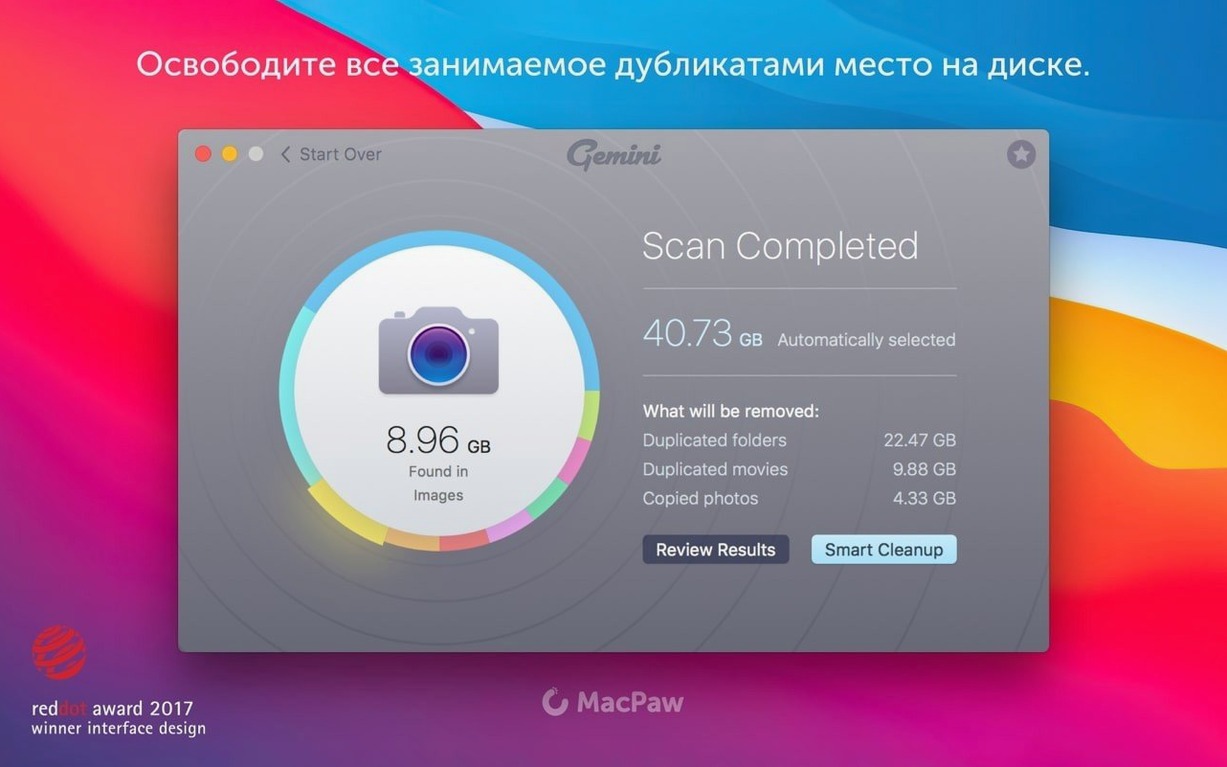
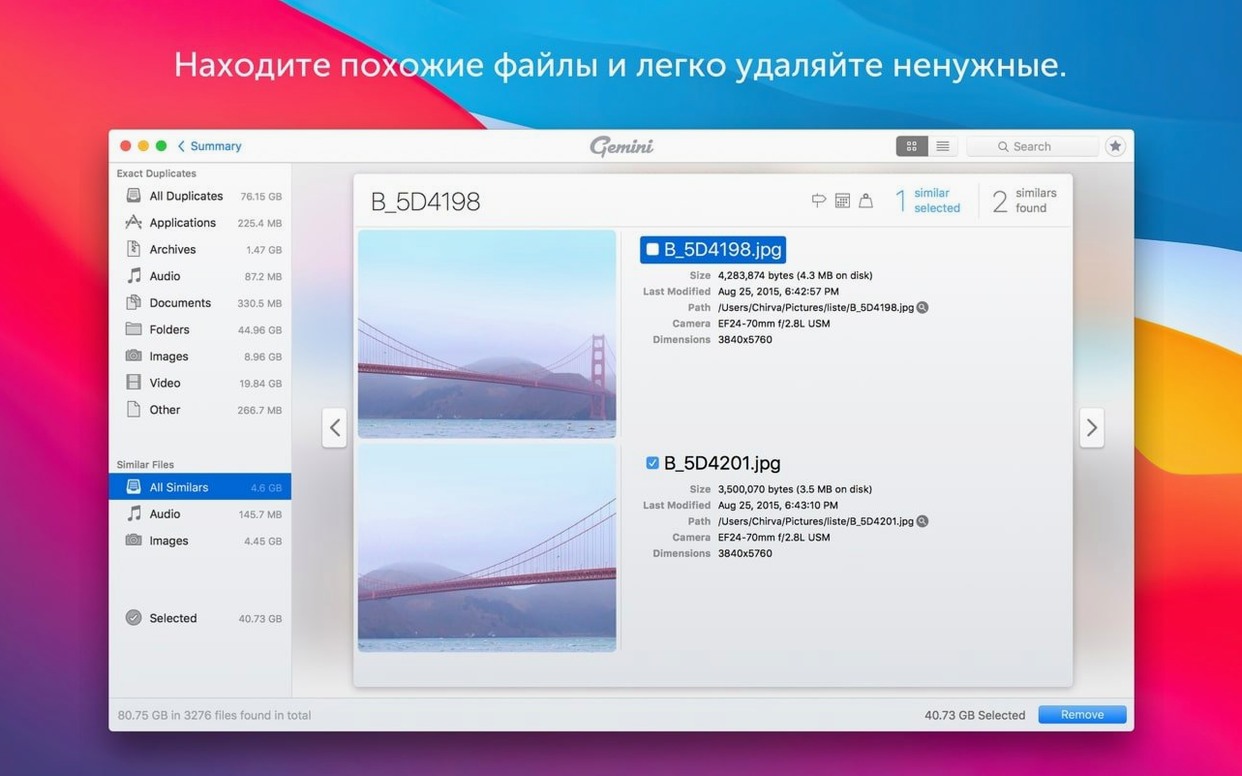
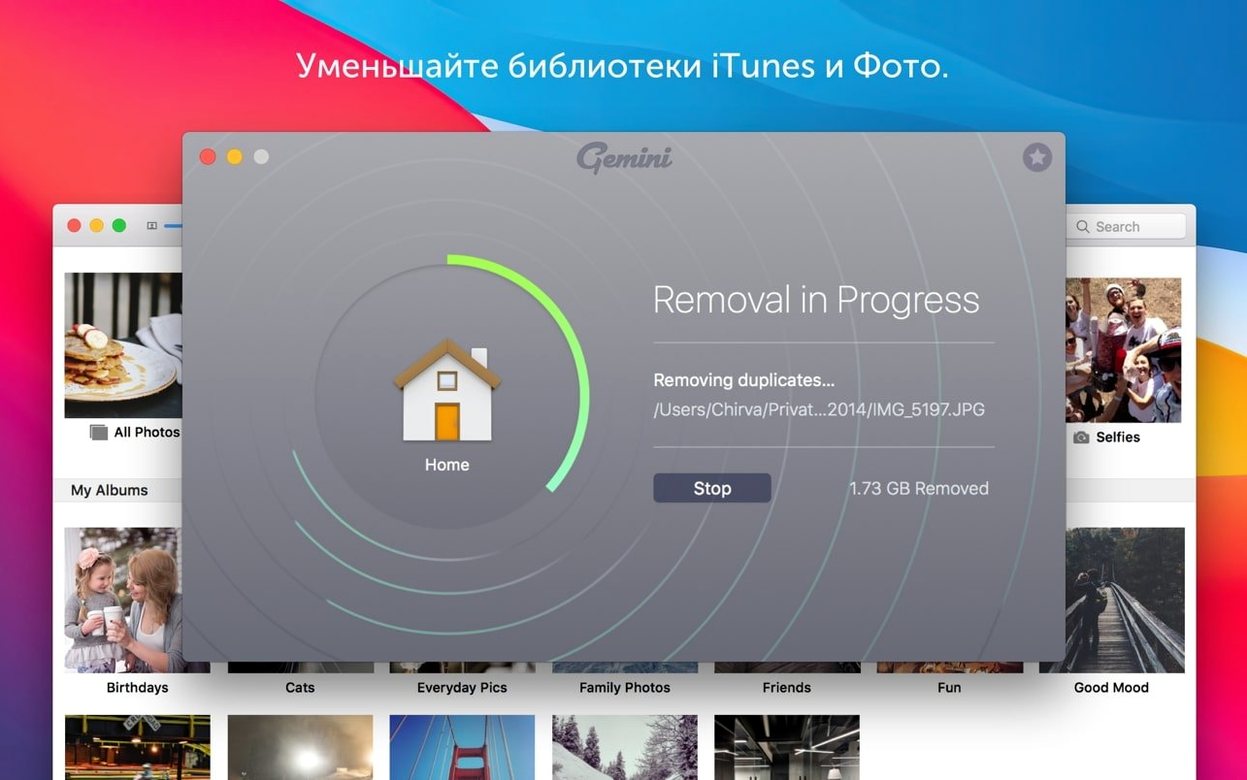
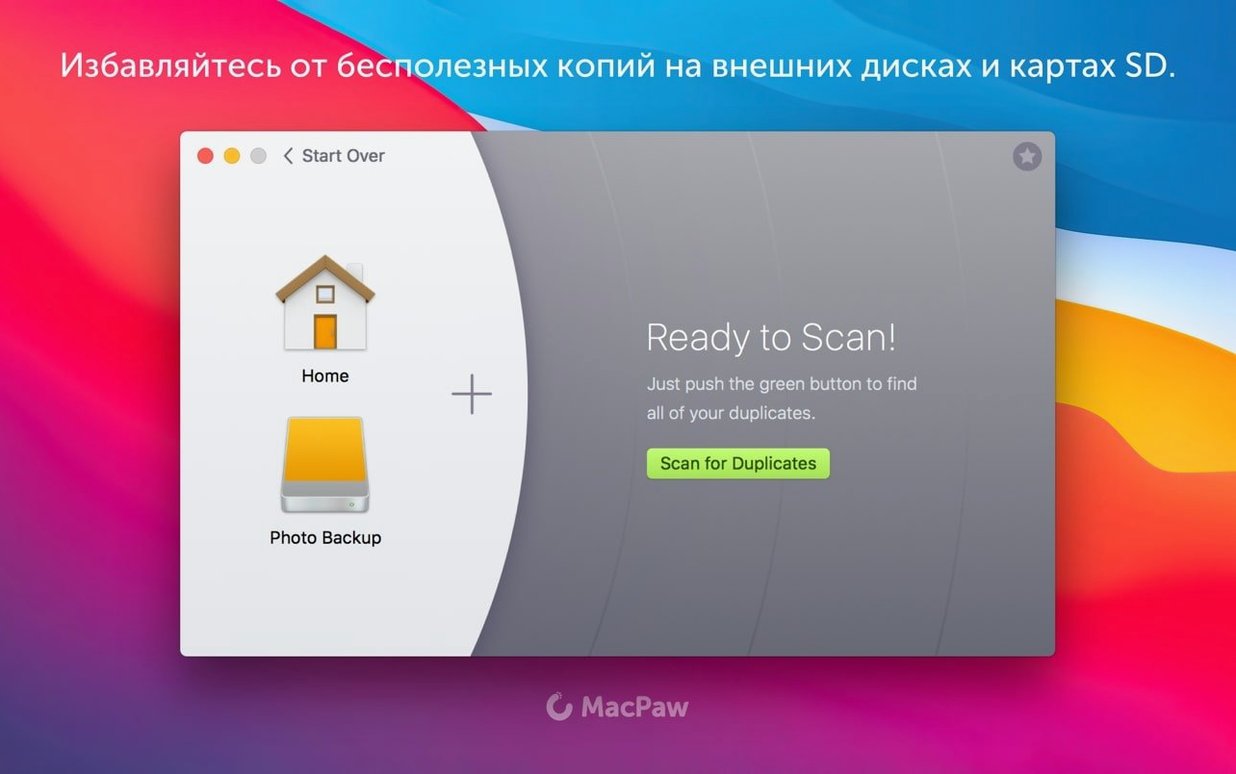
You are staring at a hard drive full of duplicate photos, old iTunes backups, and stray files you forgot about. Gemini 2 is the tool that digs through it all — your main drive, Photos, iTunes, or any folder — and shows you what can go.
Smart Select and Recently Deleted explained
- Smart Select — watches which files you delete and reuses those patterns in future scans, so you spend less time clicking.
- Recently Deleted — a holding area for removed files, in case you realise you need one back.
- Group and move — select duplicates as a group, then move them to the Trash or to another folder in one go.
How the scan works
Gemini 2 looks for both exact duplicates and similar files — think similar photo bursts or renamed copies. It searches your whole Mac or just specific folders, and its learning engine means every cleanup gets a little faster. The app runs on macOS 10.13 or later on Intel Macs.
Starting when storage warning pops up
I usually start Gemini 2 when the Mac’s storage warning pops up. First, I pick what to scan — the whole system, or just a few folders. For a quick clean, I often point it at my Downloads folder and Desktop, where duplicates pile up fast. The scan runs in the background while I keep working on music in Ableton Live, and it finishes in a reasonable time without slowing things down.
Once the results appear, Gemini 2 groups duplicates and similar files together. I glance at the preview to make sure I’m not deleting the wrong version — especially for audio samples where file names can be nearly identical. Smart Select has already ticked the ones it thinks are safe, so I mostly just confirm its choices. Then I hit the clean button, and the files go to the Recently Deleted area.
After that, I check the Recently Deleted folder in case something important got swept up. I empty it only when I’m sure. The whole process takes maybe ten minutes, and I usually free up several gigabytes without much thought.
Real-world scenario: a music producer’s duplicate mess
Imagine a producer who collects drum kits and synth presets from every free sample pack online. Over a year, the same kick drum sample ends up in three different folders: one in a “Dubstep Essentials” pack, one in a “Trap Tools” bundle, and one renamed as “Kick_heavy.wav” in a personal library.
Gemini 2 handles this well. The producer runs a scan on the entire Samples folder, and the app finds all three copies — even the renamed one, because it compares file content, not just names. Smart Select marks two of them for deletion, leaving the original in the personal library. The producer can also check the “similar files” section for near-identical loops that differ only by a few milliseconds. In one session, they reclaim over 2 GB of disk space, which means more room for new projects.
Fix: Gatekeeper blocks the app
- Gemini 2 doesn’t open after installation — This usually happens if Gatekeeper blocks it. Mount the disk image, open the app once while holding Control and clicking “Open”, then drag it to Applications. If it still won’t launch, run the terminal command from the install steps to bypass Gatekeeper.
- Scan finishes but shows no duplicates — Check that you’re scanning a folder with actual copies. If you only scanned the Applications folder, there won’t be many duplicates. Try the whole system or a folder you know has repeated files, like Pictures or Music.
- Smart Select doesn’t learn my preferences — The learning feature works after you’ve manually approved or rejected a few groups. If you always click “Select All” without reviewing, it has less data to learn from. Take a moment to uncheck files you want to keep, and it will adapt over time.
- Recently Deleted files won’t restore — Make sure you haven’t emptied the Recently Deleted folder. If you have, the files are gone for good. To avoid this, always double-check before emptying it.
- Gemini 2 says it’s not compatible with your macOS version — The app requires macOS 10.13 or later on Intel Macs. If you’re on an older system, you’ll need the earlier version (2.9.8) which supports 10.10 through 10.12. Check the developer’s support page for the right build.
Most of these snags come from skipping the install steps or rushing through the scan setup. A bit of patience with the initial setup saves time later.
- macOS 10.13 High Sierra or later
- Intel Mac (64-bit)
Kit check at a glance
| System | macOS 10.13 or later |
| Chip | Intel 64-bit |
| Download | 47 MB |
| Older pressings | 3 in the crate |





Chat from the booth
Sign in or grab a free account to leave a comment.
Nobody has said a word in the booth yet. If you played a set with this build, tell the next person how it went.