

- Build in the crate
- 7.0.0 [MAS]
- Made by the team at
- Sascha Simon
- Menu languages offered
- Russian, English, German, Spanish, Italian, Chinese (Simplified), Korean, Polish, French
- How you pay for it
- K'ed by TNT team
- macOS it plays on
- macOS 15.6 or later
- CPU it runs on
- Apple Silicon, Intel 64-bit
Screenshots
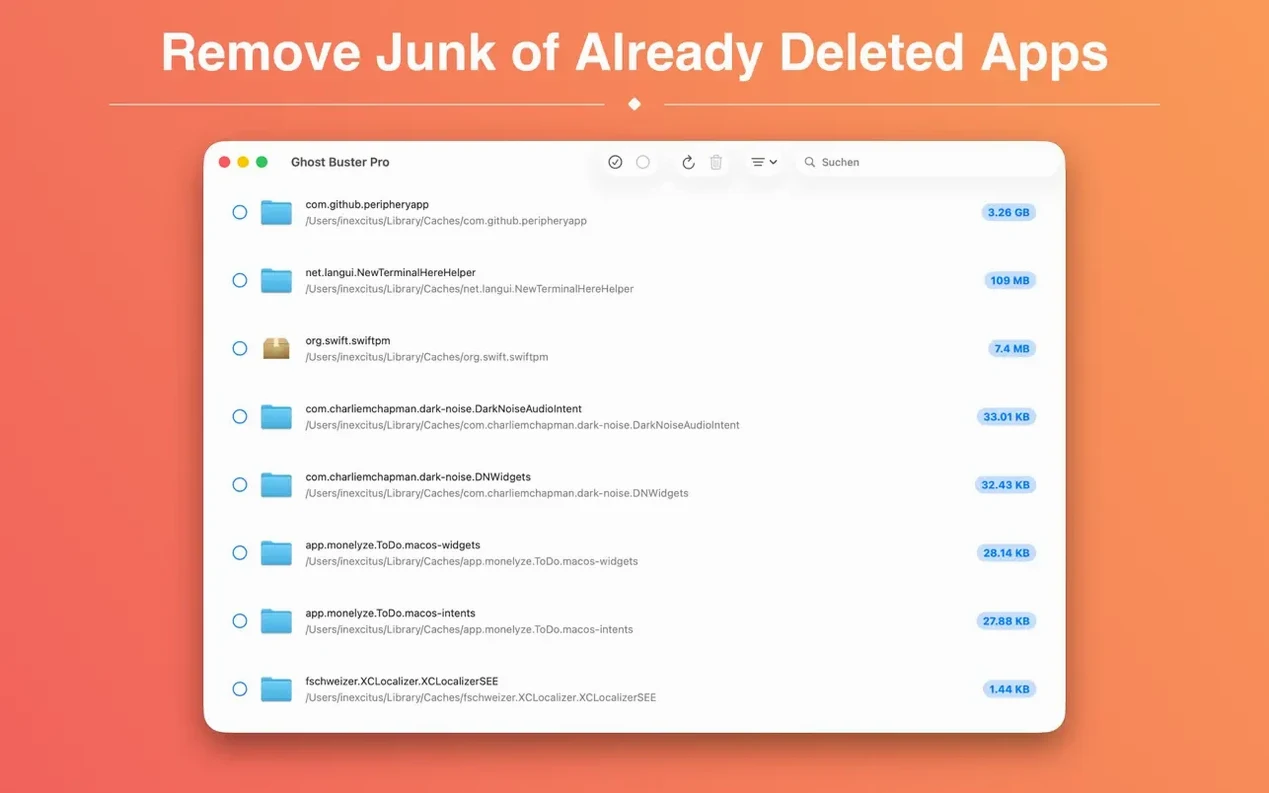
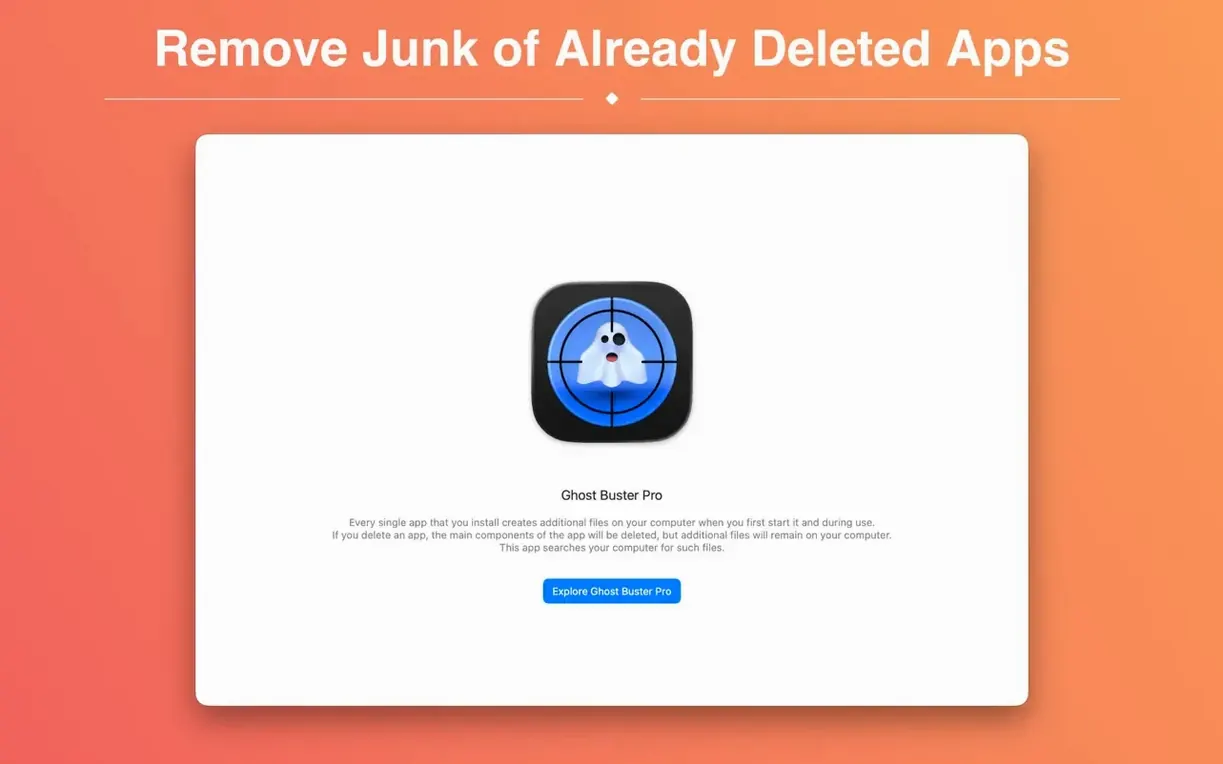
Cleaner scans the deepest corners of your system. Ghost Buster Pro doesn't just spot the obvious app folders — it hunts down the support files, preferences, and caches that other uninstallers leave behind.
Support files and preferences left behind
Support files — Libraries and data that an app stored outside its main folder. Ghost Buster finds those after you've removed the app.
Preferences — .plist files and configs that remember your settings. They stay on disk long after the app is gone. Ghost Buster Pro flags them for removal.
Caches — Temporary data that apps generate. Many uninstallers ignore these. Ghost Buster Pro scans for them separately.
One-click deletion — Once Ghost Buster Pro lists the leftovers, you can delete everything with a single click. No need to dig through Finder.
Read-only scan for deleted apps only
Will it delete files I still need? Ghost Buster Pro only shows leftovers from apps that are already gone. It doesn't touch anything belonging to apps still on your Mac. The scan is read-only until you choose to delete — nothing gets removed without you clicking the button.
Ghost Buster Pro catches those the same way it catches apps you installed from a DMG or a zip.
Can it interfere with other cleanup tools? No. Ghost Buster Pro only handles orphaned files from removed apps. It doesn't manage system caches, logs, or temporary internet files — so there's no overlap with utilities like Onyx or CleanMyMac.
How often should I run it? After every uninstall, ideally. The longer you wait, the more junk accumulates. Running it once a month is a decent habit if you install and remove apps regularly.
Scan starts as soon as you open it
You drag an app to the Trash. The app goes, but you know its files are still scattered around. That's when Ghost Buster Pro comes in.
Open the app. It starts scanning immediately — no buttons to press, no setup screens. Within moments, a list appears: support files in ~/Library/Application Support, preferences in ~/Library/Preferences, caches in ~/Library/Caches. Each item shows its size and location.
You glance through the list. You recognise the names. Nothing looks suspicious.
Click the delete button. One click, and Ghost Buster Pro sends all those leftovers to the Trash. No confirmation dialogs for each file, no manual checking. The whole process takes less than a minute.
After deletion, the app shows a clean slate. If you ever need to run it again, it remembers nothing — every scan starts fresh.
Set your language before scanning
Ghost Buster Pro doesn't have a complicated preferences panel. The main setting to check is the language — it ships with nine languages, and the default might not be yours. Switch it before your first scan if needed.
Other than that, there isn't much to configure. The app is designed to work out of the box: scan, review, delete. If you prefer to see more detail about each file, keep the list view expanded. If you trust the results and want to move fast, just hit delete.
For users who regularly clean multiple machines, the one-click approach saves real time. No hunting through Library folders, no comparing file dates. Ghost Buster Pro does the hunting for you.
- New app icon for macOS 27.
- macOS 15.6 or later
- Intel or Apple Silicon
- Interface languages: Russian, English, German, Spanish, Italian, Simplified Chinese, Korean, Polish, French
Kit check at a glance
| System | macOS 15.6 or later |
| Chip | Apple Silicon, Intel 64-bit |
| Download | 11 MB |
| Older pressings | 5 in the crate |








Chat from the booth
Sign in or grab a free account to leave a comment.
Nobody has said a word in the booth yet. If you played a set with this build, tell the next person how it went.