

- Build in the crate
- 3.1
- Made by the team at
- Anybox LTD
- Menu languages offered
- Russian, English, German, Arabic, Bulgarian, Hungarian, Vietnamese, Greek, Danish, Hebrew, Indonesian, Spanish, Italian, Chinese (Traditional), Chinese (Simplified), Korean, Malay, Norwegian, Polish, Portuguese, Romanian, Slovak, Thai, Turkish, Ukrainian, Finnish, French, Hindi, Croatian, Czech, Swedish, Japanese
- How you pay for it
- Included
- macOS it plays on
- macOS 13 or later
- CPU it runs on
- Apple Silicon, Intel 64-bit
Screenshots
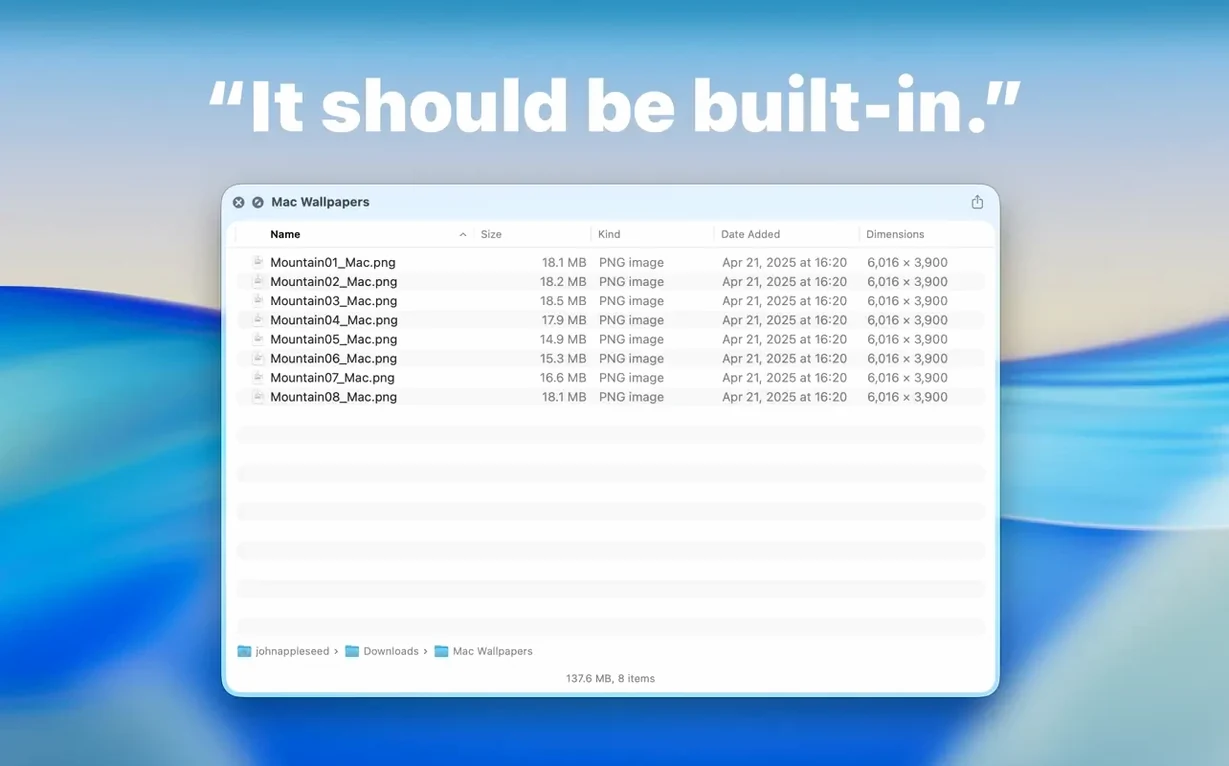
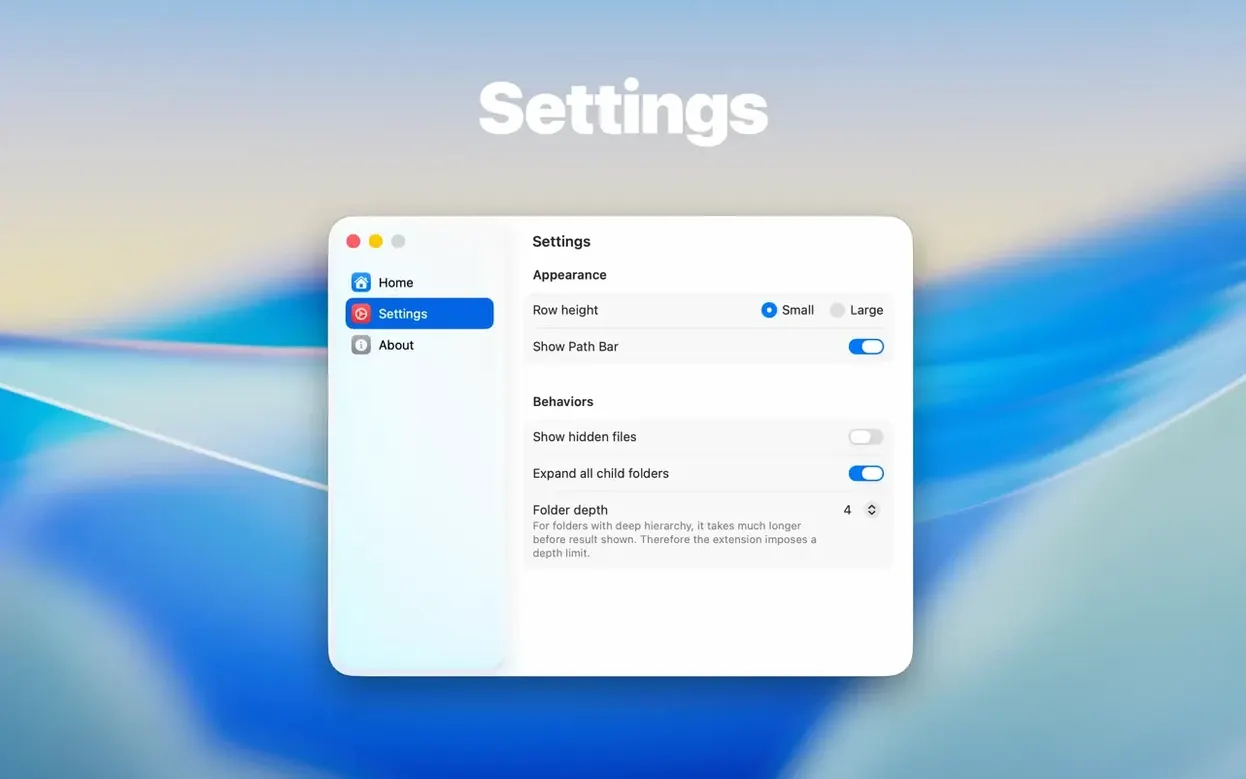
Folder Preview Pro is a Quick Look extension for previewing folder contents in Finder.
Extends Quick Look to folders
If you already use Quick Look for files, this app extends that same Space-bar gesture to folders. You press Space or Command-Y on any folder and see its contents in a preview panel — no need to open a new window or switch apps.
Dual Columns view for deeper browsing
The new Dual Columns view splits the preview into two columns, so you can browse deeper without leaving the preview. A Contents item in the context menu lets you step through folders level by level. You can also drag files straight out of the preview from list and icon views.
What else can it show?
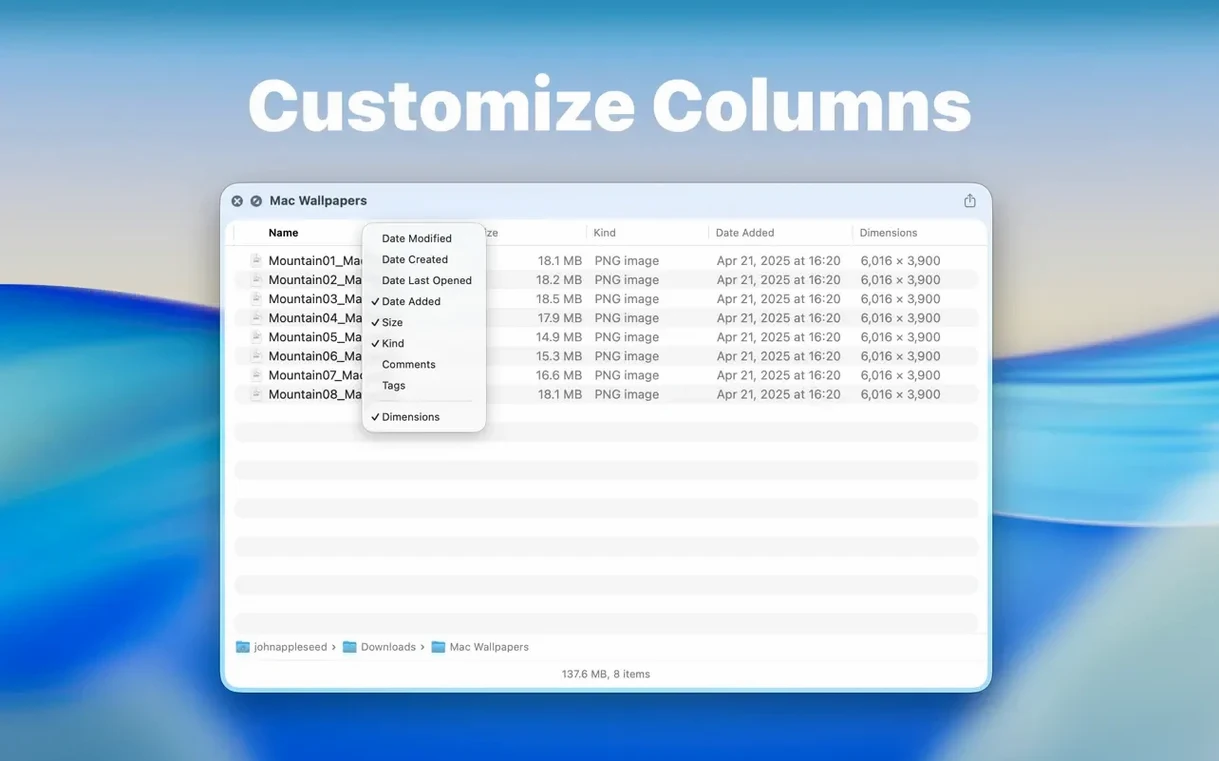
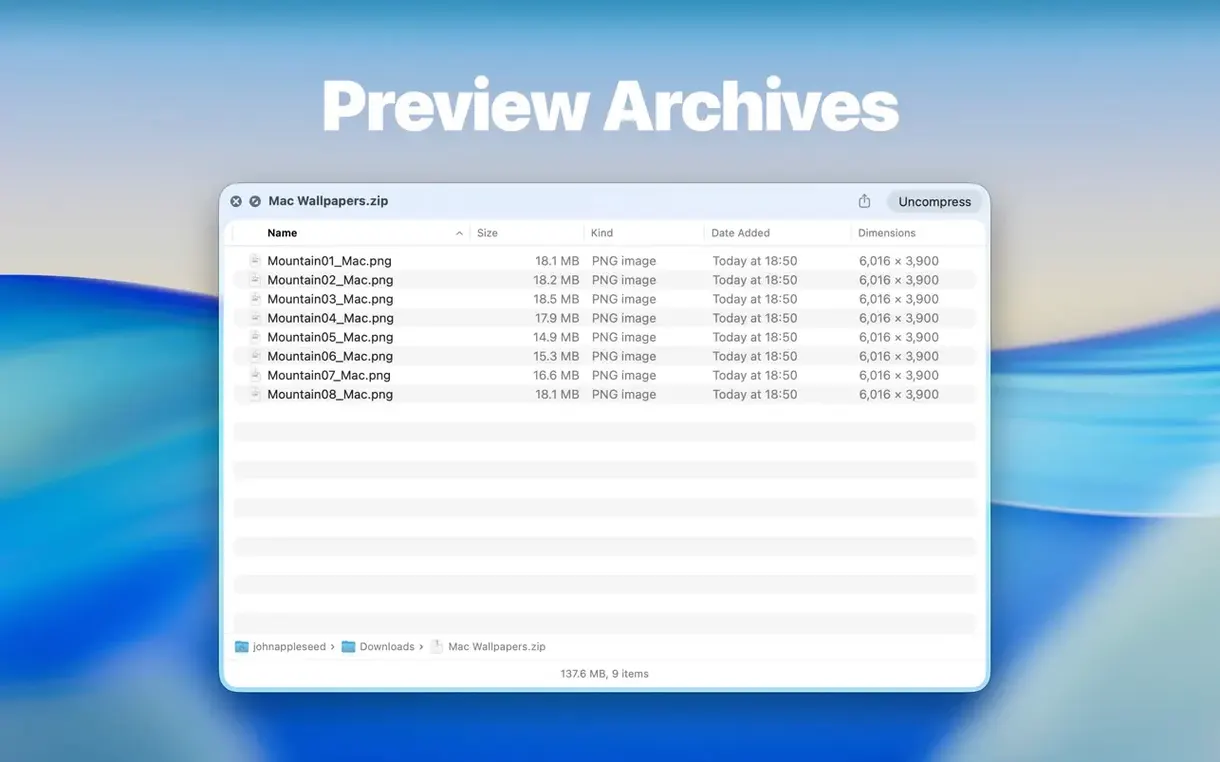
Besides regular folders, it previews archives (ZIP, TAR, GZ, 7Z, RAR) with configurable size limits up to 10 GB. Column headers in the preview are customisable: right-click to show or hide columns.
Which Macs and languages does it support?
It runs on both Apple Silicon and Intel Macs, requires macOS 13 or later, and comes in over 30 languages including English, Spanish, German, French, Japanese, Chinese, and Russian.
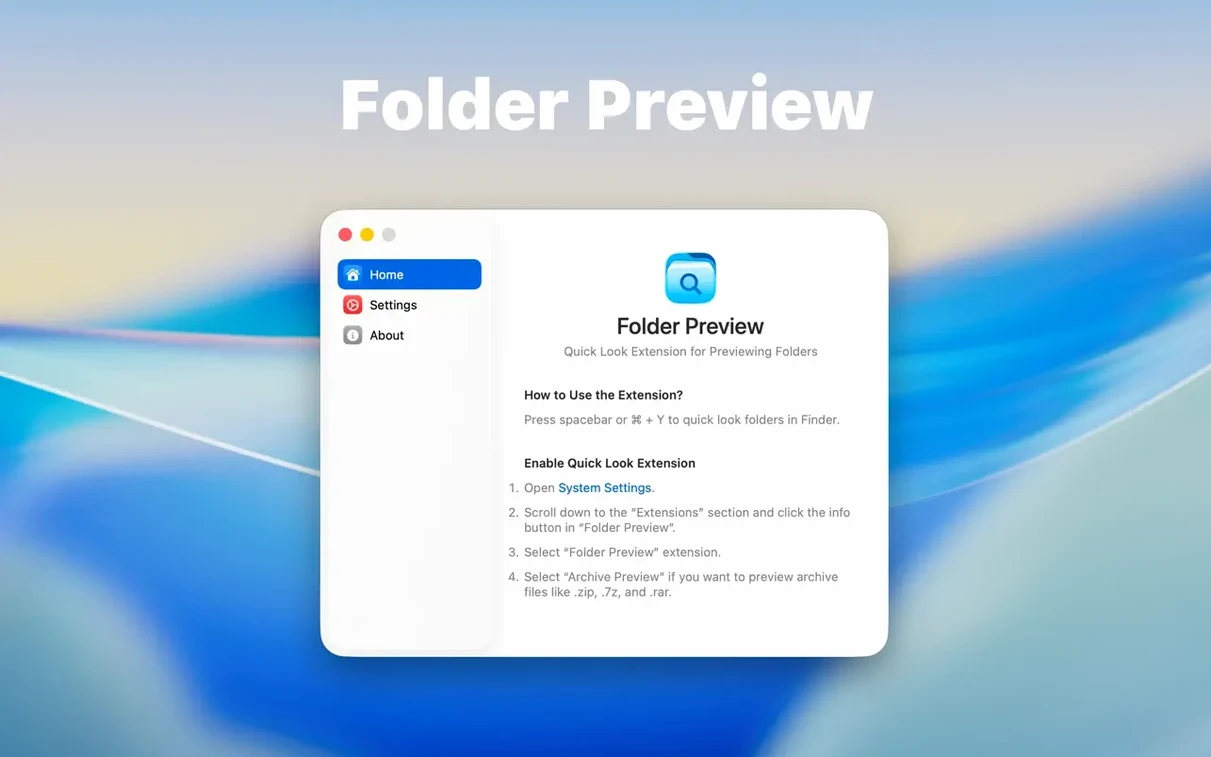
Quick Look must be enabled in System Settings
A few things trip people up in the first few days. Nothing serious, but worth knowing about.
- Quick Look does nothing on folders. This is the most common one. Quick Look must be enabled in System Settings for Folder Preview Pro to work. Head to System Settings > Keyboard > Keyboard Shortcuts > Services and make sure Quick Look is ticked. If it was off, the extension won't show until you restart Finder (hold Option, right-click the Finder icon in the Dock, select Relaunch).
- Archive previews won't open. If you hit a large ZIP or RAR and nothing happens, check the archive size limit. Version 3.1 added options for 5 GB and 10 GB limits. If your file is bigger than the current setting, bump it up in the app's preferences. Also note that password-protected archives won't preview — that's a Quick Look limitation, not the app's.
- Column headers look different than expected. Right-click any column header in the preview to show or hide columns. You might find Date Modified or Size is hidden by default, or you might want to add Kind or Label. It's all there, just needs a right-click to tweak.
- Dragging files out of the preview doesn't work. This only works in list and icon views. If you're in a different view mode, switch to list or icon first, then drag the file to wherever you need it.
Remap your double-click muscle memory
Getting the most out of Folder Preview Pro takes a couple of small habit changes. Here's what I'd suggest doing early on.
- Remap your muscle memory. You're used to double-clicking folders to open them. For the first week, try pressing Space on every folder instead. You'll quickly get a sense of when a quick look is enough and when you actually need the full window. Saves clicks over time.
- Use the Contents item from day one. Right-click a folder and choose Contents from the context menu. This lets you browse into subfolders level by level without leaving the preview. It's faster than opening and closing multiple windows, especially when you're hunting for a specific file buried three folders deep.
- Set archive size limits early. If you regularly work with large archives, go into the preferences and set the limit to 10 GB right away. That way you don't hit a wall mid-session and have to stop to adjust settings.
- Customise the columns for your workflow. Spend two minutes right-clicking the column headers and hiding columns you don't need. If you're a photographer, you might want Date Created and Kind visible. If you're a developer, you might prefer Size and Date Modified. Once it's set, it sticks.
Handy for designers and photographers
Folder Preview Pro is useful for anyone who works with folders regularly, but some types of users will find it especially handy.
Designers and photographers often dig through project folders full of assets. A quick Space on a folder shows you what's inside without opening it, and you can drag the file you need straight out of the preview. No more opening folders just to check if the right PNG is in there.
Developers and sysadmins work with archives constantly — code repos, logs, config backups. Being able to peek inside a ZIP or TAR without extracting it saves time and keeps your Downloads folder clean. The Dual Columns view is great for comparing two subdirectories side by side.
Anyone who organises files for a living — librarians, archivists, media managers — will appreciate the level-by-level browsing. You can check the structure of a folder tree without opening a single window. The multilingual support (over 30 languages) also means it works in shared environments where colleagues use different system languages.
Power users who live in Finder will find that Folder Preview Pro becomes one of those tools you miss when it's not there. Once you get used to pressing Space instead of double-clicking, it's hard to go back.
- macOS 13 or later
- Apple Silicon or Intel
Kit check at a glance
| System | macOS 13 or later |
| Chip | Apple Silicon, Intel 64-bit |
| Download | 9 MB |
| Older pressings | 2 in the crate |








Chat from the booth
Sign in or grab a free account to leave a comment.
Nobody has said a word in the booth yet. If you played a set with this build, tell the next person how it went.