
- Build in the crate
- 10.14.6 (18G103)
- Made by the team at
- Apple
- Menu languages offered
- Russian, English, German, Arabic, Hungarian, Vietnamese, Greek, Danish, Hebrew, Indonesian, Spanish, Italian, Catalan, Chinese (Traditional), Chinese (Simplified), Korean, Malay, Dutch, Norwegian, Polish, Portuguese, Romanian, Slovak, Thai, Turkish, Ukrainian, Finnish, French, Hindi, Croatian, Czech, Swedish, Japanese
- How you pay for it
- DRM-free
- CPU it runs on
- Intel 64-bit
Screenshots
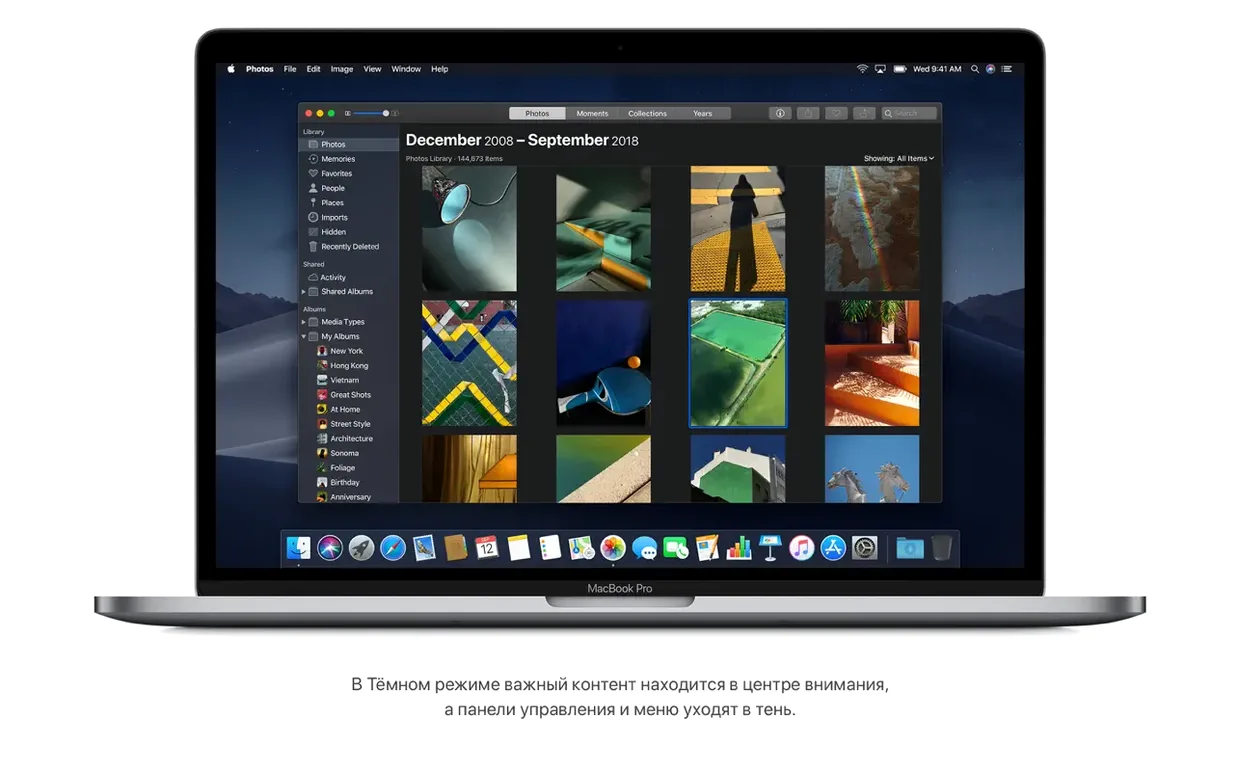
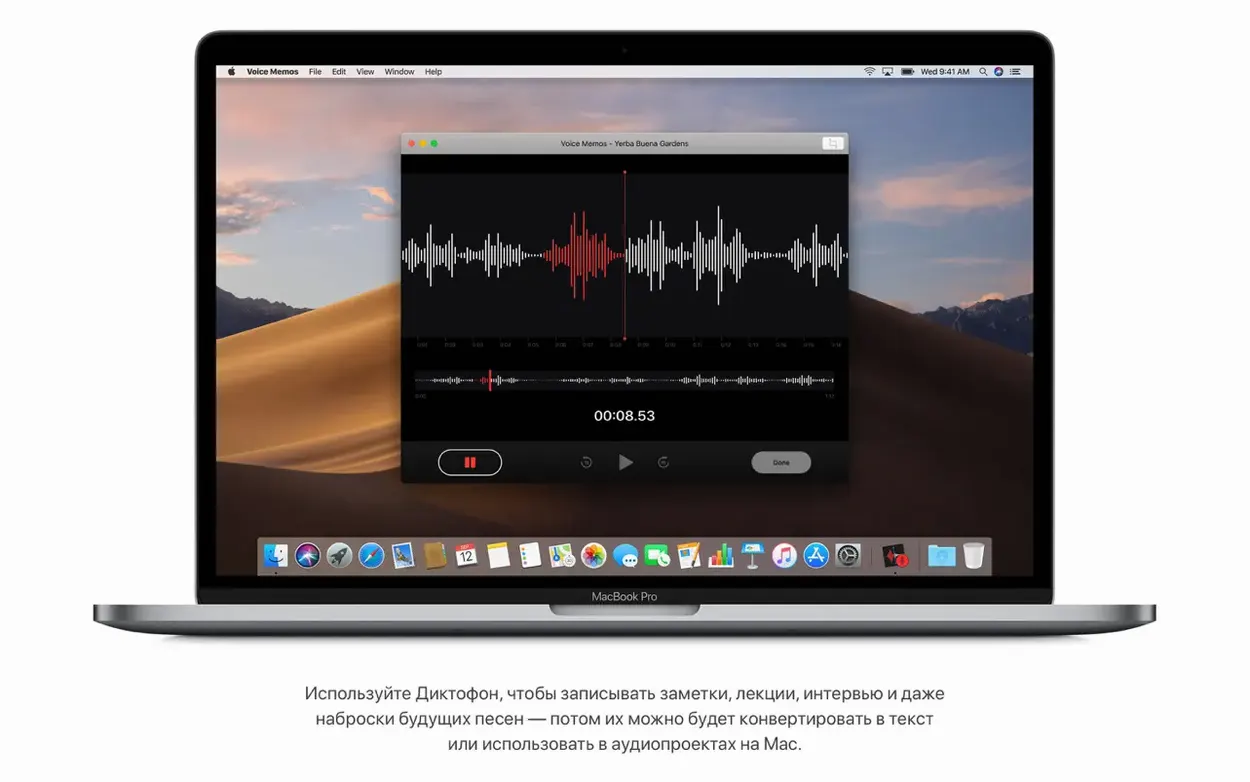
Dark Mode finally arrived on the Mac with Mojave, and I remember the first time I switched it on — everything from the Dock to the sidebars went deep charcoal, making my music library and mixer windows feel like they belonged in a dimly lit studio at 2 a.m. It’s not just a cosmetic shift; it reduces eye strain during long editing sessions.
But the feature I actually use daily is Stacks. My desktop used to be a mess of screenshots, WAV stems, and PDFs. Stacks automatically groups files by kind, and with one click you can expand a stack to grab what you need. No more hunting through clutter.
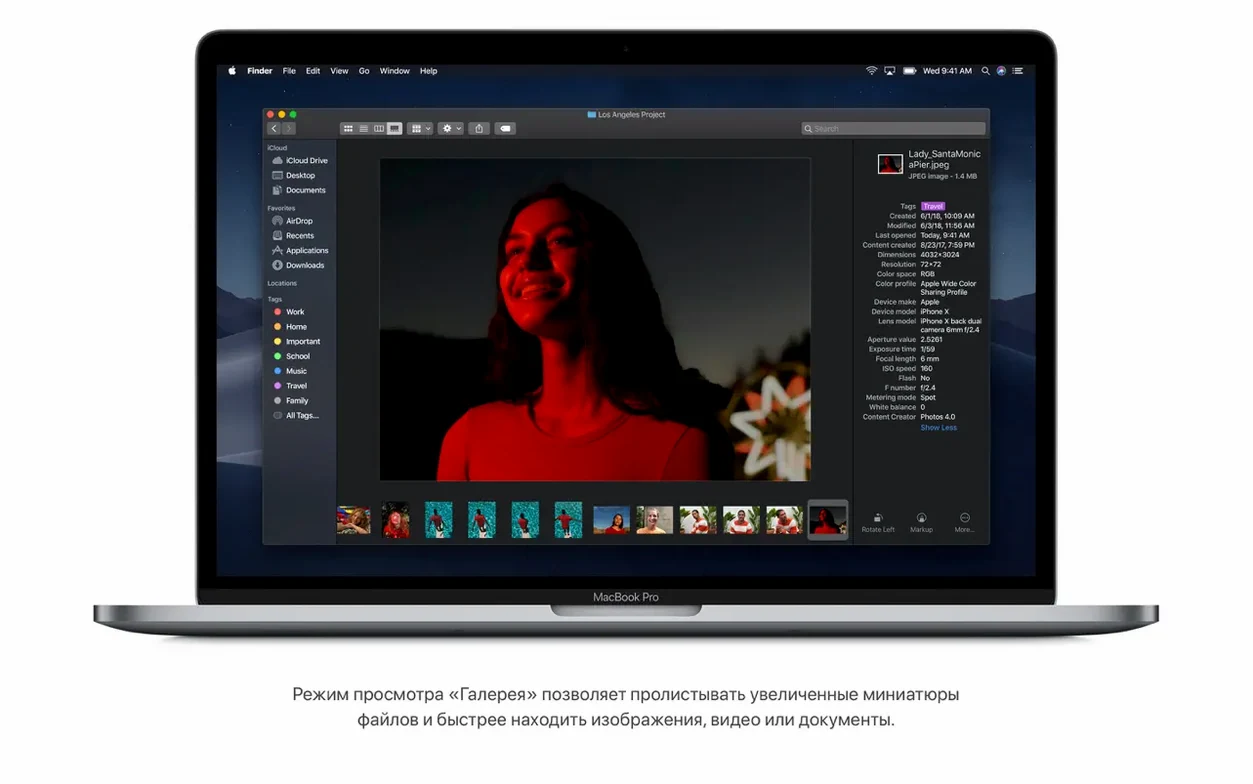
Finder’s Gallery View is another handy one — you can scroll through your project folders, preview audio files, and even trim or rotate media without opening QuickTime or Preview. It speeds up sorting through sound files for a mix.
This version, 10.14.6 (18G103), is the final update for Mojave. It focuses on stability and reliability, so if you’re running a compatible Intel Mac — from a Late 2012 Mac mini to a 2013 Mac Pro — it’s a solid, polished release.
Runs on Intel Macs from 2012 onward
If you're deciding between Mojave and something newer like Monterey or Ventura, the main difference is hardware reach. Mojave runs on Intel Macs from 2012 onwards, while later versions drop support for older models. For a Mid 2012 MacBook Air or a Late 2012 Mac mini, Mojave is often the last fully supported OS that still feels modern.
Compared to High Sierra, Mojave brings the interface up to date. If you work with 64-bit apps only, Mojave is the better daily driver — High Sierra still runs 32-bit software, but Mojave pushes you toward a cleaner, more modern setup without the full 64-bit-only jump that Catalina enforces.
Against Catalina and Big Sur, Mojave keeps iTunes. That matters if you still sync an iPod or manage a local music library through the classic iTunes interface. Later versions split music, podcasts, and TV into separate apps, which works for some but not everyone. Mojave also feels lighter on older hardware — less animation overhead, fewer background processes — so it can be a better fit for a 2013 iMac or a 2012 MacBook Pro that struggles with newer releases.
Turn on Dark Mode first
After you install Mojave, a few tweaks make the system feel more comfortable for everyday use. Head to System Preferences and turn on Dark Mode under General — it’s the first thing most people notice, and it makes a real difference if you work in low light.
Under Desktop & Screen Saver, set up Dynamic Desktop if you want the wallpaper to shift with the time of day. It’s a small touch, but it keeps the screen from feeling static during long sessions.
In Finder Preferences, switch on Stacks for the desktop. Then open a Finder window, go to View and choose Gallery View as your default. That way, every folder shows a large preview and metadata panel by default — useful when you're browsing audio files or image folders.
For privacy, open Safari Preferences and check that Intelligent Tracking Prevention is enabled. It blocks cross-site tracking by default in Mojave, but it's worth confirming. Also turn on the password protection feature for documents in the Preview app — you can lock a PDF without opening the file, which saves time if you handle sensitive material.
Stacks groups desktop files by kind
Friday afternoon, I’m getting ready for a weekend DJ set. My desktop has five audio stems, a setlist PDF, a screenshot of a playlist, and a few random downloads. I right-click the desktop, choose Stacks, and everything groups by kind. The stems go into one stack, the PDF and screenshot into another. Clean in seconds.
I open a Finder window in Gallery View and scroll through my project folder. The large preview shows waveform thumbnails for each WAV file, so I can spot the right track without opening anything. I find a clip that needs trimming — I select it, click the Rotate/Trim icon in the preview pane, and cut the silence off the start. No need to launch an audio editor.
I rename the file and drag it into my music folder. Then I use the Notes app to jot down a quick tracklist, and lock the note with a password from the File menu. No extra software required.
Before the gig, I use FaceTime for a quick group call with two other DJs to confirm the set order. The group call handles up to 32 people, but for three of us it’s smooth and clear. After the call, I check the Stocks app out of curiosity — it’s not music-related, but it’s there if you want it.
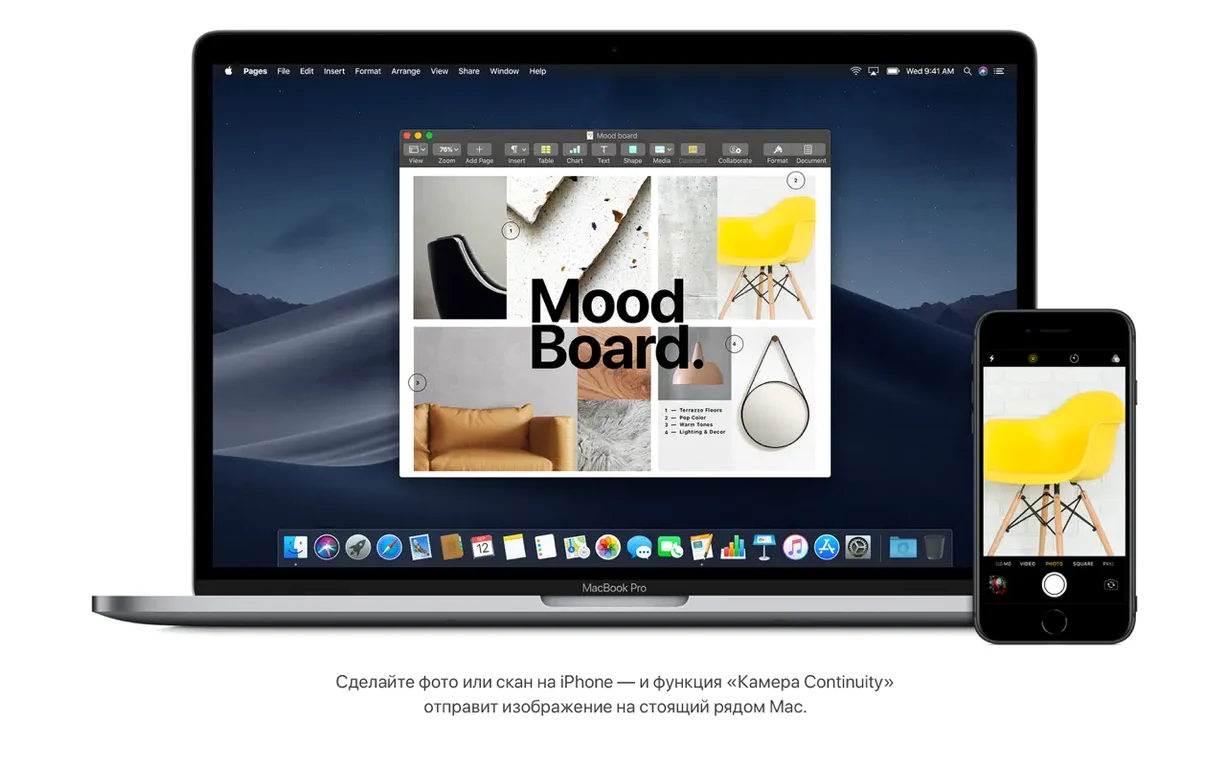
When I get back home, I connect my iPhone, and Continuity lets me paste a screenshot I took on the phone directly into a folder on the Mac. No cables, no emailing myself files.
Best for 2012-2015 Intel Macs
Mojave is a strong fit for anyone using an Intel Mac from around 2012 to 2015. If your hardware can’t run Monterey or Ventura comfortably, this is the last OS that feels polished without pushing your machine too hard. It’s especially good for music producers, DJs, and audio editors who rely on iTunes for library management, because you keep the classic workflow without switching to the Music app.
Photographers and designers benefit from Gallery View and the built-in image tools. The ability to rotate, trim, and preview files directly in Finder cuts down on opening Photoshop or Preview for quick edits. Writers and researchers appreciate the improved PDF password protection and the Focus mode in Notes.
If you manage multiple projects on one machine, Stacks keeps the desktop organised without third-party tools. And if you work late at night, Dark Mode is a genuine comfort feature — not just a visual gimmick. For anyone who wants a stable, feature-complete OS that still feels modern on older Intel hardware, Mojave 10.14.6 is a solid choice.
- Improves the stability and reliability of the Mac.
- macOS 10.8 or later
- Intel-based Mac
- 2 GB of memory
- 12.5 GB of available storage
- MacBook Early 2015 or newer
- MacBook Air Mid 2012 or newer
- MacBook Pro Mid 2012 or newer
- Mac mini Late 2012 or newer
- iMac Late 2012 or newer
- iMac Pro 2017
- Mac Pro Late 2013 or Mid 2010/Mid 2012 with recommended Metal-capable graphics card
Kit check at a glance
| Chip | Intel 64-bit |
| Download | 5.6 GB |





Chat from the booth
Sign in or grab a free account to leave a comment.
Nobody has said a word in the booth yet. If you played a set with this build, tell the next person how it went.