

- Build in the crate
- 10.15.7 (19H15)
- Made by the team at
- Apple
- Menu languages offered
- Russian, English, German, Arabic, Hungarian, Vietnamese, Greek, Danish, Hebrew, Indonesian, Spanish, Italian, Catalan, Chinese (Traditional), Chinese (Simplified), Korean, Malay, Dutch, Norwegian, Polish, Portuguese, Romanian, Slovak, Thai, Turkish, Ukrainian, Finnish, French, Hindi, Croatian, Czech, Swedish, Japanese
- How you pay for it
- DRM-free
- CPU it runs on
- Intel 64-bit
Screenshots
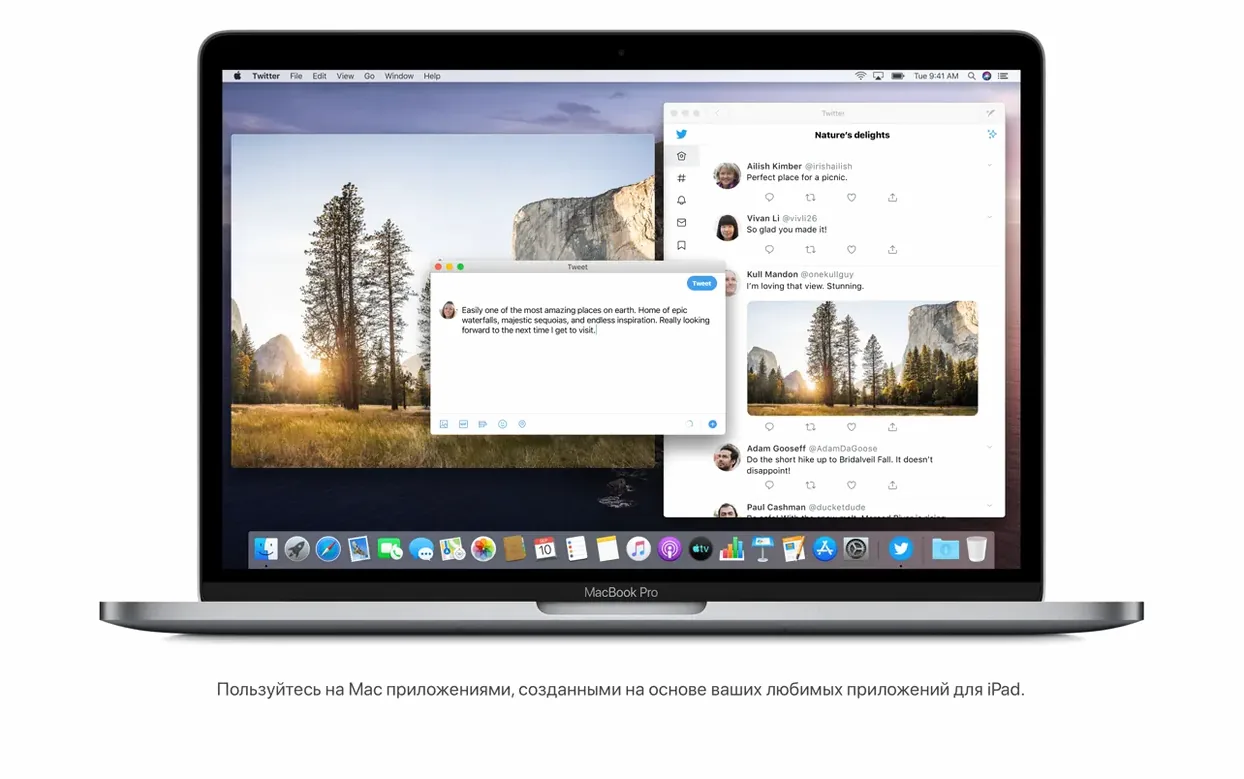
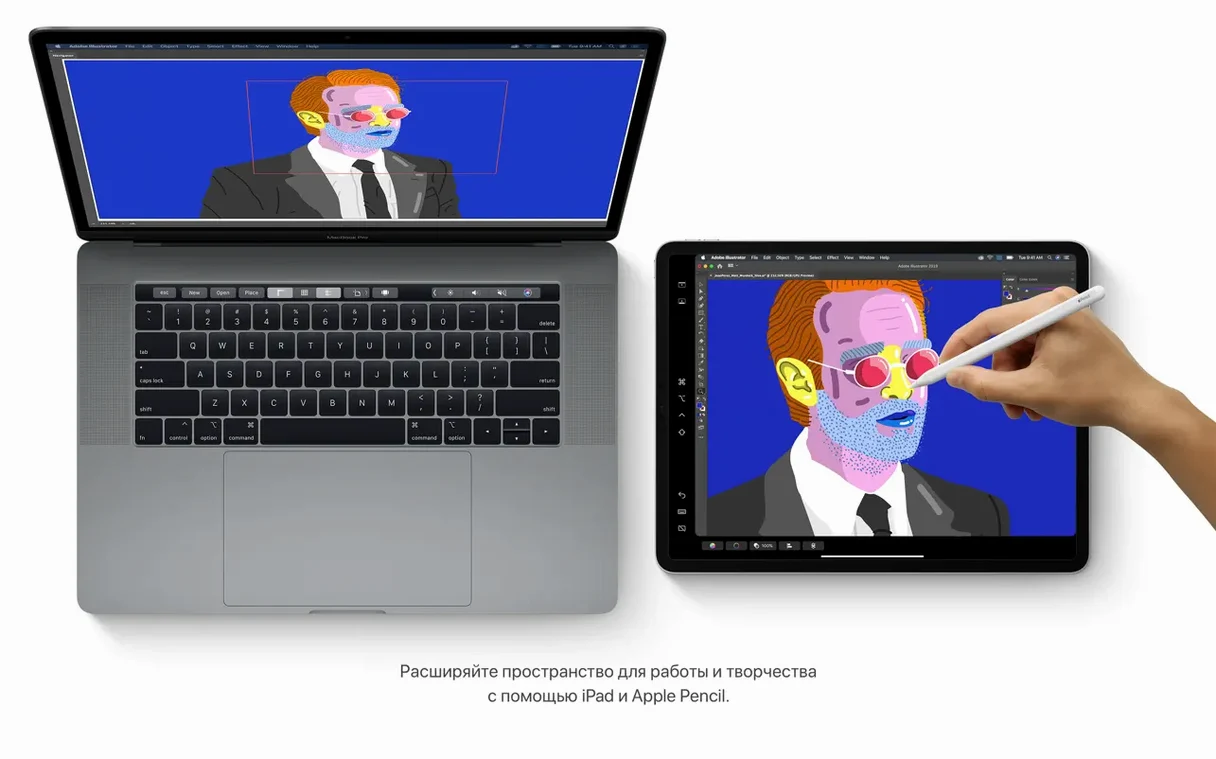
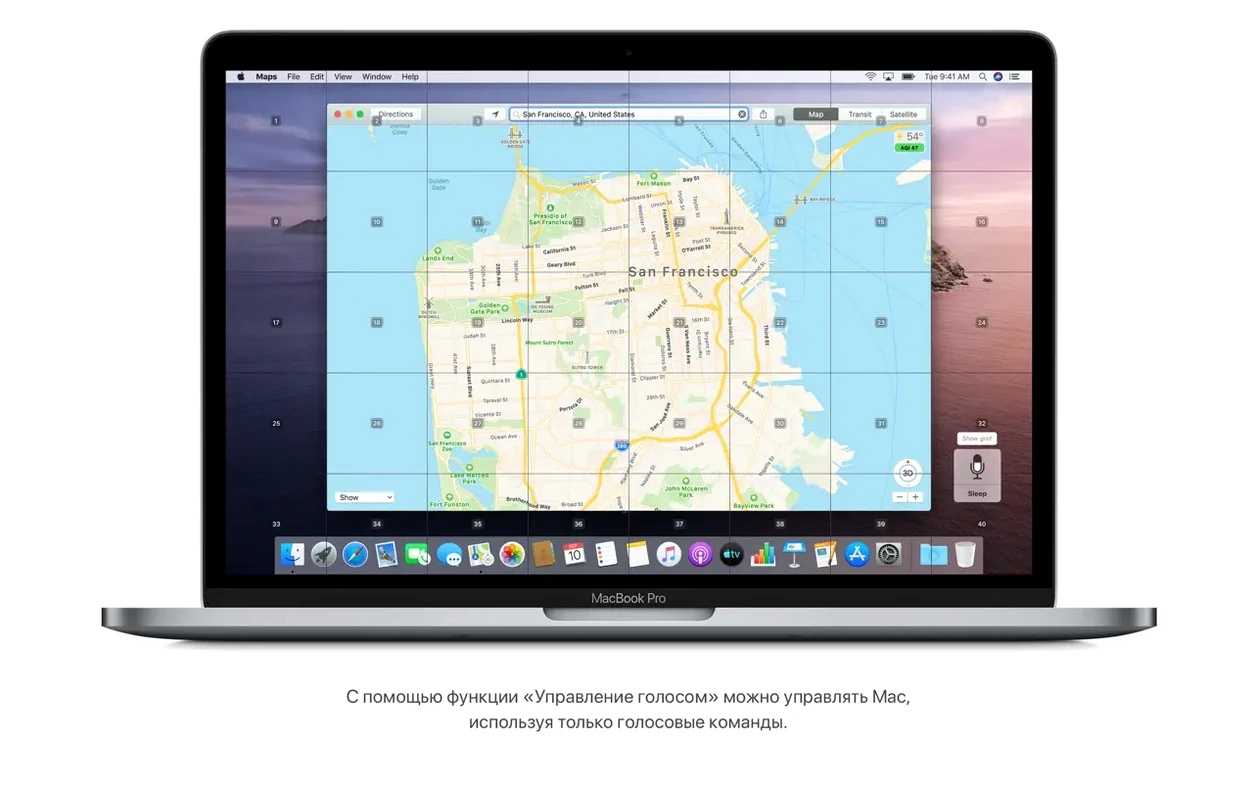
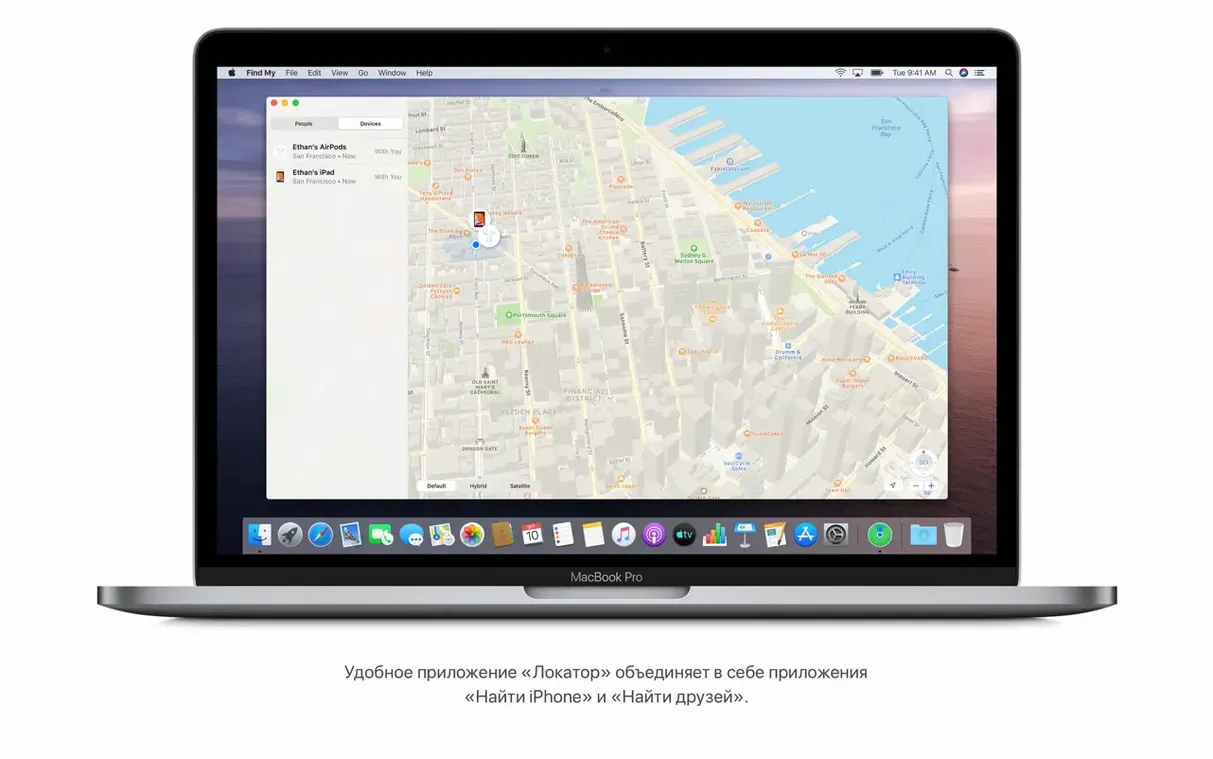
macOS Catalina runs on a wide range of Intel-based Macs from late 2012 onwards, including MacBook Air, MacBook Pro, iMac, Mac mini, and Mac Pro. You’ll need at least 4 GB of memory and around 12.5 GB of free storage if upgrading from OS X El Capitan 10.11.5 or later. Before you grab a macOS Catalina ISO torrent, check that your Mac is among the supported models — it’s the first thing to do.
Once you have Catalina installed, there are a handful of settings worth adjusting before you get deep into work. First, head to System Preferences > Sound and check the Input and Output tabs. If you use an external audio interface for music production or DJing, Catalina handles it well, but it defaults to the built-in mic and speakers. Switching to your interface here saves plugging and unplugging later.
Three settings to change first
Trackpad gestures. The default three-finger drag for selecting text can feel odd if you’re coming from an older macOS version. Go to System Preferences > Trackpad and turn on “Tap to click” if you prefer that. You can also disable the three-finger drag gesture entirely under Point & Click.
Finder preferences. Catalina’s Finder can do a lot with connected iPhones and iPads, but it shows them in the sidebar by default. If you don’t plug in a phone often, go to Finder > Preferences > Sidebar and uncheck those devices. It keeps the sidebar clean for your music folders and sample libraries.
Privacy settings. Under System Preferences > Security & Privacy > General, you can uncheck “Allow Apple to collect diagnostics and usage data.” Catalina is chatty by default about sending error reports. Turning this off doesn’t break any features, but it stops the background uploads that can slow an older Mac.
System drive separation blocks some apps
Catalina’s separation of the system drive is strict. The OS lives on a read-only volume, and your user data sits on a separate one. This means older apps that write to system folders may fail. For DJ software and audio plugins, this rarely matters — they install into the user Applications folder or your home directory. But if you run legacy DJ apps from the Mavericks or Snow Leopard days, they might need a permissions tweak. Most modern music software handles it fine.
The new media apps — Apple Music, Apple TV, and Apple Podcasts — replace the old iTunes library functions. If you used iTunes to organise your music collection before, those files stay in place. The new apps read the same library. For a student who still buys tracks on Bandcamp or gets WAVs from a label, Apple Music handles local files the same way iTunes did. You drag a folder in, and it shows up.
Sidecar is the feature I didn’t expect to use much, but it’s handy. If you have an iPad, you can extend your Mac desktop onto it. For a DJ set, you could keep your playlist on the iPad screen while your laptop shows the DJ software. It’s not a full second monitor, but for reference material it works well.
Voice Control is another Catalina addition. You can say “Open Reminders” or “Scroll up” and the system responds. In a studio session where your hands are on a MIDI keyboard, it saves reaching for the mouse. It supports multiple languages, so if you speak Spanish or French, you can set it to your native language under System Preferences > Accessibility > Voice Control.
Student podcast editor skips manual iTunes imports
Elena studies journalism in Valencia and runs a weekly podcast for the university radio station. She records interviews on a Zoom H5 and edits in Audacity. Before Catalina, she had to manually import the audio files into iTunes to get them onto her phone for a quick listen on the bus. Now she opens Finder, plugs in her iPhone, and drags the MP3 files directly to the phone’s internal storage. It shows up like a regular folder. She also uses Reminders to schedule guest interviews, and the new Reminders editing controls let her attach the interview notes as a file right inside the reminder. The gallery view in Notes helps her scan through screenshots of her show notes quickly.
DJ set prep: drag folder into Apple Music library
A Tuesday evening. I’m prepping a DJ set for Friday night. Finder mounts it instantly. I open Apple Music and drag the new folder into the library. The app scans the files and adds them. No sync, no import dance.
I switch to my DJ software — in my case, Rekordbox. It sees the same library Apple Music just indexed because both point to the same Music folder. I build a playlist for the first hour of the set. Catalina’s window management is the same as always, so I snap Rekordbox to the left half of the screen and Apple Music on the right to preview tracks without leaving the playlist.
Halfway through, I realise a track has a bad tag. I open Finder, right-click the file, and choose Properties. The metadata editor is still there, same as before. I fix the genre and save. I also use Reminders to set a 9pm alarm for the gig itself, with a location flag set to the club’s address. When the reminder pops up on my phone later, I tap it and Apple Maps shows me the route.
At the end of the session, I plug in my iPhone and Finder shows it right away. I drag the playlist folder onto the phone. It copies in a few seconds. That’s the session done. No extra software needed, no iTunes, no third-party transfer tool. Catalina just works as the glue between the music files, the DJ app, and the phone.
- Provides important security updates and bug fixes.
- Resolves an issue where macOS would not automatically connect to Wi-Fi networks.
- Fixes an issue that could prevent files syncing through iCloud Drive.
- Addresses a graphic issue that may occur on iMac (Retina 5K, 27-inch, 2020) with Radeon Pro 5700 XT.
- macOS 10.9 or later
- Intel-based Mac
- 4 GB memory
- 12.5 GB available storage (for upgrade from OS X El Capitan 10.11.5 or later)
Kit check at a glance
| Chip | Intel 64-bit |
| Download | 7.7 GB |




Chat from the booth
Sign in or grab a free account to leave a comment.
Nobody has said a word in the booth yet. If you played a set with this build, tell the next person how it went.