

- Build in the crate
- 13.9.6 [MAS]
- Made by the team at
- 万林 彭
- Menu languages offered
- English, Chinese (Simplified)
- How you pay for it
- K'ed by TNT team
- macOS it plays on
- macOS 11.5 or later
- CPU it runs on
- Apple Silicon, Intel 64-bit
Screenshots
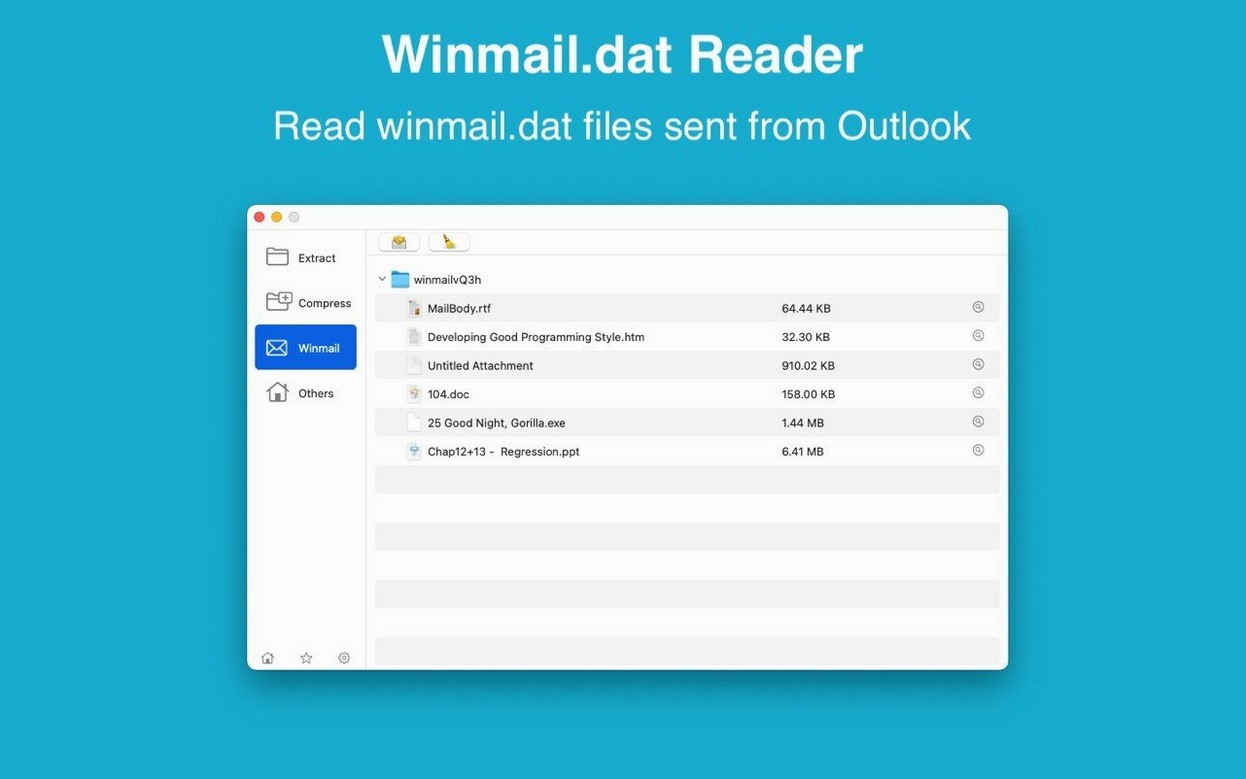
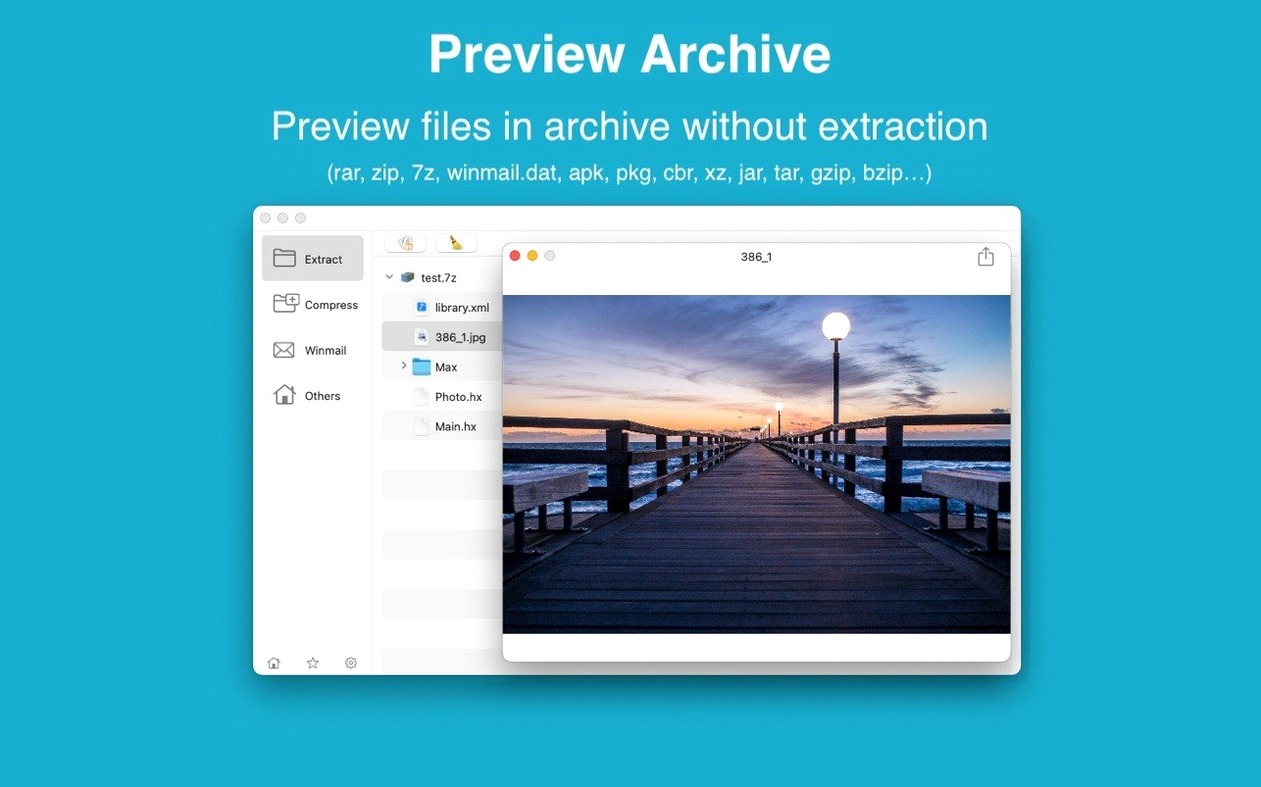
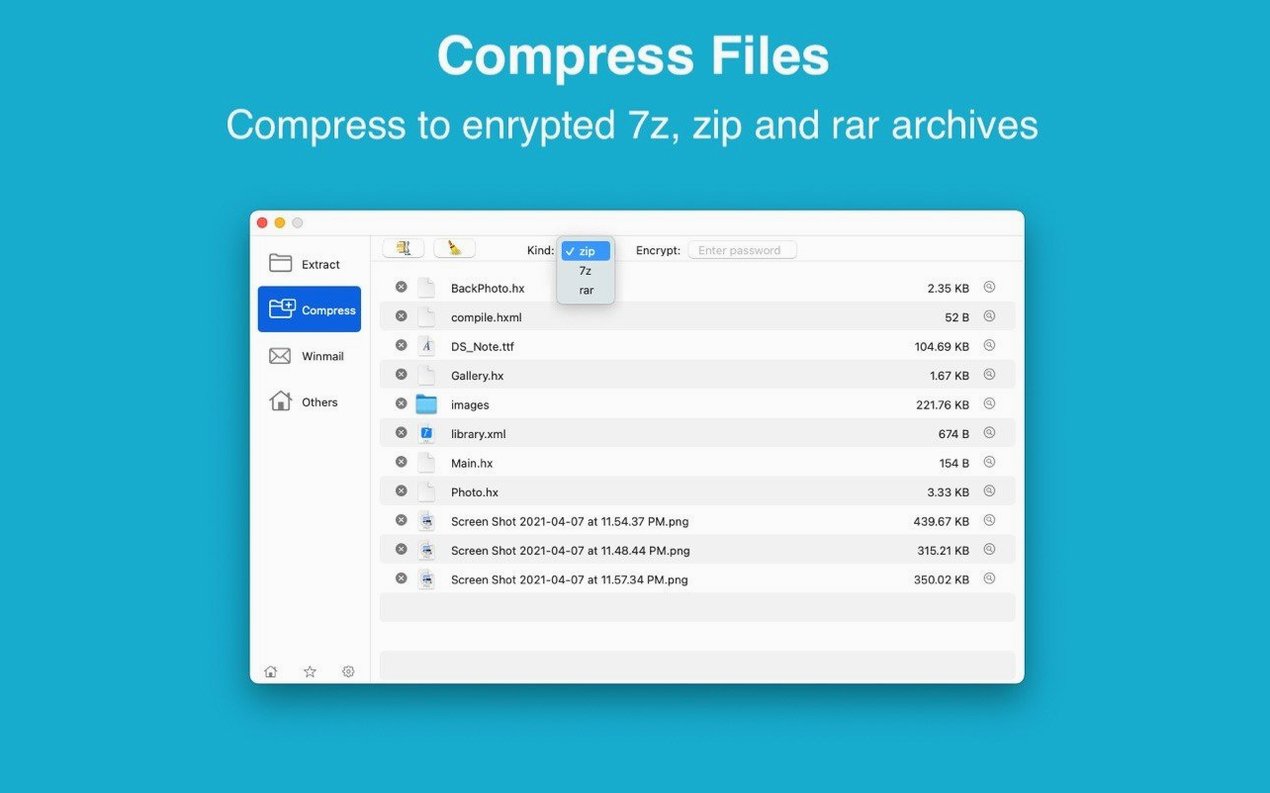
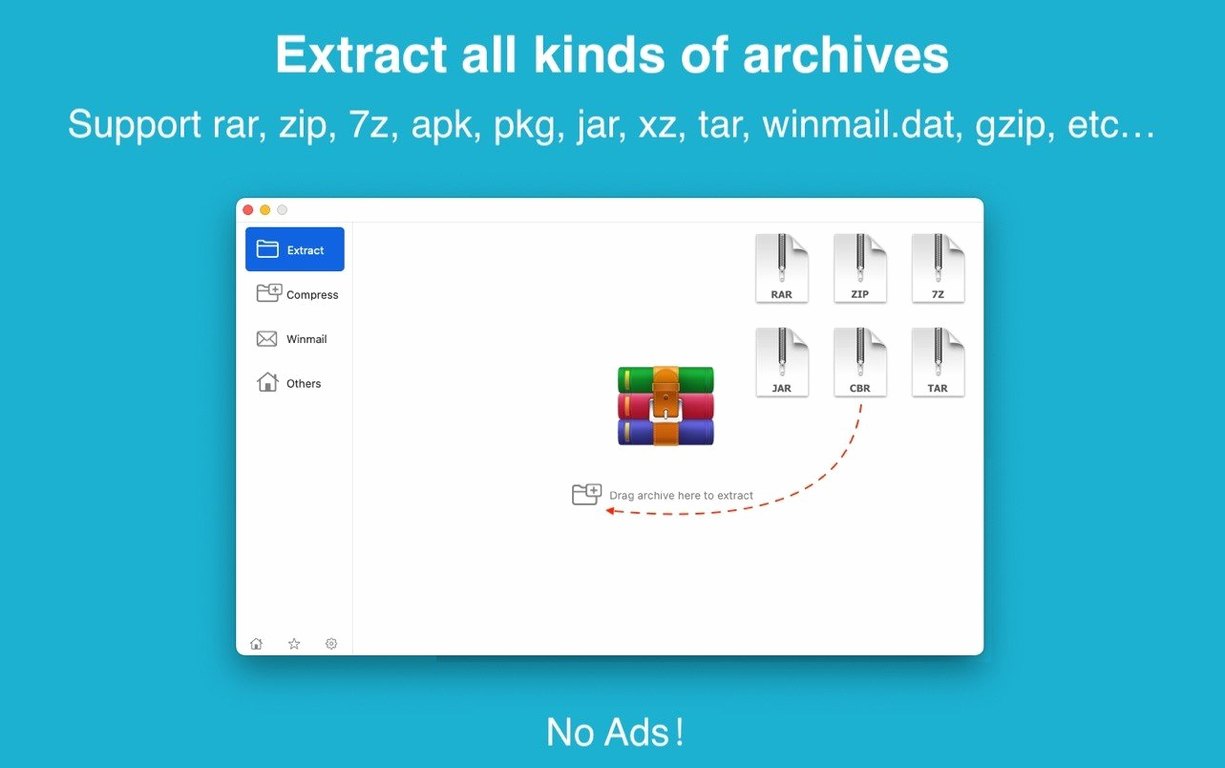
You grab a RAR file from a friend or a rar torrent and your Mac sits there, not knowing what to do. Instead of relying on outdated or risky software, RAR Extractor 13.9.6 does the job cleanly. It opens RAR, ZIP, 7Z, ISO, CAB, MSI, APK and plenty more formats without fuss. You can also create password-protected ZIP and 7Z archives with AES-256 encryption. Drag a file to your desktop, drag it to the Dock icon — extraction happens fast. Preview what’s inside before unpacking. Choose a single file or the whole bundle. It’s a straightforward utility that covers the basics of compression and decompression, and it runs on both Intel and Apple silicon Macs.
Undated changelog keeps macOS compatibility
Version 13.9.6 doesn't come with a flashy changelog, but that's fine. For a tool like this, the important changes happen under the hood. The app keeps up with macOS updates, so it still opens on Big Sur and later without complaining. The file-format list stays broad — no new format suddenly stops working. If you'd been using an older version, the main difference you'd notice is that everything still works the same way. The dual-window display behaves the same. The drag-to-desktop trick works the same. The batch unpacking runs the same. That consistency matters when you're in the middle of a job and just need the archive opened.
One practical change: the app now handles more recent macOS security rules without extra steps. Earlier versions sometimes needed Gatekeeper bypasses more often. With 13.9.6, you mount the disk image, run the terminal command once, drag the app to Applications, and it's done. After that, it behaves like any other Mac app.
Essential for public tracker torrents
Not everyone needs RAR Extractor. But certain Mac users will find it hard to live without.
- People who grab files from public trackers. If you regularly download winrar torrent files or rar torrent archives, your Mac can't open them natively. This app handles RAR, 7Z, ZIP, ISO and all the rest. One app, no format guessing.
- Designers and developers. You deal with .dmg, .pkg, .jar and .apk files regularly. RAR Extractor can peek inside those without extracting everything. Need one asset from a big archive? Grab just that file.
- Office workers who get winmail.dat attachments. Microsoft Outlook loves sending those. The preview feature shows you the content without any extra tools.
- People who share encrypted archives. Creating password-protected ZIP or 7Z files with AES-256 is built in. No need for a separate encryption tool.
- Anyone on Apple silicon. The app runs natively on M-series Macs, so no Rosetta translation overhead. It's lightweight anyway, but native is always better.
Gatekeeper blocks the app
Bypass macOS security to install
This is the most common issue. macOS doesn't trust unsigned apps out of the box. The fix: mount the disk image, open Terminal, press Enter with the right command (usually provided with the download), then drag the app to Applications. After that, it opens without complaint.
Archive shows as corrupted or fails to extract
Sometimes the archive itself is the problem. A partial download, a bad torrent, a damaged file. RAR Extractor can't fix broken archives. Try downloading again. If the archive is from a winrar mac torrent, check the file size matches the original. If it still fails, test the archive on another machine to confirm it's not a Mac-specific issue.
Password-protected archive doesn't open
Double-check the password. Case matters. If you're copying from a text file, make sure there's no hidden space. RAR Extractor supports encrypted archives, but it can't guess the password. No brute-force option here — you need the right one.
Can't find the extracted files
By default, extraction goes to the same folder as the archive. If you dragged to the desktop, files appear there. If you dragged to the Dock icon, they go to the archive's location. Check your Downloads folder if you're not sure. The dual-window display shows source and destination, so you can track where things end up.
Re-run bypass after system updates
macOS updates sometimes reset security settings. If RAR Extractor stops opening, re-run the Gatekeeper bypass step. The app itself doesn't change, but macOS might need a reminder that you trust it.
Workflow: extract a single file from a large archive
Say you downloaded a big archive with 200 files but only need one PDF inside. Here's how to do it without unpacking everything.
- Open RAR Extractor.
- Drag the archive file onto the app window or the Dock icon. The file list shows every item inside.
- Browse the list to find the PDF you need. You can preview it without extracting by selecting it and using the preview option.
- Right-click (or Control-click) the PDF and choose to extract only that file. Or drag it out of the file list to your desktop.
- The single file lands where you put it. The rest of the archive stays compressed.
This saves time and disk space. No need to unpack hundreds of files for one item. The same workflow works for any format the app supports — RAR, ZIP, 7Z, ISO, you name it.
Set as default app for .rar files
- Not setting RAR Extractor as the default app. If you double-click a .rar file and your Mac opens Archive Utility instead, nothing happens. Set RAR Extractor as the default for archive formats in the Get Info panel. Then double-clicking just works.
- Forgetting about batch mode. If you have ten archives to unpack, dragging them one by one is slow. Select all of them, drag them onto the app at once. Batch unpacking handles the rest.
- Ignoring the preview feature. Beginners often extract everything just to see what's inside. Preview saves that step. Check the file list first, extract only what you need.
- Not using drag-to-desktop. Dragging an archive to an empty spot on the desktop extracts it there. No need to open the app first. It's the fastest way to unpack a single file.
- Assuming all formats work the same. RAR and ZIP behave similarly, but ISO and MSI files might show different internal structures. Don't panic if the file list looks unfamiliar — the extraction process is the same.
- Overlooking the dual-window display. The app can show source and destination side by side. Beginners stick with one window. The dual view helps you keep track of where files are going, especially during batch operations.
- macOS 11.5 or later
- Intel or Apple Silicon processor
Kit check at a glance
| System | macOS 11.5 or later |
| Chip | Apple Silicon, Intel 64-bit |
| Download | 14 MB |
| Older pressings | 3 in the crate |








Chat from the booth
Sign in or grab a free account to leave a comment.
Nobody has said a word in the booth yet. If you played a set with this build, tell the next person how it went.