
- Build in the crate
- 10.5.2
- Made by the team at
- Telestream
- Menu languages offered
- English, German, Spanish, French, Japanese
- How you pay for it
- K'ed by TNT team
- macOS it plays on
- macOS 10.15 or later
- CPU it runs on
- Apple Silicon, Intel 64-bit
Screenshots
Version 10.5.2 of ScreenFlow is mostly about stability: it fixes a crash that hit macOS 26.2 or later, plus an export issue with Chroma Key on certain recordings. If you were holding off updating, now is a fine time.
| Detail | Info |
|---|---|
| Developer | Telestream |
| Version | 10.5.2 |
| Category | Utilities |
| macOS | 10.15 or later |
| Architecture | Intel and Apple Silicon |
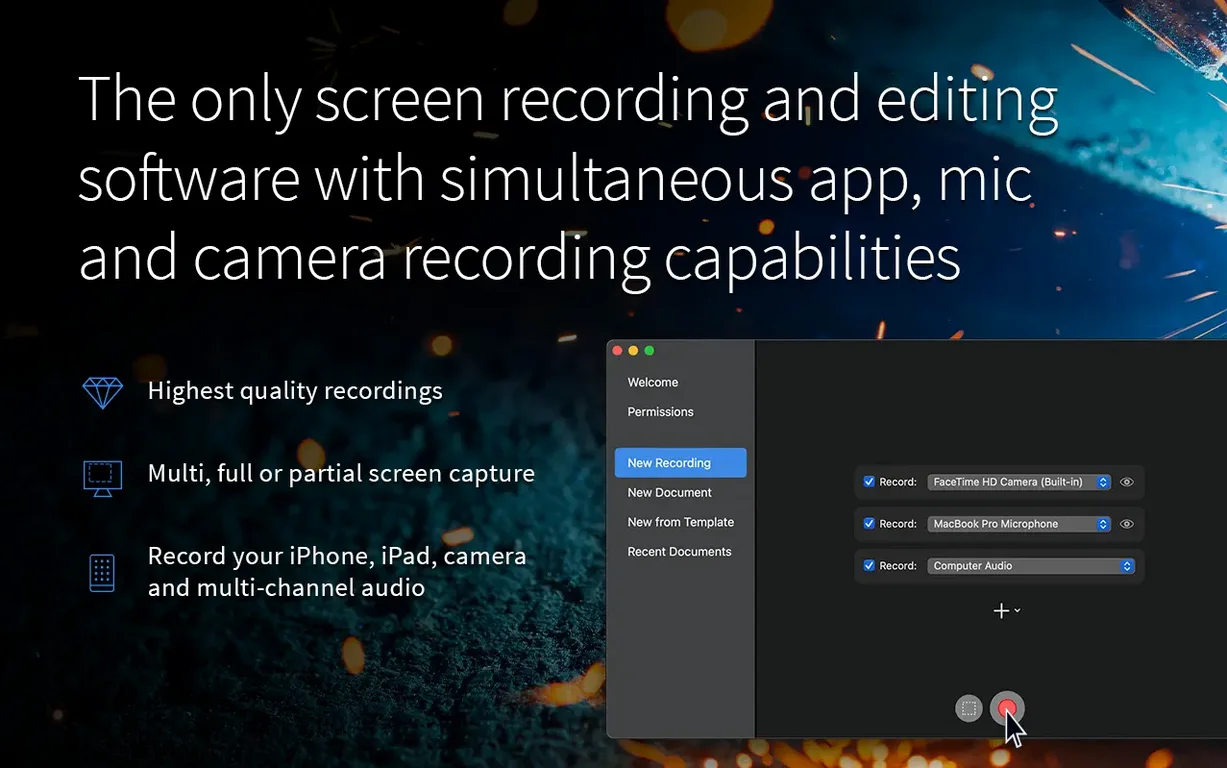
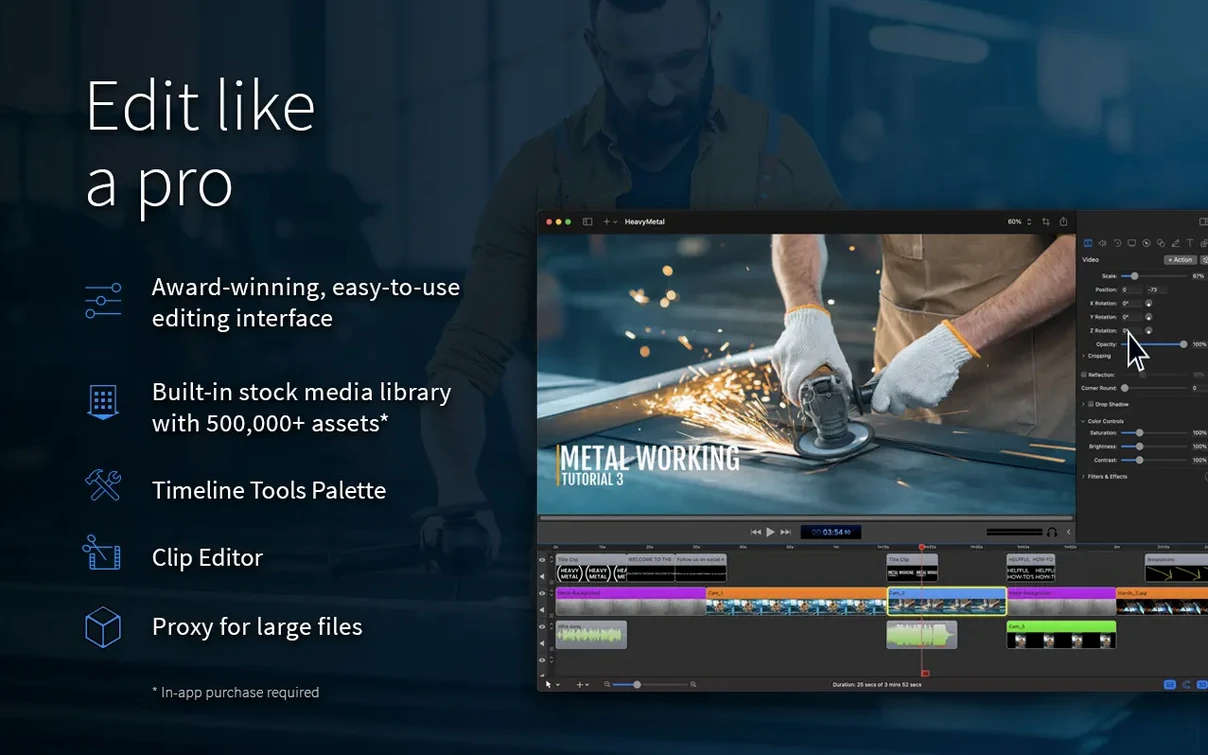
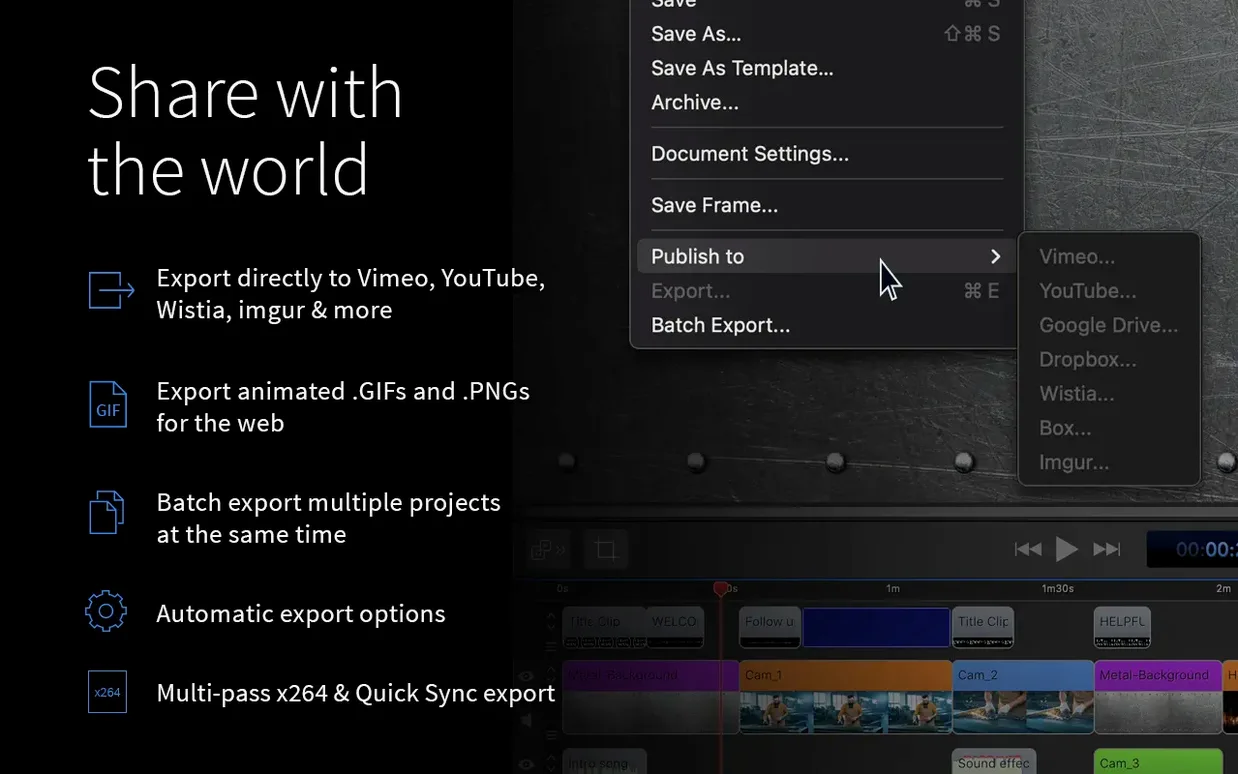
ScreenFlow covers the whole job in one app. You record part of the screen or a full monitor, capture video and audio or an iOS device, then edit clips, text, images and audio without switching tools. When you are done, export ProRes or MP4, make an animated GIF, or send the result straight to YouTube, Vimeo, Google Drive or Dropbox. The interface speaks English, German, Spanish, French and Japanese. For a quick tutorial or a client walkthrough, that record-edit-export loop is the whole story.
Runs on Intel and Apple Silicon Macs
ScreenFlow runs on macOS 10.15 (Catalina) and later, covering both Intel and Apple Silicon Macs. That means it will work on everything from a 2019 Mac Pro to an M4 MacBook Air, without needing a Rosetta translation — it is native on both architectures. The installer comes as a disk image, and the Gatekeeper-friendly step is handled with a quick Terminal command before you drag the app into Applications.
The app itself is a single window with a timeline at the bottom, a canvas in the middle, and media panels on the sides. It does not feel like a scaled-down version of something else; it is built for macOS from the ground up, so menu items, keyboard shortcuts and trackpad gestures behave the way you would expect from a native app. You can have multiple projects open at once, each with its own timeline and media library.
ScreenFlow records audio from multiple sources simultaneously: microphone, computer audio, and multichannel input devices. If you are recording a podcast or a voiceover alongside screen captures, you can keep separate audio tracks for each source. The recording panel lets you choose which monitor to capture, or a specific window or region. For iOS capture, you connect an iPad or iPhone via cable and the device shows up as a recording source.
No need to disable Gatekeeper
Do I need to disable Gatekeeper completely? No. The installer uses a standard Terminal command to allow the app to run once, and after that you open it normally. Your system security settings stay intact.
Can I record only part of the screen? Yes. You can select a specific window, a custom region, or the entire display. The region can be resized before you start recording, and you can change it during recording if needed.
Will it work with external microphones and audio interfaces? Yes. ScreenFlow picks up any audio device macOS recognises, including USB microphones, multi-channel audio interfaces, and aggregate devices you have set up in Audio MIDI Setup.
Does it support 4K or high-refresh monitors? ScreenFlow records whatever your display outputs. If your Mac drives a 4K or 5K screen at 60 Hz, that is what the recording will capture.
Can I export in formats other than ProRes and MP4? Those are the two main export formats, but you can also create animated GIF and APNG files. For other formats, you can export to a video file and convert it with another app.
Direct export to animated GIF and APNG
- Animated GIF and APNG export. Most video editors ignore these formats, but ScreenFlow can export directly to both. Handy for quick demos or forum posts.
- Direct share to multiple services. After exporting, you can upload straight to YouTube, Vimeo, Wistia, Facebook, Google Drive, Dropbox, Box or Imgur without leaving the app. No need to save locally first and then open a browser.
- Chroma key fix in 10.5.2. The latest version specifically addressed an export bug with Chroma Key for certain screen recordings. If you use green screen effects, this update matters.
- Multichannel audio recording. You can capture separate audio channels from an interface or mixer, keeping them as distinct tracks in the timeline for independent editing.
- iOS device capture. Record the screen of a connected iPhone or iPad at the same time as your Mac screen. Useful for app demos or mobile game walkthroughs.
Works alongside QuickTime and macOS tools
ScreenFlow works alongside standard macOS features without conflict. You can use QuickTime Player for a quick recording and ScreenFlow for the full edit — the files are standard MOV and MP4 containers that both apps handle. The exported ProRes files open in Final Cut Pro, DaVinci Resolve, Compressor or any editor that supports the format. MP4 exports are compatible with everything from iMovie to Adobe Premiere.
If you use cloud storage, the direct share options for Google Drive, Dropbox and Box save a step. You do not need to export, locate the file in Finder, and upload manually. The app also integrates with Vimeo, YouTube and Wistia for tutorial creators who publish regularly.
ScreenFlow records system audio natively — you do not need third-party drivers or audio loopback software. It captures computer audio alongside microphone input, so voiceover and system sounds land on separate tracks. That is a macOS feature that ScreenFlow takes advantage of without extra configuration.
For anyone using a Mac with an Apple Silicon chip, ScreenFlow runs as a native ARM app. No Rosetta translation, no performance overhead. The same applies to Intel Macs — the app is a universal binary, so it uses the appropriate code path for the processor in your machine.
- Fixed a crash with macOS 26.2 or higher.
- Fixed exports with Chroma Key for certain screen recordings.
- Fixed the manage button under licenses going to a non-existent URL.
- macOS 10.15 or later
- Intel or Apple Silicon
Kit check at a glance
| System | macOS 10.15 or later |
| Chip | Apple Silicon, Intel 64-bit |
| Download | 95 MB |
| Older pressings | 7 in the crate |



Chat from the booth
Sign in or grab a free account to leave a comment.
Nobody has said a word in the booth yet. If you played a set with this build, tell the next person how it went.