
- Build in the crate
- 4.1.0-5005
- Made by the team at
- Screen Studio
- Menu languages offered
- English
- How you pay for it
- Included
- macOS it plays on
- macOS 13 or later
- CPU it runs on
- Apple Silicon, Intel 64-bit
Screenshots
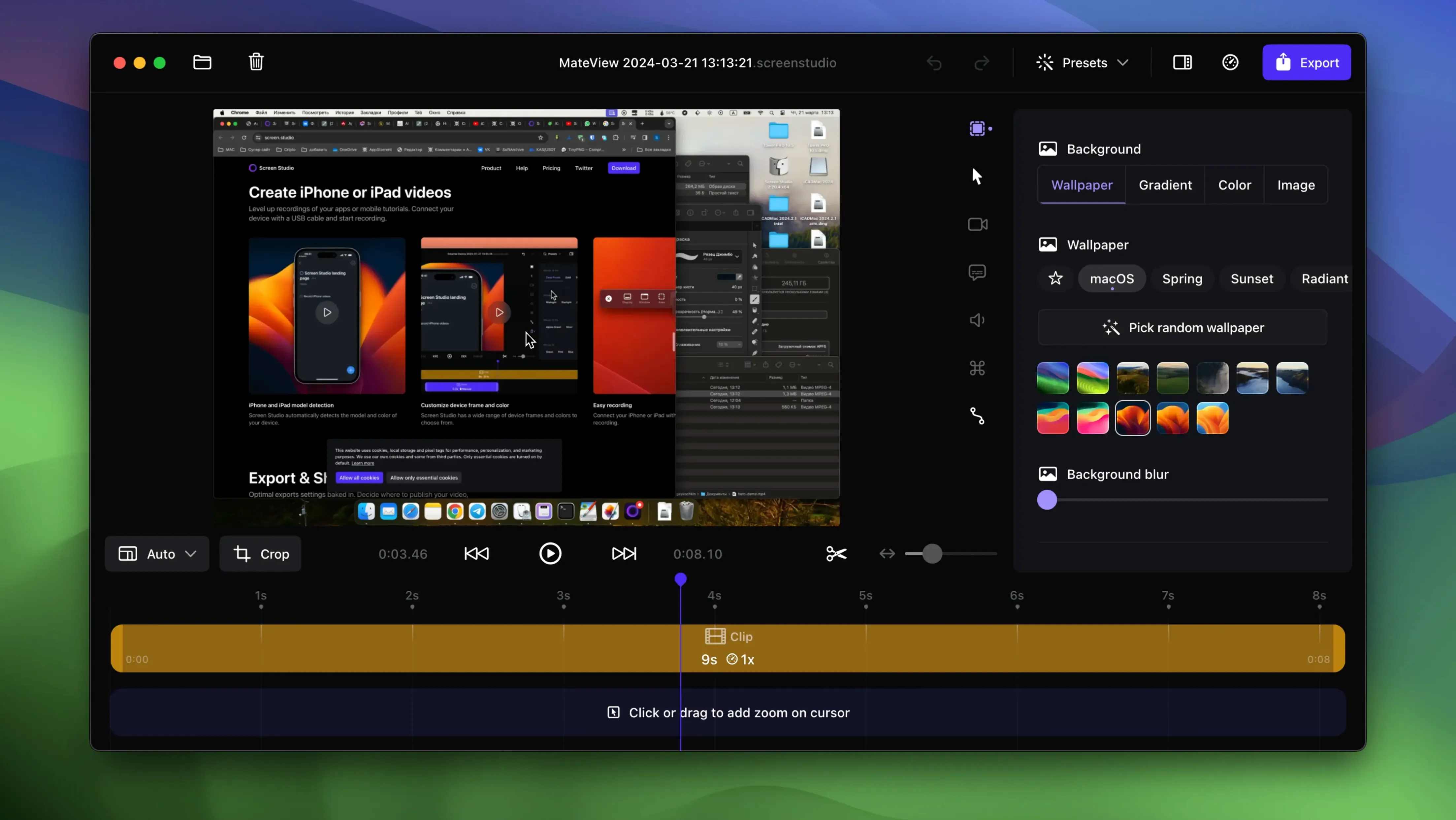
Automatic zoom on mouse clicks is the first thing you notice about Screen Studio for Mac. You record normally, and the app adds the polish itself. It is a different way of working, and these are the first things I would try with a fresh install.
- Record an iPhone over USB. Plug in a device and record its screen without extra software. Useful for app demos or testing your own builds.
- Let the cursor do the work. Motion gets smoothed automatically, and cursor looping returns the pointer to a starting position near the end. Great for short tutorial loops.
- Pick your zoom points manually. The automatic zooms are good, but you can also select zoom regions during editing and control the framing yourself.
- Clean up the audio. Voice volume normalisation and background noise removal run in one pass, so you do not need a separate audio editor.
- Copy to clipboard. Export a clip straight to the clipboard and paste it into Messages or Slack. Faster than exporting a file first.
- Trim and speed up. Cut dead air, crop the frame, and speed up slow sections without leaving the editor.
A tutorial clip from setup to export
Here is how a short tutorial clip comes together in Screen Studio. I wanted to show someone how to change a setting in a Mac app, so I opened Screen Studio, picked the app window from the recording source menu, and turned on the microphone. I also enabled system audio from that one app, not everything on the machine.
Recording started with a shortcut. I clicked through the settings I wanted to show, paused at one dialog, and clicked again to open a dropdown. Screen Studio tracked each click and added a zoom to the second one automatically. I did not plan the zooms in advance; I just recorded and trusted the app to handle the framing.
After stopping, the editor showed the timeline with the automatic zoom markers already placed. I dragged one zoom marker to adjust its timing so it started a half-second earlier. I also added a manual zoom over a tiny button that the automatic system had missed. The cursor was already smoothed, so I left it as is, but I bumped the cursor size up a notch for clarity.
Audio needed a quick pass. I ran the voice normalisation and background noise removal — one button each, no sliders to fiddle with. The transcript generated locally while I watched, which was handy for captions later.
The whole thing took maybe fifteen minutes, including the export.
Smaller selfie overlay resize in action
Version 3.7.5-4595 is the current build. Recent updates before this one added a few things that change how you work day to day.
- Selfie overlay resizing. The webcam bubble can now be made smaller, so it does not cover the content. I keep mine in the bottom right at a reduced size.
- Keyboard shortcut display. The app can record and show key presses in the video. Good for tutorials where you want the viewer to see the actual shortcut.
- Hide desktop icons during recording. One toggle, and your messy desktop stays out of the frame. Small but saves re-recording.
- GIF export. You can now export short clips as animated GIFs directly. No separate conversion step.
None of these are flashy. They are the kind of updates that remove friction from the daily recording routine.
How Screen Studio fits with other apps and macOS features
Screen Studio is a native macOS app, so it behaves like one. It uses the built-in screen capture APIs, which means it works with multiple displays and Stage Manager without weird behaviour. It also respects the macOS microphone permissions model, so you grant access once and it remembers.
For audio, the app can record system audio from selected apps. This is useful if you want to capture sound from a video call app or a media player but leave the rest of the system quiet. No third-party audio routing tool needed.
The clipboard export is the feature I use most with other apps. Copy a finished clip and paste it into Slack, Discord, or a project management tool. No file management, no uploads, no compression worries — the clipboard handles the format.
For iPhone and iPad recording, Screen Studio detects the connected device model and colour automatically. That is a small detail, but it means the frame around the device screen matches the actual hardware. The recording itself uses the USB connection, so there is no wireless lag.
The local transcript generation is another macOS-native touch. It runs on your machine, not a remote server, so you can generate captions without uploading footage anywhere. The transcript stays local, which matters if you record sensitive material.
If you need to edit further, export at 4K 60 fps and bring the file into your usual video editor. Screen Studio handles the polish — zooms, cursor smoothing, audio cleanup — and your editor handles the rest.
Screen Studio download gives you a recorder that handles the boring parts. Worth a weekend of tinkering.
- macOS 13 or later
- Intel or Apple Silicon
- English interface
Kit check at a glance
| System | macOS 13 or later |
| Chip | Apple Silicon, Intel 64-bit |
| Download | 981 MB |
| Older pressings | 38 in the crate |

Chat from the booth
Sign in or grab a free account to leave a comment.
Nobody has said a word in the booth yet. If you played a set with this build, tell the next person how it went.