
- Build in the crate
- 8.1.3
- Made by the team at
- Ram Patra
- Menu languages offered
- Russian, English, German, Spanish, French
- How you pay for it
- Not required
- macOS it plays on
- macOS 13 or later
- CPU it runs on
- Apple Silicon, Intel 64-bit
Screenshots
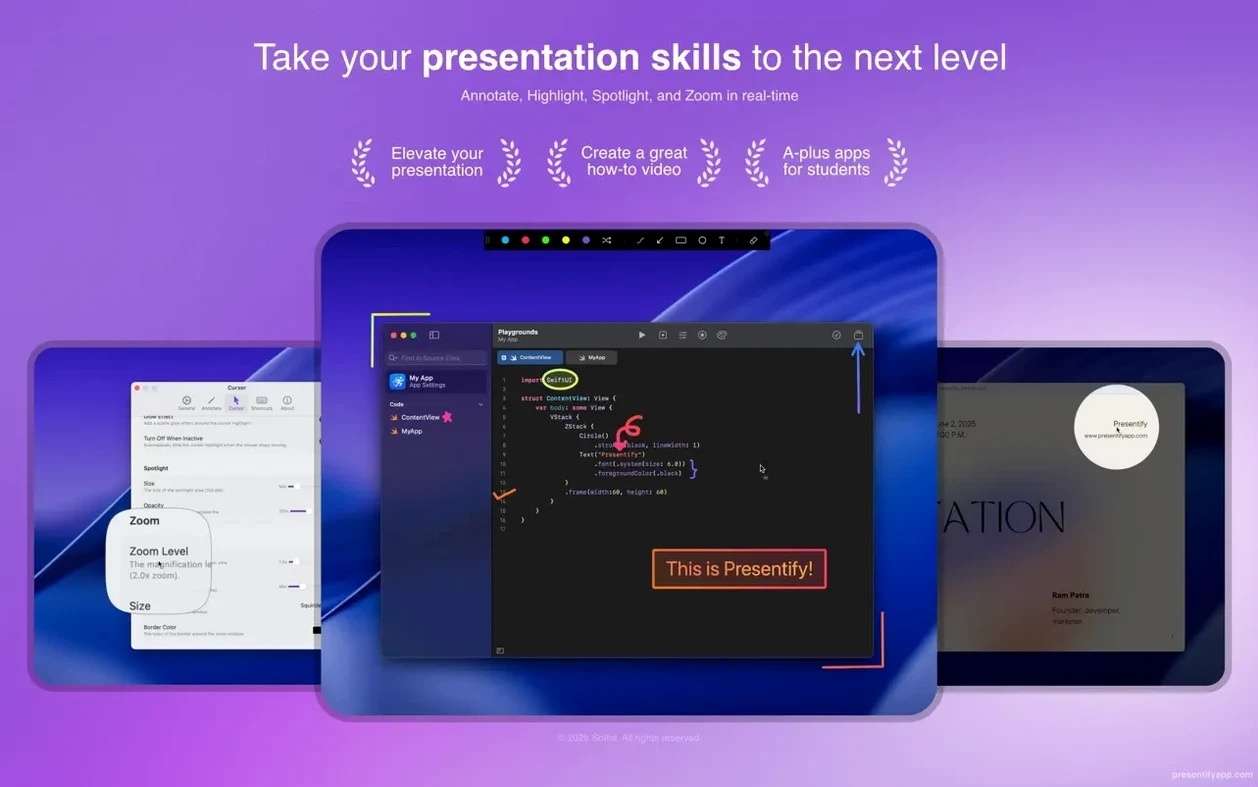
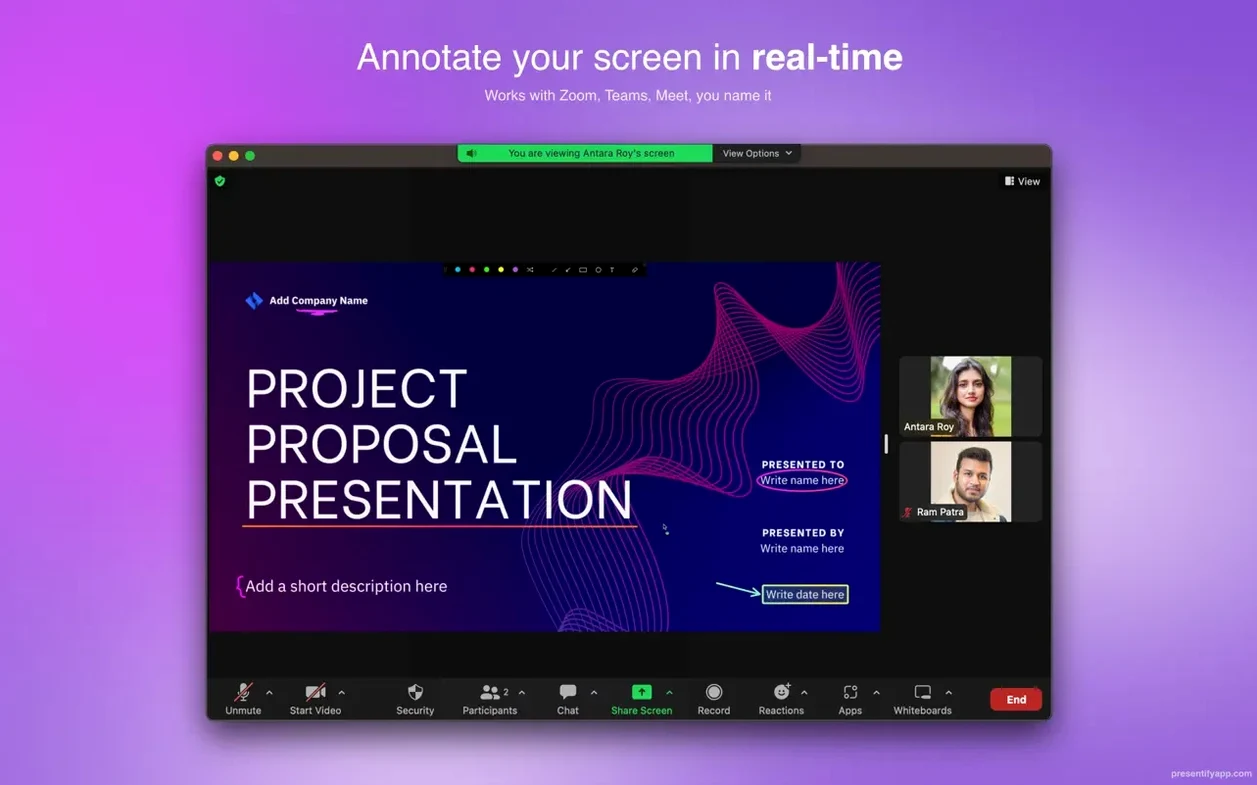
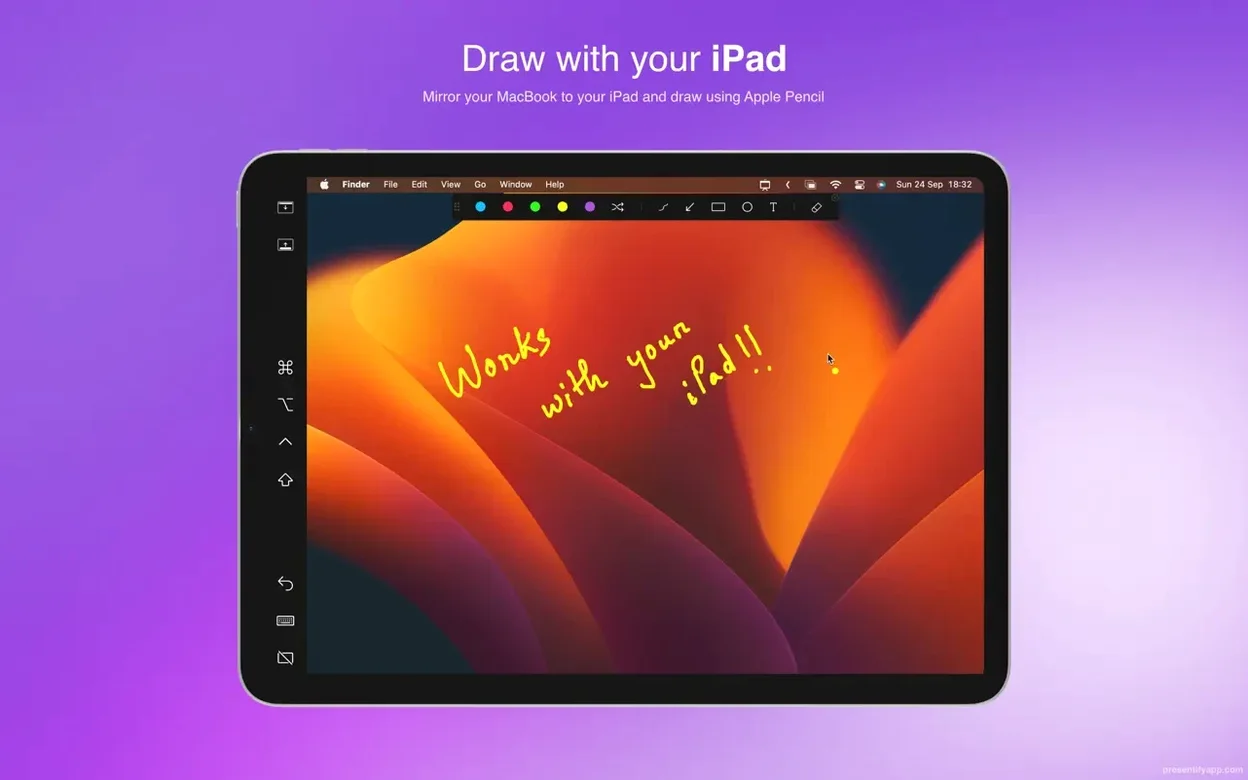
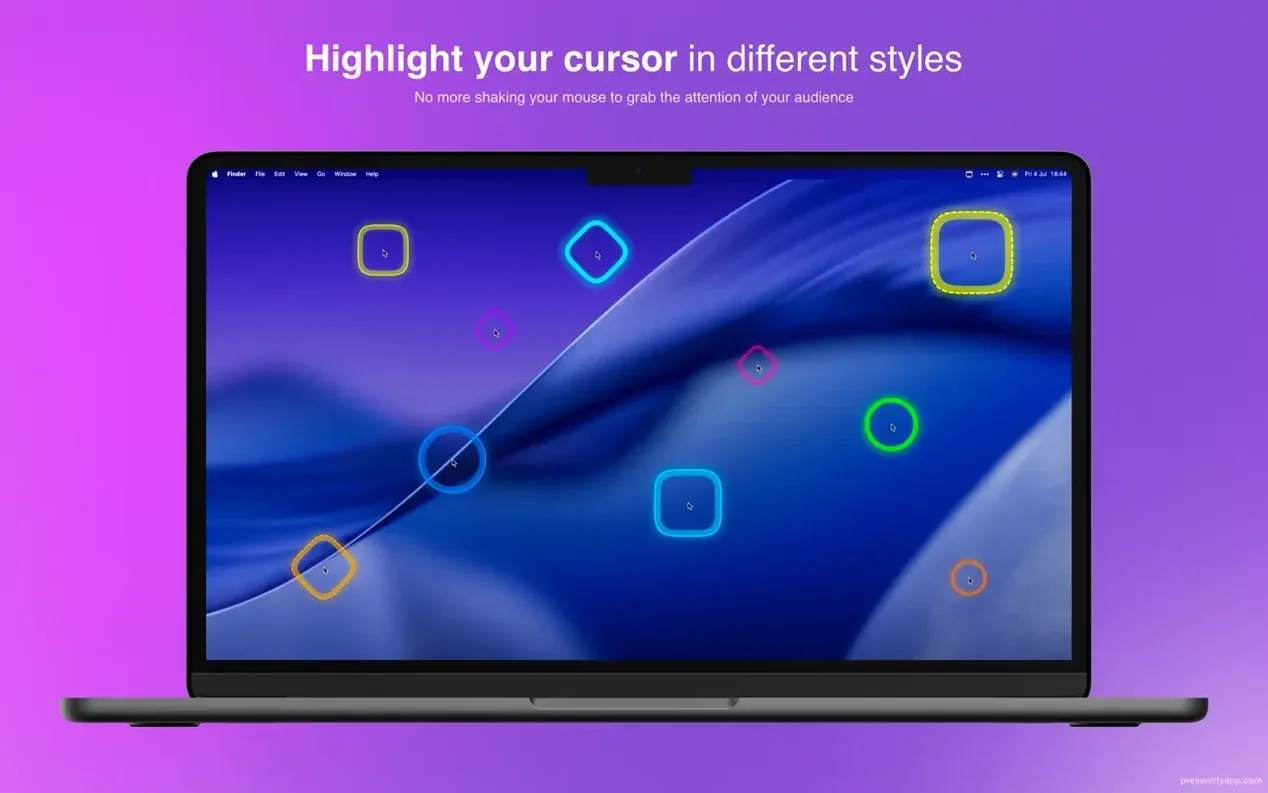
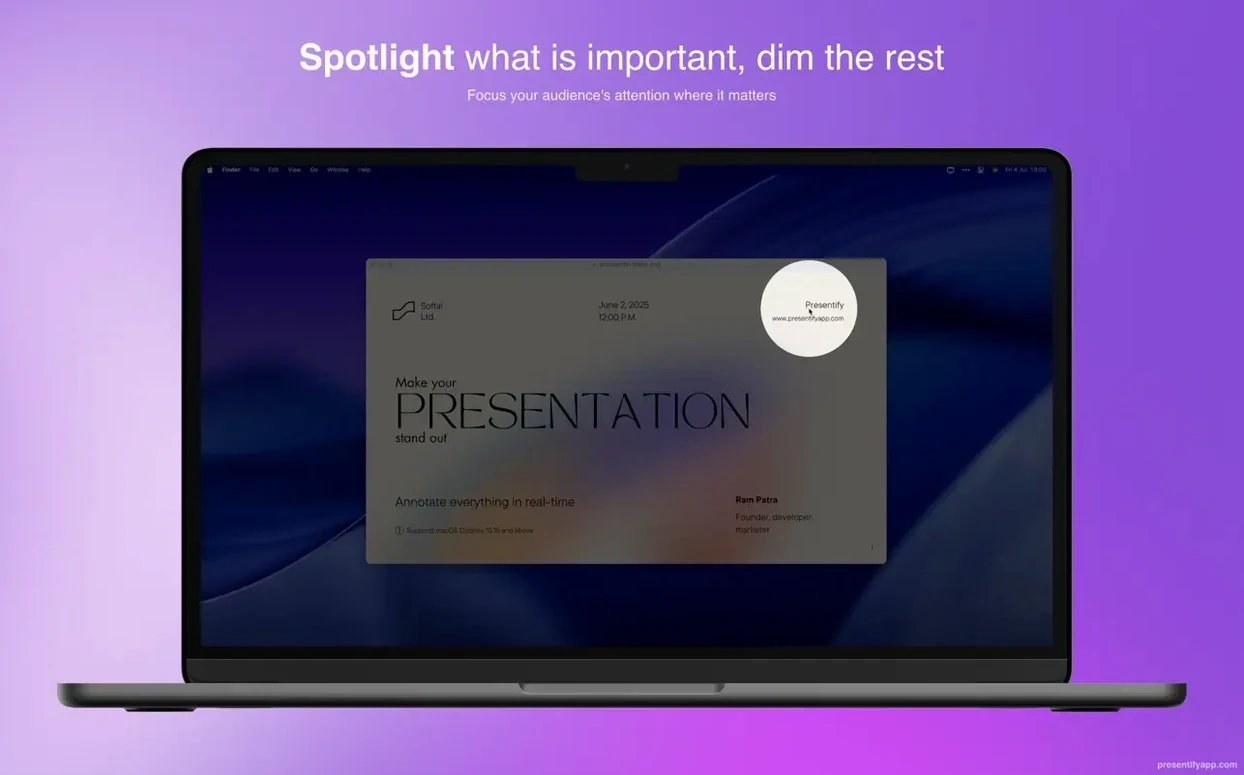
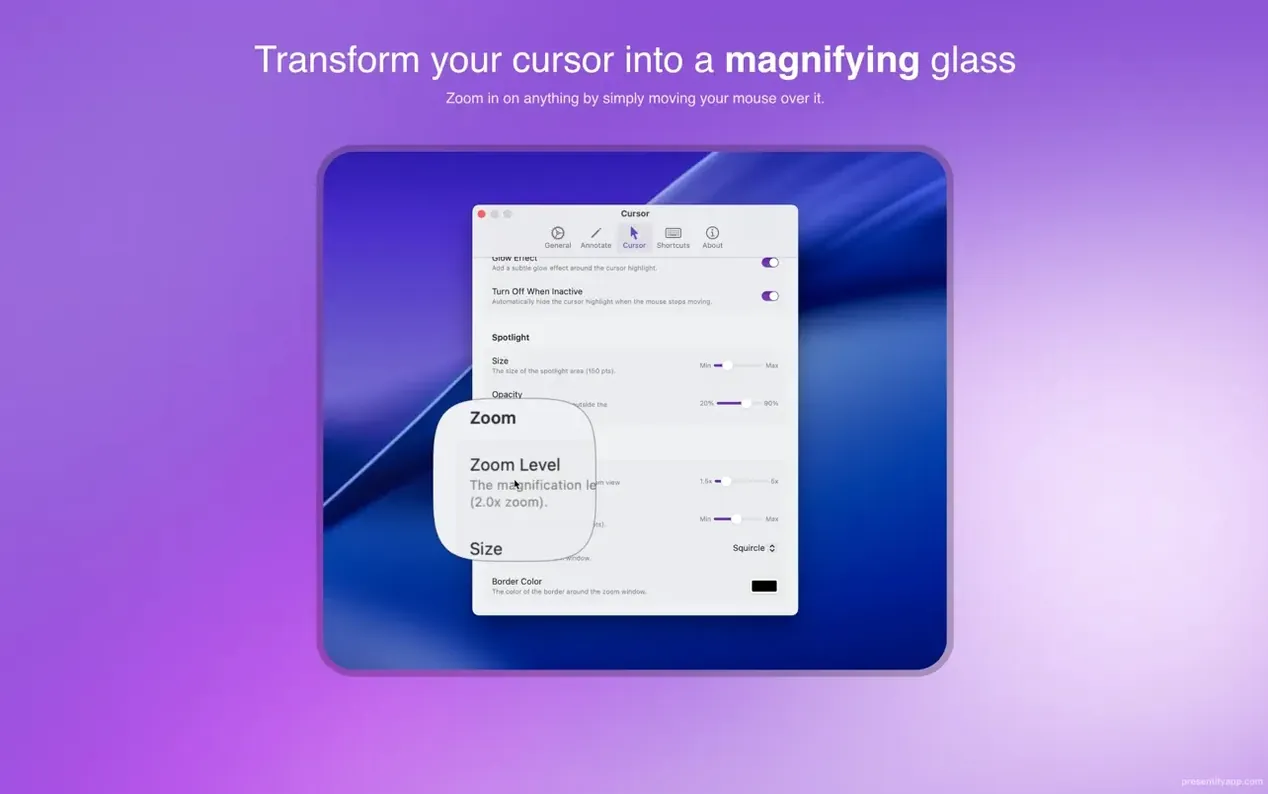
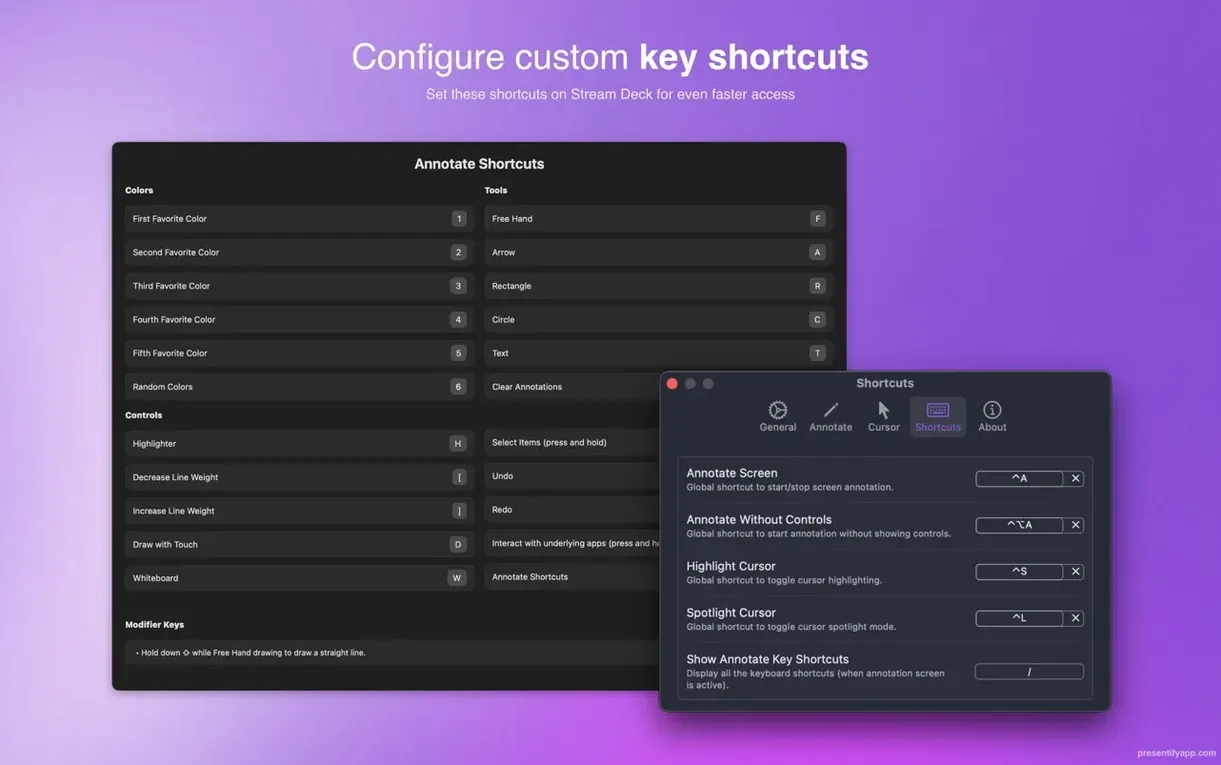
You are sharing your screen in a Zoom call, trying to point out a specific line of code or a detail in a PDF. Without a physical laser pointer, you rely on your mouse cursor — tiny, easy to miss, and often lost against a busy background. Presentify lives in the macOS menu bar and gives you a virtual pointer, a spotlight, and a full set of annotation tools that work over any app: Keynote, a browser, a video, or your coding window.
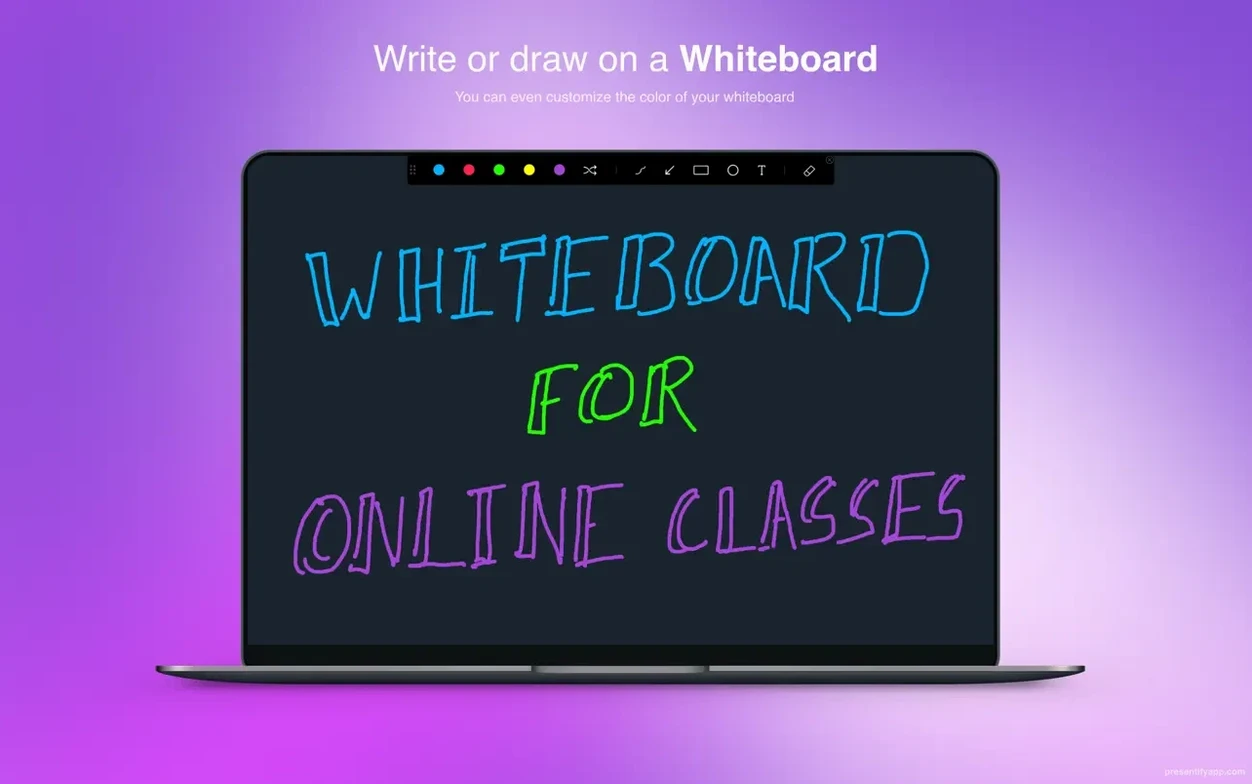
Draw rectangles, arrows, and type text over any app
- Draw rectangles, circles, arrows, and freehand lines over your screen.
- Type text directly onto any app, image, or video in real time.
- Highlight the cursor with a coloured halo so viewers never lose track of where you are pointing.
- Zoom into a specific area of the screen during a presentation or tutorial.
- Use random gradient colours to keep annotations visually fresh.
- Works with graphics tablets like Wacom and XP-Pen for handwritten notes.
Built for remote teachers, developers, and trainers
Presentify is built for anyone who presents or teaches remotely: educators running online classes, developers walking through code on a live stream, and trainers annotating slides in Google Meet or Skype. It runs in full-screen mode, works with Keynote, and stays out of the way when you don’t need it — just a small icon in the menu bar until you activate it.
Quit and relaunch once after installing
Presentify is a menu bar app, so your first instinct might be to click its icon and start drawing. That works, but a few small habits make it much more useful from the start.
- Quit and relaunch once after the first copy to Applications. The app needs that restart to register properly in the menu bar. After that, it stays put.
- Map the modifier key early. Pressing Fn during a session lets you interact with the app underneath — clicking buttons, scrolling a webpage, or advancing slides in Keynote — without quitting Presentify. Practise that toggle a few times so it becomes automatic.
- Try automatic erasing on a test screen. Open a browser, draw an arrow, and watch how the app clears annotations after a few seconds. It is handy for one-off highlights during a live class, but you can disable it if you prefer to keep marks on screen longer.
Rehearsing a CSS tutorial on Twitch with Presentify
It is Tuesday evening and you are rehearsing a tutorial on CSS layouts for a Twitch stream. You have Presentify sitting in the menu bar, Keynote open with your slides, and a browser window with a live demo ready.
You start the stream, click the Presentify icon, and turn on cursor highlighting. The small coloured halo around the pointer makes it visible even against a dark code editor background. You run through the first few slides, drawing a rectangle around a margin property and then typing 40px directly on the Keynote slide so viewers see the number right there.
Halfway through, a viewer asks about Flexbox alignment. You open the browser demo, press Fn to click through the demo app’s buttons, then release Fn and draw an arrow to the alignment setting. You switch to the spotlight tool and zoom in on a three-column layout so the detail is clear. After the explanation, you let the automatic erasing clear the marks so the next slide is clean.
Pick a highlight colour that contrasts with your editor
The default setup works, but a couple of tweaks save time in the long run.
- Pick a highlight colour that contrasts with the apps you use most. If your code editor has a dark theme, choose a light halo colour — white or yellow — so it does not blend in.
- Enable random gradient colours if you annotate fast and want each shape to stand out from the last. It is a small toggle that makes consecutive annotations easier to tell apart.
- Adjust the zoom level to something that fits your screen real estate. A moderate zoom keeps context visible while bringing the important detail close enough for a video call or stream.
- macOS 13 Ventura or later
- Intel or Apple Silicon
Kit check at a glance
| System | macOS 13 or later |
| Chip | Apple Silicon, Intel 64-bit |
| Download | 6 MB |
| Older pressings | 1 in the crate |






Chat from the booth
Sign in or grab a free account to leave a comment.
Nobody has said a word in the booth yet. If you played a set with this build, tell the next person how it went.