
- Build in the crate
- 3.4
- Made by the team at
- Juuso Salonen
- Menu languages offered
- English
- How you pay for it
- Included
- macOS it plays on
- macOS 10.15 or later
- CPU it runs on
- Apple Silicon, Intel 64-bit
Screenshots
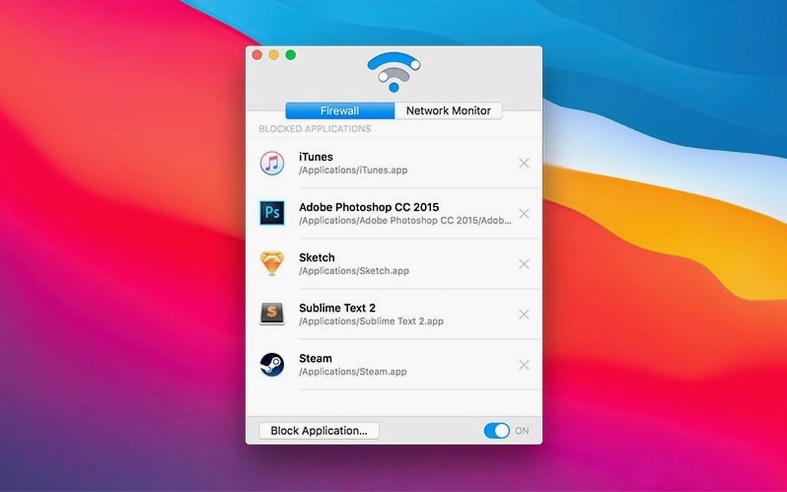
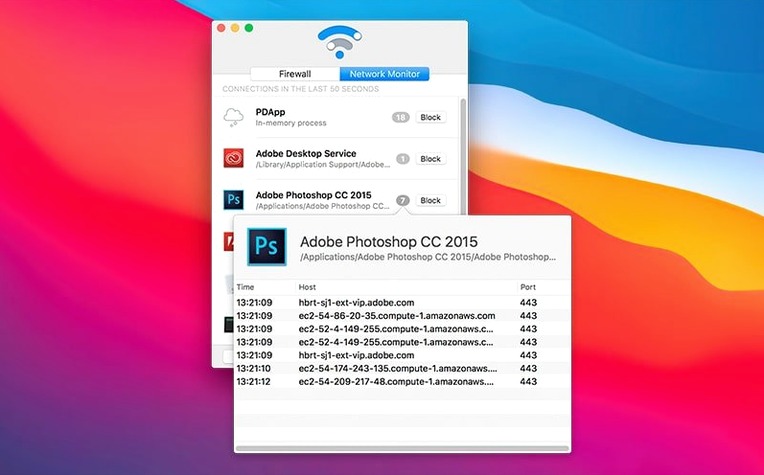
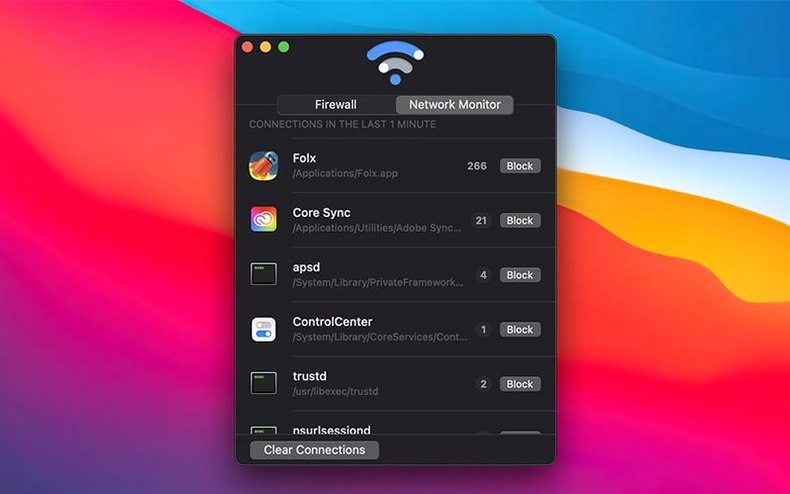
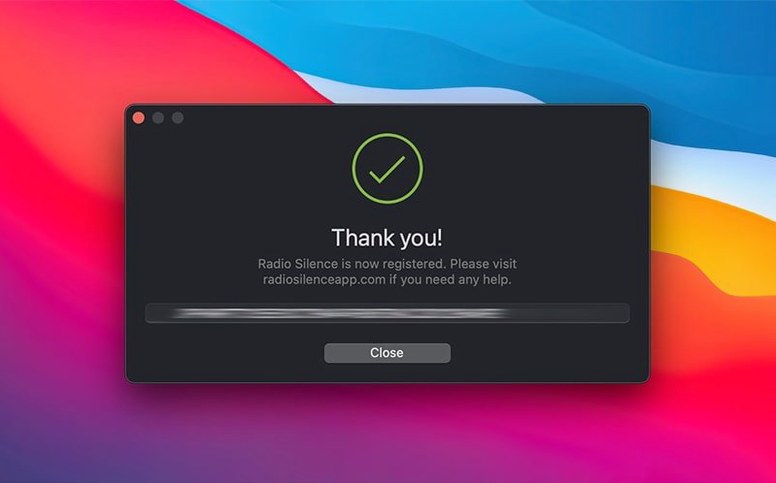
Radio Silence 3.4 is out, and the headline change is support for macOS Tahoe. The update adds installation guidance for the new system, so the firewall gets going without the usual head-scratching. It also handles installation errors and missing permissions more gracefully, and there is a new help view with troubleshooting info if the app refuses to launch.
Block an app
Use the Block Application button to pick an installed app and cut its internet access. The Firewall tab lists everything you have blocked, and you can remove an app from that list whenever you change your mind.
Watch connections live
The monitor shows network connections in real time, organised by the application that started them. Handy for spotting that one utility phoning home at 3am.
Check the block list
Everything you have blocked lives in one place. No digging through system settings — just open the Firewall tab and see what is off the network.
Confirm the app is running after install
Give yourself an afternoon to let Radio Silence settle in. The app runs without a menu bar icon, so the first thing to do is confirm it is actually working. Open the main window and watch the connection list for a few minutes. You will see a stream of outgoing and incoming attempts from your usual apps — web browsers, chat clients, system processes.
Pick one app you do not fully trust to start. An old game launcher, a note-taking app that asks for unnecessary permissions, or some utility you installed once and forgot about. Use the Block Application button to cut it off. Then poke around in that app and see if it complains. Most will just fail silently, which is the idea. If you block something you actually need, go back to the Firewall tab and remove it from the block list. No harm done.
Spend a day running with a few apps blocked before you go wild. You might find that a blocked app you depend on has an offline mode you never knew existed. Or you might discover an app that refuses to work entirely when cut off — in which case you can decide whether the trade-off is worth it.
Smoother setup for macOS Tahoe
The big addition is installation guidance for macOS Tahoe. If you are already on that system, the firewall sets up with fewer detours. The installer now catches missing permissions and installation errors early, and points you to a solution instead of just failing silently.
The new help view matters too. If Radio Silence cannot launch for whatever reason, the app shows troubleshooting info right there in the window. No hunting through forums or config files. That alone saves time when you are setting up on a fresh Mac or after a system update.
Everything else from earlier versions still works the same: the connection monitor, the block button, the Firewall tab. The update is strictly about smoothing out the setup and error-handling side of things.
Workflow: find and block a phoning-home app
Say you suspect some app is calling home more often than it should. Here is how to track it down and shut it off with Radio Silence.
- Open Radio Silence and leave the connection monitor running in the background for an hour or two while you use your Mac normally.
- Check the list of connections. Apps that appear repeatedly and are not doing obvious work (a chat app constantly pinging, a PDF reader checking for updates, a media player phoning a licensing server) are candidates.
- Note the app name. Look it up quickly if you are not sure what it belongs to — sometimes system utilities have generic names.
- Once you have identified the app, click Block Application and pick it from the list of installed apps.
- Confirm the block on the Firewall tab. The app is now cut off from the internet.
- Use the app normally for a day. If nothing breaks, you are fine. If something does break, remove the app from the block list in the Firewall tab.
The whole process takes maybe ten minutes of active work. The rest is just waiting and watching.
Common concerns before installing
Does Radio Silence slow down my internet
No. It monitors connections and blocks selected apps, but it does not route or throttle traffic. Your download and upload speeds stay exactly the same.
Can I block only specific connections instead of whole apps
No. Radio Silence works at the application level. You block an entire app from using the network. If you need fine-grained control over individual connections, you would need a more advanced firewall tool. This one keeps things simple.
Will other people on my network know I am blocking things
No. The firewall runs locally on your Mac. No traffic goes through a central server, and no alerts appear on the network. It is invisible to other devices.
Undo a block on the Firewall tab
Go to the Firewall tab and remove the app from the block list. Radio Silence will restore its network access immediately. The app does not permanently break anything — you can always undo a block.
Can I pause the firewall temporarily
Yes. The firewall can be paused, which lets all blocked apps connect again until you turn the block back on. Useful for updates or troubleshooting.
Supports Apple Silicon and Intel Macs
Radio Silence 3.4 runs on both ARM (Apple Silicon) and x86 64-bit Macs, as long as you are on macOS 10.15 or later.
- Installation guidance for macOS Tahoe
- Better handling for installation errors and missing permissions
- New help view with troubleshooting info if the app fails to launch
- macOS 10.15 or later
- Intel or Apple Silicon
Kit check at a glance
| System | macOS 10.15 or later |
| Chip | Apple Silicon, Intel 64-bit |







Chat from the booth
Sign in or grab a free account to leave a comment.
Nobody has said a word in the booth yet. If you played a set with this build, tell the next person how it went.