

- Build in the crate
- 6.6.3 [MAS]
- Made by the team at
- qing qing yu
- Menu languages offered
- Russian, English, German, Arabic, Vietnamese, Indonesian, Spanish, Italian, Chinese (Simplified), Portuguese, Turkish, French, Japanese
- How you pay for it
- K'ed by TNT team
- macOS it plays on
- OS X 10.7 or later
- CPU it runs on
- Intel 64-bit
Screenshots
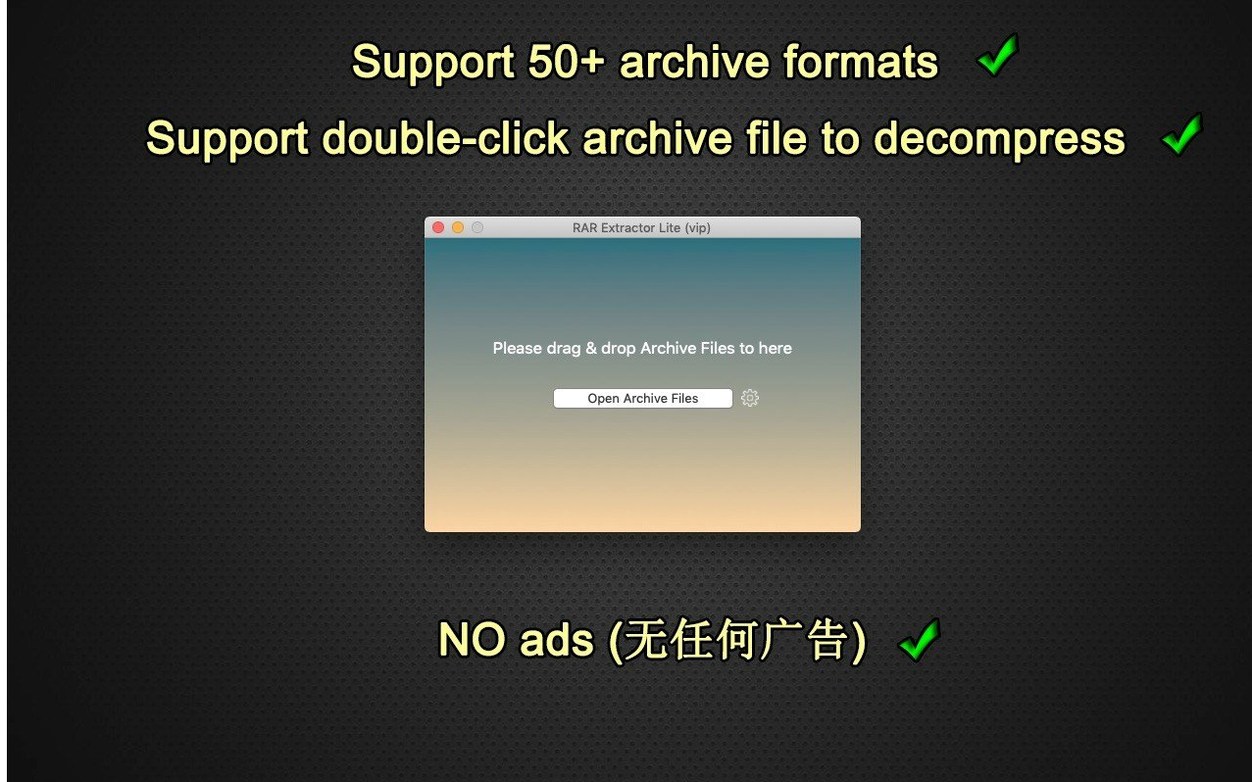
RAR Extractor - Unarchiver 6.6.3 is the current version, and if you are new to it, here is how to get started quickly. The first thing to try is double-clicking any archive — the app decompresses it straight away. For multiple files, use batch extraction: select all the archives and drag them onto the app window or its Dock icon. That saves time compared to opening each one separately.
Another useful move is drag-and-drop to the Dock icon. Just grab a compressed folder and drop it on the app’s icon in the Dock; it extracts without opening the main window. If you ever need to open a password-protected archive, the app handles that too — you just enter the password when prompted. These three tricks cover most daily needs.
Runs on Intel Macs from macOS 10.7
RAR Extractor - Unarchiver 6.6.3 runs on macOS 10.7 or later and is built for Intel Macs (64-bit). If your machine is from that era onwards, the app works as expected. The disk image mounts cleanly, and the install steps are straightforward: mount the image, run Open Gatekeeper friendly, then press Enter in Terminal to bypass Gatekeeper, drag the app to Applications, and launch it. No extra configuration needed for standard use.
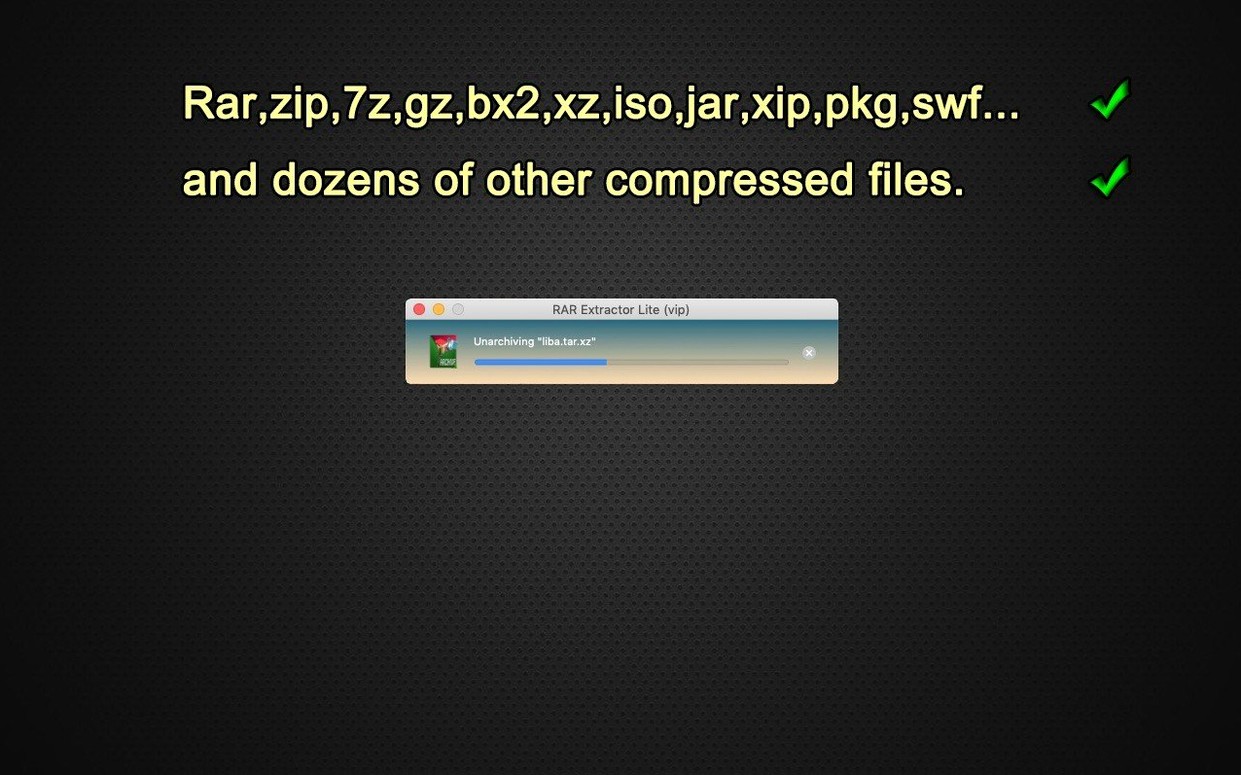
The app supports a wide range of formats: RAR, ZIP, TAR, 7-Zip, Gzip, Bzip2, XZ, TAR.GZ, ISO, PKG, SWF, EXE, JAR, XIP, and DMS. That covers almost anything you might download from the web or get from colleagues. If you are on a newer macOS version, the built-in Archive Utility handles some of these, but RAR Extractor - Unarchiver fills the gaps for formats macOS does not natively open.
The interface is available in 13 languages including English, Spanish, German, French, Italian, Russian, Portuguese, Turkish, Arabic, Vietnamese, Indonesian, Simplified Chinese, and Japanese. You can switch the language in the system settings if needed.
Gatekeeper block if Terminal step skipped
One issue users run into is Gatekeeper blocking the app after installation. The install steps include a Terminal command to bypass that — if you skip it, the app may not open. Just follow the steps in order and it works.
Another snag: password-protected archives that fail to extract. The app supports encrypted archives, but only if you know the password. If the password is correct and extraction still fails, check the archive file itself — it might be corrupted or incomplete. Try re-downloading the archive.
Some users expect batch extraction to work by selecting multiple archives in Finder and double-clicking them all at once. That does not work. Use batch extraction by selecting the archives and dragging them onto the app window or its Dock icon. That method triggers the batch process correctly.
Set a single extraction destination in preferences
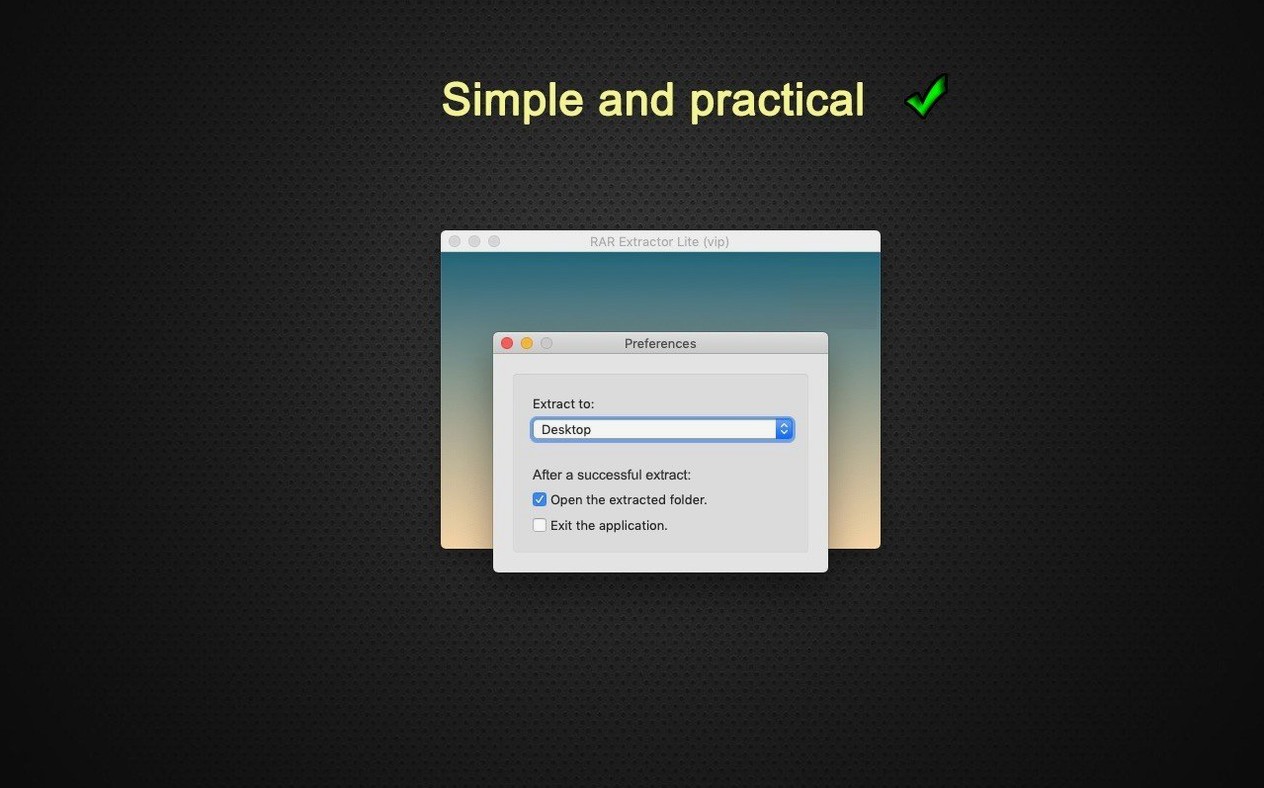
After installing, open the app and check the preferences. The most useful setting to adjust is the extraction destination. By default, archives extract to the same folder as the archive file. If you prefer a single download folder for all extracted content, change that in the settings.
Another setting to consider is the behaviour after extraction. You can set the app to open the extracted folder automatically once the process finishes. That saves a step when you are working through multiple archives quickly.
If you use a rar extractor - unarchiver for mac torrent to download compressed files regularly, setting the app as the default opener for RAR and ZIP files in Finder is a good idea. That way, double-clicking any archive launches RAR Extractor - Unarchiver directly, no extra clicks needed. The option is in the app preferences under file associations.
- macOS 10.7 or later
- Intel processor
Kit check at a glance
| System | OS X 10.7 or later |
| Chip | Intel 64-bit |
| Download | 8 MB |




Chat from the booth
Sign in or grab a free account to leave a comment.
Nobody has said a word in the booth yet. If you played a set with this build, tell the next person how it went.