

- Build in the crate
- 5.3.0 [MAS]
- Made by the team at
- Shrek
- Menu languages offered
- English
- How you pay for it
- K'ed by TNT team
- macOS it plays on
- OS X 10.11 or later, macOS 12.3 or later
- CPU it runs on
- Apple Silicon, Intel 64-bit
Screenshots
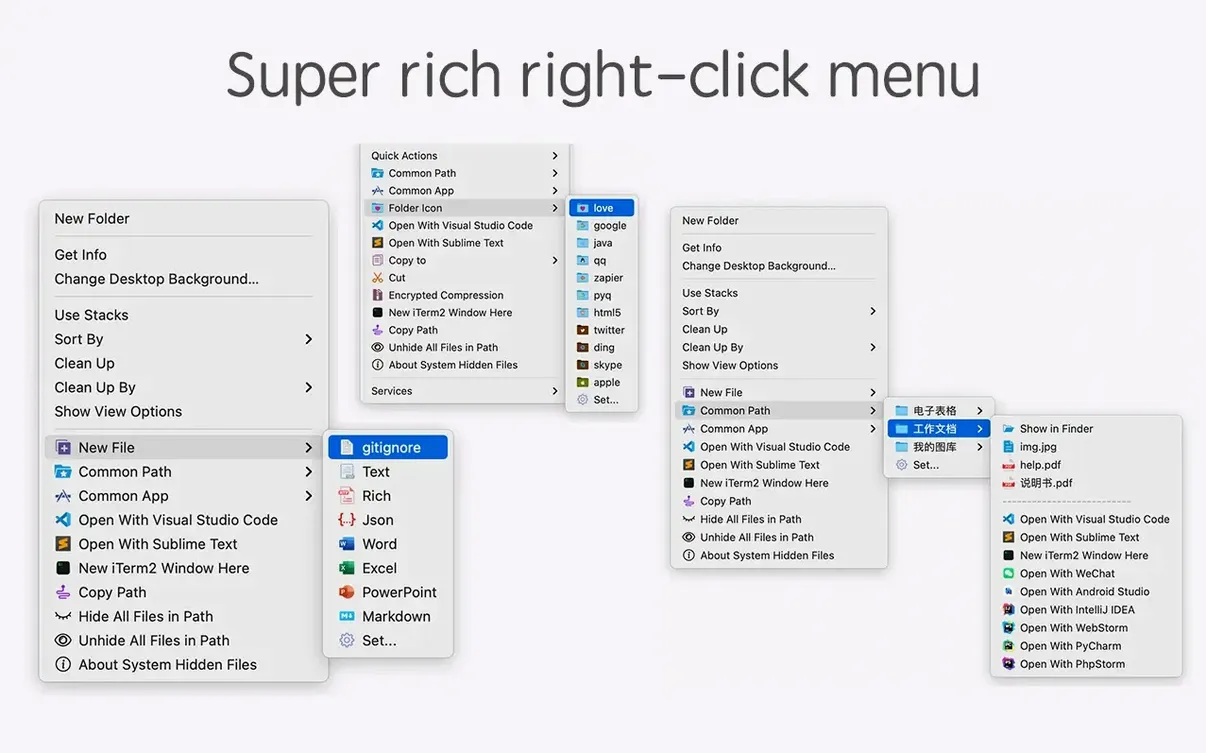
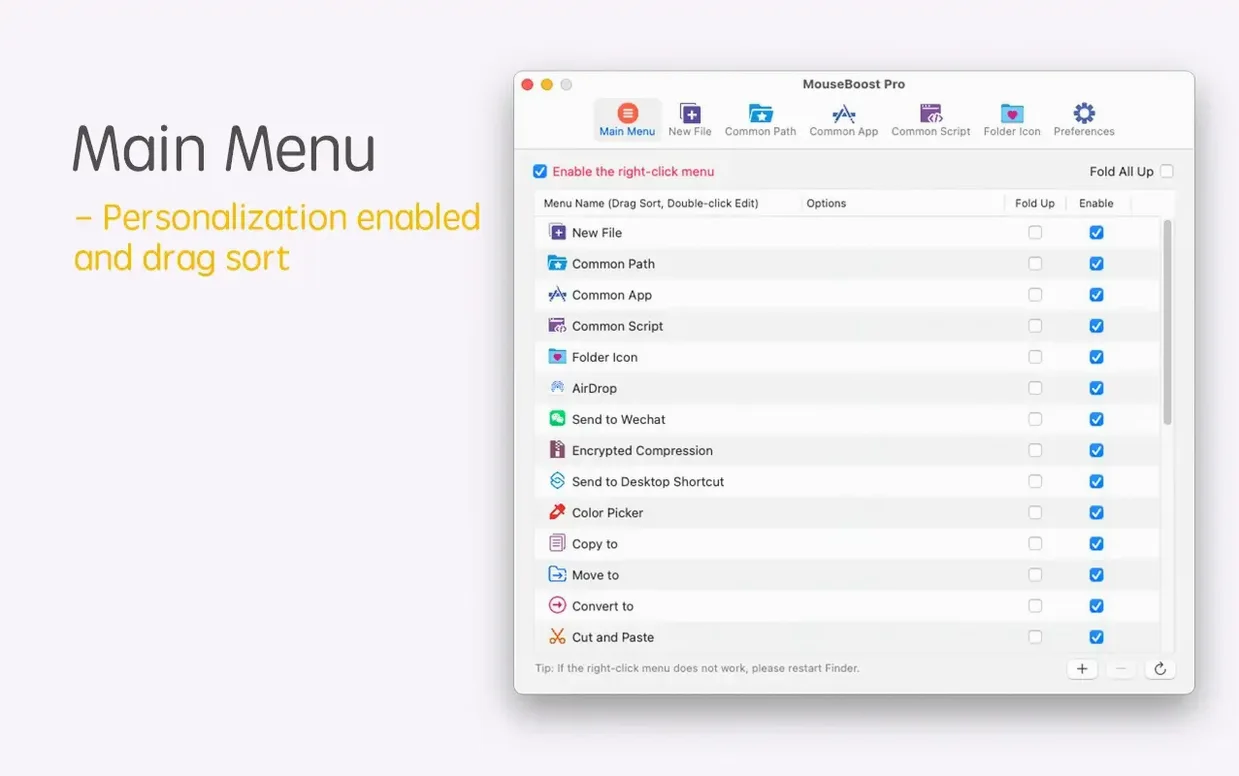
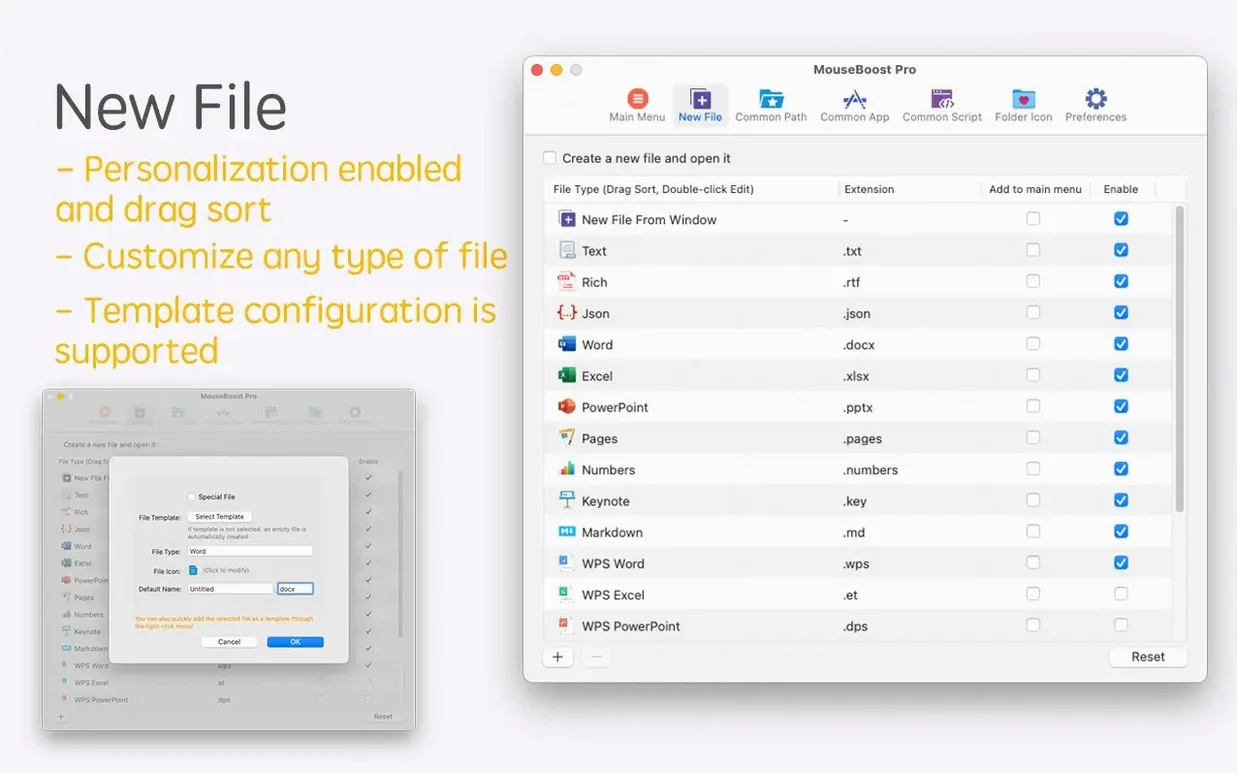
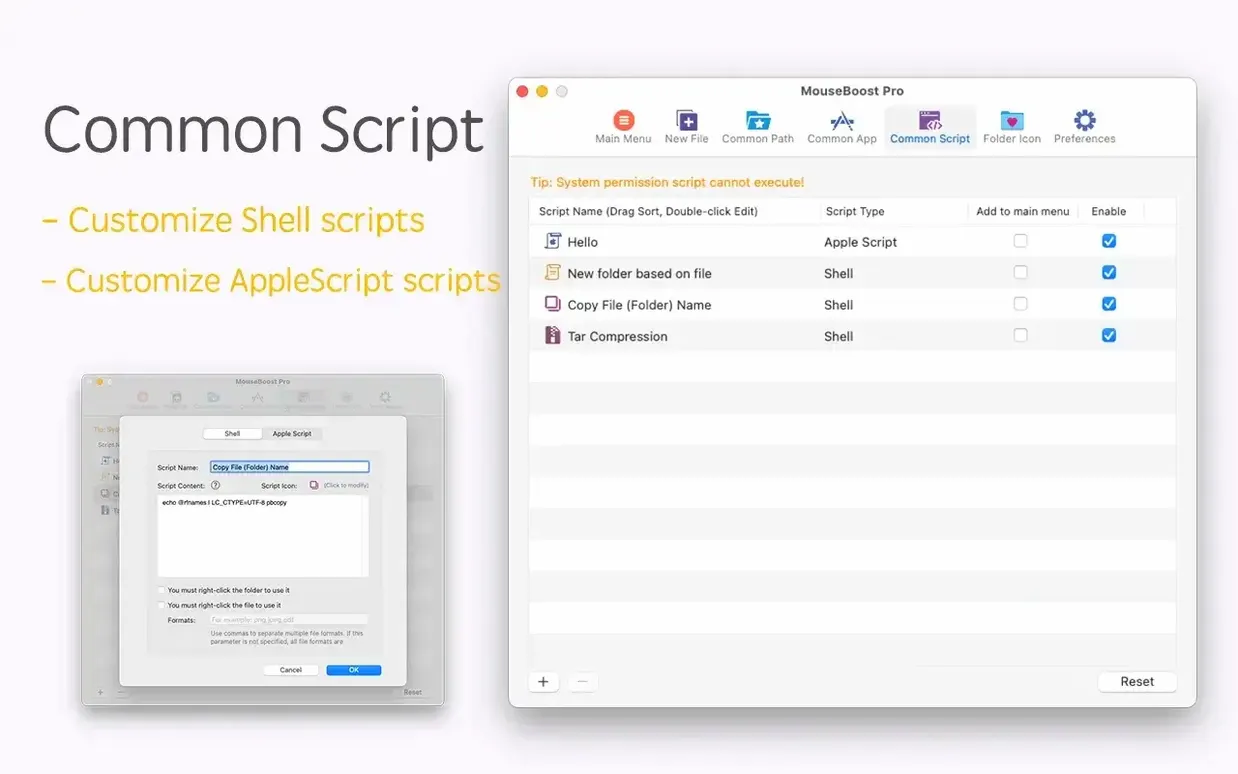
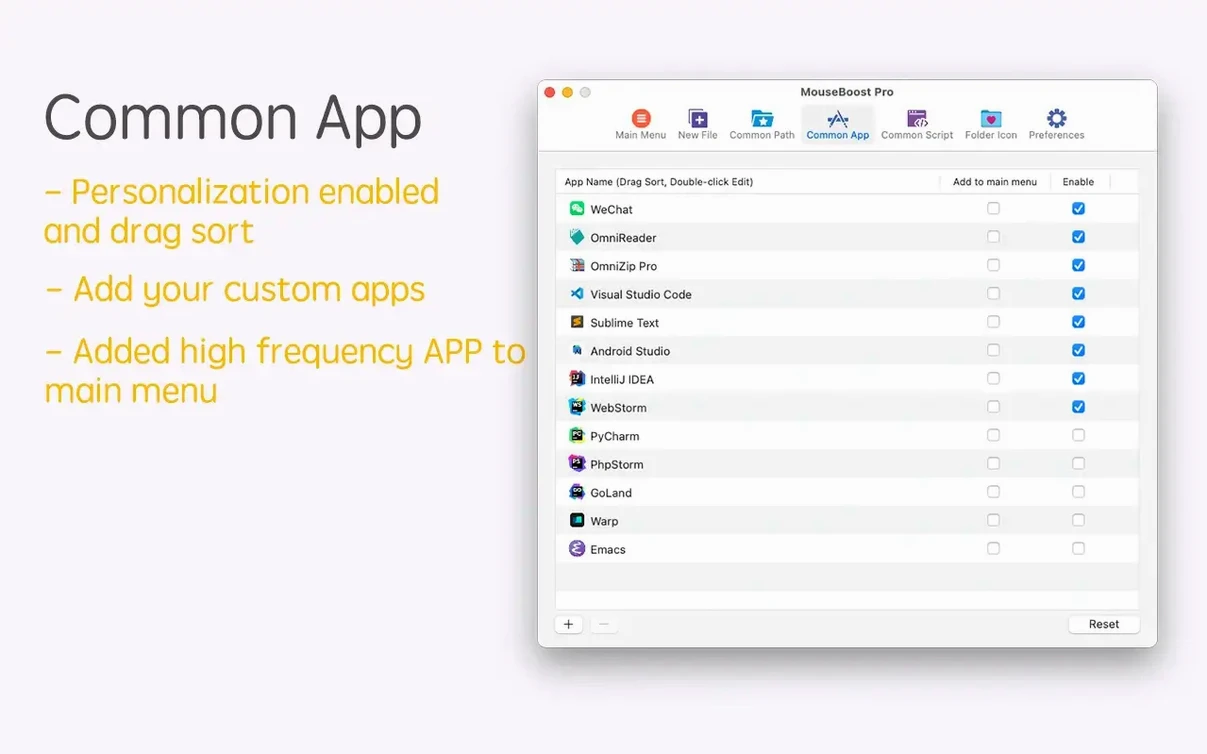
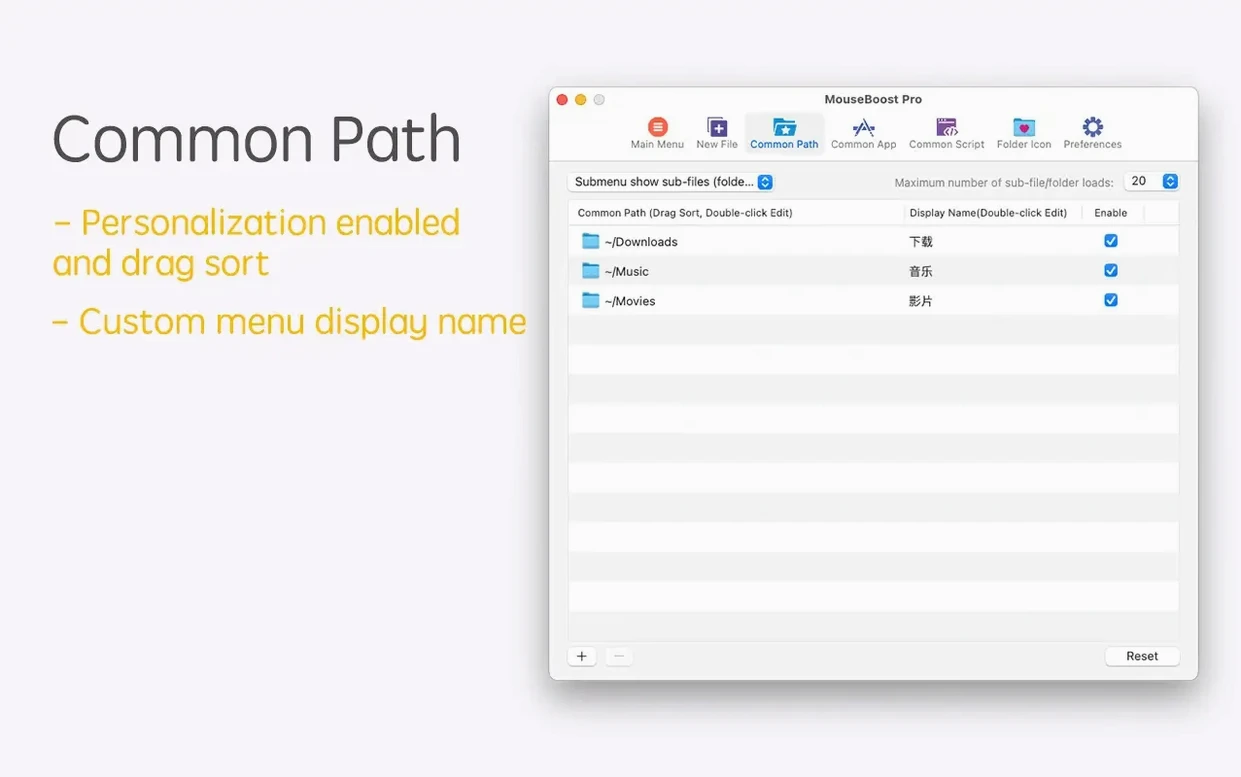
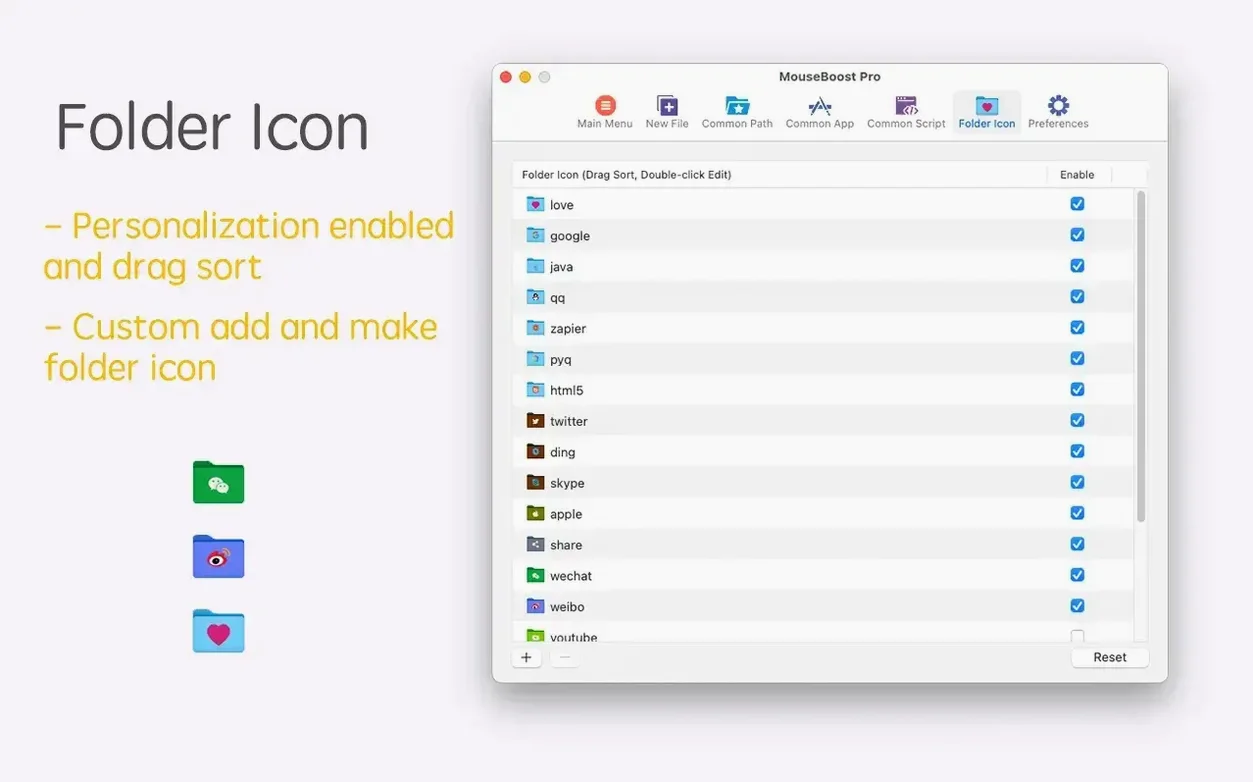
Anyone who spends a lot of time in the macOS Finder knows that the built-in right-click menu is fairly basic. MouseBoost Pro steps in with a long list of extra actions that speed up everyday file tasks. Before you install it, here are a few concrete things people often ask about.
- What can I actually do with it? Copy the current folder path, create common file types (or custom ones), change a folder icon, calculate MD5, SHA1 or SHA256, compress files with encryption, and open a terminal or editor (iTerm2, VSCode, Sublime Text, Emacs) right from a folder.
- Does it slow down Finder? It runs as a Finder extension, so it only activates when you right-click. No noticeable lag in daily use.
- Can I batch rename files with it? Yes — the current version adds rename-from-list support and lets you insert text at a specific position during batch renaming.
- Is there a quick preview for folders? Version 5.2.8 added a folder tree quick preview, so you can see a folder’s structure without leaving Finder.
Gatekeeper bypass needed after install
The most frequent hiccup happens right after installation. You run the installer, drag the app into Applications, then right-click in Finder and see nothing new. The reason is usually the Gatekeeper bypass step. You mounted the disk image, ran Open Gatekeeper friendly, then pressed Enter in Terminal — but sometimes the Terminal command doesn't stick if you close it too fast. Wait for the prompt to return before you close the window, then relaunch Finder by holding Option and right-clicking the Finder icon in the Dock, choosing Relaunch. After that, the right-click menu should show MouseBoost Pro.
Another common snag: the custom menus you set up disappear after a macOS update. That is normal — macOS rewrites its extension registry during major updates. You just need to re-launch MouseBoost Pro once, and your customisations come back without re-configuring everything. The saved menu layout lives in the app’s own config folder, not in the system registry.
If you use iTerm2 and the "open iTerm2 here" action does nothing, check that iTerm2 is installed in the standard location. MouseBoost Pro looks for it in /Applications. If you keep it elsewhere, the action won't find it. Same applies to VSCode, Sublime Text and Emacs — they all need to be in the normal Applications folder or your home user Applications folder.
Quick Preview on a folder of design assets
It is Thursday evening and I am organising a project folder full of design assets. There are PNGs, SVGs, some layered Photoshop files and a dozen text notes. I right-click the folder and choose "Quick Preview" from the MouseBoost Pro menu. The folder tree pops up instantly — I can see which subfolders have the final assets and which ones still hold old drafts. No opening each folder one by one.
Next, I need to rename a batch of PNGs so they follow a consistent naming scheme. I select them all, right-click, go to "Batch Rename", and choose "Insert text at specific position". I add the word "final_" after the third character. The preview shows the new names before I confirm. While I am at it, I also use the "Import rename list" feature to pull in a text file with the exact names the client wants. That saves typing them out manually.
One of the design files needs to go to the developer. I right-click it, choose "Compress with Encryption", set a password, and a .zip lands on the desktop. Then I right-click the parent folder again, pick "Copy Path", and paste it into Slack. That is it — five actions that would have taken several Finder windows and a terminal session are done from one right-click menu.
Runs on El Capitan and newer, Intel or Silicon
MouseBoost Pro works on any Mac running OS X 10.11 El Capitan or newer. That includes Intel Macs and Apple Silicon models — both architectures are supported. The app itself takes up very little space; it is a lightweight utility that adds itself as a Finder extension. It does not run in the background consuming resources because it only loads its actions when you right-click. The languages list shows English, so the interface and tooltips are straightforward to navigate. No system tweaks or additional libraries are needed. Install it, relaunch Finder, and the extra right-click options appear ready to use.
Those are the points that come up most. If any of them match what you need, MouseBoost Pro is worth a look.
- Added quick preview for folder trees.
- Added aspect ratio selection and automatic OCR copy.
- Improved scrolling capture.
- Added support for inserting text at a specific position in batch renaming.
- Added rename-from-list support in batch renaming.
- Added a maximum depth setting for file and directory trees.
- Fixed known issues.
- macOS 10.11 or later
- Intel or Apple Silicon
Kit check at a glance
| System | OS X 10.11 or later, macOS 12.3 or later |
| Chip | Apple Silicon, Intel 64-bit |
| Download | 17 MB |
| Older pressings | 2 in the crate |








Chat from the booth
Sign in or grab a free account to leave a comment.
Nobody has said a word in the booth yet. If you played a set with this build, tell the next person how it went.