
- Build in the crate
- 2026.10.24
- Made by the team at
- 卓文 高
- Menu languages offered
- Russian, English, German, Vietnamese, Indonesian, Spanish, Italian, Chinese (Traditional), Chinese (Simplified), Korean, Portuguese, Thai, French, Japanese
- How you pay for it
- Not required
- macOS it plays on
- macOS 13 or later
- CPU it runs on
- Apple Silicon, Intel 64-bit
Screenshots


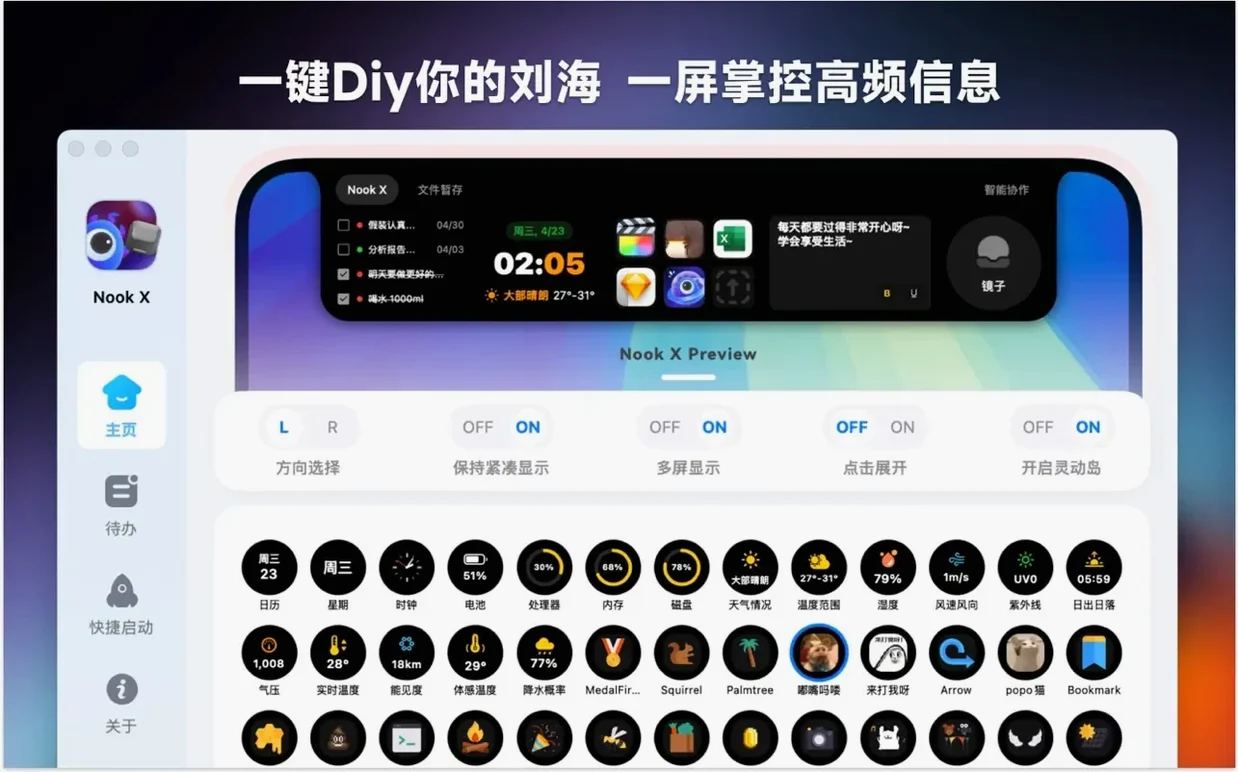
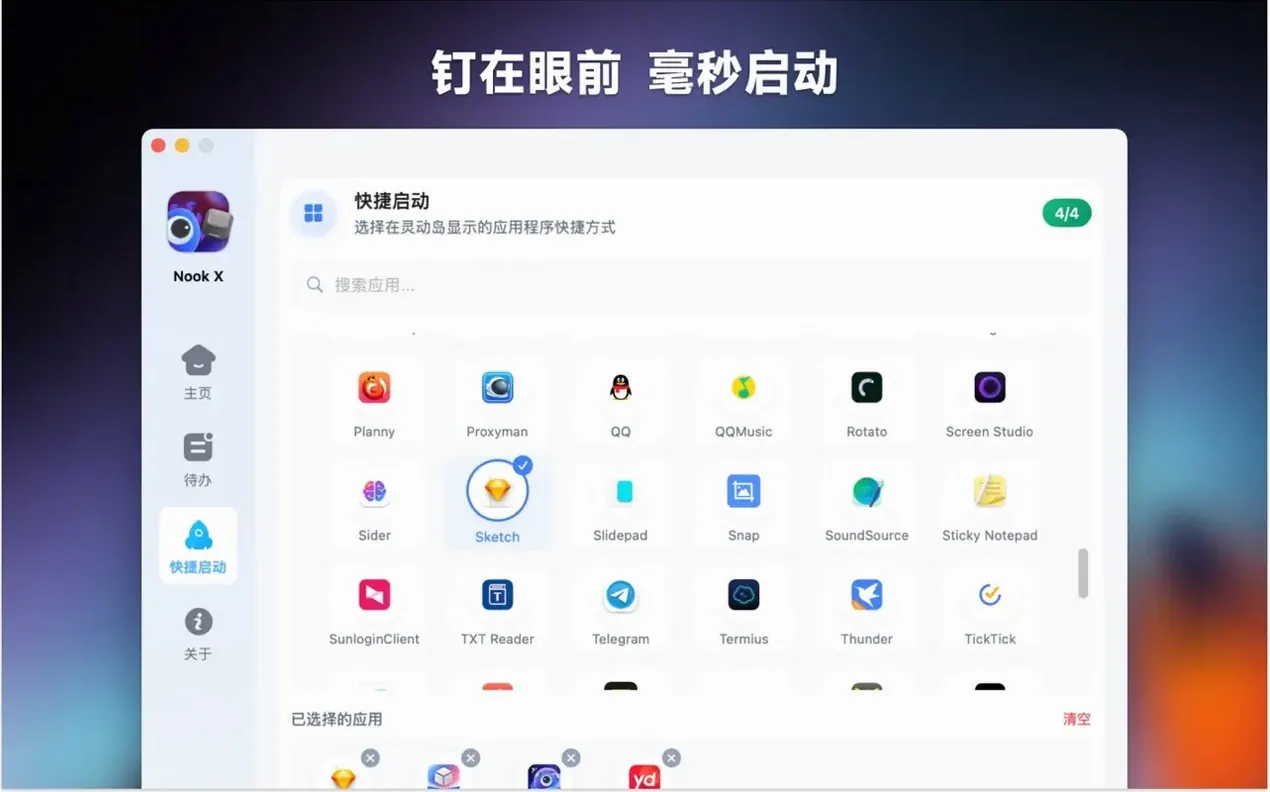

Nook X is a macOS utility that wraps task management, music lyrics, and AI chat into a single app.
How does the lyrics search work?
You can find songs by searching for a line of lyrics. Once it finds a match, the app shows the lyrics automatically in a karaoke-style display.
What can the AI assistant do?
It answers questions, translates text, and helps generate ideas. You can also create tasks directly from a chat conversation, and voice input is supported for hands-free use.
Lyrics won't appear? Check metadata first
Most of the trouble people hit with Nook X comes down to a few things. If the lyrics don’t appear for a track, check the audio file’s metadata first. The app reads embedded tags: if your files are untagged or have no title, the lookup can miss. Renaming the file or adding basic info in a tag editor usually fixes it.
The AI assistant might not respond if you’re offline. Nook X needs a connection for chat and translation. Voice input can be flaky if your Mac’s microphone permissions aren’t set. Open System Settings > Privacy & Security > Microphone and make sure Nook X is allowed.
Some users find the notch area tools don’t show on external monitors. The app is designed for the built-in notch on macOS, so it works best on the main screen. Drag the window to your laptop display if it seems to vanish.
If a reminder doesn’t trigger, check that the app isn’t in a sleep state. macOS 13’s energy management can pause background apps. Adding Nook X to the list of apps that are allowed to run in the background helps.
Start your day with quick task entry
I start most days by opening the app from the dock. The notch area shows a compact panel with the clock and a quick task entry. I type “finish mix notes” and set a priority of medium, then add a reminder for late afternoon.
With a track playing in Apple Music, I switch to Nook X’s music tab. The player picks up the current song and pulls in the lyrics automatically. The karaoke scroll is useful when I’m checking pronunciation for a cover I’m recording. I search for a line from the chorus and the app finds the track straight away.
During a break, I open the AI chat and ask it to translate a few lines of a Spanish lyric into English. The assistant does it in a couple of seconds. I then turn the translation into a task by tapping “create task from chat” — it becomes a to-do item labelled “review Spanish lyrics”.
Later, I use voice input while I’m setting up my DJ gear. I say “remind me to check the bass EQ in an hour” and the app adds it to the list. By the end of the afternoon, the first reminder pops up. I tick off the original task and the new one. The day’s workflow stays in one app window, which saves me from juggling tabs.
Pulls track info from Apple Music or VLC
Nook X doesn’t replace a full DAW or a dedicated task manager, but it sits alongside them well. It can pull track info from whatever is playing in your system audio, so it works with Apple Music, VLC, or any standard player. The lyrics search doesn’t need a specific music app open — it reads from the file directly.
The task list integrates with macOS notifications. Reminders appear in the native notification centre, which means you see them even if Nook X is minimised. Voice input uses the built-in macOS speech recognition, so there’s no extra download to set up.
The AI chat works as a quick helper when you’re in another app. I often have it open on one side of the screen while I’m writing emails or editing audio. The “create task from chat” feature is useful when you’re mid-conversation and a to-do pops into your head. It saves you typing the same thing twice.
For nookx mac users who keep the notch visible, the app acts like a secondary menu bar. You can glance at tasks or skip a track without switching windows. That kind of integration feels natural on macOS 13, where the notch is a fixed part of the display.
Faster lyrics search and longer AI threads
Version 2026.09.15 brought a few practical updates. The lyrics search is faster when matching partial phrases — you no longer need to type the whole line. The AI assistant now handles longer conversation threads without resetting context as often. Task priorities are clearer in the list view, with colour coding that matches the urgency label you set.
Language support was extended to include Thai and Vietnamese, which makes sense if you work with music from those regions. The app also remembers your last active tab when you reopen it, so you don’t have to click back to the music player or chat every time. Small changes, but they add up when you use the tool daily.
Yes. The interface is available in English, Spanish, French, German, Italian, Japanese, Korean, Russian, Vietnamese, Indonesian, Thai, Portuguese, Traditional Chinese, and Simplified Chinese.
- macOS 13 or later
- Intel or Apple Silicon
Kit check at a glance
| System | macOS 13 or later |
| Chip | Apple Silicon, Intel 64-bit |
| Download | 36 MB |







Chat from the booth
Sign in or grab a free account to leave a comment.
Nobody has said a word in the booth yet. If you played a set with this build, tell the next person how it went.