
- Build in the crate
- 3.8.4
- Made by the team at
- Wouter Hennen
- Menu languages offered
- English
- How you pay for it
- Included
- macOS it plays on
- macOS 13 or later
- CPU it runs on
- Apple Silicon, Intel 64-bit
Screenshots
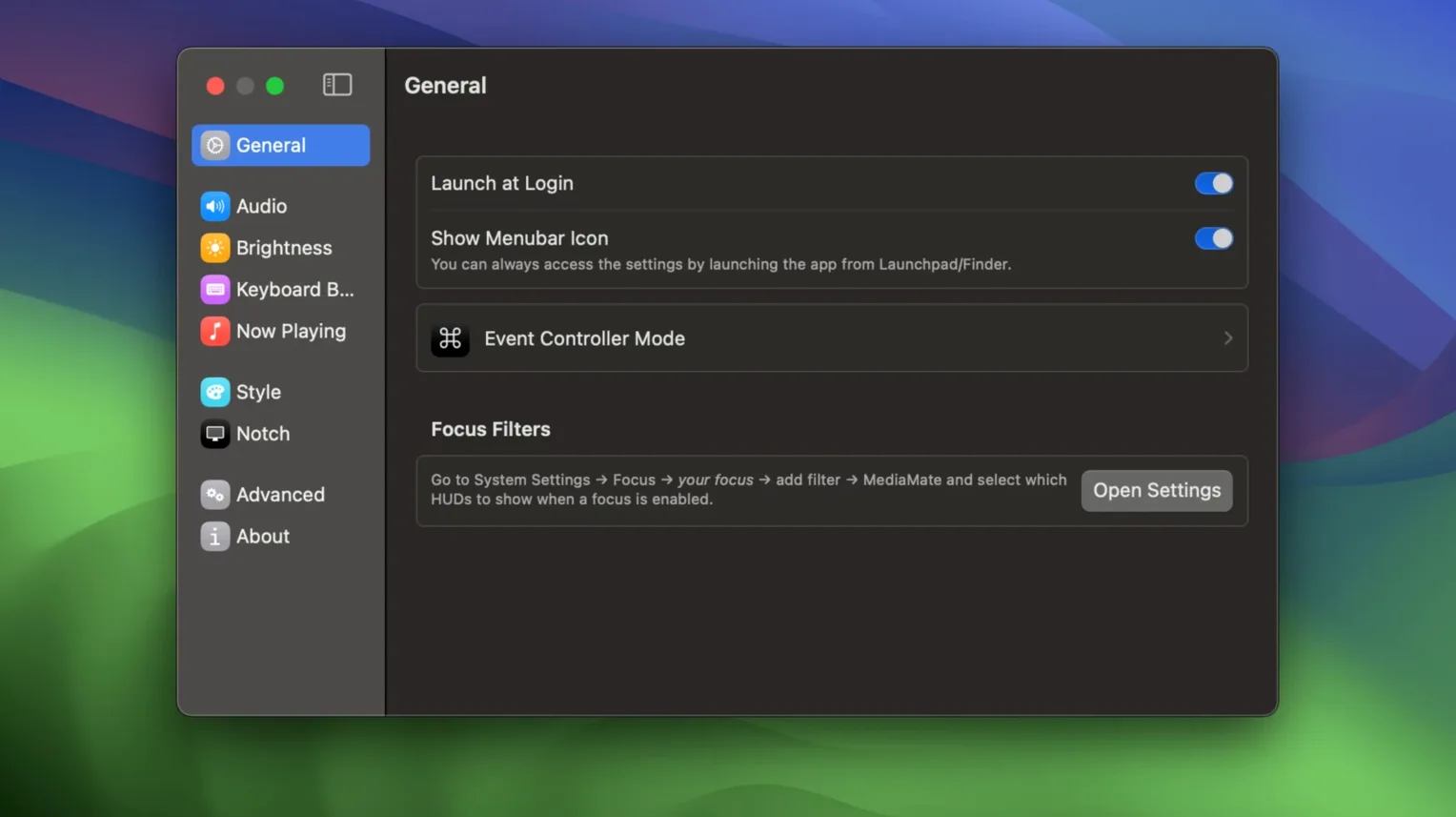
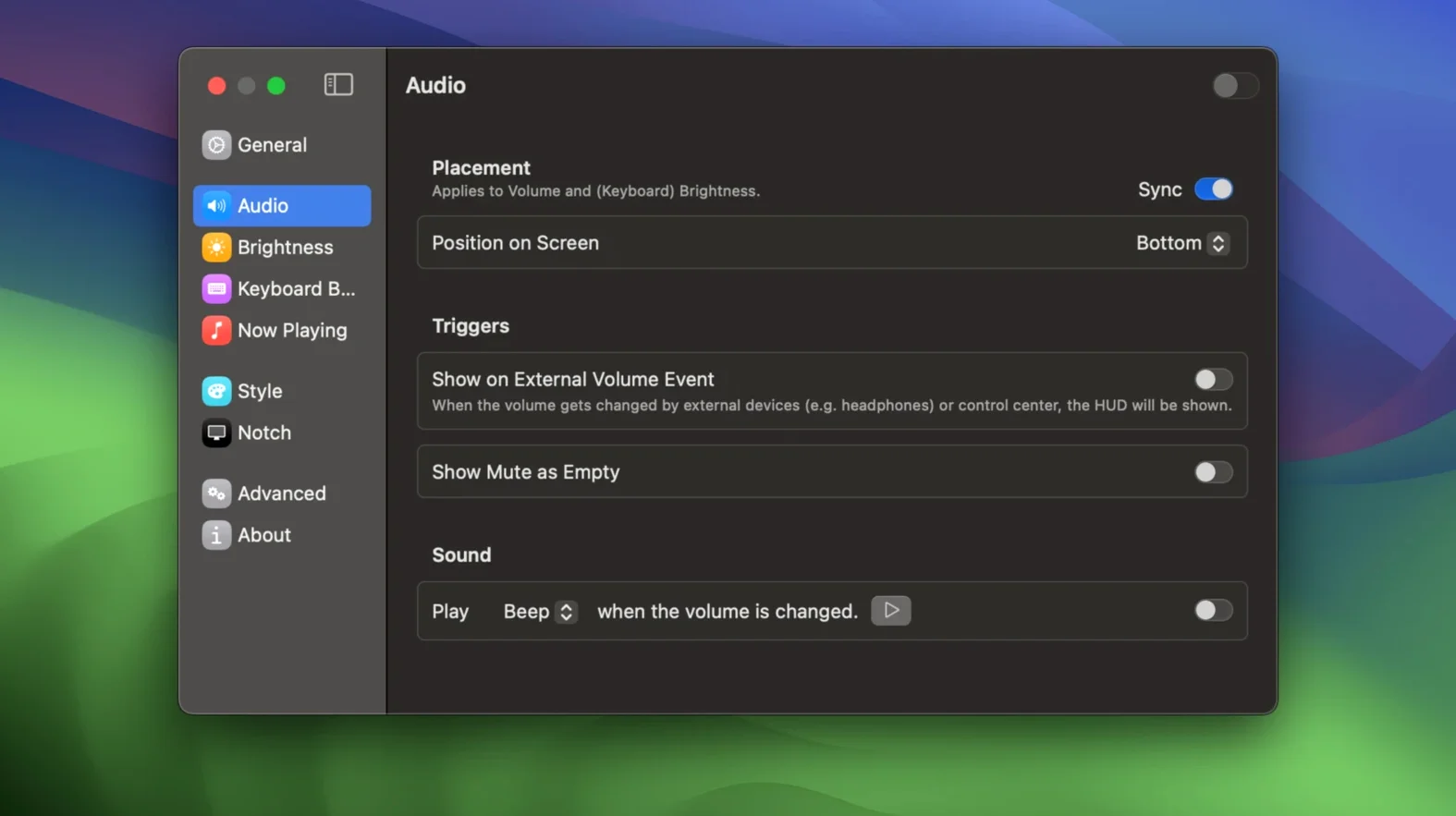
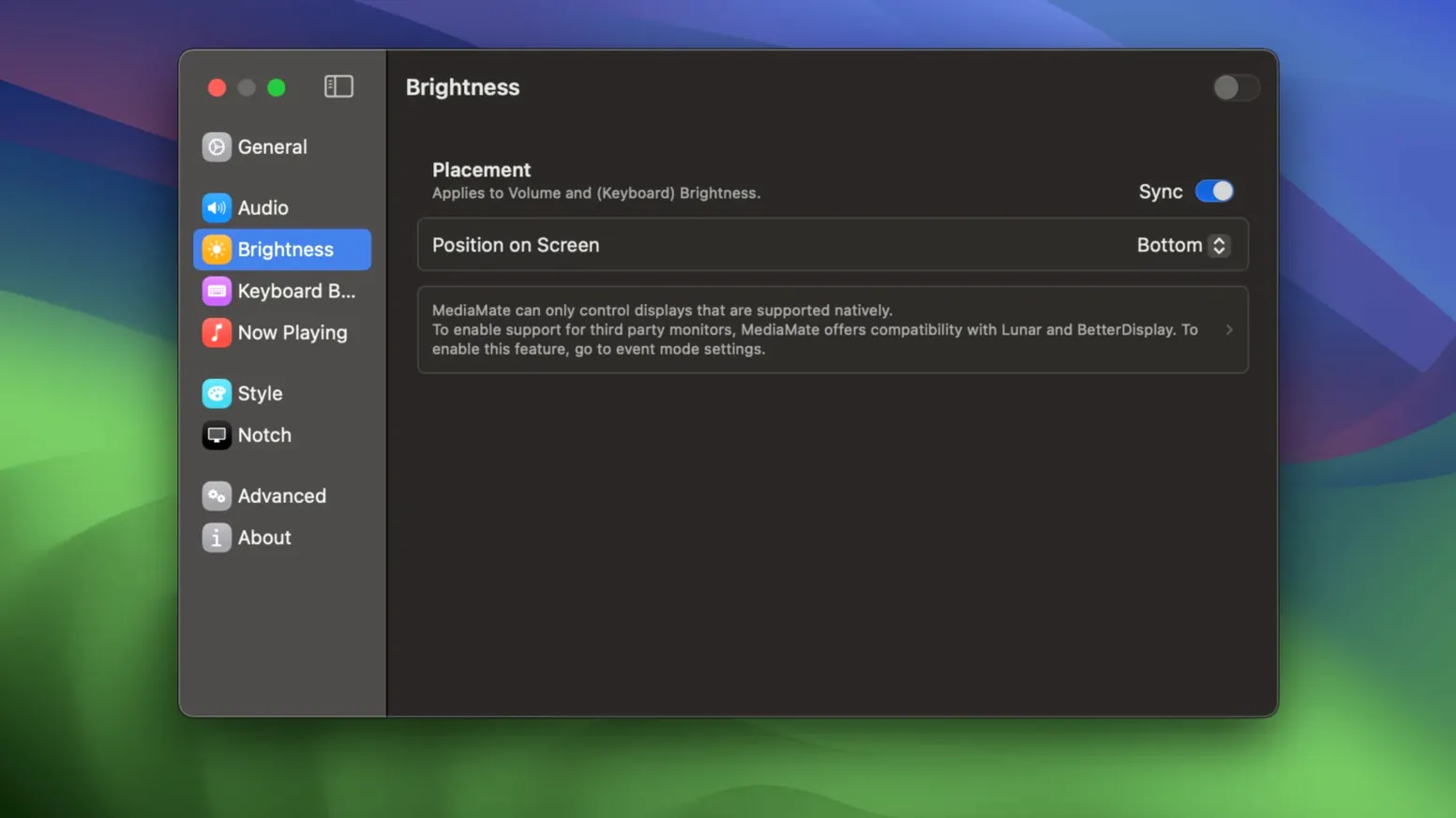
You hit a volume key and that big, old-school macOS square blocks half your screen. MediaMate replaces that — the brightness one too — with a slim, modern bar that sits out of your way. It works on any Mac with macOS 13 or later, no special hardware needed (if you have a Touch Bar Mac, you pick a separate mode in settings).
For a first try, just install it and press your volume or brightness keys. The new HUD pops up in a corner, compact and clean. No config required. If you want more, the app also shows your current track info when the music changes — handy when you’re working and don’t want to switch apps just to see what’s playing.
Replaces macOS HUDs with a now-playing display
MediaMate isn't the only app that replaces macOS system HUDs, but it does things differently from the others. Two alternatives worth knowing about are BetterTouchTool and Ice (formerly Bartender).
BetterTouchTool is a deep customisation tool. It can replace the volume and brightness HUDs too, but that's a small part of what it does — its main focus is trackpad gestures, window snapping and keyboard shortcuts. If you already use BTT for other things, you might not need a separate HUD app. But if you just want a cleaner volume and brightness display without setting up triggers and conditions, MediaMate is simpler from the start.
Ice (the menu bar manager) doesn't replace HUDs at all — it hides and organises menu bar icons. Some people pair it with a HUD replacer to keep both the menu bar and system pop-ups tidy. MediaMate covers the pop-ups side directly, so you don't need a second app for that.
The difference with MediaMate is focus: it does the HUD replacement and the now-playing display, and it does those two things well. No extra bloat, no configuration rabbit holes. For a music student who just wants the volume bar to be smaller and see the track name without opening Spotify, that's exactly right.
First days with MediaMate — practical tips
Once you've dragged the app to Applications and launched it, here's what to do first.
- Check the menu bar icon. MediaMate adds a small icon up top. Click it to see basic controls and the settings gear. If the icon doesn't appear, make sure the app is running — it doesn't auto-launch until you add it to Login Items in System Settings.
- Test all three HUDs. Press the volume keys, brightness keys and keyboard backlight keys (if your Mac has them). Each one should show a slim bar instead of the standard macOS square. If the keyboard backlight keys don't respond, open MediaMate settings and look for the keyboard backlight toggle.
- Play something. Start a track in any media app — Apple Music, Spotify, VLC, whatever you use. Switch to another app. When the track changes, MediaMate shows the album art and track name near the menu bar. No need to switch back to the music app just to skip a song.
- Touch Bar users, switch modes. If your Mac has a Touch Bar, go to settings and enable Touch Bar mode. The HUDs then show inside the Touch Bar instead of on screen. This keeps your main display completely clear.
That's it for the first few days. Most people don't touch the settings again after these steps.
Music students and DJs benefit from the now-playing display
Music students and DJs — you're constantly adjusting volume between tracks, listening at different levels, and switching sources. The now-playing display alone saves time: you see the track name without leaving your DAW or browser. And because the volume HUD is smaller, it doesn't cover your mixer or playlist when you make quick adjustments mid-set.
Touch Bar Mac owners — the standard macOS Touch Bar HUDs are just as chunky as the on-screen ones. MediaMate puts volume, brightness and keyboard backlight into the Touch Bar itself, which feels more natural and keeps your screen space intact.
Anyone who adjusts keyboard backlight often — most Macs hide that control behind Function Key settings or the Control Strip. MediaMate gives it a dedicated HUD, so you can dim or brighten the keys without digging through menus.
Users with small screens — on a 13-inch or 14-inch Mac, every pixel counts. Replacing the oversized macOS HUD with a thin bar frees up visual space, especially when you're working in full-screen apps or with multiple windows snapped side by side.
MediaMate doesn't try to be everything. It replaces a few annoying system pop-ups with something better, and for the people who notice those pop-ups every day, that's enough.
That’s the core of it: smaller, less intrusive system controls. A good place to start.
- macOS 13 Ventura or later
- Intel or Apple Silicon
Kit check at a glance
| System | macOS 13 or later |
| Chip | Apple Silicon, Intel 64-bit |
| Download | 7 MB |
| Older pressings | 2 in the crate |






Chat from the booth
Sign in or grab a free account to leave a comment.
Nobody has said a word in the booth yet. If you played a set with this build, tell the next person how it went.