

- Build in the crate
- 5.3.2
- Made by the team at
- David Kocher
- Menu languages offered
- Russian, English, German, Arabic, Bulgarian, Hungarian, Greek, Georgian, Danish, Hebrew, Spanish, Italian, Catalan, Chinese (Traditional), Chinese (Simplified), Korean, Latvian, Norwegian, Polish, Portuguese, Romanian, Serbian, Slovak, Slovenian, Thai, Tamil, Turkish, Ukrainian, Finnish, French, Croatian, Czech, Swedish, Estonian, Japanese
- How you pay for it
- Included
- macOS it plays on
- macOS 13 or later
- CPU it runs on
- Apple Silicon, Intel 64-bit
Screenshots
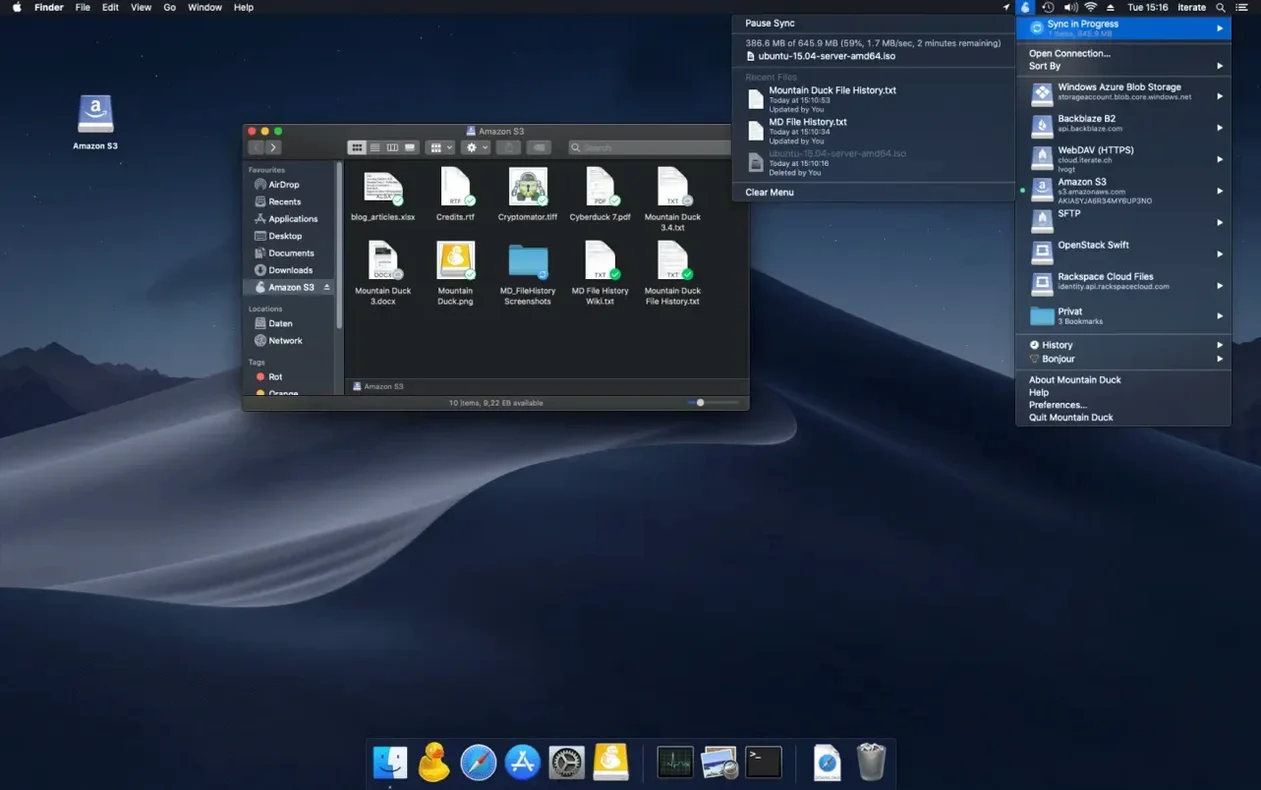
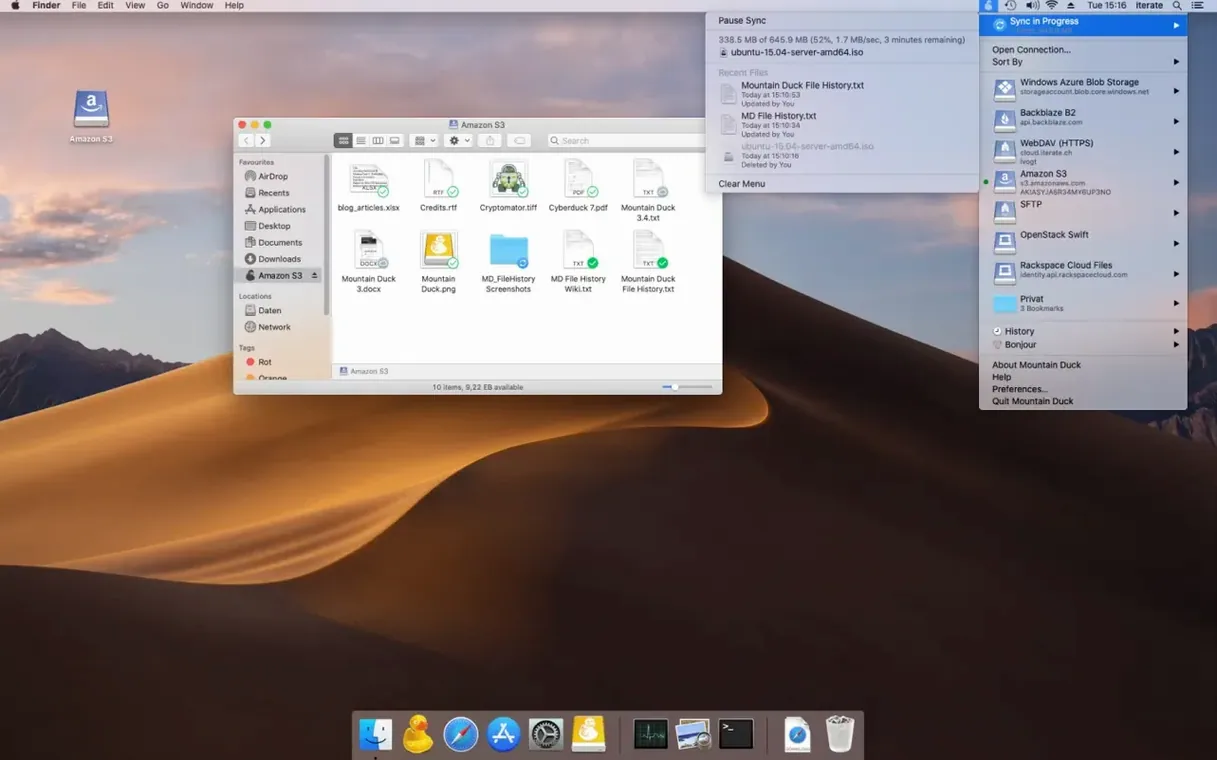
The first time you open Mountain Duck, nothing happens in the app itself — a tiny duck icon appears in the menu bar. That’s the whole interface. You then open Finder and there it is: your remote server or cloud storage mounted like any local drive. No syncing folders, no separate file browser, just a volume you can drag files into and open anything with any app.
Set up a connection in a few clicks
- Click the duck icon and pick New Bookmark.
- Choose a protocol — FTP, SFTP, WebDAV, Amazon S3, Google Drive, Dropbox, Azure, Backblaze B2, OpenStack Swift, or Google Cloud Storage — and enter your credentials.
- The volume appears in Finder. Open files, edit them, save them back. Changes upload in the background whenever a connection is available.
- For files you need offline, right-click and choose Keep Offline. They stay on your Mac, and edits sync when you reconnect.
Mountain Duck also works with Cryptomator vaults, so your data stays encrypted at rest on the remote side. It runs on both Apple Silicon and Intel Macs, with macOS 13 or newer.
Bookmarks shared with Cyberduck
Mountain Duck stays out of your way, but a few features are worth knowing about — they’re not obvious from the menu bar icon alone.
- Bookmarks shared with Cyberduck. If you already use Cyberduck for file transfers, Mountain Duck picks up its bookmarks automatically. No need to re-enter server details or cloud credentials. The same applies in reverse: new bookmarks added in Mountain Duck appear in Cyberduck.
- Storage-independent file versioning. Version 5 introduced this: you can access previous versions of files without depending on the cloud provider’s own versioning system. It works across supported protocols, not just the ones that offer it natively.
- Integrated Connect Mode. This lets you mount a volume directly from the Cyberduck browser if you have both apps installed. You can browse a server in Cyberduck, then mount it as a Finder volume without creating a separate bookmark.
- Language support. Mountain Duck is available in over 35 languages, from Arabic to Japanese. If your Mac is set to a supported language, the menu bar and Finder integration follow it.
- SMB connections. New in version 5, so you can mount Windows file shares alongside your cloud storage. One menu bar item covers both.
Workflow: edit a remote website file directly
Say you maintain a small site on a web server and need to tweak a CSS file. Here’s how it works with Mountain Duck from start to finish.
- Click the duck icon in the menu bar and select New Bookmark.
- Choose SFTP as the protocol, enter your server’s hostname, username, and password (or SSH key). Click Connect.
- The server appears in Finder as a volume, named whatever you set in the bookmark.
- Navigate to the site’s folder, find the CSS file, and double-click it. It opens in your default editor — TextEdit, VS Code, or whatever you prefer.
- Make your changes and save. Mountain Duck uploads the updated file in the background. You don’t need to think about transfers; the Finder handles it like a local file.
- If you lose internet while editing, the file stays safe on your Mac. When the connection comes back, the upload resumes automatically.
No FTP client window, no manual upload step. The file behaves like it lives on your hard drive the whole time.
How Mountain Duck compares with similar Mac apps
There are a few other apps that mount remote storage in Finder, and each takes a different approach.
Transmit. Panic’s Transmit also lets you mount servers as Finder volumes, but it focuses on a full two-pane file browser. Transmit’s Disk mode works similarly to Mountain Duck, but the app itself is heavier and costs more. Mountain Duck stays in the menu bar with no window to manage. If you rarely need the browser and just want a drive in Finder, Mountain Duck is the leaner choice.
CloudMounter. CloudMounter supports many of the same providers — Google Drive, Dropbox, S3 — and also mounts them as Finder volumes. Where it differs is in handling: CloudMounter adds its own sidebar and preferences pane. Mountain Duck keeps things simpler, sharing bookmarks with Cyberduck and relying on the Finder’s own interface. For someone who already uses Cyberduck for transfers, Mountain Duck integrates more naturally.
ForkLift. ForkLift is a dual-pane file manager that includes remote mounting as one of its features. It does a lot: syncing, batch renaming, folder comparison. Mountain Duck does one thing — mount remote storage as a local disk — and does it without adding another app window to your workflow. If you want a file manager replacement, ForkLift might suit you. If you want remote drives in Finder and nothing else, Mountain Duck keeps out of the way.
- macOS 13 or newer
- Apple Silicon or Intel 64-bit
Kit check at a glance
| System | macOS 13 or later |
| Chip | Apple Silicon, Intel 64-bit |
| Download | 187 MB |
| Older pressings | 5 in the crate |


Chat from the booth
Sign in or grab a free account to leave a comment.
Nobody has said a word in the booth yet. If you played a set with this build, tell the next person how it went.