
- Build in the crate
- 1.5.23
- Made by the team at
- CrystalIDEA
- Menu languages offered
- Russian, English
- How you pay for it
- Not required
- macOS it plays on
- macOS 10.13 or later
- CPU it runs on
- Apple Silicon, Intel 64-bit
Screenshots
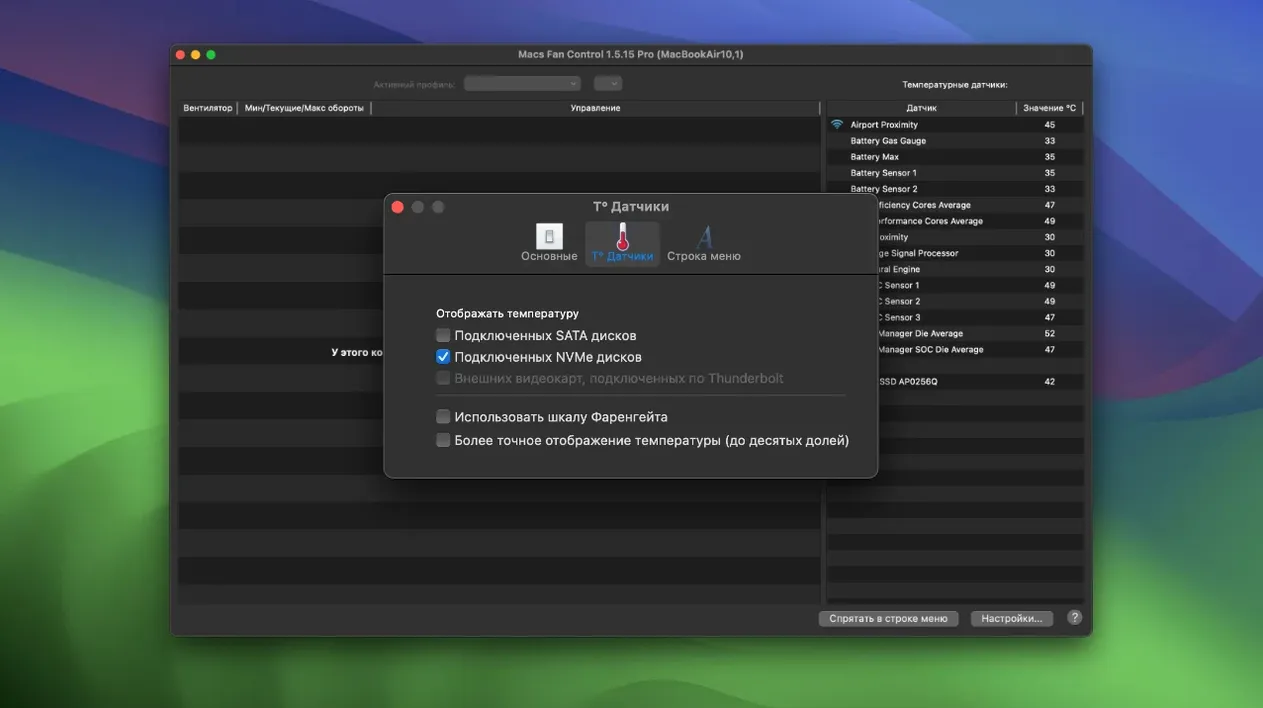
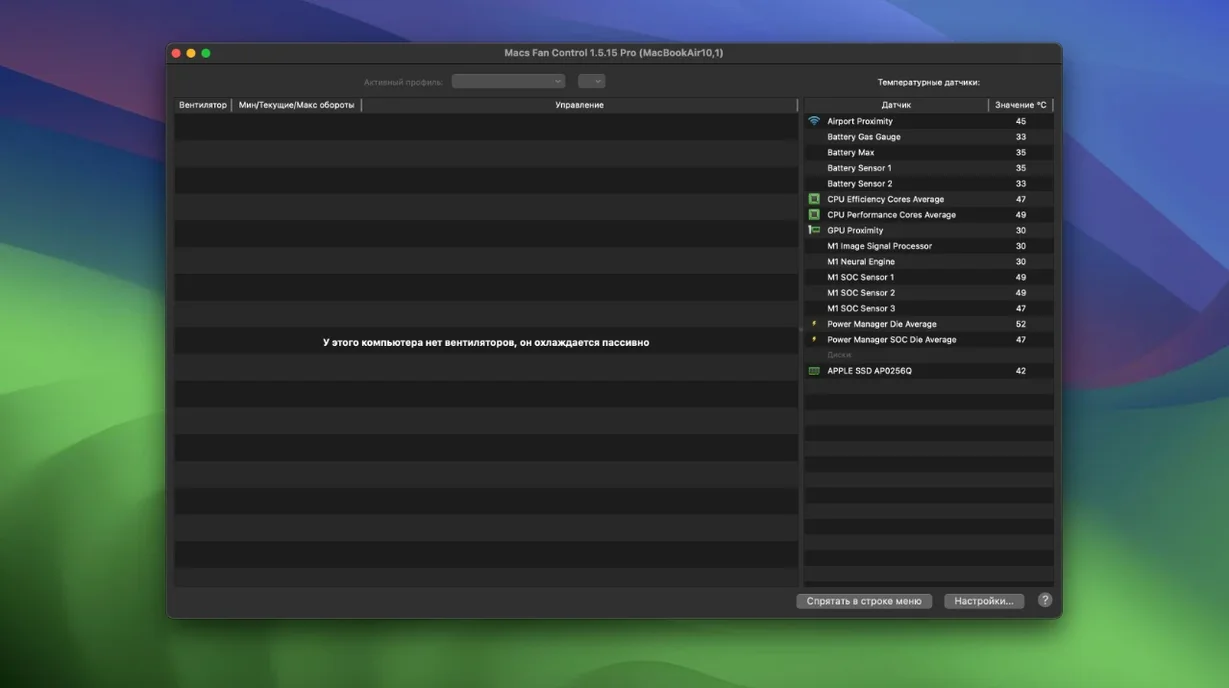
Temperature-based fan presets — that’s the feature that first caught my eye. Macs Fan Control Pro lets you tie fan speed to any temperature sensor in your Mac, then save that as a custom profile. Version 1.5.21 runs on macOS 10.13 and later, works on both Intel and Apple Silicon (M-series) machines, and the latest update adds support for the M5 Pro/Max MacBook Pro and the MacBook Air M5.
Custom presets — save as many as you want and switch between them depending on what you’re doing: quiet profile for the library, higher fan curve for a DJ set or heavy rendering.
The app handles ARM and x86 64-bit architectures natively.
System tray & menu bar — keep an eye on temps and fan RPMs without opening the main window. English and Russian interfaces included.
Real-world scenario: a studio session with a quiet profile
I picked up this tool after a long Logic session left my MacBook whirring on the desk next to me. My go-to preset is a simple one: keep the fan below 2500 RPM until the internal drive hits 70 degrees, then let it ramp up. It’s not silent, but it’s far less distracting than the default curve. On a recent session with a friend recording vocals, the laptop sat on a table between us. The mic picked up no fan rumble, and the machine stayed cool enough that I didn’t worry about throttling. I’ve saved that preset as “Studio Low.” For a DJ set at a café later that week, I switched to a more aggressive curve and left the app open in the menu bar to check temps between tracks.
Start with default sensor readings
Start with the default sensor readings and watch how your Mac behaves for a day. Then build one conservative preset: keep the fan a notch above what you see at idle, with a higher threshold before it kicks up. You can always adjust.
Label presets clearly. I use names like “Silent,” “Balanced” and “Performance” so I’m not guessing mid-session. Test each preset under real load: run a couple of browser tabs, play a video, maybe compile a project if you code or produce. Watch the menu bar numbers. If the fan stays low and temps climb fast, your curve is too relaxed. There’s no right answer — only what works for your machine and your ears.
One more thing: the app requires no activation, so after you drag it into Applications and launch it, you’re done. No account, no nag screen. That’s rare among utilities these days.
Three alternative Mac fan tools compared
Macs Fan Control Pro vs. bCNTRL
bCNTRL gives you a slider for fan speed and not much more. It’s fine for a quick manual override, but there’s no temperature-based automation and no presets. If you want the fan fixed at one speed for a whole session, bCNTRL will do it. If you want the fan to behave differently when you’re rendering video versus when you’re browsing, Macs Fan Control Pro is the one that adapts.
Macs Fan Control Pro vs. iStat Server
iStat Server is a sensor data provider — it feeds temperatures, load and RPMs to remote monitoring tools. It doesn’t control the fan directly. If you need a dashboard for multiple machines, iStat Server plus a client like iStatIt works well. But if the goal is to quiet a single Mac’s fan right now, Macs Fan Control Pro does the job without setting up a server or a second app.
Macs Fan Control Pro vs. Notebook Fan Control
Notebook Fan Control is older and has a smaller compatibility window — it works best on specific Intel MacBook models. On Apple Silicon machines or newer Intel models, it often can’t read the sensors. Macs Fan Control Pro covers both architectures and has been updated for the M5 generation. For anyone on an M-series MacBook Air or Pro who wants to manage fan behaviour, Notebook Fan Control isn’t a real option.
None of those three let you save named presets keyed to a temperature sensor.
Version 1.5.23 is available now. The developer posts the full rundown over at crystalidea.com.
- macOS 10.13 or later
- Apple Silicon & Intel 64-bit
Kit check at a glance
| System | macOS 10.13 or later |
| Chip | Apple Silicon, Intel 64-bit |
| Download | 22 MB |
| Older pressings | 2 in the crate |





Chat from the booth
Sign in or grab a free account to leave a comment.
Nobody has said a word in the booth yet. If you played a set with this build, tell the next person how it went.