
- Build in the crate
- 2.10.0
- Made by the team at
- Electronic Team
- Menu languages offered
- English, German, Spanish, Italian, Chinese (Simplified), Korean, Portuguese, French, Hindi, Czech, Japanese
- How you pay for it
- K'ed by TNT team
- macOS it plays on
- macOS 11.5 or later
- CPU it runs on
- Apple Silicon, Intel 64-bit
Screenshots
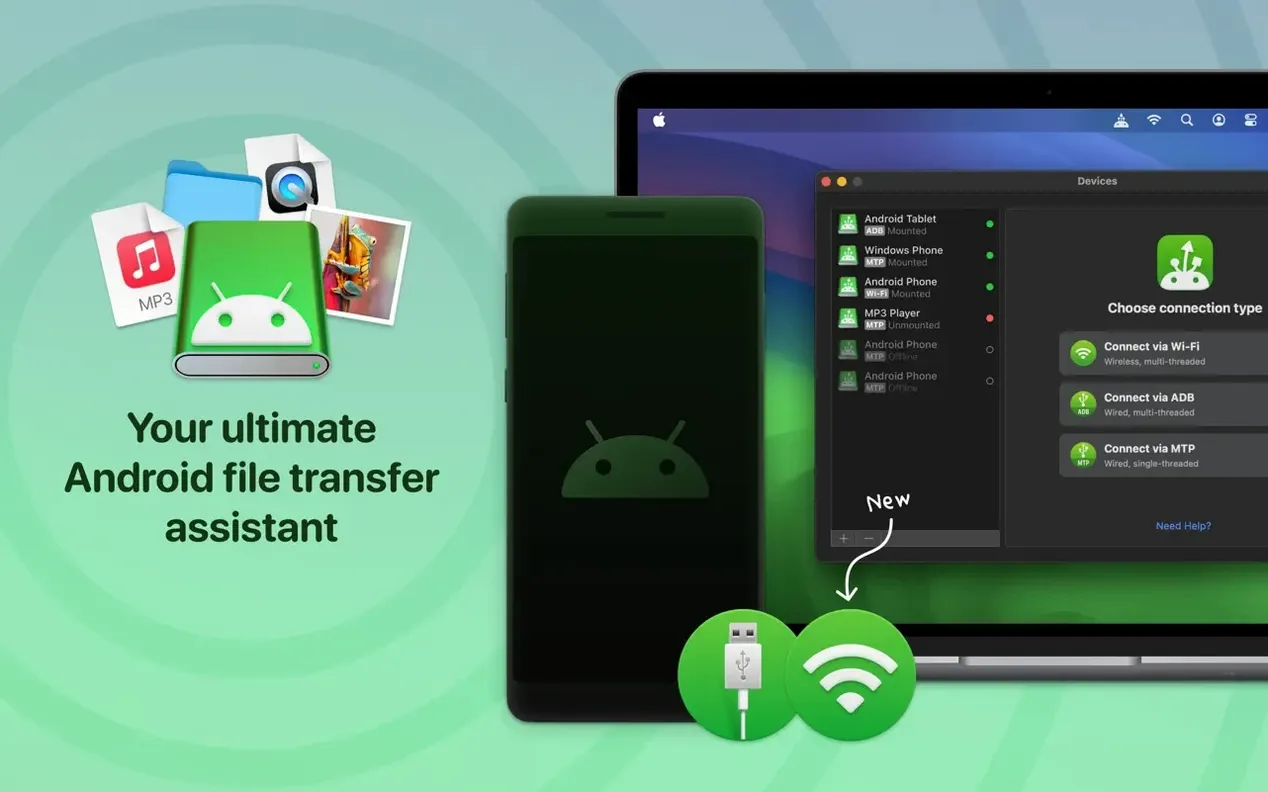
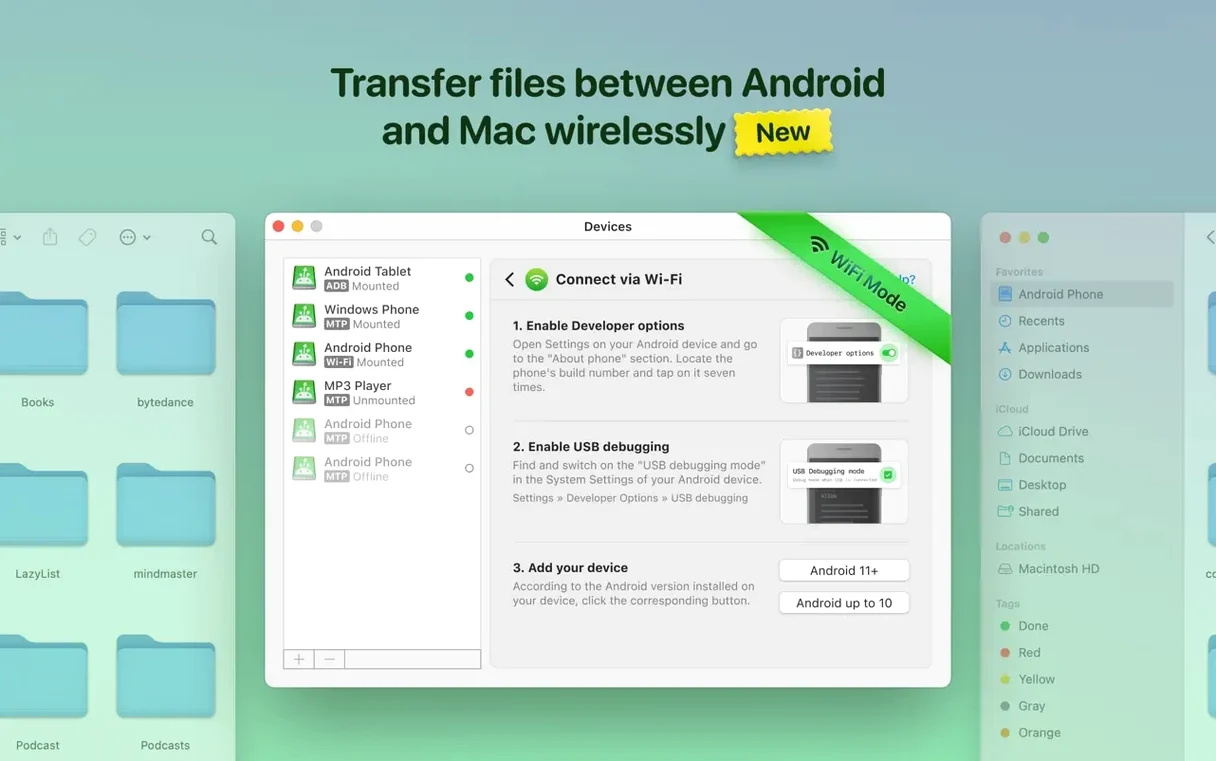
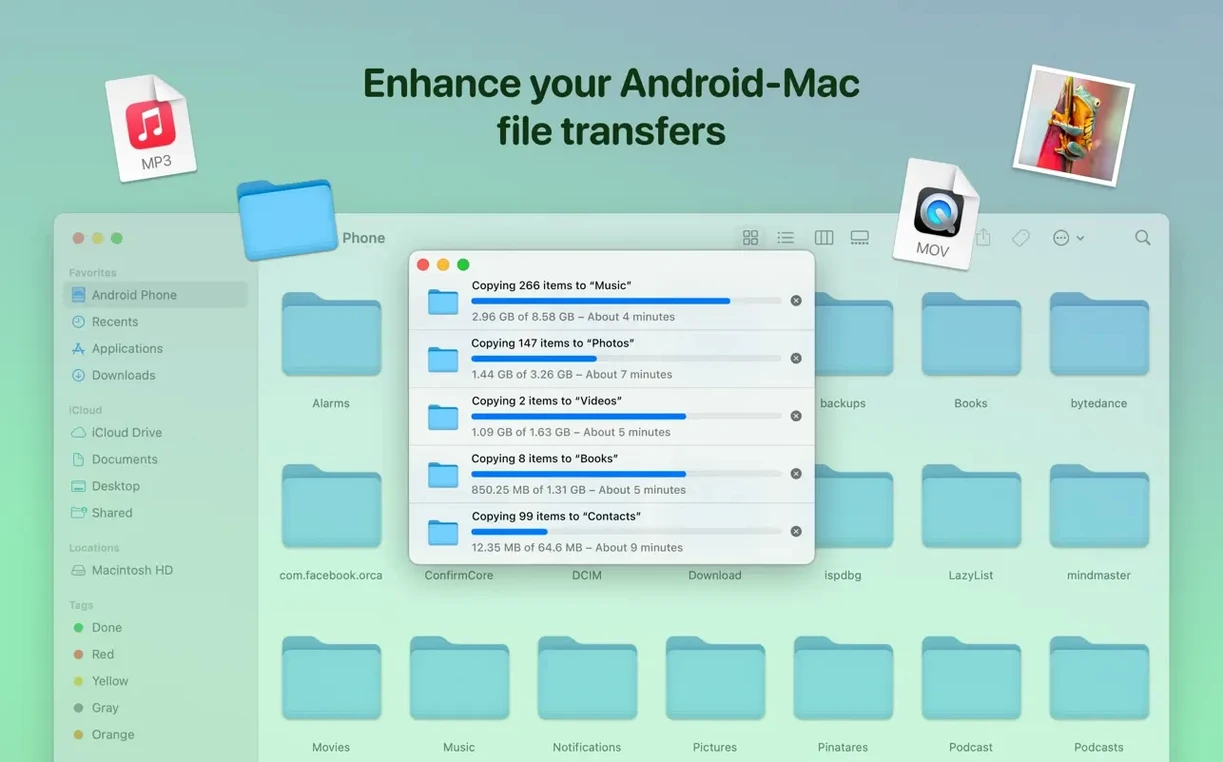
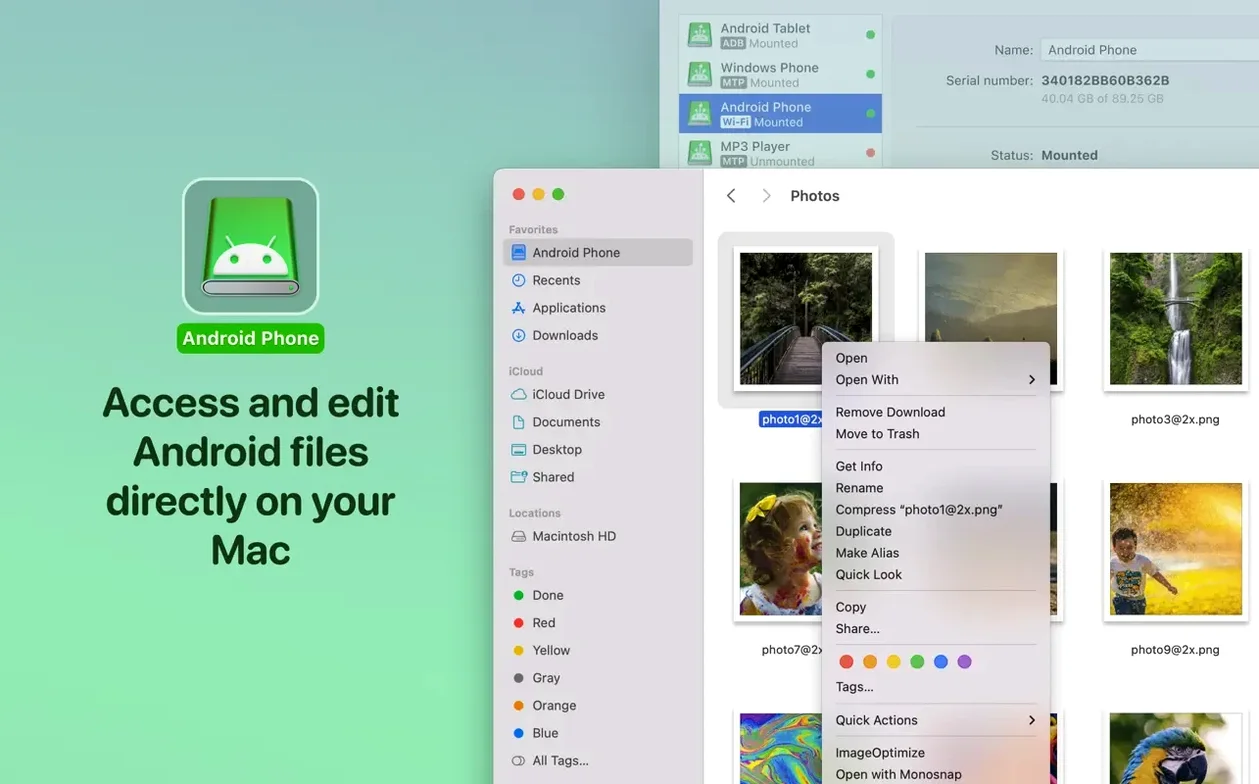
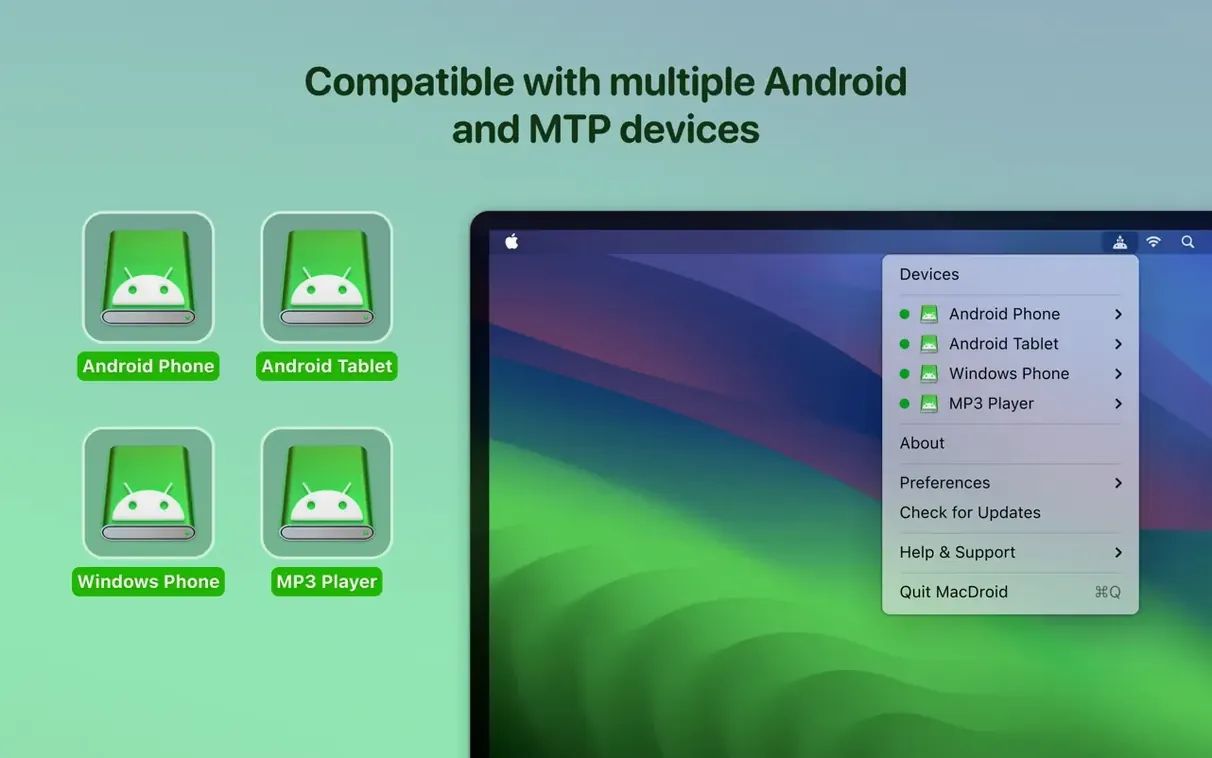
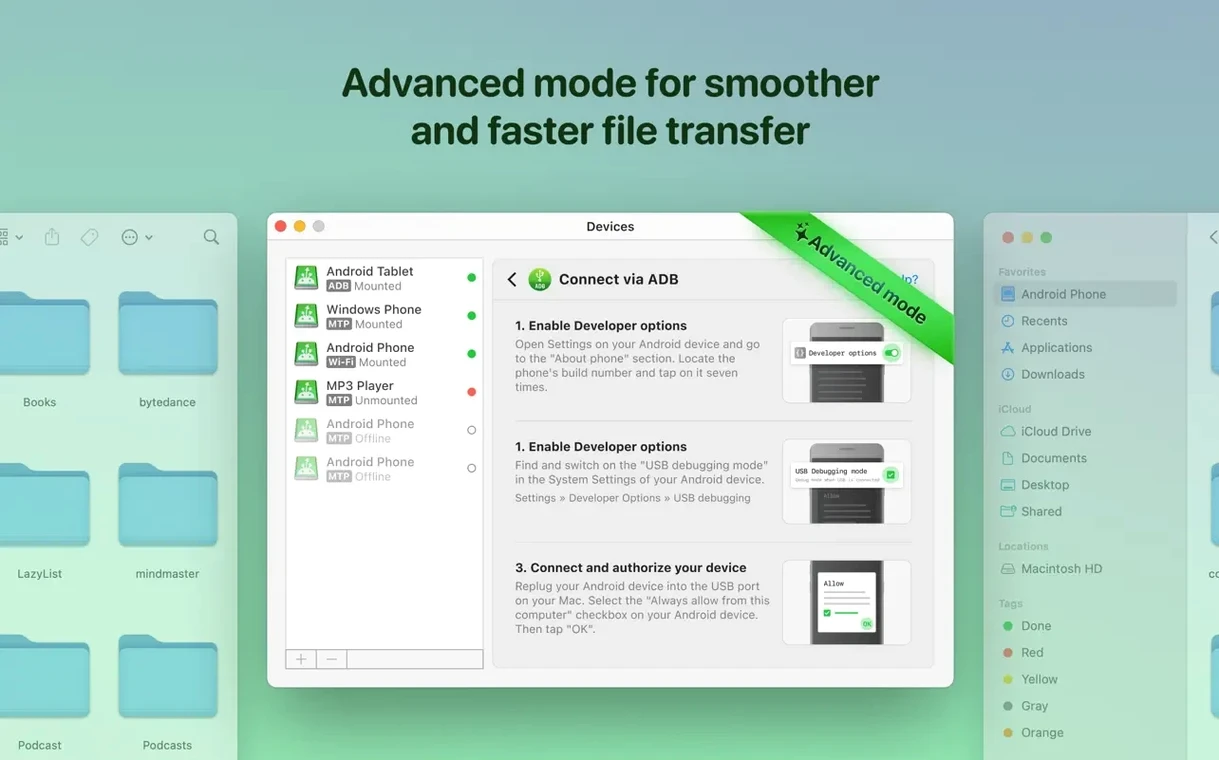
Mount your Android device as a disk drive on the Mac — that's the feature that makes MacDroid Pro feel native. It shows up in the Finder like any external drive, so you can drag files in and out without fussing with Android File Transfer or cloud uploads.
How does MacDroid Pro connect to my Android device?
Via USB. Plug in your Android, and MacDroid Pro handles the MTP connection. The app loads file and folder listings quickly — version 2.10.1206 made that speed even better.
What kinds of files can I move?
Files, folders, music, photos and videos. Whole folders transfer in one go, not file by file.
Plug in and grant file transfer access
Once MacDroid Pro is in your Applications folder and you have opened it, plug in your Android device with a USB cable. The app should detect it right away. On your Android, make sure file transfer (MTP) mode is selected in the USB notification — not charging only or photo transfer. If the device does not appear, check the cable: not all USB-C cables carry data. A quick swap to the one that came with the phone often solves it.
Try a small file first: drag a single photo from the Android mount in the Finder to your Desktop. Then drag it back. This confirms the connection works before you move anything important.
Switch to ADB mode for tricky devices
MacDroid Pro offers three connection modes: MTP, ADB and Wi‑Fi. The default is MTP, which works for most people. But if you run into trouble with an older device or a finicky cable, switch to ADB mode. It uses Android Debug Bridge and can be more reliable for some phones. Wi‑Fi mode is useful when you want to transfer a few files without hunting for a cable — the app walks you through pairing.
The app also lets you choose how the Android drive mounts. You can set it to appear automatically when you connect the device, which saves a click every time. This is under the preferences panel. Open it from the menu bar icon and look for the mount behaviour option.
Edit Android files directly on Mac
You can edit Android files directly on the Mac without copying them to your computer first. Open a document, make changes, and save — the file stays on the device. This is useful for quick edits to notes, scripts or configuration files.
The app supports both internal storage and SD cards on your Android. If your phone has a card inserted, both mount as separate volumes in the Finder. Handy when you need to move photos off the SD card to free space.
Whole folders transfer in one go. Drag a folder from the Mac to the Android mount, and all its contents move over without extra steps. The same works in reverse: copy a folder of music from the phone to the Mac in a single drag.
Version 2.10.1206 added Traditional Chinese localisation, so if that is your preferred language, the interface now speaks it. The app also lists English, German, Spanish, Italian, Korean, Portuguese, French, Hindi, Czech and Japanese — so there is a good chance it already matches your system language without extra setup.
When you download macdroid pro
Mount the disk image, run the Open Gatekeeper friendly command in Terminal, and drag the app to Applications. The TNT team's activation is included, so no extra steps are needed to unlock the full version. Just open the app and start transferring files.
A quick note on the naming: you might see "macdroid torrent" or "macdroid crack" mentioned in some forums, but the app itself is the same. The difference is only in how you get it. Once installed, it works identically whether you downloaded it from the developer or from a torrent. The same three connection modes, the same Finder integration, the same support for internal and external storage.
MacDroid Pro lets you transfer files between your Mac and Android devices without extra software. The version 2.10.0 release is stable and works on macOS 11.5 and later, on both Intel and Apple Silicon. No need to hunt for updates — the app is ready to use as soon as you drag it into place.
Yes. Requirements start at macOS 11.5, and it runs on both Intel and Apple Silicon.
- Traditional Chinese localisation added
- Connection and operation via MTP improved
- File and folder listing loading made faster
- macOS 11.5 or later
- Intel or Apple Silicon
Kit check at a glance
| System | macOS 11.5 or later |
| Chip | Apple Silicon, Intel 64-bit |
| Download | 28 MB |
| Older pressings | 2 in the crate |


Chat from the booth
Sign in or grab a free account to leave a comment.
Nobody has said a word in the booth yet. If you played a set with this build, tell the next person how it went.