
- Build in the crate
- 2.2.2
- Made by the team at
- Many Tricks
- Menu languages offered
- English
- How you pay for it
- K'ed by TNT team
- macOS it plays on
- OS X 10.10 or later
- CPU it runs on
- Intel 64-bit
Screenshots
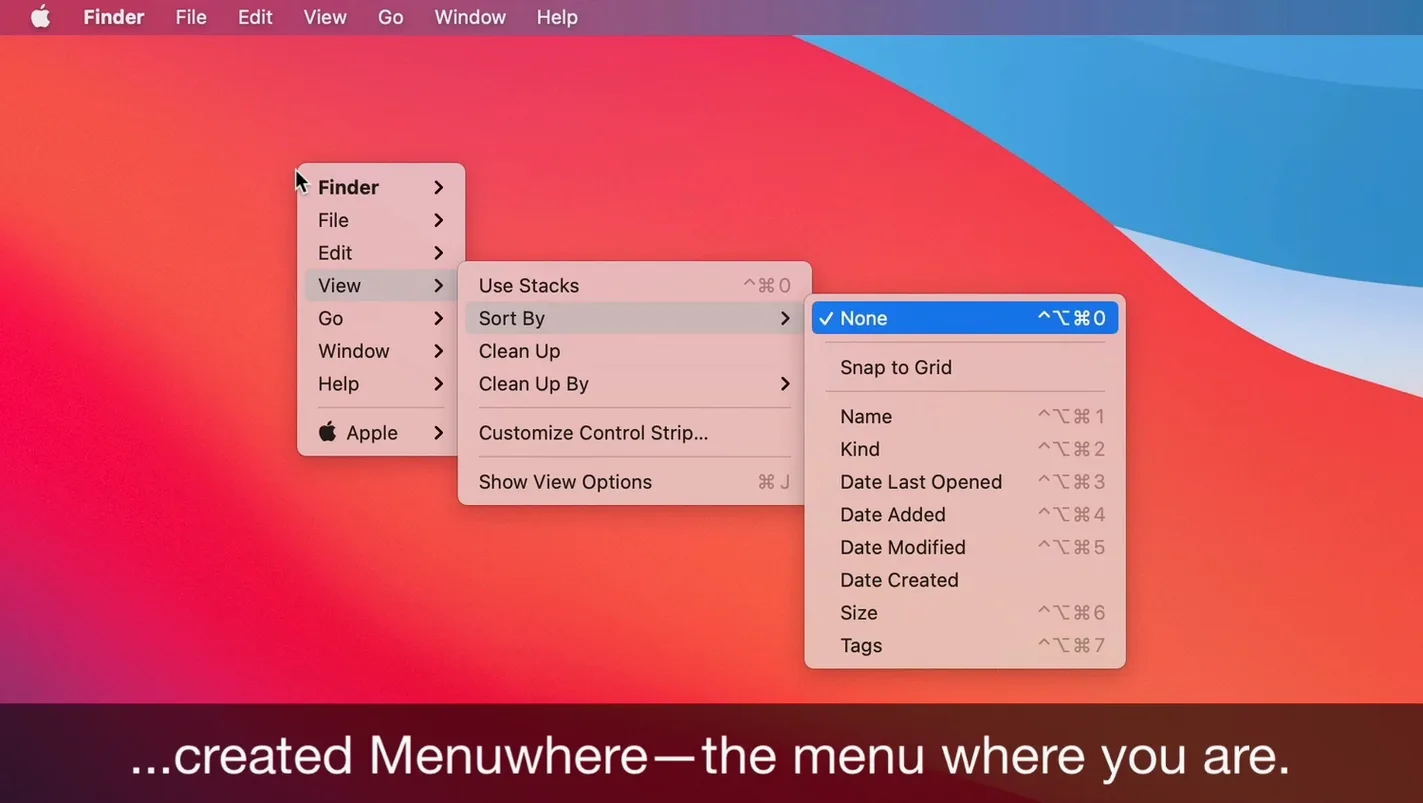
Menuwhere 2.2.2 brings a couple of useful fixes for macOS 14 Sonoma, plus a new way to trigger it. The core idea stays the same: press your hotkey, and the frontmost app’s menus appear vertically at the mouse location.
Frontmost app menus — the current app’s menu bar items (File, Edit, View, and so on) show up as a vertical list where your cursor is.
Keyboard or mouse navigation — arrow keys or typing the first letter of an item moves you through the list; you can also just click.
Custom hotkey — set your own shortcut to summon the menu anywhere on screen.
Hide the Edit menu — if you rarely need it, you can keep it out of the pop-up.
Alternate menu items — show items that usually only appear when you hold a modifier key, like Option.
Version 2.2.2 also detects those alternates on Sonoma and fixes submenu text sizes there. It runs natively on Apple Silicon and Intel, and it still works from macOS 10.10 onward. For a menu mac full version, this is a tidy little utility.
Sonoma bug fixes and new activation method
The latest release fixes two macOS 14 Sonoma issues and adds a new activation method. If you use Sonoma, submenu text sizes now display correctly — no more squinting at tiny type. Menuwhere can also detect menu item alternates (the ones you normally see by holding Option) on Sonoma, something that broke in earlier macOS updates.
The new activation option is handy: hold Command and right-click the mouse to bring up the menu pop-up. That gives you three ways to call it — the hotkey, the Command-right-click combo, or the old click method. You can keep using whatever feels fastest.
Flatten a photo with a single keystroke
Say you are editing a photo in Pixelmator Pro and want to flatten the image. Normally you would move the mouse up to the menu bar, find the Layer menu, click through to the bottom. With Menuwhere you press your hotkey — I use Control-Space — and the full Layer menu appears right under your cursor. Arrow down to Merge Down, hit Enter, and you are done. No travel to the top of the screen.
For keyboard-heavy work, typing the first letter of a menu item jumps you straight to it. In a text editor, hit your hotkey, type ‘S’ for Save As, press Enter. That keeps your hands on the keyboard the whole time.
The hide-Edit-menu option is useful for word processors where you rarely touch the Edit menu. One less row to scroll through when the pop-up appears. If you work with complex tools like Ableton Live, where modifier keys reveal hidden options, the alternate items feature saves extra clicks. Hold Option and the pop-up shows what normally hides behind it.
I keep the Apple menu visible but hide Help — I never open Help from a menu pop-up. That is a personal preference, but the configuration lets you trim the list to what you actually use. The whole setup takes a minute and then you forget it is there until you need it.
- Detects menu item alternates on macOS 14 Sonoma.
- Fixes submenu text sizes on macOS 14 Sonoma.
- Activates when Command is held and the mouse is right-clicked.
- macOS 10.10 or later
- Intel or Apple Silicon
- English interface
Kit check at a glance
| System | OS X 10.10 or later |
| Chip | Intel 64-bit |
| Download | 6 MB |






Chat from the booth
Sign in or grab a free account to leave a comment.
Nobody has said a word in the booth yet. If you played a set with this build, tell the next person how it went.