

- Build in the crate
- 8.2.17 [MAS]
- Made by the team at
- iwaxx Sarl
- Menu languages offered
- English
- How you pay for it
- Not required
- macOS it plays on
- macOS 11 or later
- CPU it runs on
- Apple Silicon, Intel 64-bit
Screenshots
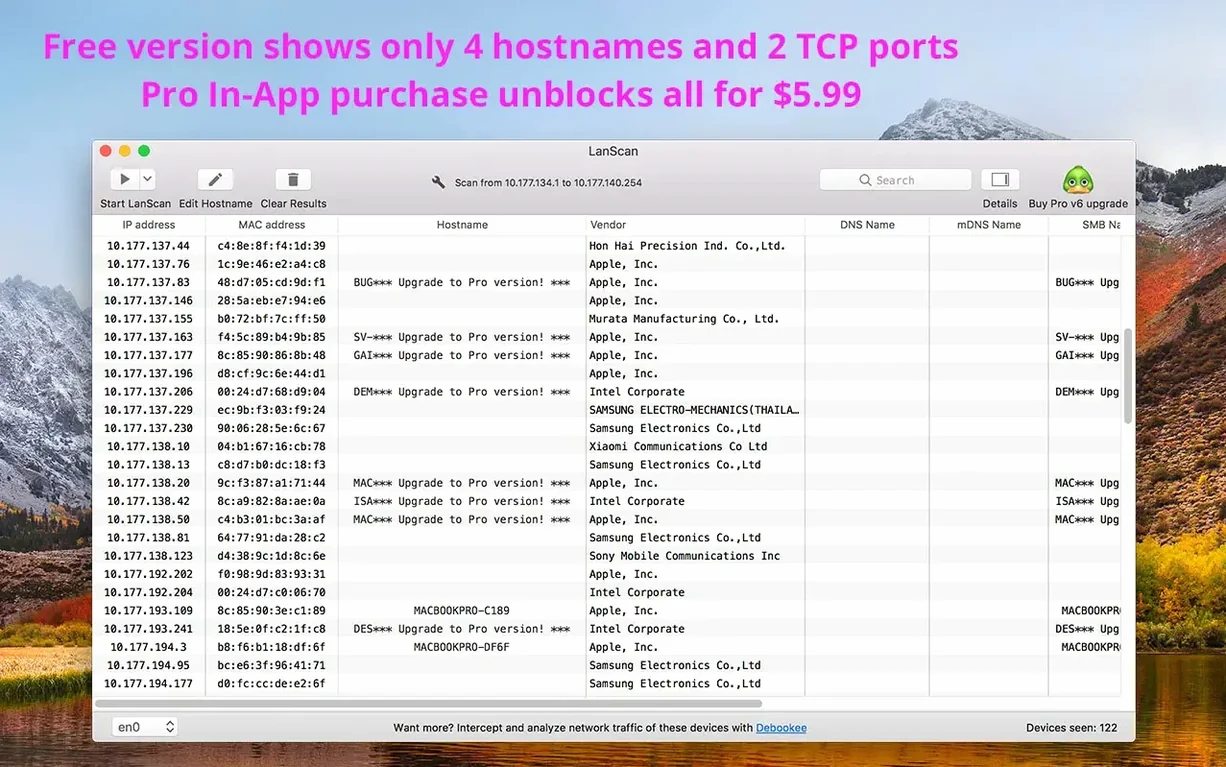
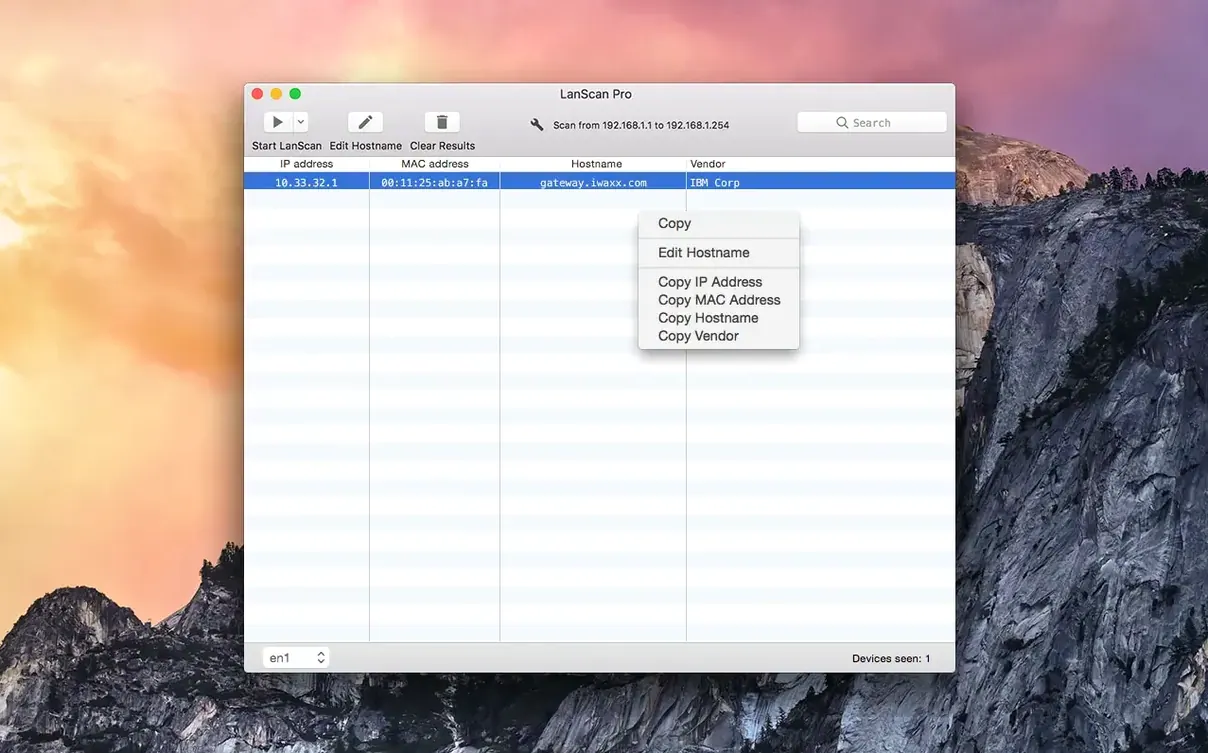
If you've used a network scanner before, you know the drill: pick a range, hit scan, wade through results. LanScan keeps that core idea and trims the rest. It's a Mac-native utility that finds active devices on your local or a configured public subnet, and it works on both Apple Silicon and 64-bit Intel Macs.
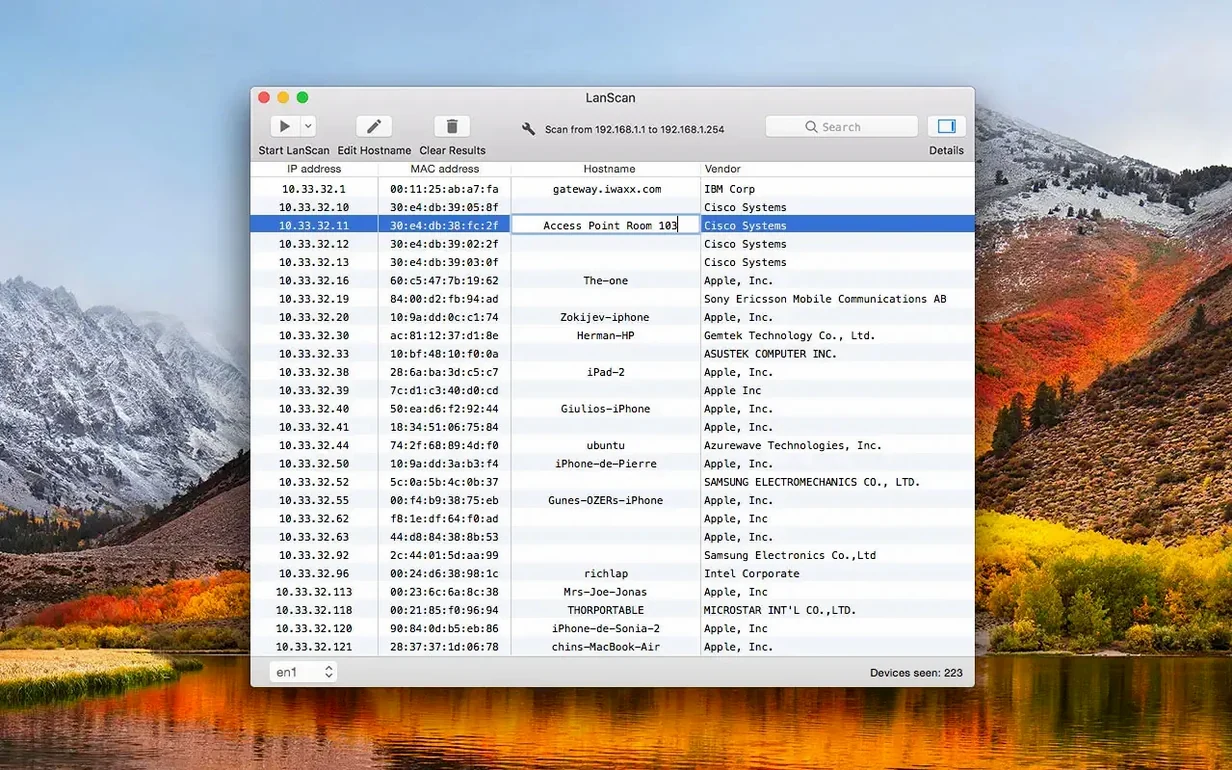
Shows IP, MAC, host name, and vendor in one table
- Seeing every device on your network with IP address, MAC address, host name and vendor in one table.
- Scanning IPv4 and IPv6 networks, from a single address up to the full IPv4 address space.
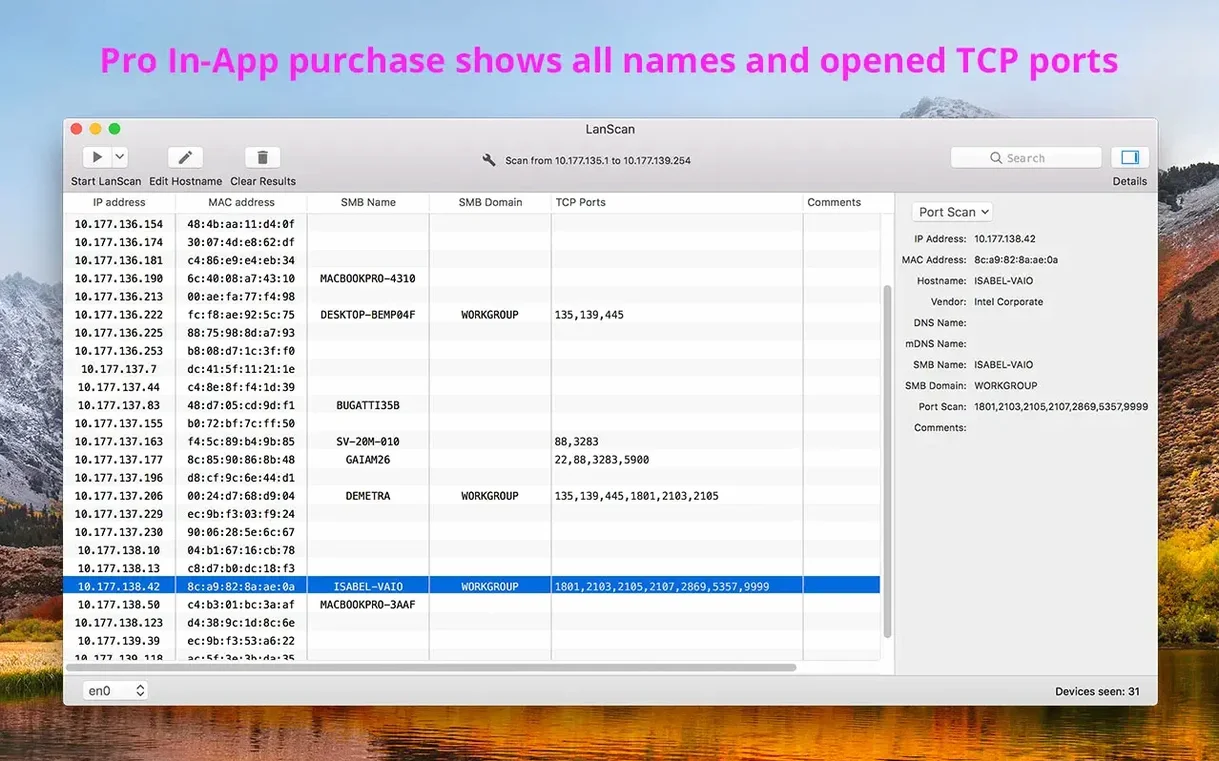
- Spotting an SMB domain when one is configured on your network.
- Exporting results to CSV for logs or deeper analysis.
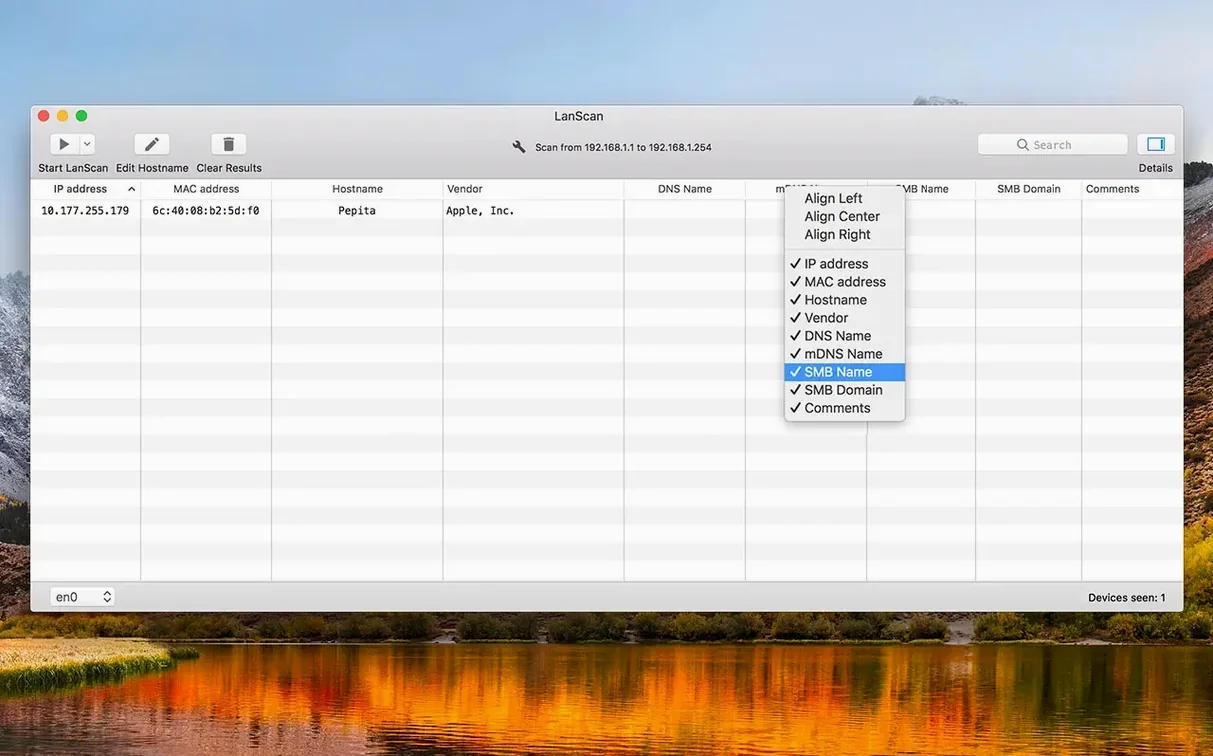
Hide or show and align each column individually
- You can hide or show each column, and align them individually, so the layout suits how you read it.
- The current version, 8.2.17, ships no new features — it's about stability for macOS 11 and later.
- Interface is in English, and it runs natively on both architectures.
A typical session: scanning a mixed home network
I open LanScan and it automatically picks up my active interfaces — AirPort, Ethernet, whatever is live. No config screen, no profile setup. The main window shows a dropdown of detected interfaces, and I select my local Wi-Fi network. One click on the scan button and it starts sending ARP packets to discover devices on the subnet.
Within a few seconds the table fills up. I see the usual suspects: my MacBook, a few iPhones, a Raspberry Pi running Pi-hole, and a printer I forgot was on the network. Each row shows IP, MAC address, vendor name, and up to four host names. For the Raspberry Pi, LanScan resolves host names through DNS, mDNS and SMB, so I see both its.local name and the one my router assigned.
I spot a device I don't recognise. The MAC address vendor field says "Hon Hai Precision Industry" — that's likely the smart TV. To keep track, I click the comment field for that row and type "Samsung TV living room". Later, when I scan again, the comment stays, so I don't have to wonder.
I export the results to a CSV file for a quick network inventory. The export includes all visible columns, and since I'd hidden the SMB domain column earlier (unnecessary for this network), the CSV is clean.
Workflow: finding a device by MAC address vendor
This is something I do when a new gadget joins the network and I want to know what it is without physically checking. Here's how I do it in LanScan.
- Open the app and select the interface (AirPort or Ethernet) that the device is likely on.
- Start the scan. The app uses ARP packets locally, so results come back quickly — no waiting for slow timeouts on devices that are offline.
- Once the table populates, look at the Vendor column. LanScan pulls vendor names from the MAC address OUI database, so "Belkin International" or "Roku" appears without extra lookups.
- If the vendor name alone isn't enough, I check the host name column. For public range scans, LanScan also uses Ping, SMB and mDNS packets to gather more host information, so the name might be "Sonos-Zone" or "Nest-Hub-xxxx".
- If the name is still unclear, I can edit the host name field manually. I right-click (or control-click) the row and type a label like "Garage sensor".
- For devices I want to revisit later, I add a comment in the comment column — "firmware update pending" or "needs static IP".
The whole process takes a single scan. I don't need to switch to a separate tool for MAC lookups or host name resolution.
How LanScan compares with other Mac network scanners
I've used three other scanners on Mac: Angry IP Scanner, nmap (via Zenmap), and iNet Pro. Each has its strengths, but LanScan sits somewhere in the middle.
Angry IP Scanner is Java-based and cross-platform. It's fast for simple ping sweeps, but the Java UI doesn't feel native on macOS. LanScan uses native Mac interface elements, and it automatically detects configured interfaces — Angry IP Scanner makes you pick the IP range manually each time. LanScan also resolves host names through mDNS and SMB, which Angry IP Scanner doesn't do out of the box.
nmap / Zenmap is the heavy lifter. It can do port scanning, OS fingerprinting, and deep service detection. But it's overkill if you just want to know what's on your network. Zenmap's interface is a GUI wrapper, not a native Mac app. LanScan keeps things simple: device discovery, host name resolution, vendor lookup, and CSV export. No scripts, no command-line switches. For a home user or a small office, that's enough.
iNet Pro is another Mac-native scanner with a polished interface. It can also show open ports and offer a built-in ping tool. LanScan doesn't do port scanning, but it does handle both IPv4 and IPv6, scans the full IPv4 address space, and shows up to four host names per device — iNet Pro typically shows one. LanScan also lets you open a custom URL for any device, which is handy if you're managing devices with web interfaces.
For my use — network admin for a small home setup and occasional IT support for friends — LanScan hits the right balance. It's native, it's focused, and it doesn't pretend to be a full security suite.
- macOS 11 or later
- Apple Silicon or 64-bit Intel
- Interface language: English
Kit check at a glance
| System | macOS 11 or later |
| Chip | Apple Silicon, Intel 64-bit |
| Download | 17 MB |








Chat from the booth
Sign in or grab a free account to leave a comment.
Nobody has said a word in the booth yet. If you played a set with this build, tell the next person how it went.