- Build in the crate
- 1.0.7 [MAS]
- Made by the team at
- 余 张
- Menu languages offered
- English
- How you pay for it
- K'ed by TEAM HCiSO
- macOS it plays on
- macOS 10.13 or later
- CPU it runs on
- Apple Silicon, Intel 64-bit
Screenshots
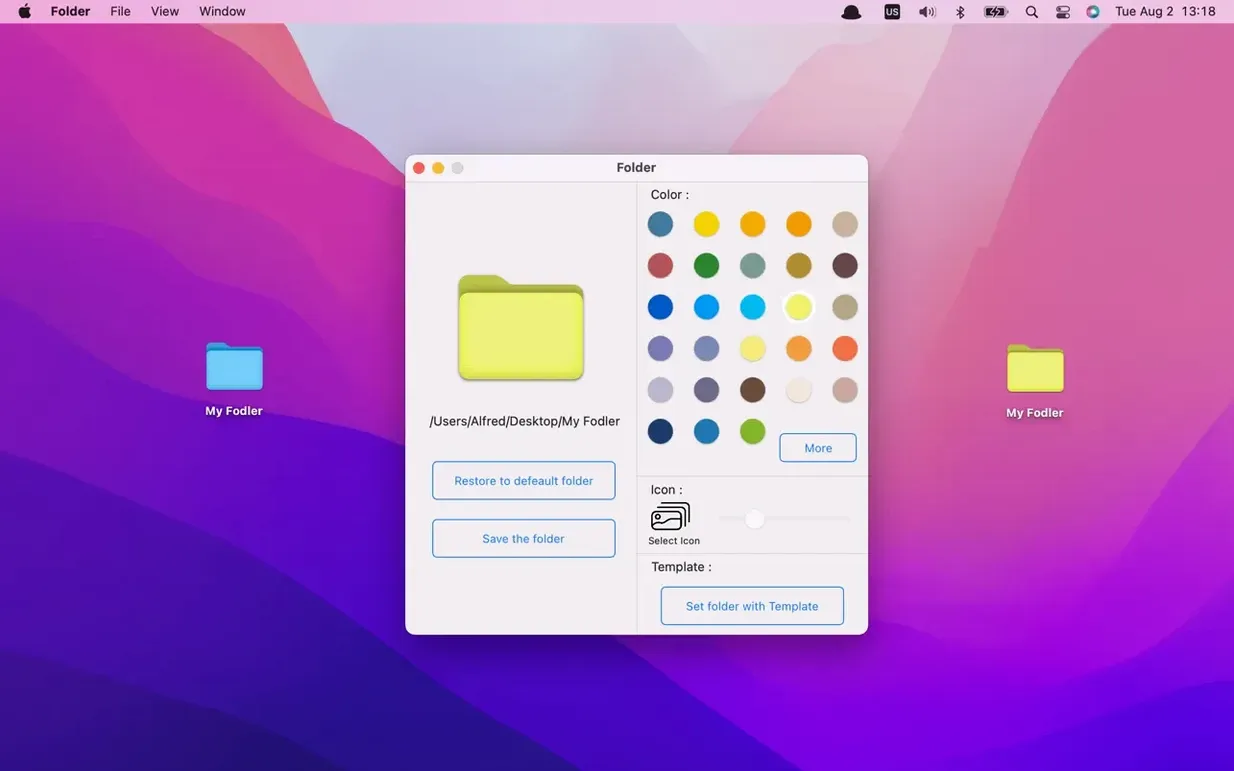
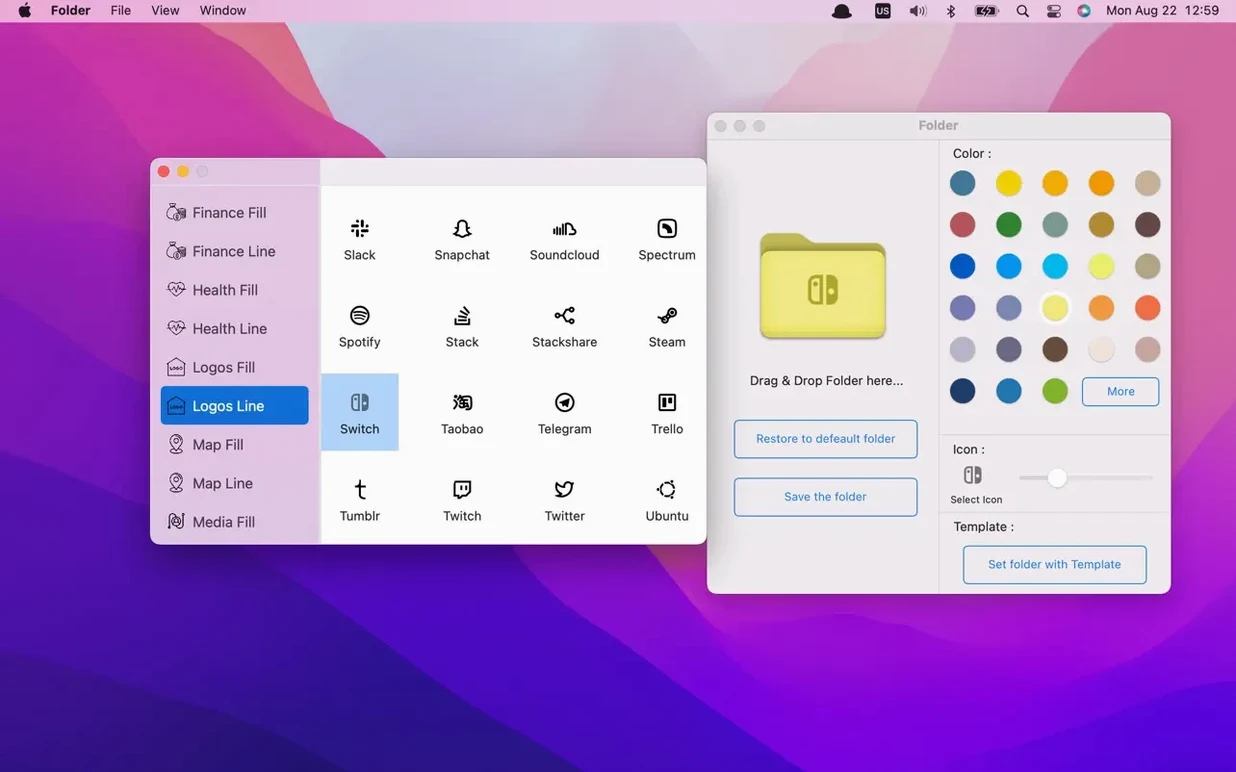
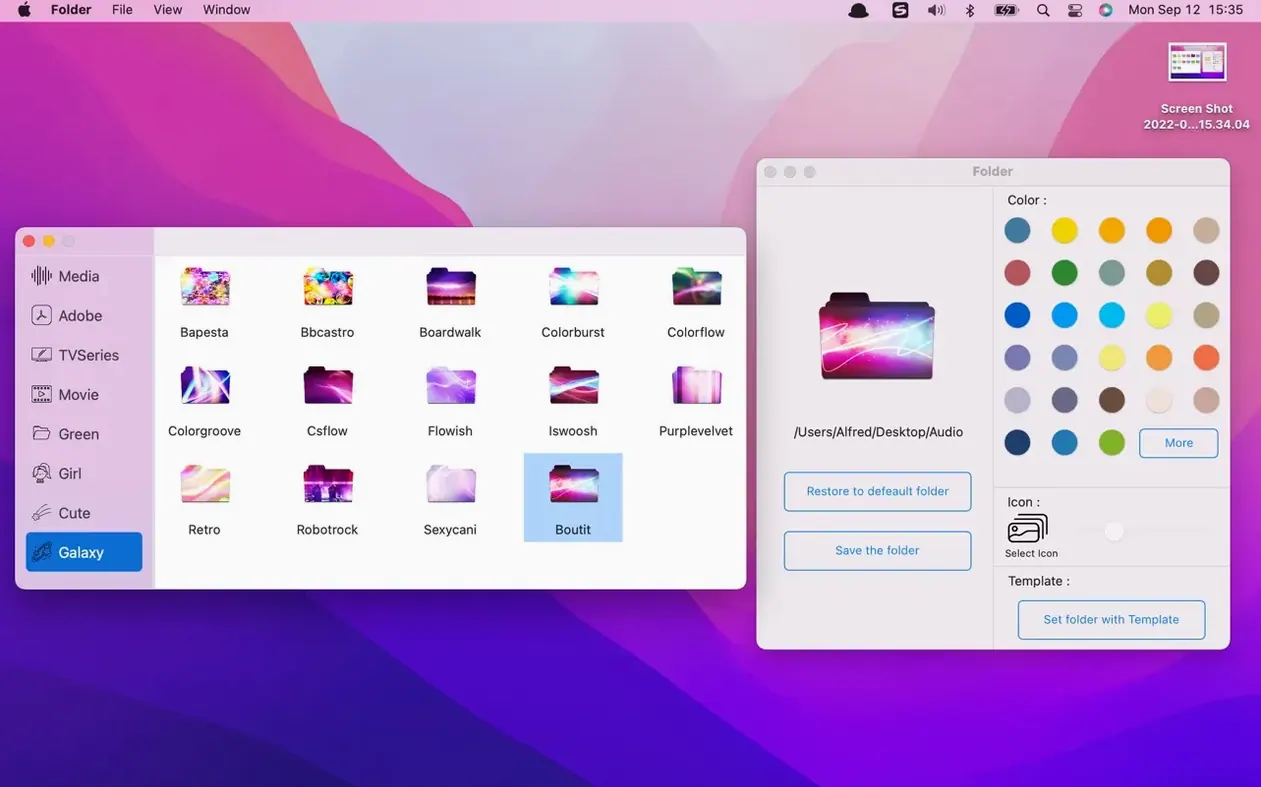
Version 1.0.7 of Folder is a MAS build with bug fixes. The app itself is a small assistant for changing folder appearance — it lets you swap a folder’s icon or colour whenever you want, so you can tell at a glance which projects are complete, which are partial and which haven’t started.
Can I change a folder’s colour after I’ve set it?
Yes. The app lets you change a folder’s colour at any time. There’s no need to reset or start over — just pick a new colour and it updates immediately.
Can I save icons I use often?
You can add favourite icons to a new folder inside the app. That way you don’t have to hunt for the same icon twice.
Works on Apple Silicon Macs
Templates for new folders in Folder
There are a few other Mac apps that let you change folder icons. Folder differs from most of them in two ways. First, it includes templates for creating a new folder — you can start from a pre‑made layout instead of building one from scratch. Second, it keeps the workflow simple: pick a folder, pick an icon or colour, done. Some alternatives bury those actions behind multiple menus or require you to export a custom image first.
Another common app in this space relies on dropping image files onto folders. Folder works from its own icon library, so you never need to source graphics elsewhere. And where some tools only change the icon and ignore the colour, Folder handles both in the same window. For a music student who organises sample folders, project folders and DJ sets by colour, that saves a lot of clicking around.
Close the folder before changing it
The most common mistake is forgetting to close a folder before changing it. If the folder is open in Finder, the new icon or colour might not apply until you close and reopen the window. A quick Cmd+W on the folder, then apply the change, and it sticks.
Another one is applying a change to the wrong folder. The app shows you a preview, but if you’re clicking through a long list of folders quickly, it’s easy to miss. Take the extra second to check the preview before confirming. Beginners also sometimes try to change icons on system folders (like Applications or Library). Folder is designed for user‑created folders, not core system ones, so those won’t update.
Lastly, people expect the changes to sync to cloud drives or external disks automatically. Folder changes the icon locally on your Mac. If you move the folder to a cloud folder or a USB drive, the custom icon goes with it, but only on machines that also have Folder installed — otherwise you’ll see the default folder again.
Organizing DJ mixes with coloured folders
I’m midway through organising a month of DJ mixes. I have a folder called Sets with subfolders for each gig — some are done, some are half‑finished, a couple haven’t been touched yet. I open Folder from Launchpad. It shows a window where I can drag a folder in or select one from Finder.
I start with the finished sets. I drag a folder into Folder, browse the icon library, pick a green checkmark icon and apply it. The folder in Finder turns green instantly. Then I do the same for the half‑finished sets, only this time I use the colour picker to set them to orange — no icon change, just a colour. For the untouched sets, I pick a grey folder icon from the included templates. Now, from a single Finder window, I can see exactly where each set stands without opening a single file.
Later, I add a favourite icon — a small waveform symbol I use for all new projects — so I don’t have to search for it next time. The whole session takes maybe three minutes. That’s the whole point: you make the organisation visual once, and after that your Mac tells you what’s what.
Version 1.0.7 is listed for both ARM and 64‑bit Intel Macs, so it runs on M‑series machines as well as older Intel ones.
- Bug fixes.
- macOS 10.13 or later
- Intel or Apple Silicon
Kit check at a glance
| System | macOS 10.13 or later |
| Chip | Apple Silicon, Intel 64-bit |
| Download | 27 MB |




Chat from the booth
Sign in or grab a free account to leave a comment.
Nobody has said a word in the booth yet. If you played a set with this build, tell the next person how it went.