
- Build in the crate
- 15.7.3.564
- Made by the team at
- Wondershare Technology
- Menu languages offered
- Russian, English, German, Arabic, Greek, Spanish, Italian, Catalan, Chinese (Simplified), Korean, Dutch, Polish, Slovak, Thai, French, Hindi, Czech, Swedish, Japanese
- How you pay for it
- K'ed by TNT team
- macOS it plays on
- OS X 10.11 or later
- CPU it runs on
- Apple Silicon, Intel 64-bit
Screenshots
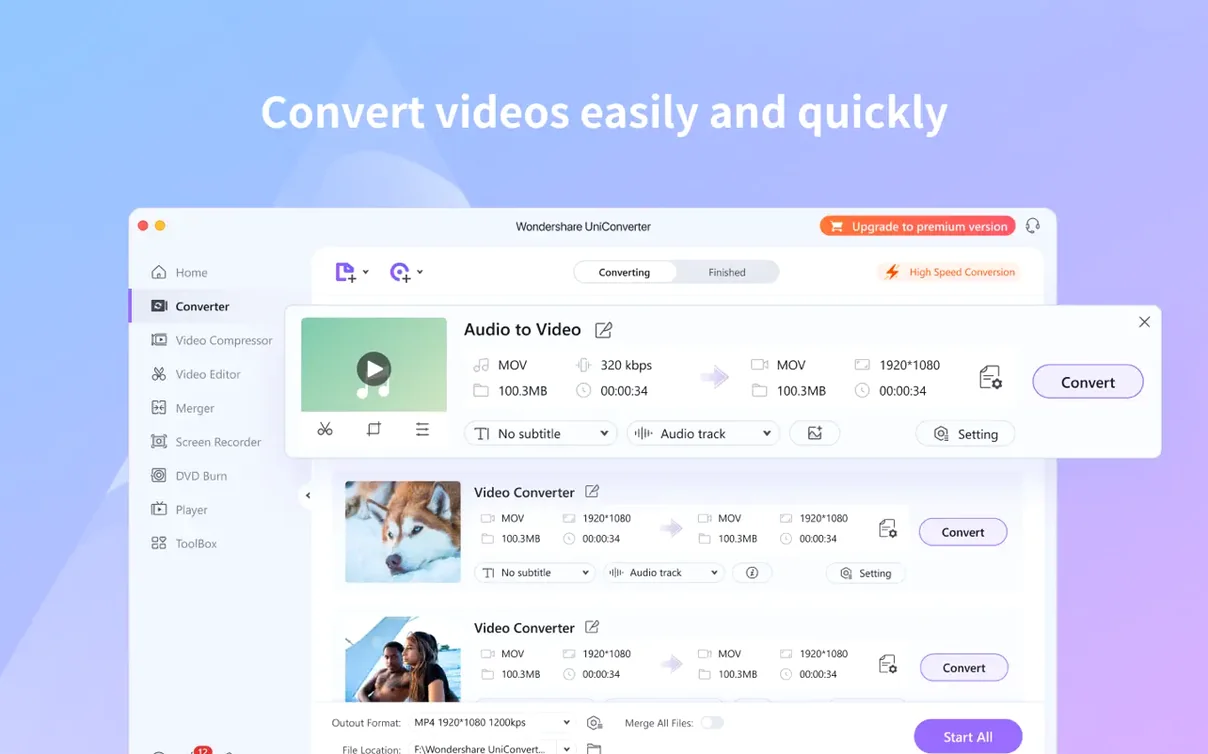
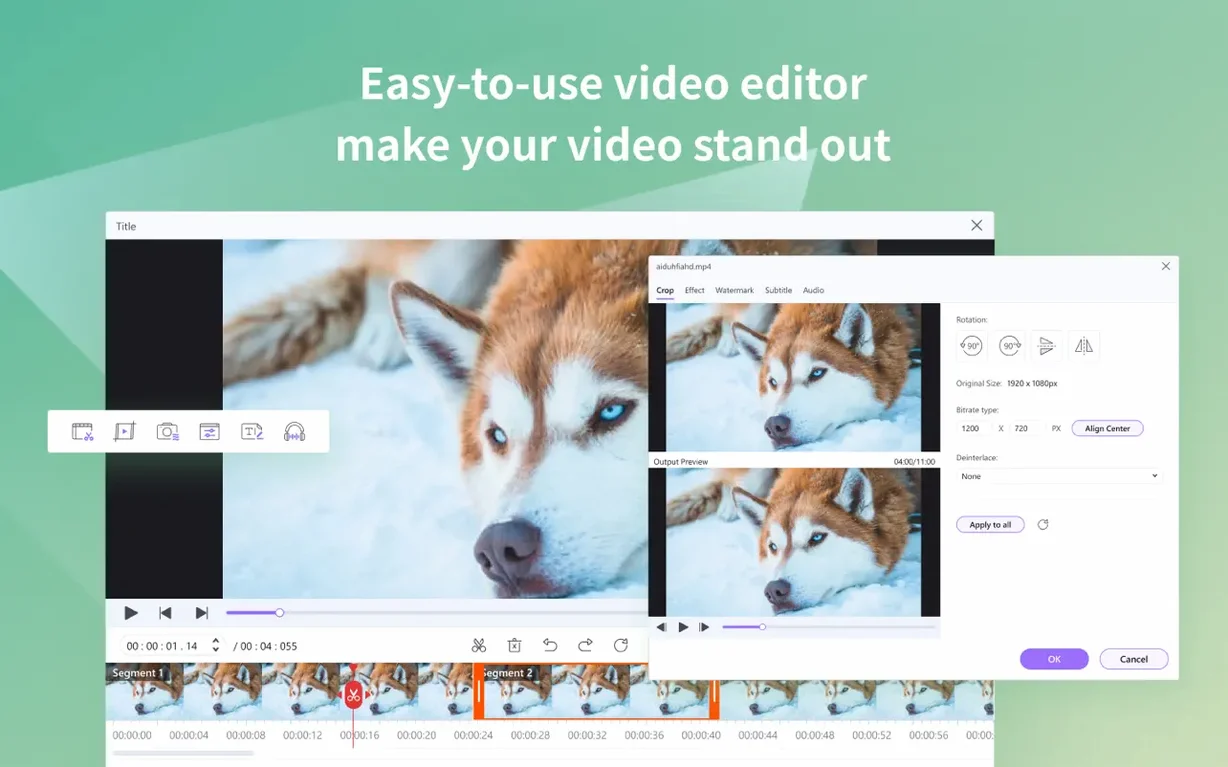
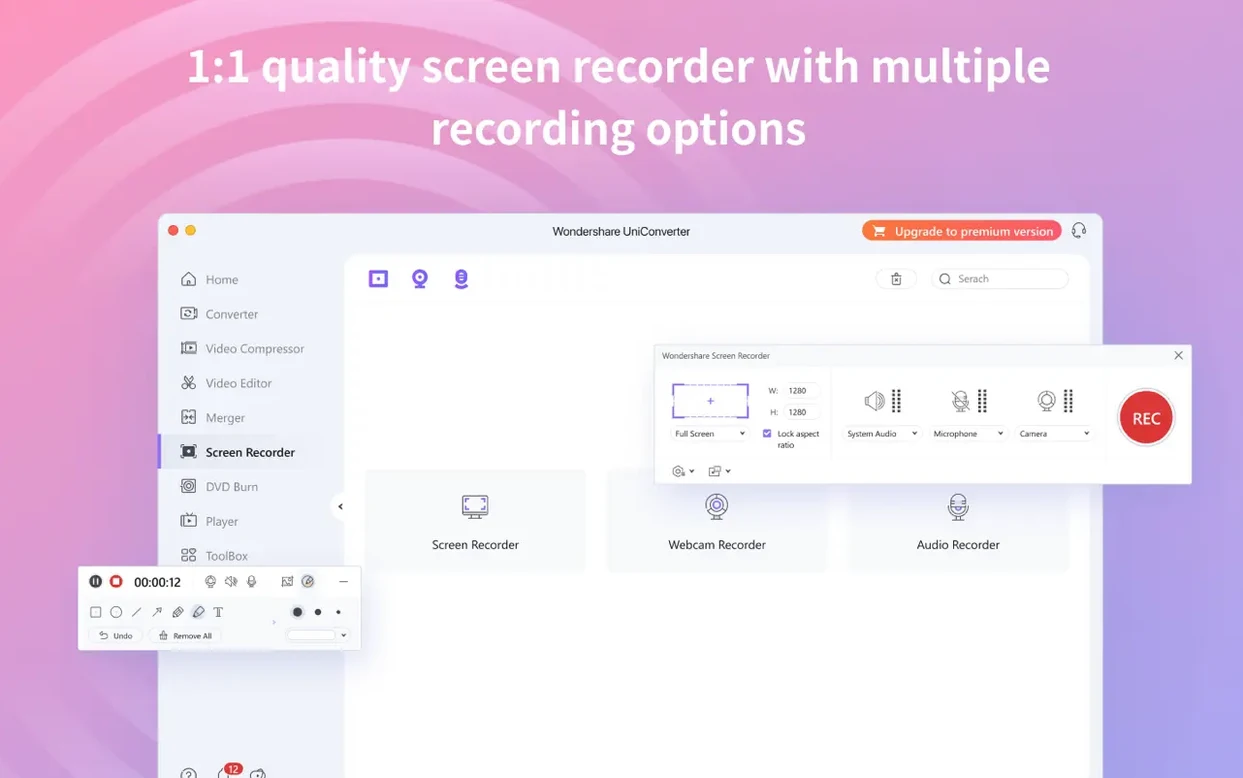
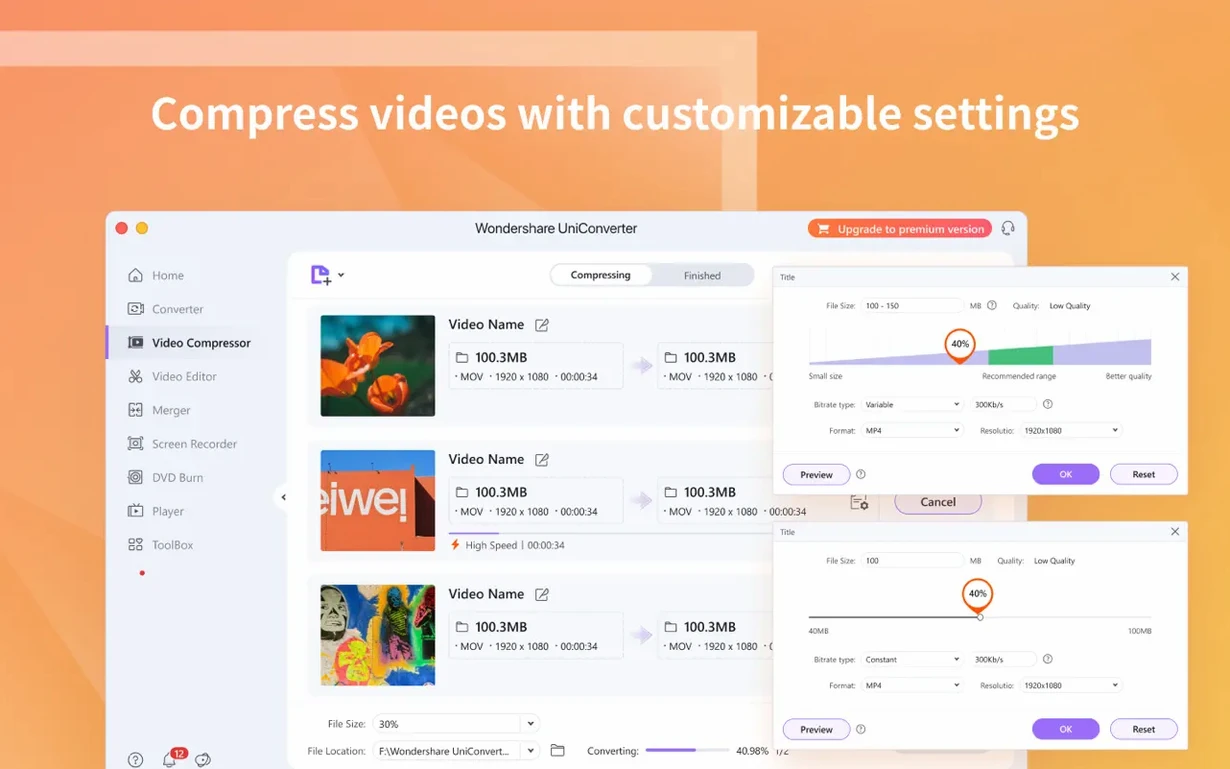
Wondershare UniConverter is a video converter and media toolkit that sits comfortably alongside the other utilities on your Mac, ready when you need to move video between formats or get it onto a disc.
- Converts between more than 159 formats, including HEVC/H.265 and 4K video, so you can play files on almost any device.
- Burns DVD video or common video files to disc, and can also rip DVD video straight into popular video and audio formats.
- Downloads online video from YouTube and other sites, then converts it if needed.
- Extracts audio tracks from DVDs and video files, handy for pulling a soundtrack or a podcast segment.
- Includes a built-in video editor for quick trims and cuts before you convert or burn.
- Handles DRM-protected files and can convert 2D video to 3D when you want that effect.
It runs on both Apple Silicon and Intel Macs, from macOS 10.13 onward. If you already juggle a few media tools, this one can replace several of them.
Works with macOS 10.11 and later
Will it work with my older Mac? Yes — version 15.7.3.564 is compatible with OS X 10.11 and later, and it supports both ARM and 64-bit Intel architectures. So whether you're on an old MacBook from 2015 or a newer M-series machine, you're covered.
Do I need to install extra codecs? No. The app includes its own codec library with native codecs for iMovie and Final Cut. That means you can convert files and then drop them straight into those editors without hunting for additional components.
Can it handle multiple files at once? Yes, batch conversion is built in. You can queue up a folder of clips and let it process them one after another while you do something else.
What about wireless transfer? The app supports transferring media to Apple and Android devices without a USB cable. Good for moving a finished video to your phone or tablet when you're already set up on the sofa.
Is the language set in English by default? The installer offers 19 languages, so you can pick your preferred one during setup.
Bypass Gatekeeper with Terminal command
Gatekeeper blocks the app after installation. This is the most frequent issue. During installation you mount the disk image and launch it using Open Gatekeeper friendly, then press Enter in Terminal to bypass Gatekeeper. If you skip that step, macOS may refuse to open the app. Just repeat the Terminal command and it should work.
Files won't load into the converter. Usually because the source file is corrupted or in a very obscure format. Try re-downloading the file or converting it with another tool first. Also check that the file isn't still being copied to your drive — half-written files can't be read.
DVD ripping fails or takes too long. Some commercial DVDs have copy protection that slows things down. The app can handle DRM-protected files, but the process may be slower. Make sure the disc is clean and your optical drive is working. If you're ripping a scratched disc, try cleaning it gently first.
Downloaded videos from YouTube don't appear. This can happen if the URL was entered incorrectly or the site changed its structure. Double-check the link, and ensure you're pasting the full URL. Also, some videos are region-locked or age-restricted, which can block downloads.
Audio extraction produces no sound. Check that you selected the correct audio track. Some video files have multiple audio streams (commentary, different languages), and the app may default to a silent track. Re-select the right one in the extraction settings.
Set output folder to avoid buried files
Before you start converting, open the settings panel and adjust a few things:
- Output folder. Set it to a location you can find easily, like a dedicated "Converted" folder on your desktop. The default location can bury files in your user library.
- Default format. If you mostly convert to MP4 or MOV, set that as the default so you don't have to pick it every time.
- Video quality. For everyday use, keep it on "High" rather than "Lossless" unless you really need uncompressed output. It saves disk space and processing time.
- Batch processing order. If you're converting several files, check the order they're queued. You can rearrange them so the most important file finishes first.
Verify format before converting batch
Not checking the output format before converting. It's easy to start a batch and realise later that you set everything to a format your device doesn't support. Always verify the target format before hitting convert.
Overwriting original files. The app can save converted files with the same name as the source. If you're not careful, you might lose the original. Either rename the output or save to a different folder.
Skipping the preview step. The built-in video editor lets you preview clips before converting. Beginners often skip this and end up with unwanted sections or black bars. A quick preview saves time later.
Forgetting to update the iTunes library. If you transfer converted files to iTunes, the app can extract metadata and update your library automatically. But you need to enable that option first. Otherwise you get files with generic titles and no artwork.
Using too many conversions at once. Batch conversion is powerful, but queuing twenty 4K files simultaneously can slow your Mac to a crawl. Start with a few files to see how your system handles the load.
- Compatible with OS X 10.11 and later.
- Supports ARM and 64-bit Intel Macs.
- macOS OS X 10.11 or later
- Apple Silicon or Intel Mac
Kit check at a glance
| System | OS X 10.11 or later |
| Chip | Apple Silicon, Intel 64-bit |
| Download | 324 MB |
| Older pressings | 2 in the crate |



Chat from the booth
Sign in or grab a free account to leave a comment.
Nobody has said a word in the booth yet. If you played a set with this build, tell the next person how it went.