
- Build in the crate
- 1.4.5 [MAS]
- Made by the team at
- Scott Ostler
- Menu languages offered
- English
- How you pay for it
- K'ed by TNT team
- macOS it plays on
- macOS 10.13 or later
- CPU it runs on
- Apple Silicon, Intel 64-bit
Screenshots
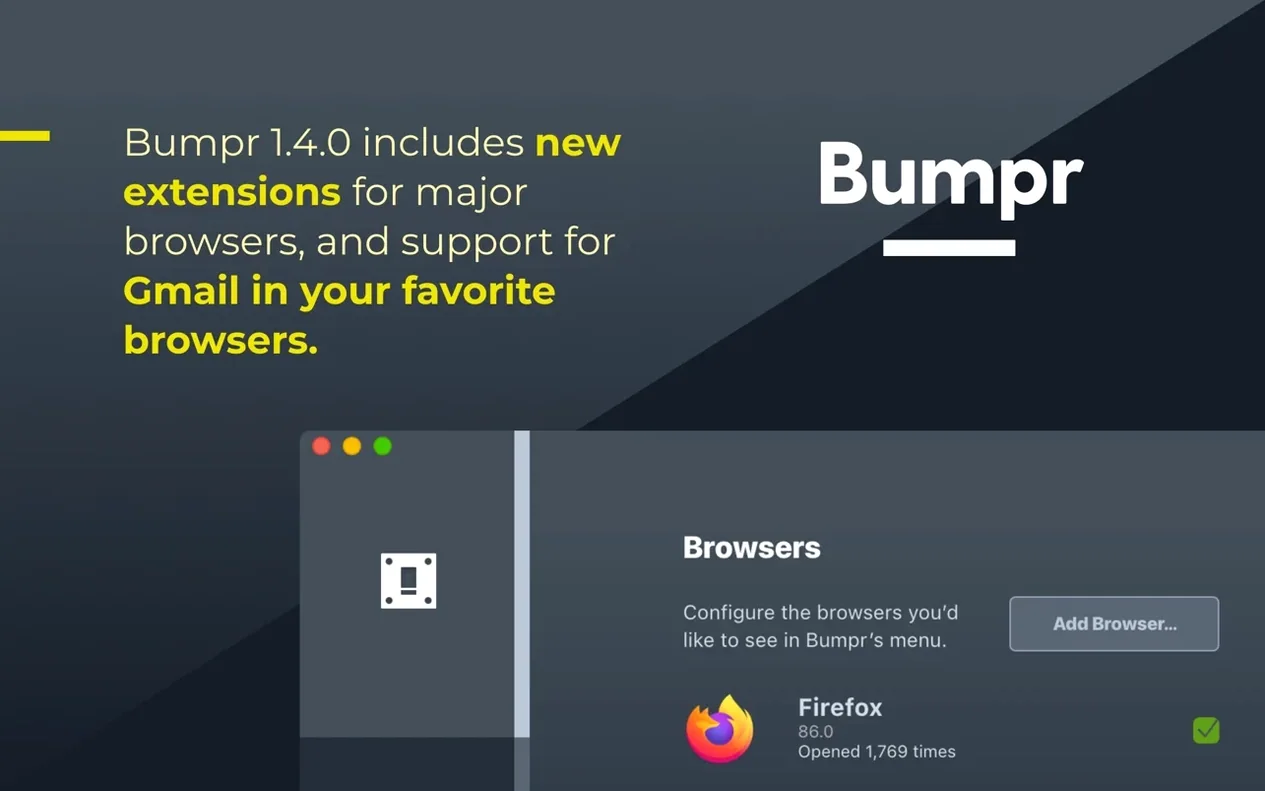
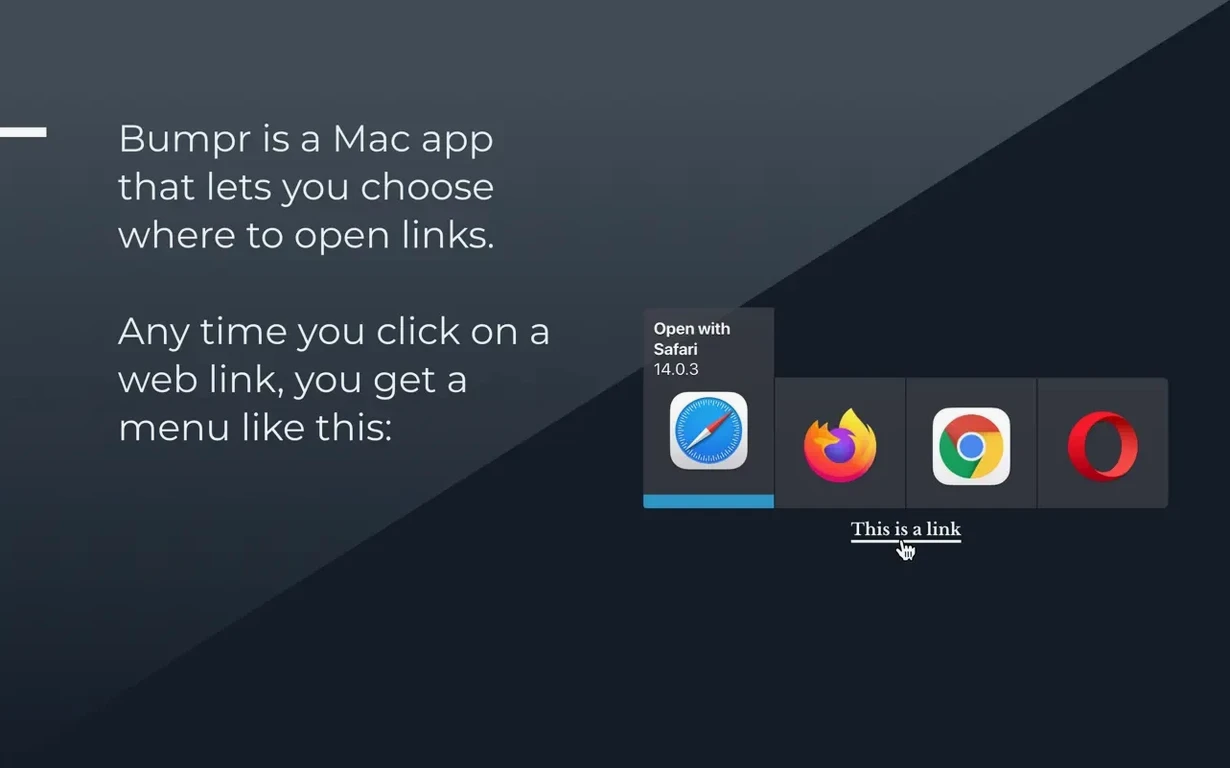
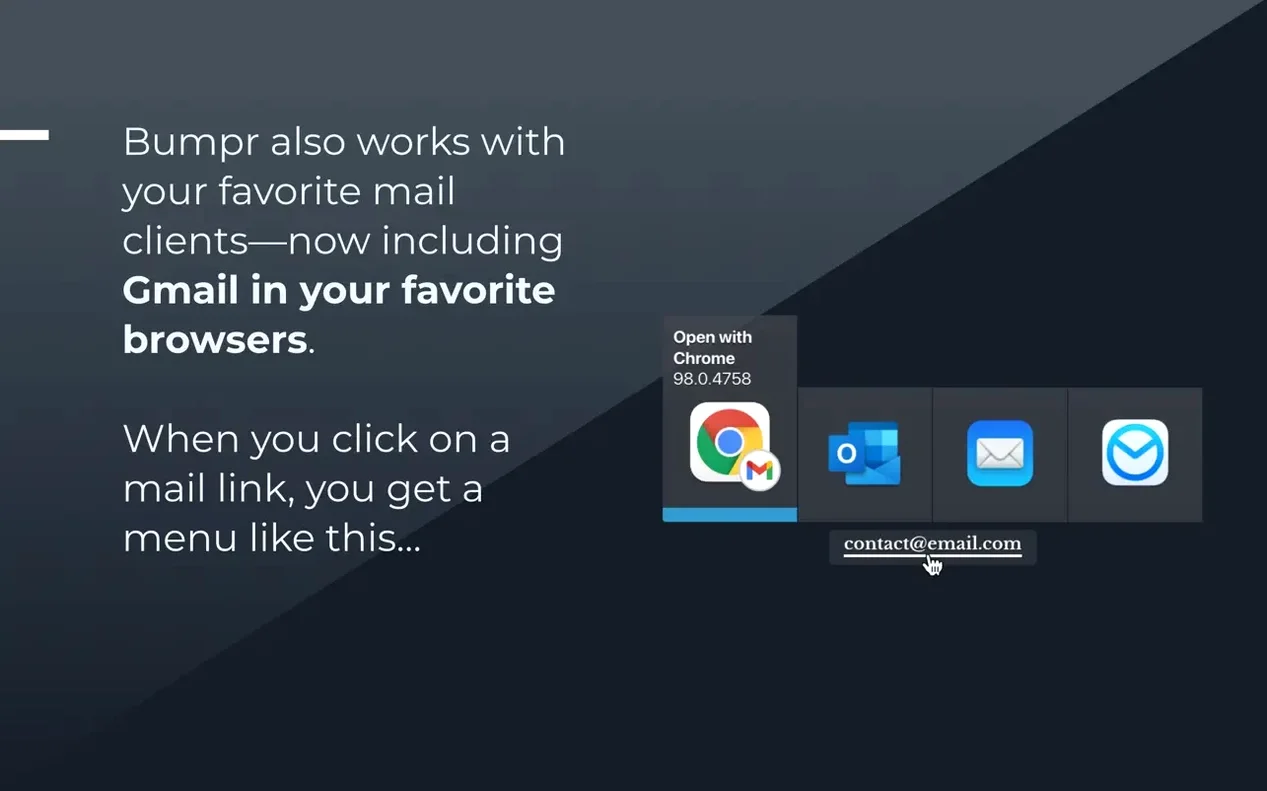
The option to move the app icon from the menu bar to the Dock is the headline change in Bumpr 1.4.5. Beyond that, the core idea hasn’t shifted: this is a Mac utility that intercepts links and asks you which browser or mail app should handle them.
Cross-browser testing — Pick a different browser each time a link opens, useful for checking how a page renders in Safari, Chrome, or Firefox.
Mail link handling — Choose between Apple Mail, Outlook, or any other mail client when clicking an email address.
Browser extensions — Available for Firefox, Opera, and Microsoft Edge, enabling right-click link handling from within those browsers.
Privacy — The developer does not collect any data from the app.
Sits alongside your existing setup without replacing anything
Bumpr sits alongside your existing setup without replacing anything. It doesn't manage bookmarks, block ads, or act as a password manager — it only intercepts links that macOS would normally send to your default browser or mail app. That makes it a thin but precise layer on top of whatever you already run.
If you use multiple macOS workspaces or virtual desktops, Bumpr stays out of the way. Its compact menu appears at the click point, so you don't need to switch windows or dig into system settings. The same principle applies if you work with browser profiles: you can assign specific Google accounts to specific browsers, and Bumpr remembers that mapping when you click mail links that point to Gmail.
The app also plays well with bumpr mac torrent downloads — you might grab a new browser you want to test, set it up, and have Bumpr offer it as an option the next time a link lands. No configuration step beyond granting macOS permissions on first run.
Menu bar icon can now be removed or moved to Dock
Two additions matter day-to-day:
- Menu bar icon can now be removed. If you prefer a clean menu bar, you can move the app icon to the Dock. This is a small change that makes a difference on crowded screens. The app still runs in the background — it's just visible in a different place.
- Browser extensions for Firefox, Opera, and Microsoft Edge. Previously, right-click link handling might have worked inconsistently in those browsers. Now they're on the same level as Safari and Chrome. If you test across browsers, you'll notice the difference when you right-click a link and see Bumpr's menu appear inside Firefox or Edge.
No other features were dropped or moved. The workflow remains the same: click a link, pick a browser, move on.
Setting up Bumpr as your default browser handler
After you drag Bumpr to Applications and launch it, take a few minutes to set up the basics:
- Open System Preferences > Default Apps and check that Bumpr is listed as your default browser handler. macOS might prompt you to confirm once.
- Install the browser extensions you need. If you use Firefox or Edge, head to their extension stores and search for Bumpr. The app itself includes a link to each store.
- Configure your Google accounts if you use separate browsers for separate accounts. The app's preferences panel lets you assign each account to a specific browser.
- Decide whether you want the Dock icon or the menu bar icon. This is a one-time choice in settings — you can switch back later if you change your mind.
A practical tip: if you test websites across browsers, create a test bookmark folder with URLs you check regularly. Then right-click each one and let Bumpr pick a different browser every time. It's faster than copying and pastting URLs between windows.
For mail links, try using Bumpr with two separate mail clients — for example, Apple Mail for personal addresses and Outlook for work. The app remembers your last choice per address, so after a few clicks it learns your patterns without needing rules.
- Option to move the app icon from the menu bar to the Dock.
- Browser extensions for Firefox, Opera, and Microsoft Edge.
- macOS 10.13 or later
- Intel or Apple Silicon
Kit check at a glance
| System | macOS 10.13 or later |
| Chip | Apple Silicon, Intel 64-bit |
| Download | 8 MB |


Chat from the booth
Sign in or grab a free account to leave a comment.
Nobody has said a word in the booth yet. If you played a set with this build, tell the next person how it went.