
- Build in the crate
- 3.97
- Made by the team at
- Ryan Hanson
- Menu languages offered
- English
- How you pay for it
- K'ed by TNT team
- macOS it plays on
- macOS 13.5 or later
- CPU it runs on
- Apple Silicon, Intel 64-bit
Screenshots
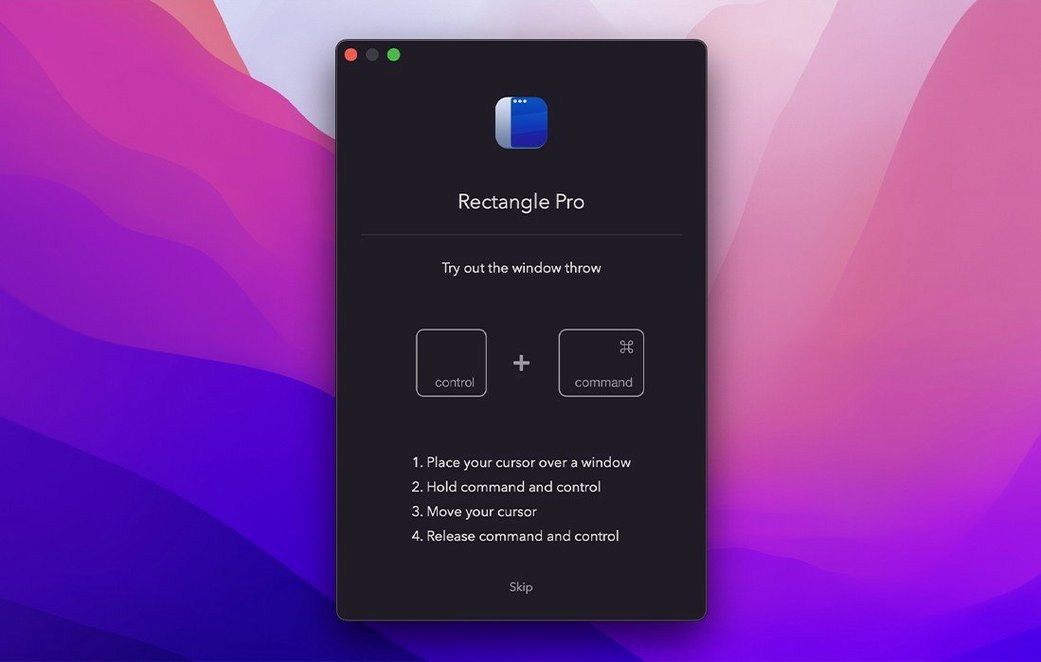
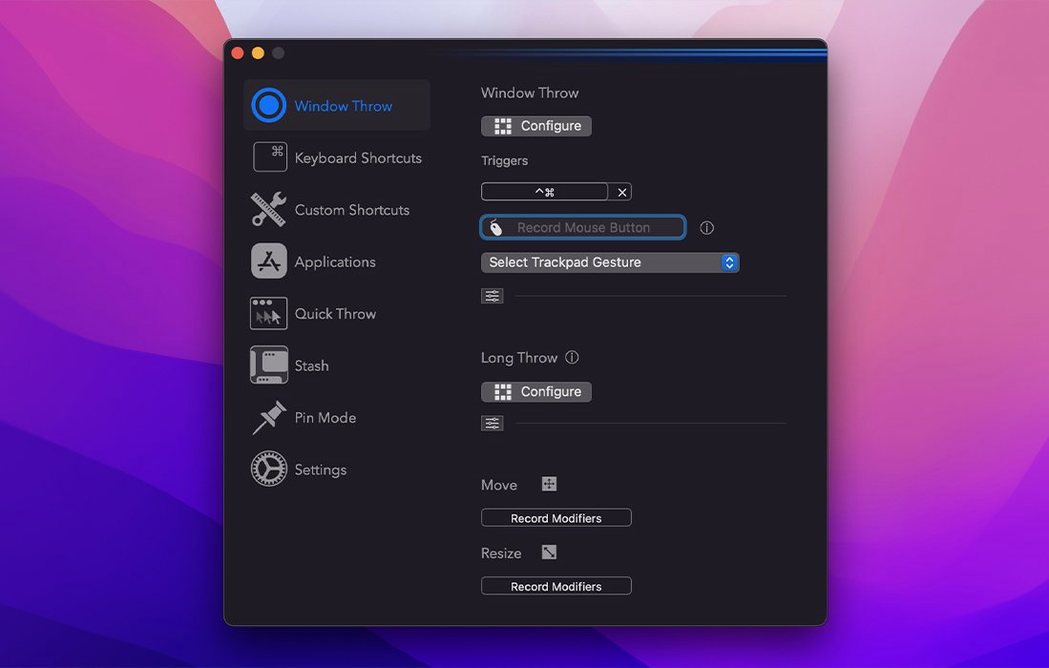
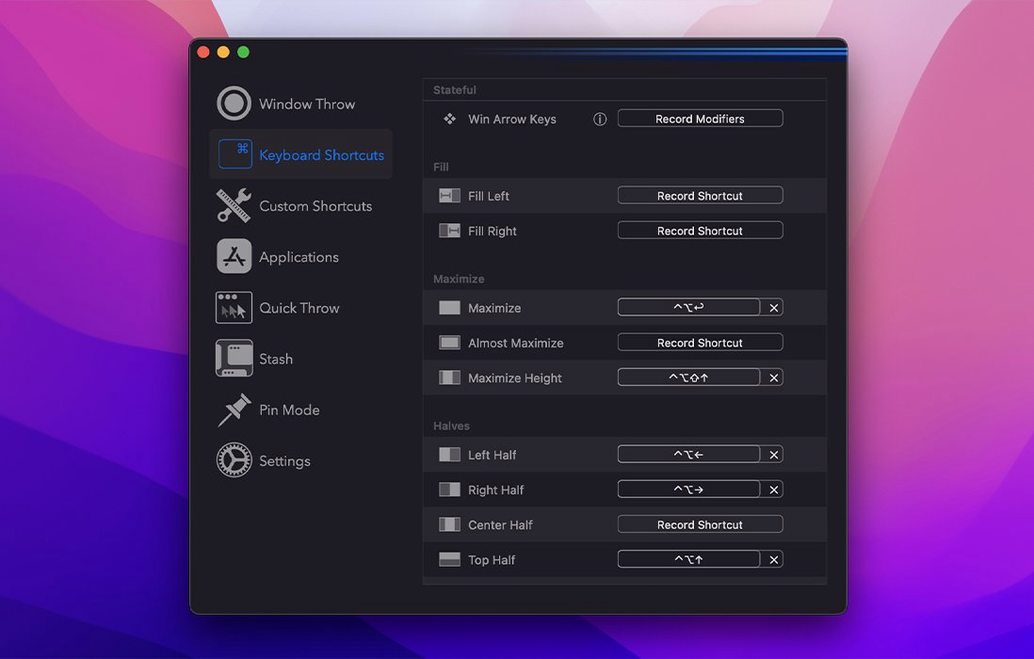
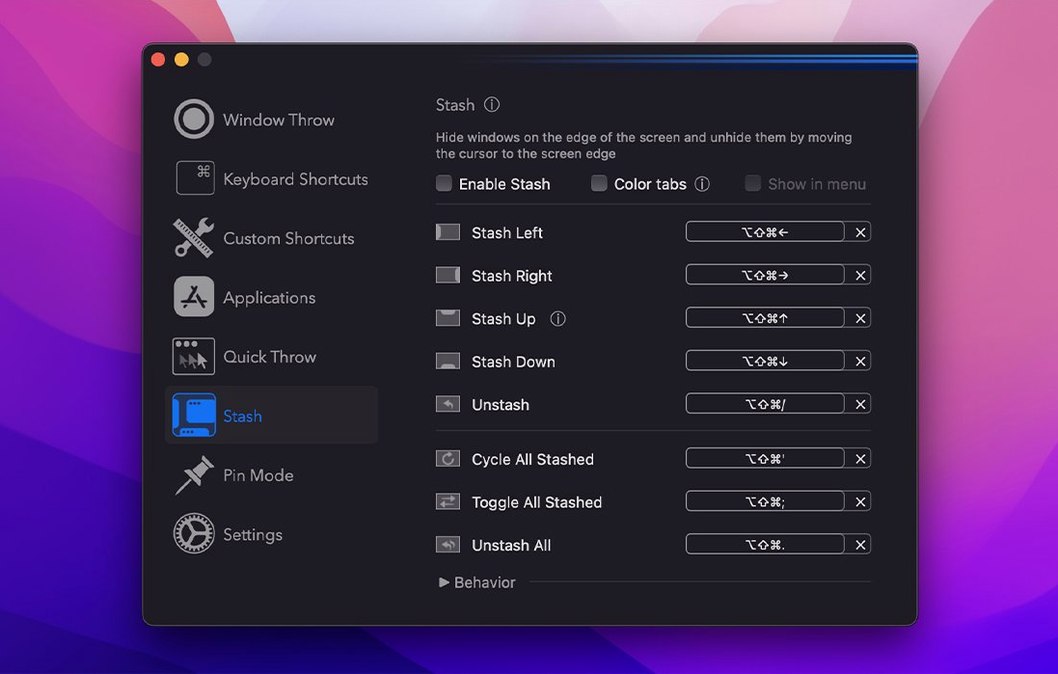
macOS window management is fine until you need three windows side by side, or one exactly where you left it. Rectangle Pro fixes that with custom sizes, positions, and shortcuts that go beyond the free Rectangle app.
| Detail | Info |
|---|---|
| Developer | Ryan Hanson |
| Version | 3.97 |
| Category | Utilities |
| macOS | 13.5 or later |
| Architecture | Intel and Apple Silicon |
| Language | English |
It's a separate download, a closed-source superset of Rectangle. You get window snapping under the cursor even when the window isn't focused, iCloud sync for settings, and a key-hold move/resize trick. App groups let you arrange a whole workspace with one shortcut. CPU only wakes up when you press the modifier keys, so it stays out of the way. Most people ask about the extra features, and they're all here.
First days with Rectangle Pro: what to set up
Don't try to learn every shortcut at once. Pick two or three that match what you do most. I usually start with a left-half and right-half snap, then a centre position for a small reference window. That covers most of my screen splits without having to think.
Set the modifier key early. Rectangle Pro uses CPU only when that key is pressed, so choose one you can reach without stretching. After that, try the fill-left and fill-right actions. They use screen space without overlap, and they work differently from simple half-screen snapping because they account for dock and sidebar space.
If you run multiple displays, assign one set of shortcuts per monitor. The app groups feature is worth testing on day two: set up a browser left, terminal centre, and a notes app right, then save the group. One shortcut later and that arrangement comes back every time. It saves a lot of dragging.
A real scenario: mixing stems in Ableton Live
Before Rectangle Pro, I was always reaching for the mouse to resize the arrangement window or to move the mixer to a position where I could see both the clips and the effects rack. It broke my flow.
Now I have a group saved for the second display: the Ableton arrangement view takes the left two thirds, the mixer panel sits on the right, and a small Finder window lives in the bottom-right corner for dragging in samples. One key combo sets that up every time I start a mixing session. When I need to see the full arrangement without the mixer, I use a second group that hides the Finder and expands the mixer slot. No mouse adjustments, no menu diving. The window-throw gesture (the one fixed in 3.97) is what I use to toss the plugin window to the other screen when I'm editing a synth patch. It's fast and it lands exactly where I expect.
Small conveniences that are easy to miss
- Snap under cursor without focus — you can move a window that's behind another one without clicking it first. Just hold the modifier key and snap. That alone saves a click on every window swap.
- Window throw with trackpad — version 3.97 fixed the regression that broke this for trackpad gestures. If you use a MacBook's built-in trackpad for throw actions, it now works as it did before.
- iCloud sync for settings — once you set up your groups and shortcuts on your laptop, they appear on your desktop machine if both are signed into the same Apple account. No manual export or config file needed.
- Hold-and-move resize — hold the modifier key and move the cursor a short distance. The window follows your drag and resizes to fill the target zone. It's quicker than aiming for the corner handle.
Workflow: set up a production workspace from scratch
Here's how I'd walk through a fresh Rectangle Pro setup for a music production session on a single MacBook screen. The steps assume you've already dragged the app into Applications and opened it once.
- Open Rectangle Pro and go to the shortcuts panel. Assign a modifier key — I use Right Command because it's close to the trackpad.
- Create a left-half snap and a right-half snap. Use the first for Ableton's arrangement view and the second for the mixer or a plugin window.
- Group these into one app group: Ableton on the left, the mixer on the right, the spectrum window centred on top. Save the group with a memorable key combo.
- Test the group. Open Ableton, then a plugin, then your reference app. Press the group shortcut. Everything should arrange in one go.
- Enable iCloud sync in settings so the same group is available on your studio machine.
- Try the hold-and-move resize: hold the modifier key and drag a window to the left edge. It snaps to half width. Drag it to the top edge and it fills the top half. This becomes second nature after a few tries.
That's it. No extra steps, no hidden panels. The group saves time every time you start producing, and the snap actions handle the fine adjustments when you need to see a specific plugin side by side with a clip.
- Fixes a regression from 3.96 that broke Window Throw trackpad gestures.
- macOS 13.5 or later
- Intel or Apple Silicon
Kit check at a glance
| System | macOS 13.5 or later |
| Chip | Apple Silicon, Intel 64-bit |
| Download | 10 MB |
| Older pressings | 4 in the crate |








Chat from the booth
Sign in or grab a free account to leave a comment.
Nobody has said a word in the booth yet. If you played a set with this build, tell the next person how it went.