
- Build in the crate
- 1.8
- Made by the team at
- Aviorrok
- Menu languages offered
- Russian, English, German, Hebrew, Spanish, Italian, Chinese (Simplified), Korean, Portuguese, Slovak, Turkish, French, Japanese
- How you pay for it
- Not required
- macOS it plays on
- macOS 11 or later
- CPU it runs on
- Apple Silicon, Intel 64-bit
Screenshots
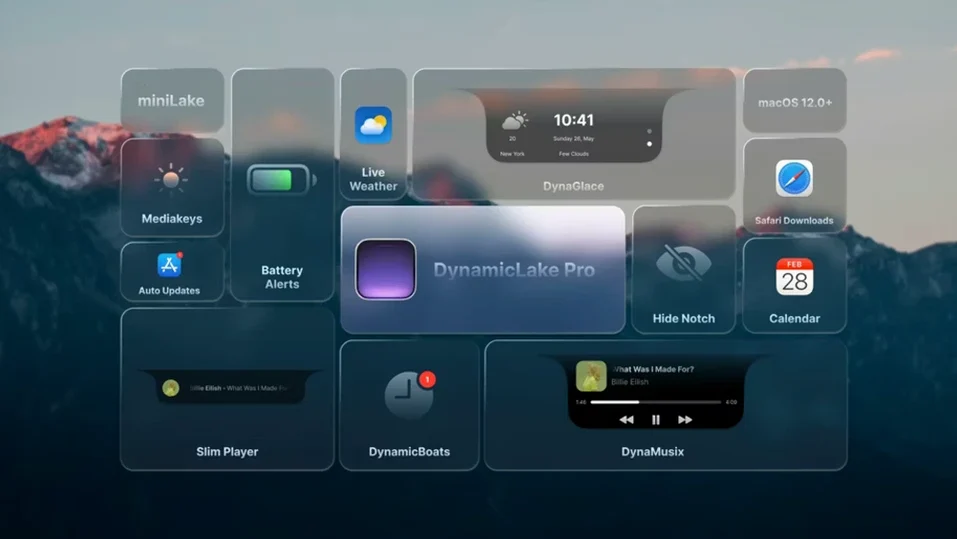

DynamicLake Pro is for the person who wants their Mac to feel more fluid and responsive. It adds a Dynamic Island-style panel to macOS with widgets, notifications, and quick controls that sit at the top of the screen.
How do the music controls work with DynaMusic?
DynaMusic shows album art and playback controls with animation. It works as a persistent widget so you can skip tracks or adjust volume without opening the full app.
What does DynaKeys actually control?
DynaKeys gives you on-screen sliders for volume, brightness, and keyboard backlight. That means you don’t need to memorise function keys — just tap the icon and drag.
Can it replace the system’s own notifications?
Partially. It shows push notifications with quick replies for several apps, and it picks up timers from the macOS Clock app automatically.
Sits quietly in the menu bar at first
When you first launch DynamicLake Pro, it sits quietly in your menu bar. The panel doesn’t appear until you need it, so don’t worry if nothing jumps out immediately. Give it a few hours of regular use — the real benefit shows up when you’re switching between tasks, checking the time, or controlling music without hunting for the right window.
Open a few apps and switch between them using Option+Tab (the DynaSwitcher feature). You’ll see app icons appear in the Dynamic Island area, which feels more natural than the standard macOS app switcher for people who work with many windows. The same shortcut works with Bluetooth devices — DynaConnect shows a brief alert when headphones or a keyboard connect or disconnect, so you’re never left guessing whether your gear is paired.
Try DynaGlance for a quick look at your calendar and weather. It’s useful if you keep a busy schedule and want to check the day’s events without opening Calendar or a weather app. The widget updates in real time, so the information is current whenever you glance at it.
If you prefer a smaller footprint, switch to miniLake. It keeps the core functions — music, volume, brightness — in a more compact format. It’s worth testing both sizes during the first day to see which one feels less intrusive on your workflow.
Will it slow down my Mac?
Lightweight process won't affect older Intel Macs
DynamicLake Pro runs as a lightweight background process. It doesn’t load heavy graphics or scan files continuously. The widgets update only when data changes, so it shouldn’t affect day-to-day performance even on older Intel Macs. The app supports both ARM and 64-bit Intel systems, so it’s built to run efficiently on whatever hardware you have.
Works with system widgets and app switcher, but not all third-party apps
The notification and quick-reply features work with several apps, but not every third-party app is supported. The system-level widgets — music, weather, calendar — are independent of specific apps, so they always work. The app switcher also works with any open application, regardless of where it came from.
Can I turn off parts I don’t want?
You can. Each component — DynaMusic, DynaKeys, DynaGlance, DynaSwitcher, DynaConnect, miniLake — operates separately. If you only want the music widget and Bluetooth alerts, you can disable the rest. There’s no requirement to use everything at once.
Doesn't modify system files or interfere with macOS updates
The app doesn’t modify system files or inject code into system processes. macOS updates in the future (including macOS 27, which the changelog mentions) should not break it, though you may want to check for an updated version after a major system upgrade. Version 1.8 works on macOS 11 and later.
Timers from Clock app appear automatically in the Dynamic Island
- Timers from the Clock app appear automatically. Set a timer in the standard macOS Clock app, and DynamicLake Pro picks it up without any extra setup. The countdown shows in the Dynamic Island area.
- AirDrop alerts show up in the panel. When someone sends you a file via AirDrop, the notification appears in the Dynamic Island rather than as a separate pop-up. It keeps the screen less cluttered.
- It’s a small thing, but it saves you from suddenly losing input during a task.
- You can trigger conversions from the panel without opening a separate utility.
- Meeting alerts. Calendar events with meeting links can appear as notifications, so you don’t have to dig through your calendar to join a call.
AirDrop alerts and other snags and how to fix them
The panel doesn’t appear
Make sure the app is running. Check your menu bar for the DynamicLake icon. If it’s not there, launch the app again from Launchpad or the Applications folder. Some users expect it to start automatically — you can add it to your Login Items in System Settings if you want it to launch at boot.
Music controls don’t show the current track
DynaMusic relies on the system’s Now Playing information. If you’re using a music app that doesn’t report its playback status to macOS (some older players or web-based services), the widget may stay blank. Try quitting and reopening the music app, or switch to a player that supports the system media framework.
Quick replies don’t send
Quick replies work with apps that support the macOS notification reply feature. If you’re using a messaging app that handles notifications differently, the reply button may not appear. In that case, you’ll need to open the app directly to respond. The app still shows the notification itself.
Bluetooth alerts don’t show
DynaConnect needs Bluetooth to be turned on and the Mac to have paired devices. If you’re using a wired keyboard or mouse, there’s nothing to alert. For Bluetooth devices, make sure they’re paired in System Settings first. The alert appears only when a device connects or disconnects, not when it’s already connected at startup.
Calendar events don’t appear
DynaGlance reads data from the macOS Calendar app. If your calendar is stored in a service that requires a separate app (like a third-party calendar client), the widget may not see it. Stick with the built-in Calendar app for best results, or make sure your online calendars are synced through macOS.
Yes. The built-in app switcher lets you jump between open applications without reaching for the Dock.
- macOS 11 or later
- Intel or Apple Silicon
Kit check at a glance
| System | macOS 11 or later |
| Chip | Apple Silicon, Intel 64-bit |
| Download | 115 MB |




Chat from the booth
Sign in or grab a free account to leave a comment.
Nobody has said a word in the booth yet. If you played a set with this build, tell the next person how it went.