

- Build in the crate
- 8.9.14 (20260323)
- Made by the team at
- iMobie Inc.
- Menu languages offered
- English, German, Arabic, Spanish, Chinese (Simplified), French, Japanese
- How you pay for it
- K'ed by TNT team
- macOS it plays on
- macOS 10.13 or later
- CPU it runs on
- Intel 64-bit
Screenshots
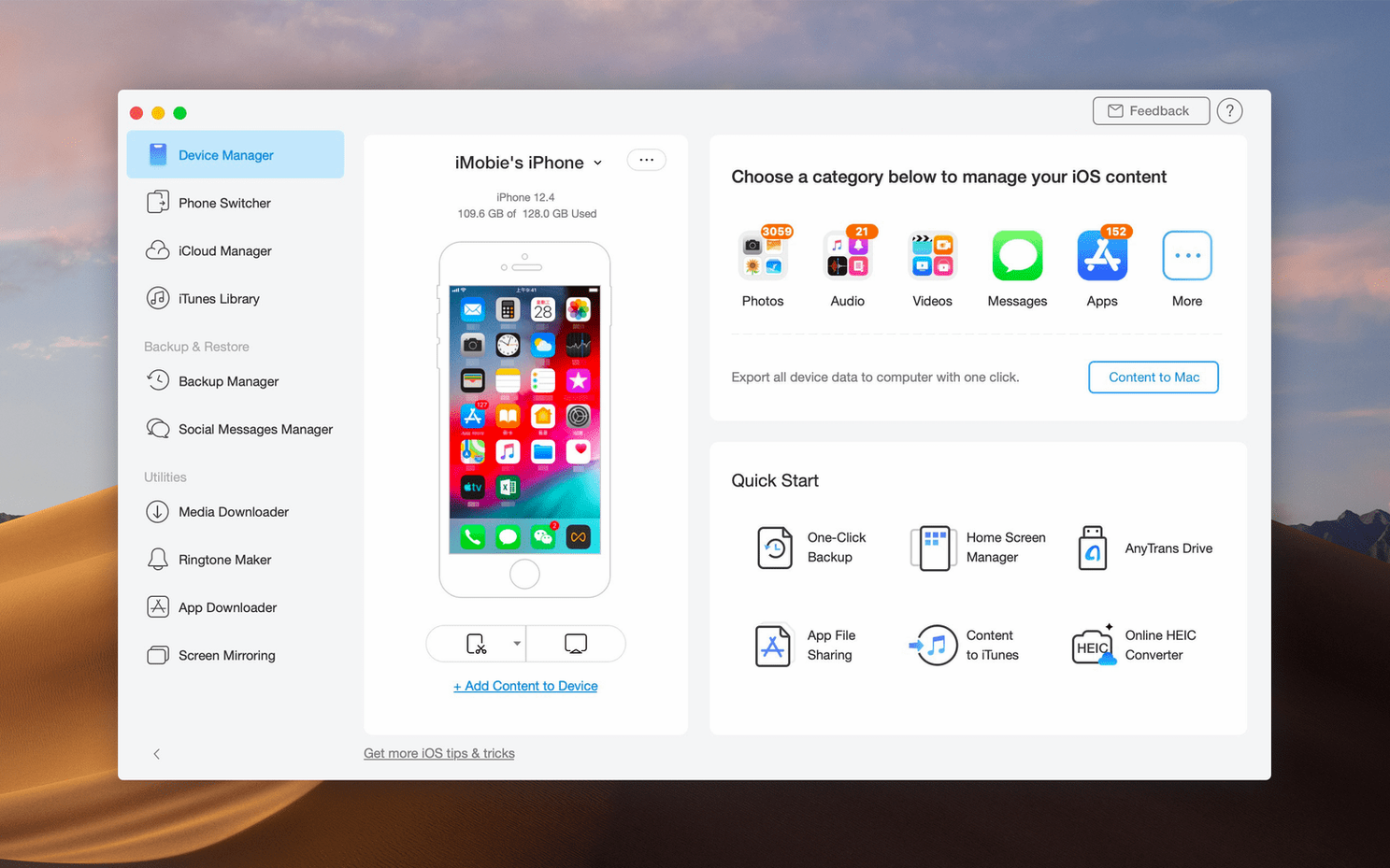
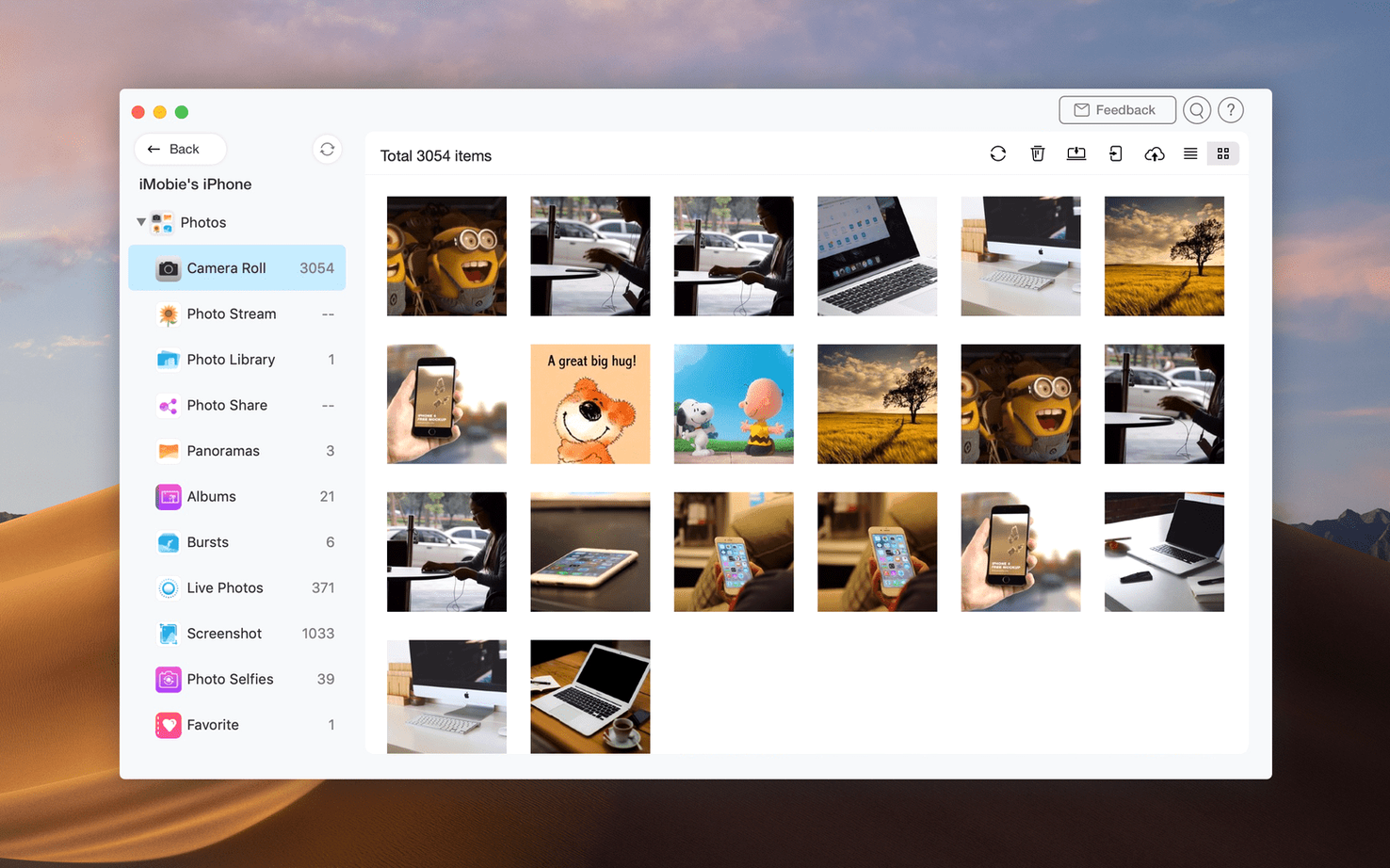
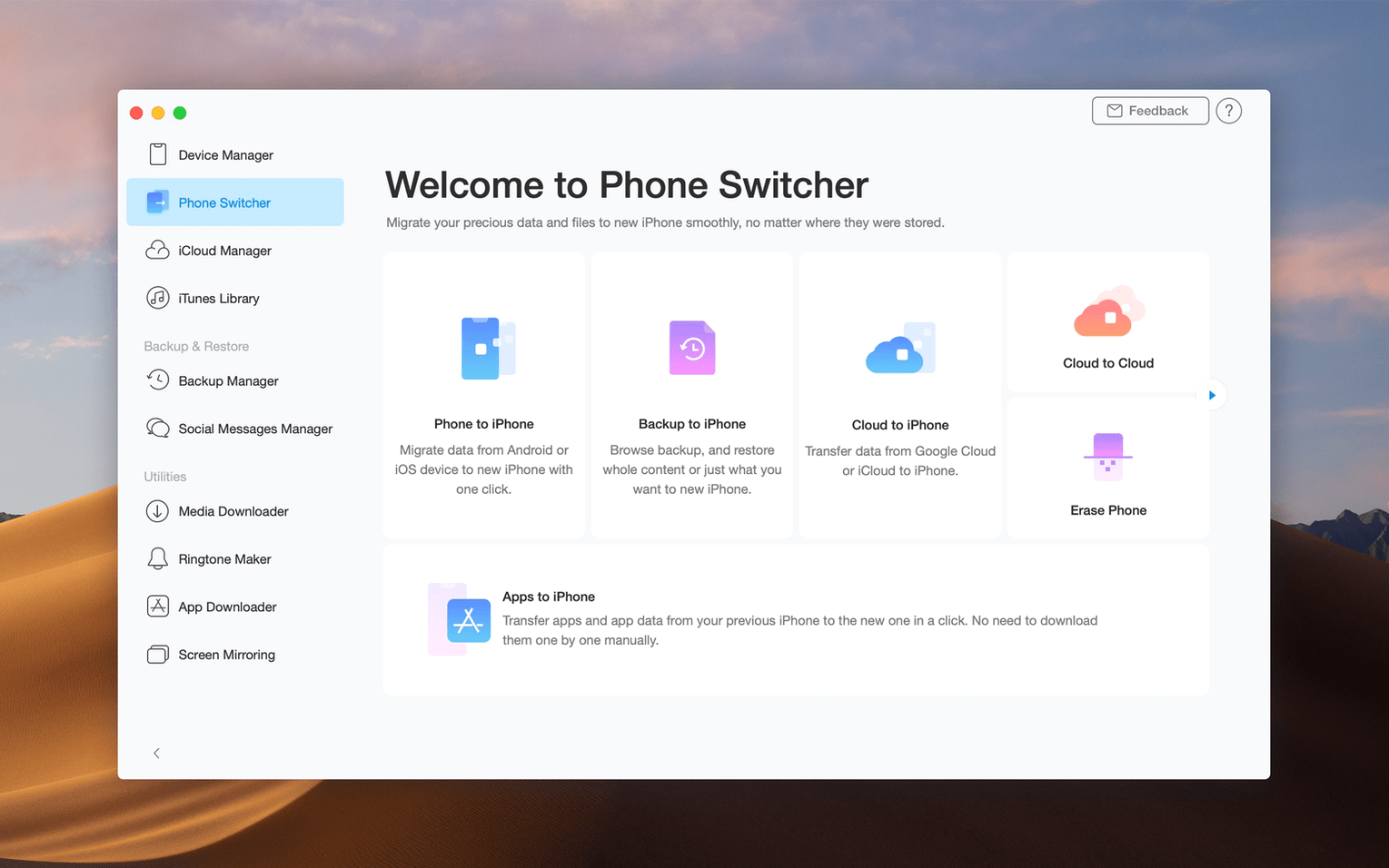
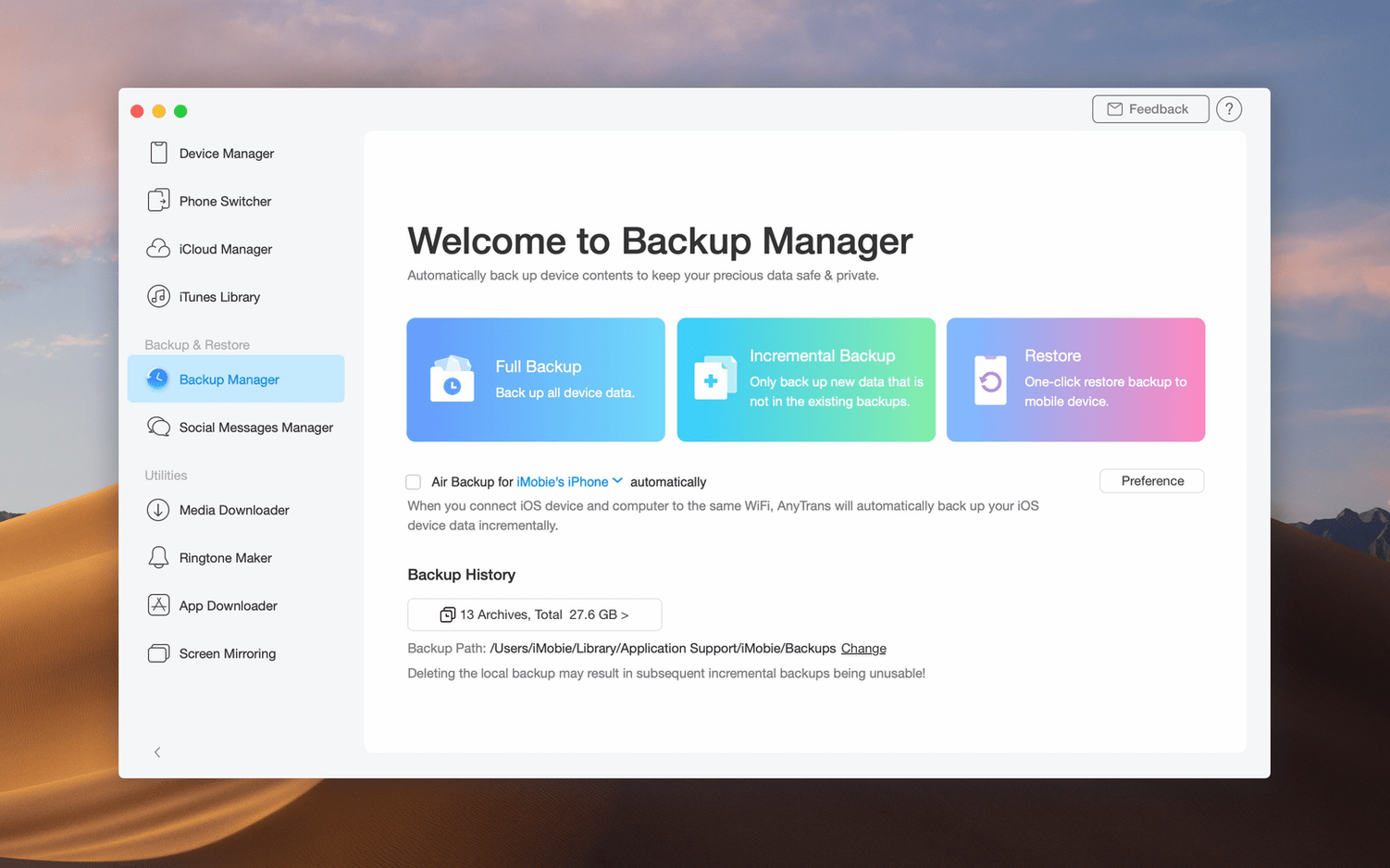
If you have ever fought with Finder when moving photos off an iPhone, AnyTrans is the kind of tool that makes you wonder why Apple does not build this in. It works over a USB connection, so no Wi-Fi sync waiting around. You can copy an entire iPad to your Mac in one click, or pick a category and move just what you need.
The app talks to iTunes and iCloud as well. Save iCloud files locally, back up iOS data on your Mac, or shift everything from an old iPhone or Android handset to a new one. There is even a media downloader that grabs audio and video from more than 900 websites, which is handy when a track you want only lives on a streaming page.
For the anytrans mac download itself, the current version is 8.9.14 and it runs on macOS 10.13 High Sierra or later. Note the architecture: it is Intel-only, so Apple Silicon users will need Rosetta. Interface languages cover English, German, Spanish, French, Japanese, Arabic and Simplified Chinese.
Browse categories in the first session
Once AnyTrans is in your Applications folder, plug in your iPhone or iPad via USB. The app should recognise it straight away. Spend the first session just browsing. Click each category — Photos, Music, Messages, Contacts — to see what the app surfaces. You might find old voicemails or WhatsApp attachments you forgot existed.
A good first task: make a full backup to your Mac. It gives you a safety net before you start moving things around. After that, try transferring a single photo album to your desktop. If that works cleanly, you know the connection is solid.
Keep the USB cable that came with your device. Third-party cables sometimes drop the connection during larger transfers. And give the media downloader a test run with one short video from a site you use often. It saves directly to your Mac, no extra steps.
Workflow: moving photos from an old iPhone to a new one
You have a new iPhone and an old one sitting next to each other. Here is a clean way to do it with AnyTrans.
- Connect the old iPhone to your Mac via USB. AnyTrans should show it in the device manager.
- Select Photos from the left panel. Tick the albums you want — Camera Roll, Favourites, maybe WhatsApp images.
- Click Export to PC and choose a folder on your Mac. Let the transfer finish before unplugging.
- Disconnect the old iPhone and connect the new one. AnyTrans will update the device manager to show the new device.
- Go to the same Photos section. Click Add and select the folder you saved earlier.
- AnyTrans copies the photos into the new iPhone’s photo library. Done.
This method keeps the originals intact on your Mac as a backup. If you prefer a direct device-to-device move, AnyTrans can do that too — just select both devices under the device manager and choose what to transfer.
Questions before installing
Does AnyTrans work with the latest iOS version?
It is kept current by iMobie, so it generally supports the iOS versions available at the time of release. Version 8.9.14 covers the usual update cycle. If you are on an older macOS like High Sierra, it still works — no need to upgrade your whole system just to manage your phone.
Works offline for USB transfers
For USB transfers, yes. Moving files between your iPhone and Mac over the cable does not need Wi-Fi or mobile data. The media downloader and iCloud features do require a connection, but the core transfer functions are offline.
Will it replace iTunes entirely?
It covers most of what iTunes used to do for file transfers and backups. If you only use iTunes for music syncing or podcast management, AnyTrans can handle those categories. Some users keep both installed for different tasks, but for day-to-day iOS data management, AnyTrans does the heavy lifting.
Safe with your main iCloud account
The app accesses iCloud through standard APIs. It reads what you authorise, saves files locally when you ask, and does not modify your iCloud data without your input. Many people use it to move content between iCloud accounts without losing anything.
Free up space before a trip
Wednesday evening. I plug my iPad into the Mac, USB cable clicking into place. AnyTrans opens and shows the device manager with the iPad’s name and storage bar. I want to free up space before a trip.
First, I click Videos. The app lists every film and clip on the iPad, sorted by size. I tick a few travel documentaries I already watched and hit Export to PC. They copy over to a folder on my desktop while I move on to Photos.
Photos shows thumbnails grouped by album. I select the screenshots album — 200-odd images I do not need on the device. Export them to the Mac, then delete them from the iPad within AnyTrans. That frees about a gigabyte.
Next, I open the iCloud tab. I have a few documents sitting in iCloud Drive that I want offline for the flight. AnyTrans lists them like a file browser. I select the PDFs and click Save to Mac. They land in a local folder in seconds.
Before disconnecting, I run a full backup to the Mac. It takes a few minutes over USB. When it finishes, I unplug the iPad and close AnyTrans. The whole session — cleanup, file export, iCloud save, backup — takes less time than a single iTunes sync used to.
The installer is a disk image with a Gatekeeper workaround. Mount it, run the terminal command, drag the app into Applications, and you are set.
- macOS 10.13 High Sierra or later
- Intel architecture
Kit check at a glance
| System | macOS 10.13 or later |
| Chip | Intel 64-bit |
| Download | 398 MB |








Chat from the booth
Sign in or grab a free account to leave a comment.
Nobody has said a word in the booth yet. If you played a set with this build, tell the next person how it went.