
- Made by the team at
- motionVFX
- How you pay for it
- Not required
Screenshots
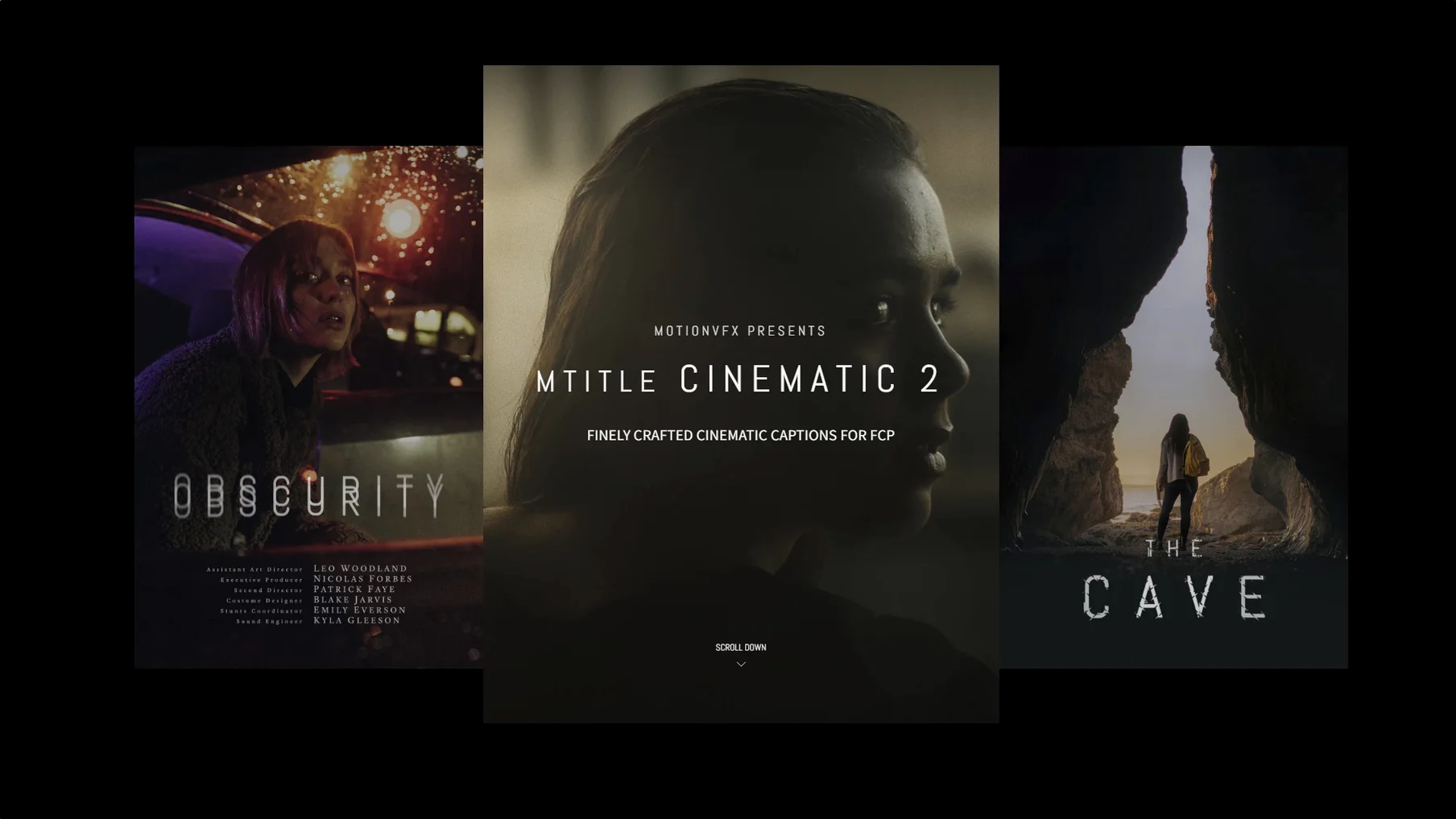
If you already edit in Final Cut Pro, you know the title browser inside out. mTitle Cinematic plugs right into that familiar spot, adding 50 titles designed for widescreen storytelling.
These aren't generic lower thirds. The package focuses on cinematic captions, openers, and film credits, all in horizontal aspect ratio. So when you're cutting a short film or a moody promo, you can drop a title that feels like it belongs on the big screen.
Film-style openers and end credits
- Film-style openers that set the tone before the first shot.
- Captions that sit comfortably over footage without shouting.
- End credits that look considered, not bolted on.
Requires Final Cut Pro 10.4.6 or later
- Requires Final Cut Pro 10.4.6 or later, or Motion 5.4.3.
- Needs macOS 10.14.4 or newer.
- Titles are horizontal, so plan for widescreen framing.
Runs on Intel and Apple Silicon Macs
The system requirements are modest: macOS 10.14.4 or later, and either Final Cut Pro 10.4.6 or Motion 5.4.3. That means any Mac that runs Mojave or newer can handle it, from older Intel machines to Apple Silicon. No activation process, no licence server handshake — just a folder copy to /Users/username/Movies/Motion Templates/Titles and you're done.
Because the titles are animated, your Mac's graphics chip does the work when you preview them in the FCP browser. The package itself is a collection of Motion templates, so it uses whatever resources Final Cut Pro gives it. On a modern MacBook Air M2, it behaves like any other MotionVFX plugin: responsive, no surprises.
Check project aspect ratio first
Once you've copied the files, open Final Cut Pro and go to the Titles browser. Find the mTitle Cinematic category. Before you drag anything into a timeline, do two things:
- Check your project's aspect ratio. These titles are built for horizontal framing, so if your project is vertical or square, the text may not sit where you expect. Set your project to 16:9 or 2.35:1 first.
- Browse through a few titles in the viewer. Each one has its own animation style — some fade, some slide, some use letter spacing reveals. Pick three or four that match the mood of your edit, then customise the text and colour in the inspector. The less you fight the template, the faster you'll work.
If you plan to reuse a title across multiple clips, duplicate the template in the browser and rename it. That way you keep the original untouched for later projects.
Opening a Valencia street musician documentary
Imagine you're cutting a short documentary about a street musician in Valencia. The opening needs to establish the setting without pulling focus. You've got a wide shot of the city at golden hour, and you want the title to sit over it for four seconds.
You open the mTitle Cinematic browser, pick a clean centred caption with a slow fade-in. Type the film's name and a subtitle. In the inspector, you nudge the font size down and change the colour to a warm off-white so it doesn't fight the sunset. The animation is subtle — text appears over two seconds, holds for another two, then fades. No flashy transitions, just enough presence to read comfortably.
Later, you add end credits using the same set. You stack a few of the simpler roll-up titles in the timeline, adjust the timing, and you're done. The whole credit sequence takes about ten minutes. No custom Motion work, no keyframes. The package gives you a consistent look across the entire film without making every title feel identical.
If you're searching for mtitle cinematic free download or motionvfx torrent, this is the kind of workflow you're after: titles that look deliberate and save you from building them from scratch. For editors who want a film-grade feel without the production time, the mTitle Cinematic pack is a solid addition to the template library.
- macOS 10.14.4 or later
- Motion 5.4.3 or Final Cut Pro 10.4.6
Kit check at a glance
| Download | 5 MB |





Chat from the booth
Sign in or grab a free account to leave a comment.
Nobody has said a word in the booth yet. If you played a set with this build, tell the next person how it went.