

- Build in the crate
- 16.93
- Made by the team at
- Microsoft Corporation
- Menu languages offered
- Russian, English, German, Hungarian, Greek, Danish, Indonesian, Spanish, Italian, Korean, Dutch, Polish, Portuguese, Slovak, Thai, Turkish, Finnish, French, Czech, Swedish, Japanese
- How you pay for it
- Volume license
- macOS it plays on
- macOS 13 or later
- CPU it runs on
- Apple Silicon, Intel 64-bit
Screenshots
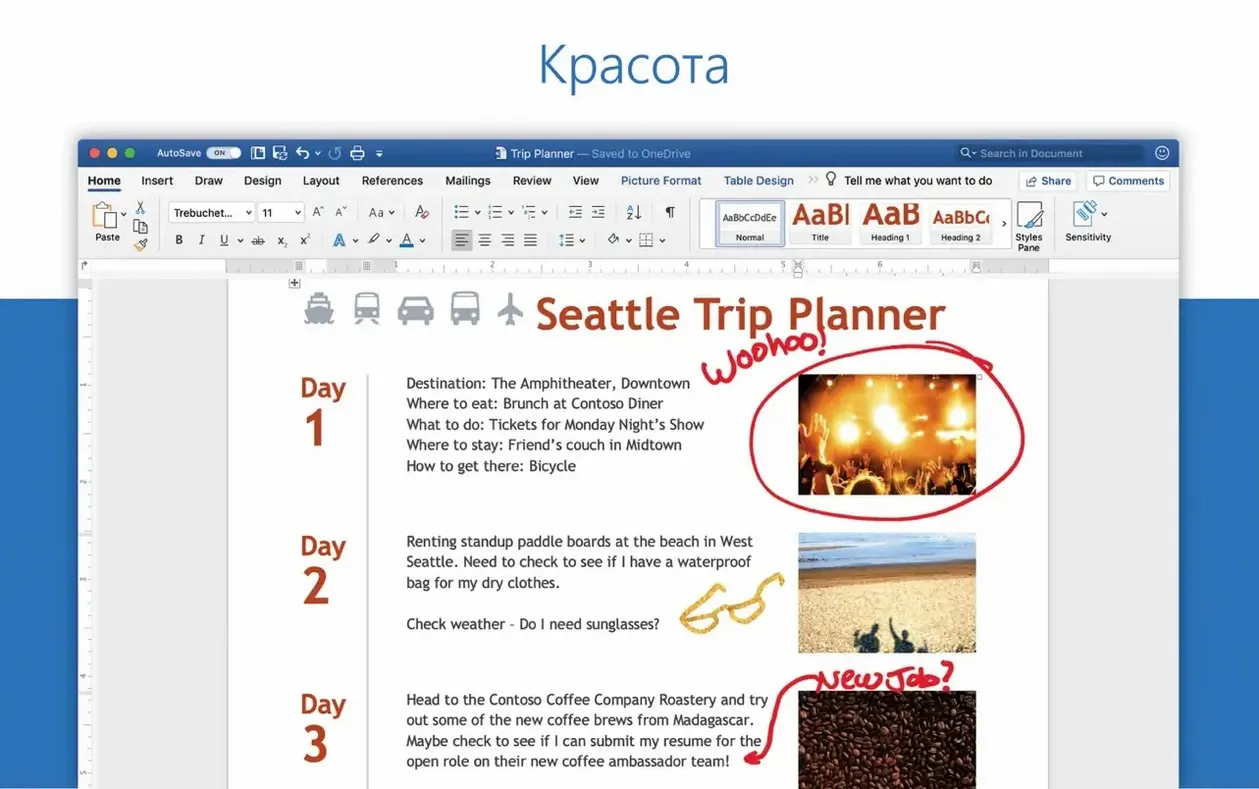
Students, writers, and office workers all know Word. But behind the familiar ribbon there are deeper tools that matter once you move past basic typing. Version 16.93, released on January 14, 2025, keeps the focus on solid editing and collaboration.
- Track Changes and comments for real-time review, whether you're working alone or with a group.
- Styles and formatting tools that keep long documents consistent without manual tweaking.
- Equation editing, though the latest update fixes an issue where it sometimes misbehaved.
- Mail merge for personalised letters or labels, a quiet workhorse few people use.
- Built-in references, footnotes, and table of contents generation for academic writing.
- Collaboration tools that let multiple people edit the same document, with OneDrive syncing if you need it.
Word remains a reliable choice for serious document work. The Mac version covers creation, editing, and sharing, and it's part of the Office 2024 package for those who want the full set.
Equation editor fix in January 2025 update
Version 16.93 landed on 14 January 2025, and the quick follow-up 16.93.2 on 28 January brought one fix that touches anyone who writes technical or scientific documents. The equation editor had a glitch where editing formulas didn't behave as expected — that's now sorted. If you've ever fought with a broken fraction or a misaligned matrix in a maths paper, you'll notice the difference.
The quality and performance improvements mentioned in the release notes are the usual behind-the-scenes tidy-up. Nothing flashy, but the kind of changes that stop Word from feeling sluggish on a Tuesday afternoon. For most people, the day-to-day experience stays the same: the ribbon is still the ribbon, the collaboration tools still work the same way, and your old templates open without drama.
What you won't see is any new feature that changes how you write a letter or format a report. Version 16.93 is a maintenance release, and that's fine — Word at this stage is a mature product. The value is in the polish.
Runs on macOS 13 and Apple Silicon or Intel
Word 16.93 runs on macOS 13 and newer, and it works on both Apple Silicon and Intel Macs. The architecture support covers ARM and x86 (64-bit), so whether you're on an M-series chip or an older Intel machine, the app will launch and run. No separate download needed — the same package handles both.
Language support is broad: 21 languages are included, from English and Spanish to Thai and Japanese. That matters if you share documents with colleagues who work in different locales, or if you prefer the interface in your native tongue.
Word is part of the Office 2024 package, specifically Office LTSC Standard for Mac 2024. The install steps are straightforward: you install the full Office package or pick individual apps using the provided links, then run the Microsoft Office LTSC 2024 VL Serializer for activation. Microsoft AutoUpdate (MAU) keeps things current after that.
The version here bypasses that, using a corporate licence model.
Writing a research paper from a saved template
I'm working on a 20-page research paper about electronic music pedagogy. Here's how a session plays out.
I open Word and start a new document based on an academic template I saved last semester. The template already has my preferred heading styles, a running header, and a first-line indent on body text. I don't touch the ribbon for the first hour — I just type. The cursor moves, the text flows, and Word stays out of my way.
When I need to insert a footnote, I use the References tab. I type the citation, and Word numbers it automatically. If I add a new footnote before it later, the numbering adjusts. That's the kind of quiet reliability that saves time over manual work.
Around midday, a collaborator sends me a draft of their chapter via email. I save the attachment, open it in Word, and turn on Track Changes. I read through, adding comments where the argument needs tightening and striking through redundant sentences. The markup shows clearly: red for deletions, coloured underlines for additions, and little callout boxes for my notes. When I'm done, I save and send it back.
Later, I need to merge a list of student names into a feedback letter. I set up a mail merge using an Excel spreadsheet as the data source. Word pulls the names, inserts them into the letter template, and generates individual letters in a new document. It takes about four minutes, including the setup.
Before closing, I check the table of contents. I added a new section heading earlier, so I right-click the TOC and select Update Field. Word refreshes the page numbers and the entry. Done.
Formatting manually instead of using styles
The most common one is formatting manually instead of using styles. New users highlight a heading, bump up the font size, and bold it. Then the next heading looks different because they forgot to repeat the same settings. Later, when they try to generate a table of contents, Word has nothing to work with because the headings aren't tagged. The fix: use the Styles gallery on the Home tab. Apply Heading 1, Heading 2, and so on. The formatting stays consistent, and the TOC builds automatically.
Another mistake is pressing Enter twice to create space between paragraphs. That works visually, but it breaks the document structure. If you later adjust the line spacing, those double returns stay as blank lines and mess up the layout. Instead, set the paragraph spacing in the Format menu or in the Paragraph dialog. That way, space is part of the style, not a manual kludge.
Beginners also tend to use the spacebar to align text — pressing it ten times to centre a line or push a date to the right margin. That falls apart the moment the font changes or the document is opened on another screen. Tabs and alignment tools in the ruler do the job properly.
Finally, many people don't use the Navigation Pane (View > Navigation Pane). It shows your document's structure as a clickable outline. For a long paper, it's the fastest way to jump between sections. Without it, you're scrolling and guessing.
Word crashing on large files with images or tables
One frequent issue is Word crashing when opening a large file. The document might contain embedded images, tracked changes, or complex tables that strain the app. Before you assume the file is corrupt, try opening Word first, then use File > Open and select the document. That sometimes works where double-clicking fails. If not, hold the Option key while launching Word to bypass the Normal template — a corrupted template can cause startup problems.
Another snag: tracked changes disappear or the document shows "Final" instead of "Final Showing Markup". This usually happens when someone inadvertently switched the view mode. Go to the Review tab and check the Display for Review dropdown. Set it to "All Markup" to see every change. If you still don't see anything, check that Track Changes is actually on — it might have been turned off mid-edit.
Equation editing can be temperamental. If a formula doesn't render correctly after version 16.93.2, try deleting the equation object and inserting a new one from the Insert > Equation menu. The fix in this version addressed a specific scenario, but old documents might still harbour broken equations from before the update.
Mail merge sometimes fails because the data source isn't formatted cleanly. Excel columns with empty rows, merged cells, or inconsistent headers confuse Word. Before merging, clean the spreadsheet: remove blank rows, ensure the first row has unique headers, and avoid merged cells. Then run the merge again.
Finally, if AutoUpdate (MAU) doesn't check for updates, the app might not have permission to run the updater. You can manually download the latest Office package and re-run the installer. That resets the update mechanism without losing your settings or documents.
- Quality and performance improvements.
- Fixed an issue where editing equations may not work as expected.
- macOS 13 or later
- Both Intel and Apple Silicon supported
Kit check at a glance
| System | macOS 13 or later |
| Chip | Apple Silicon, Intel 64-bit |
| Download | 2.4 GB |








Chat from the booth
Sign in or grab a free account to leave a comment.
Nobody has said a word in the booth yet. If you played a set with this build, tell the next person how it went.