

- Build in the crate
- 3.10 [MAS]
- Made by the team at
- Apple
- Menu languages offered
- English, German, Spanish, Italian, Chinese (Traditional), Chinese (Simplified), Korean, Dutch, French, Japanese
- How you pay for it
- K'ed by TNT team
- macOS it plays on
- macOS 15.5 or later
- CPU it runs on
- Apple Silicon, Intel 64-bit
Screenshots
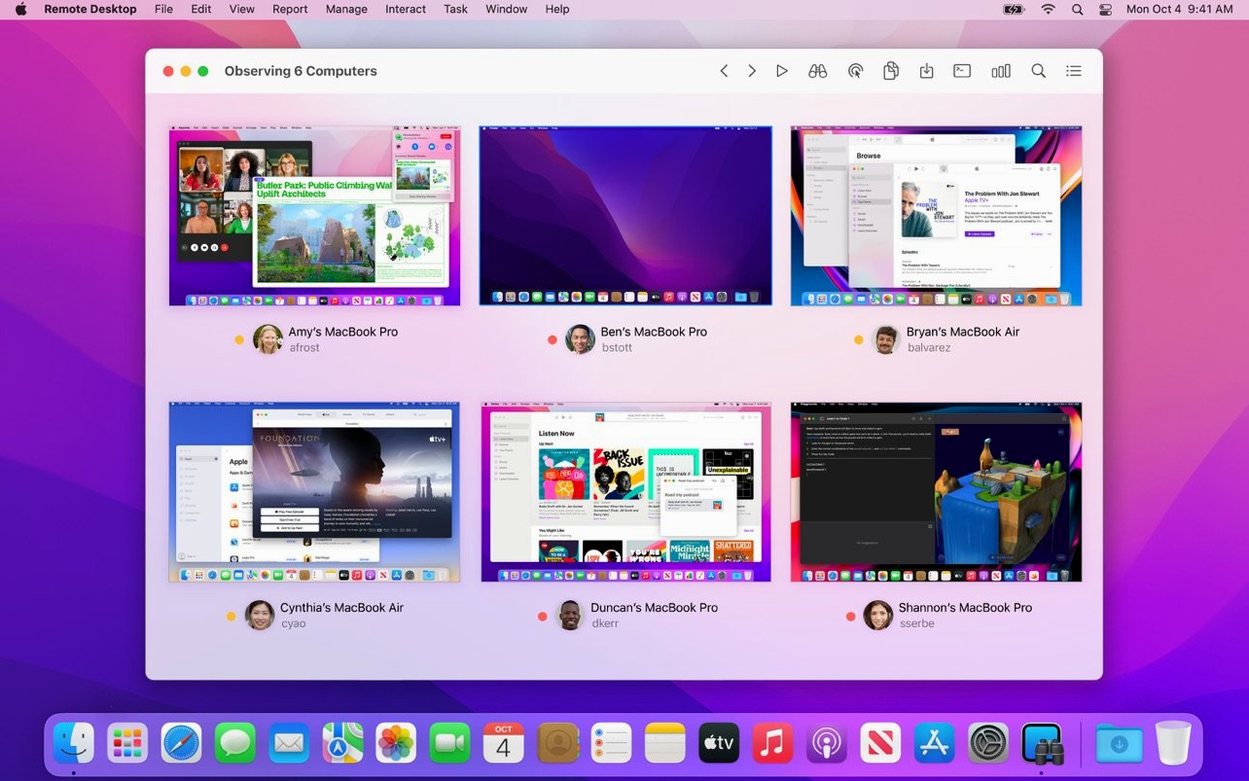
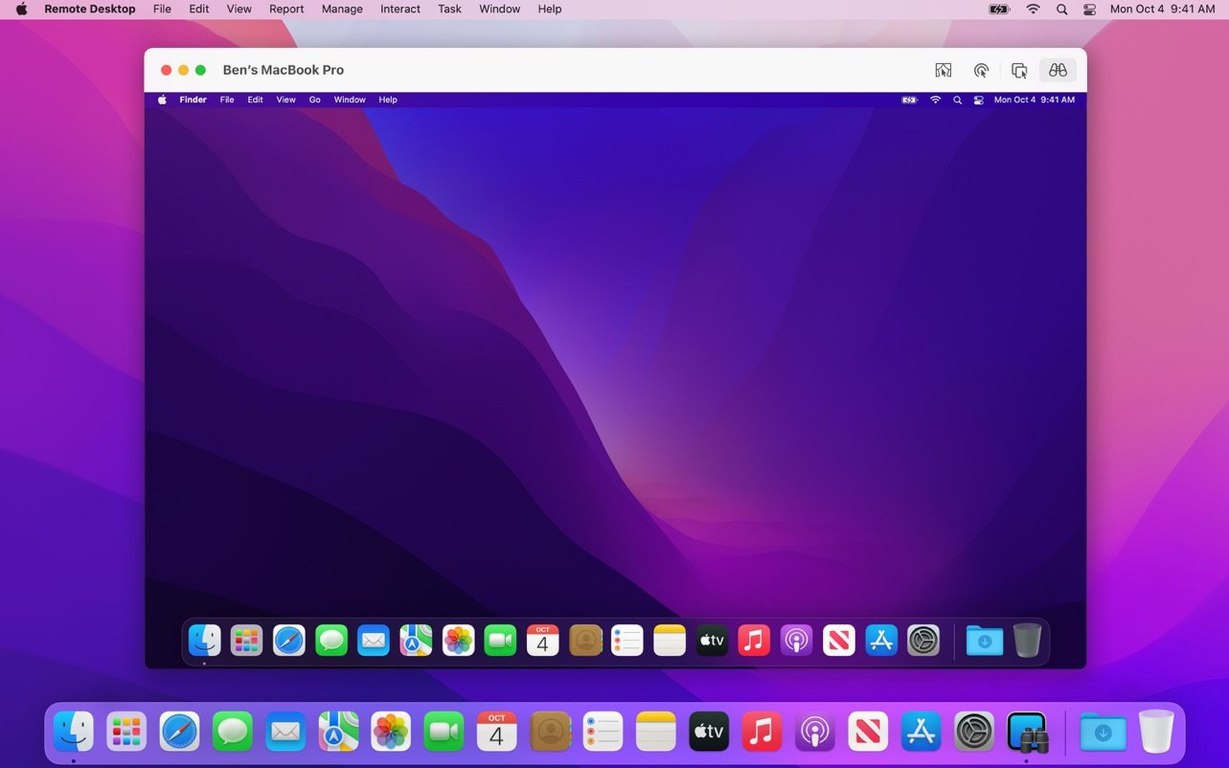
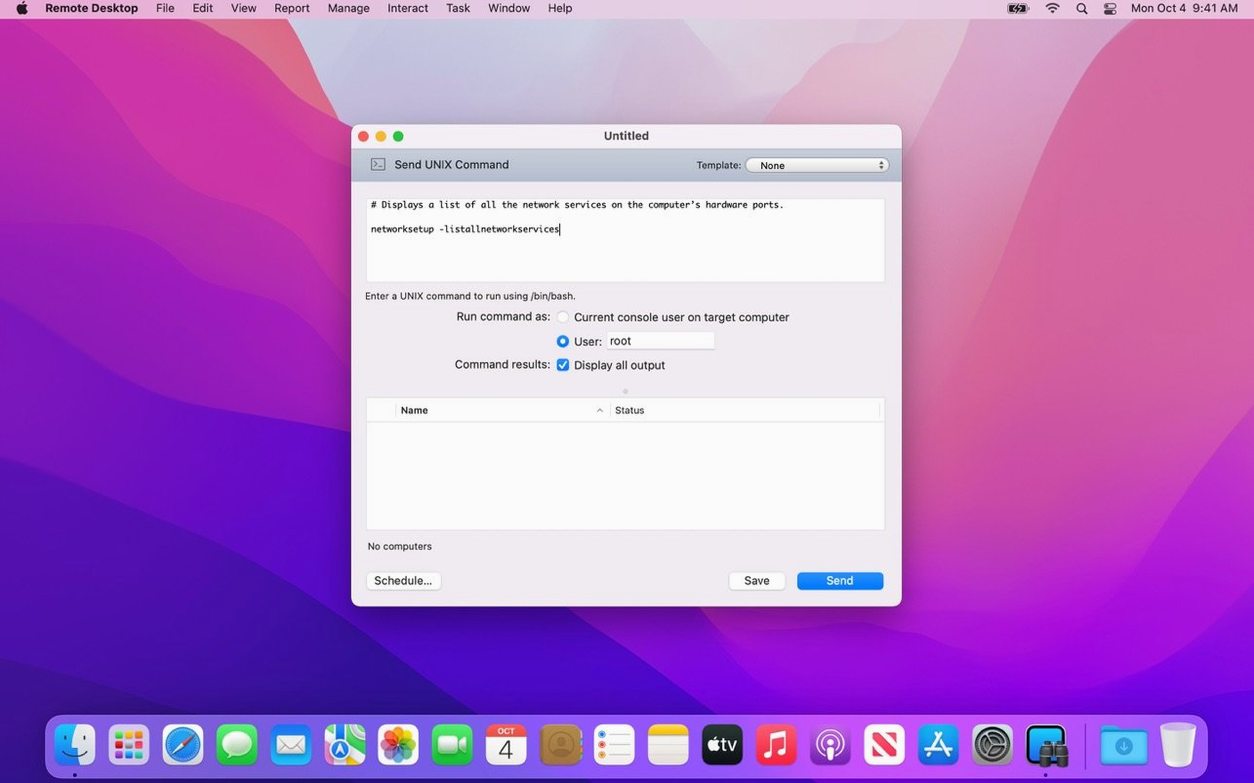
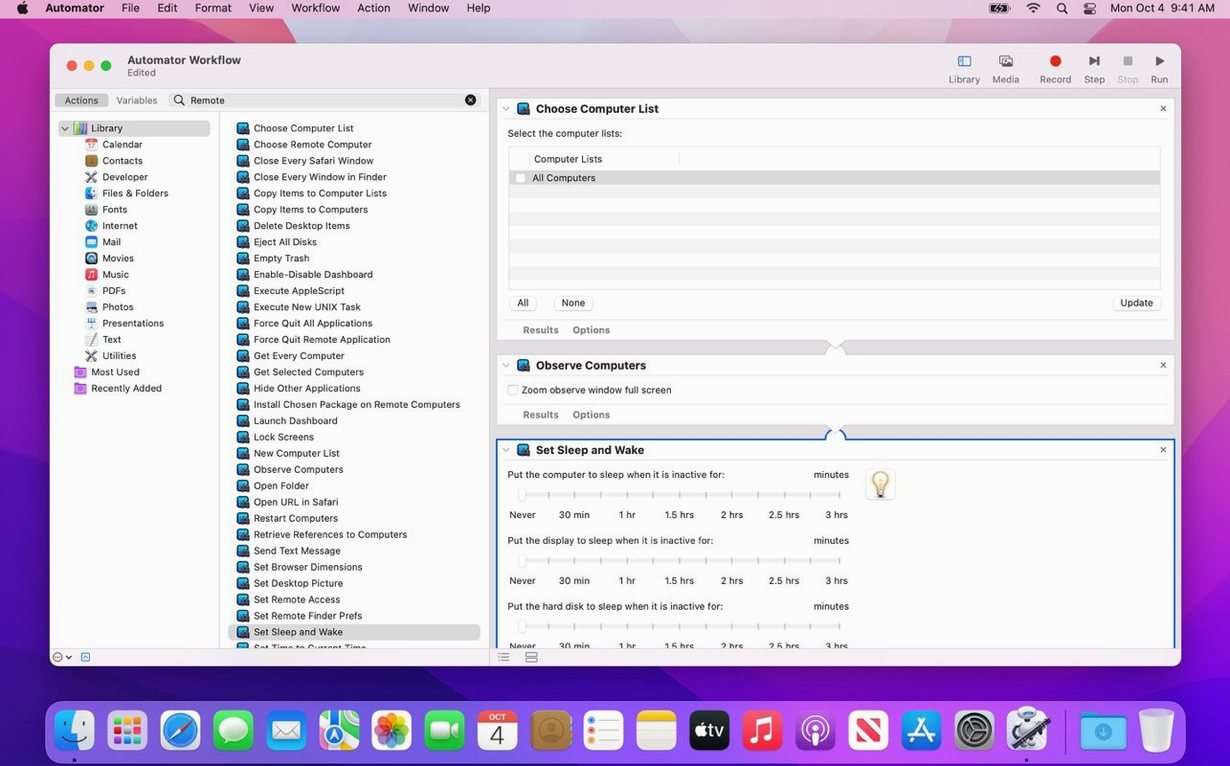
Apple Remote Desktop runs on any Mac with macOS 15.5 or later, and it works on both Intel and Apple Silicon. That covers most Macs from the last few years, so you’re probably fine.
Once it’s up, this is a proper remote administration tool, not just a screen-sharing session. You can manage several Macs across a network, drag and drop files between them, and copy or install software on remote machines. You can even schedule installations for Macs that are offline — they’ll get the software when they reconnect.
Reports are a big part of the workflow. You can pull up user logins, application usage, or more than 200 hardware characteristics from a single machine or a whole fleet. Remote Spotlight search works too, and you can run commands, lock screens, sleep, wake, restart, or shut down Macs without walking over to them.
Automation is built in. Over 40 Automator actions let you script repetitive tasks, so you can push updates or collect inventory without clicking through everything by hand.
Here’s a typical way to use it:
- Add the Macs you manage to the Remote Desktop window by scanning your network.
- Select the machines you want to work with.
- Transfer a file by dragging it to the selected computers.
- Check the reports tab for hardware or software details.
- Run a command or schedule an install if you need to push something out.
Treating it as simple screen sharing
New users often treat Apple Remote Desktop like a simple screen-sharing tool. That’s a waste of what it can do. Here are the things I see most often:
Skipping the client install
Remote Desktop Client needs to be on every managed Mac for full control. Without it, you lose features like Curtain Mode, file transfer by drag and drop, and the ability to wake or restart machines. People try to manage a Mac with only the built-in VNC support and wonder why half the options are greyed out.
Forgetting about offline installs
You can schedule software installation for computers that aren’t on the network right now. Beginners don’t realise this exists. They wait for every machine to come online, then push the software manually. Instead, you can set the task once and let the system handle the rest when each Mac reconnects.
Using the admin password everywhere
When you connect to a remote Mac, you can enter an administrator name and password for that specific machine. New users sometimes type their own admin credentials from the local Mac, which fails. Each remote computer has its own accounts, so you need the credentials for that particular Mac.
Not using reports for troubleshooting
The reporting feature covers more than 200 hardware characteristics plus user logins and application usage. Instead of checking a remote Mac’s specs by hand, you can pull a report for the whole group. Beginners often skip this and waste time connecting to each machine individually.
Ignoring the automation actions
Over 40 Automator actions exist, but most people start with manual tasks and never look at the automation options. You can script a software update check or a hardware inventory run, saving time across a fleet.
Tahoe 26 compatibility and accessibility changes
Version 3.10 adds macOS Tahoe 26 compatibility, which means it’s ready for the next major macOS release. If you manage Macs that will run Tahoe 26, this version keeps everything working.
Two smaller changes matter in day-to-day work. The Accessibility and Remote Keyboard menu and toolbar items now appear on macOS Tahoe 26 or later. That makes it easier to find the keyboard and accessibility controls when you’re connected to a remote Mac. VoiceOver support for remote Macs also arrives on Tahoe 26 or later, so screen reader users can work on managed machines directly from the admin computer.
The update also includes bug fixes and performance improvements. Nothing flashy, but the kind of changes that make remote sessions feel more reliable over time.
Workflow: Push a software update to five Macs
Here’s a complete workflow for a task I do regularly. You have five Macs on your network, all need the same application update, and some are offline right now.
- Open Apple Remote Desktop and scan the network to add the five Macs to the computer list.
- Select all five machines.
- Choose the Install Packages command from the Manage menu.
- Pick the update package from your local drive. Encryption is supported when copying packages over the network, so tick that option if the software is sensitive.
- Check the option to schedule the installation for later. Set a time when you expect the offline machines to be back. The system will try again when each Mac reconnects.
- Click Install. The package copies to the selected Macs and installs according to the schedule.
- After the scheduled time, check the task history to see which machines completed and which might need a manual follow-up.
That’s the whole thing. No walking around, no waiting for everyone to be online at once, no individual installs. The same workflow works for pushing a configuration file or a security patch across a larger fleet.
- Adds macOS Tahoe 26 compatibility.
- Adds Accessibility and Remote Keyboard menu and toolbar items on macOS Tahoe 26 or later.
- Adds VoiceOver support for remote Mac on macOS Tahoe 26 or later.
- Includes bug fixes and performance improvements.
- macOS 15.5 or later
- Intel or Apple Silicon
Kit check at a glance
| System | macOS 15.5 or later |
| Chip | Apple Silicon, Intel 64-bit |
| Download | 16 MB |
| Older pressings | 5 in the crate |







Chat from the booth
Sign in or grab a free account to leave a comment.
Nobody has said a word in the booth yet. If you played a set with this build, tell the next person how it went.