

- Build in the crate
- 3.14
- Made by the team at
- Aiarty
- Menu languages offered
- English, German, Chinese (Traditional), Chinese (Simplified), Japanese
- How you pay for it
- K'ed by TNT team
- macOS it plays on
- macOS 11 or later
- CPU it runs on
- Apple Silicon, Intel 64-bit
Screenshots
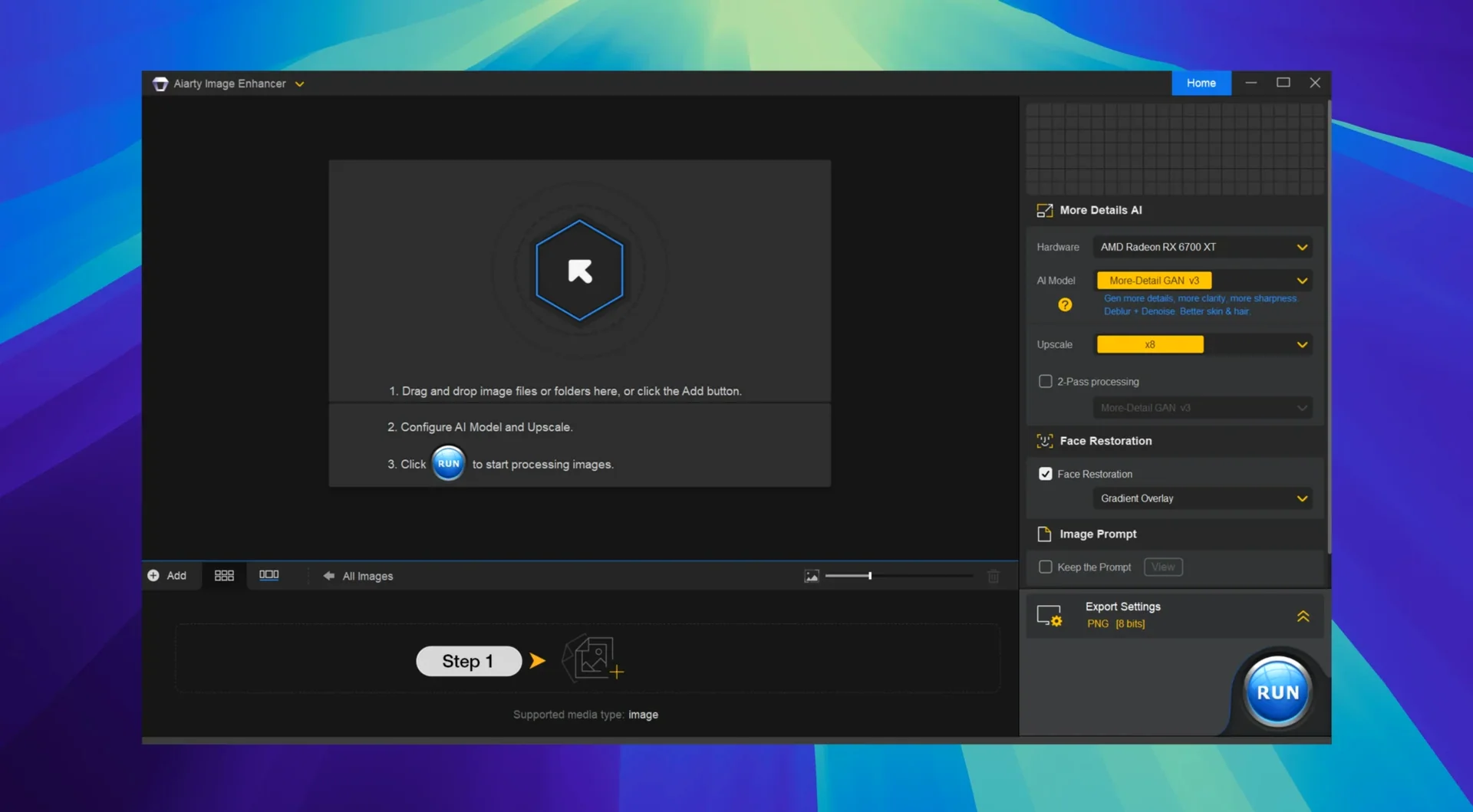
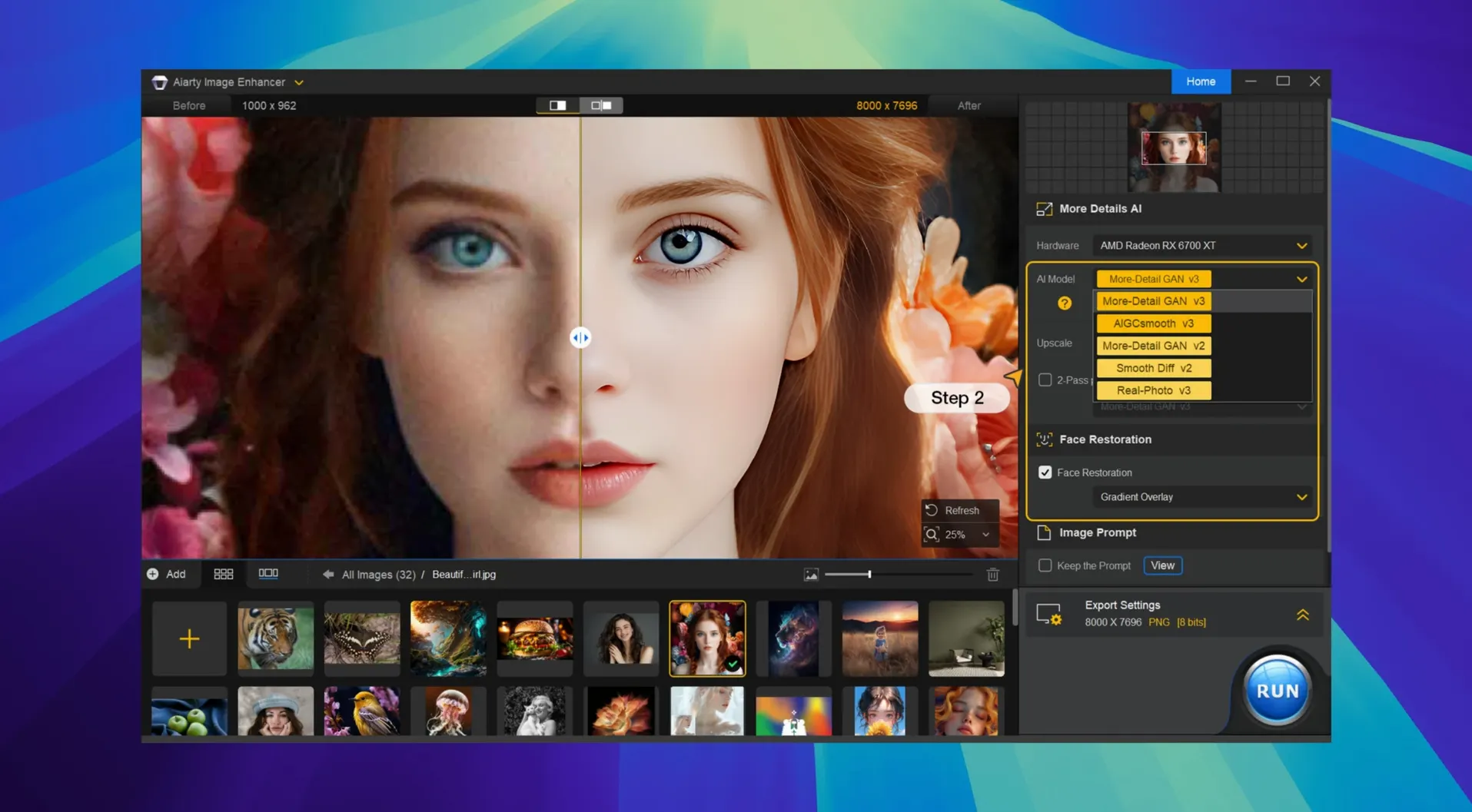
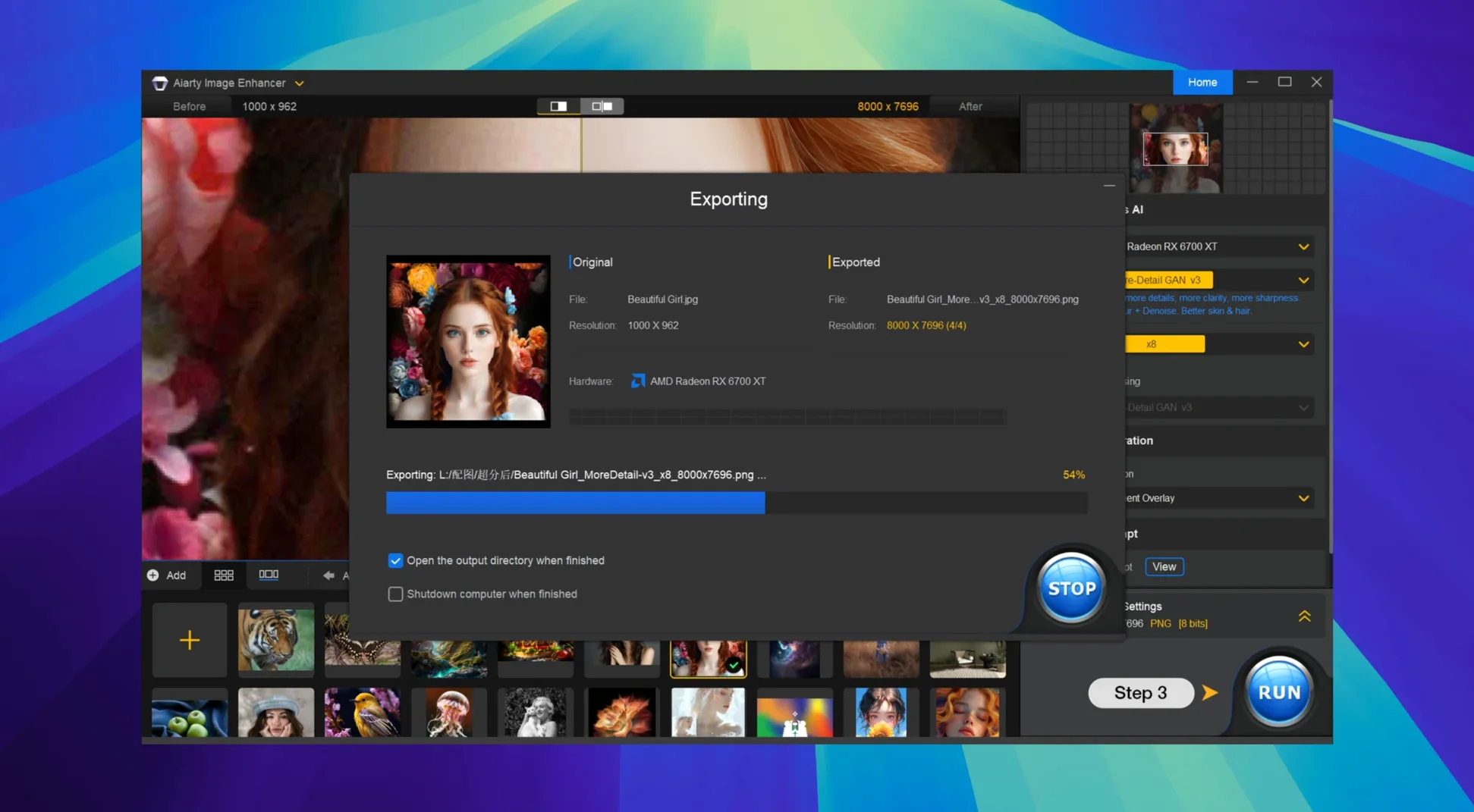
When your photos come out blurry, noisy, or just too small, fixing them usually means jumping between several tools. Aiarty Image Enhancer handles denoising, deblurring, restoring, and upscaling in one place — up to 32K. It regenerates fine details like skin, hair, and fabric textures, so portraits and product shots look natural rather than plastic. The current version (3.14) adds EXIF metadata access and improves the Lightroom Classic workflow, making it more useful for photographers who move files between apps.
Formats and languages
The app reads JPEG, PNG, TIFF, WebP, BMP, and AVIF files — pretty much everything you’d export from a camera or editor. Interface languages cover English, German, Traditional Chinese, Simplified Chinese, and Japanese. It runs on macOS 11 and later, on both Intel and Apple Silicon Macs.
Bypass Gatekeeper via Terminal for install
Most questions revolve around compatibility and the install process. The app comes as a disk image; after mounting it, you need to bypass Gatekeeper once via Terminal (the instructions are included). If you hit issues on Apple Silicon, you can open it with Rosetta. A VPN is recommended during first launch. The format support and the 32K upscale limit are the other big points — check that your source files match the list above and that your system can handle the output size.
Rebuilds skin texture and hair strands for portrait editors
Photographers editing portrait sessions or wedding galleries will notice the difference most. Aiarty Image Enhancer rebuilds skin texture and hair strands, so close crops stay convincing even after heavy upscaling. Product photographers working with fabric details — clothing, upholstery, jewellery — get the same treatment: the AI generates the weave or shine that sharpening alone cannot recover.
Image editors who handle old or degraded scans also get a lot out of it. The denoising and deblurring steps can salvage photos shot in low light, high ISO, or with slight camera shake, which means fewer trips back to the source file. Restoring old family prints or archival material becomes a single workflow rather than a mix of filters and manual cloning.
For anyone exporting for print, the 32K upscale means you can start from a modest smartphone photo and still get a usable large-format output. The same applies to stock contributors who need to meet high-resolution submission requirements without reshooting.
EXIF metadata access added in latest update
The two additions in 3.14 are EXIF metadata access and Lightroom Classic workflow improvements. Before, if you needed to check camera settings or lens data after processing, you had to open the file in another app. Now you can read that information inside Aiarty Image Enhancer, which saves a step when comparing before-and-after shots or cataloguing finished files.
The Lightroom Classic workflow improvements mean the app slots into an existing editing pipeline more smoothly. If you round-trip photos — adjust in Lightroom, enhance in Aiarty, then import back — the process requires fewer manual exports and imports. Photographers who batch-process hundreds of images per session will notice the difference in time saved.
Set output format to TIFF or PSD for Photoshop workflow
Before you start, open the preferences and set the output format to match your usual workflow. If you edit further in Photoshop or Affinity Photo, TIFF or PSD preserves layers and colour depth better than JPEG. For web use or quick sharing, WebP or JPEG keeps file sizes manageable.
The upscale resolution setting is worth adjusting early. Upscaling to 32K on every image is unnecessary and will fill your drive fast. Pick a preset that matches your screen or print target — 4K for monitors, 8K or higher for large prints — and save it as your default.
If you process RAW files, check the colour space setting. Some RAW converters expect ProPhoto RGB or Adobe RGB; the app should match that to avoid a colour shift when you open the enhanced file later. The language setting is also in the preferences, so switch to your preferred one before the first batch run to avoid redoing work.
The AI model works the same, but smaller output files process faster and keep the fan quiet.
- macOS 11 or later
- Intel or Apple Silicon
Kit check at a glance
| System | macOS 11 or later |
| Chip | Apple Silicon, Intel 64-bit |
| Download | 129 MB |
| Older pressings | 2 in the crate |








Chat from the booth
Sign in or grab a free account to leave a comment.
Nobody has said a word in the booth yet. If you played a set with this build, tell the next person how it went.