
- Build in the crate
- 2.16 [MAS]
- Made by the team at
- App ahead GmbH
- Menu languages offered
- English, German, Spanish, Italian, Chinese (Simplified), Korean, Portuguese, French, Japanese
- How you pay for it
- K'ed by TNT team
- macOS it plays on
- macOS 14.6 or later
- CPU it runs on
- Apple Silicon, Intel 64-bit
Screenshots
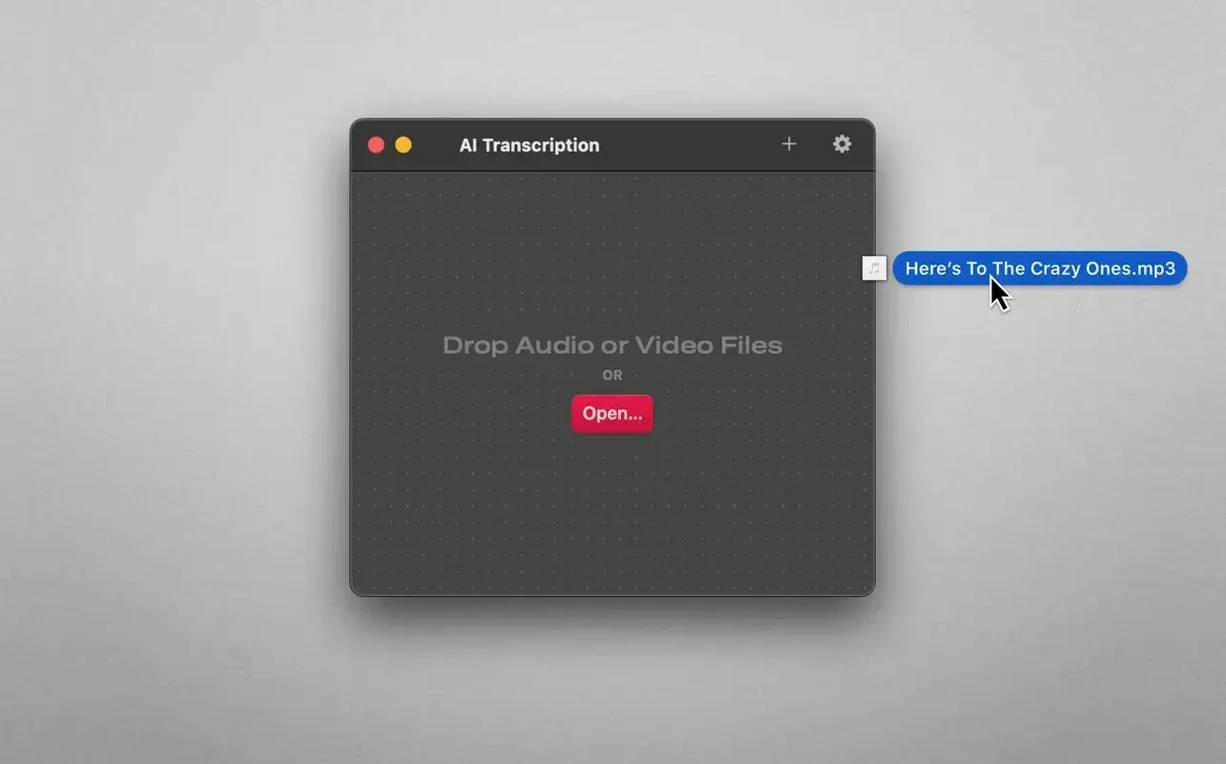
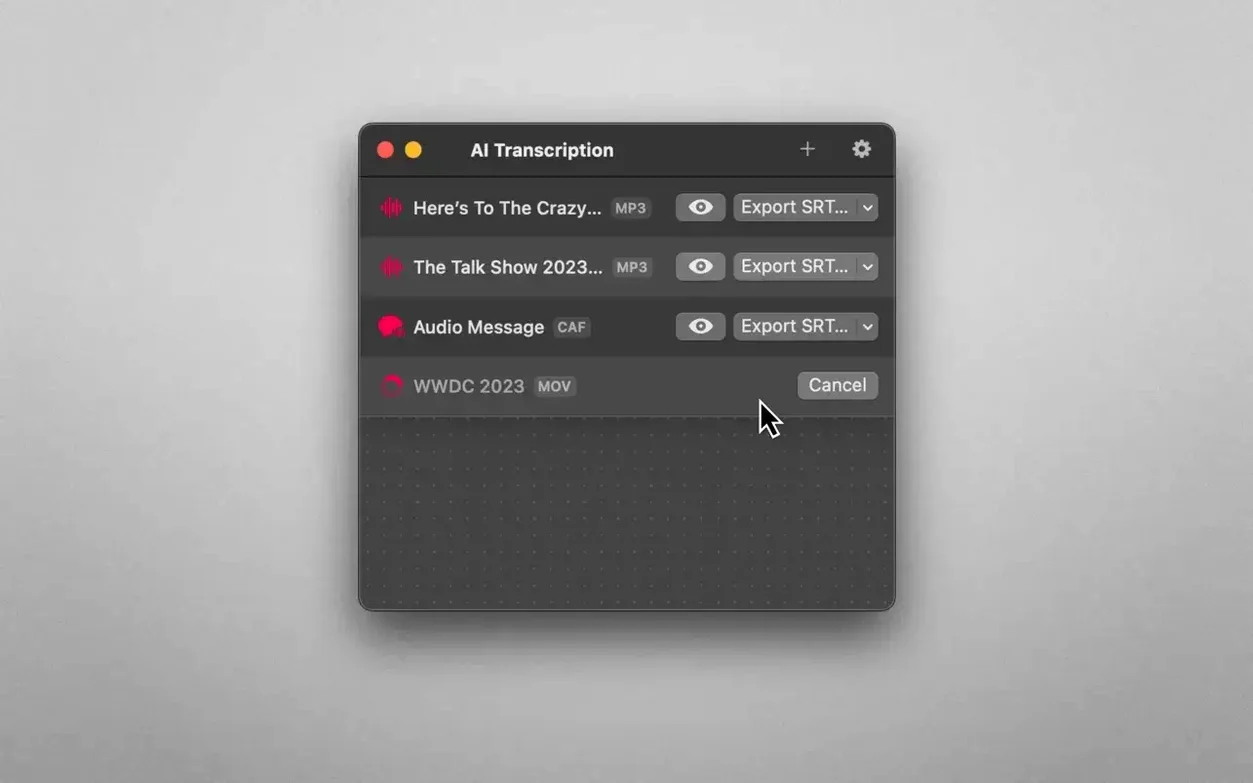
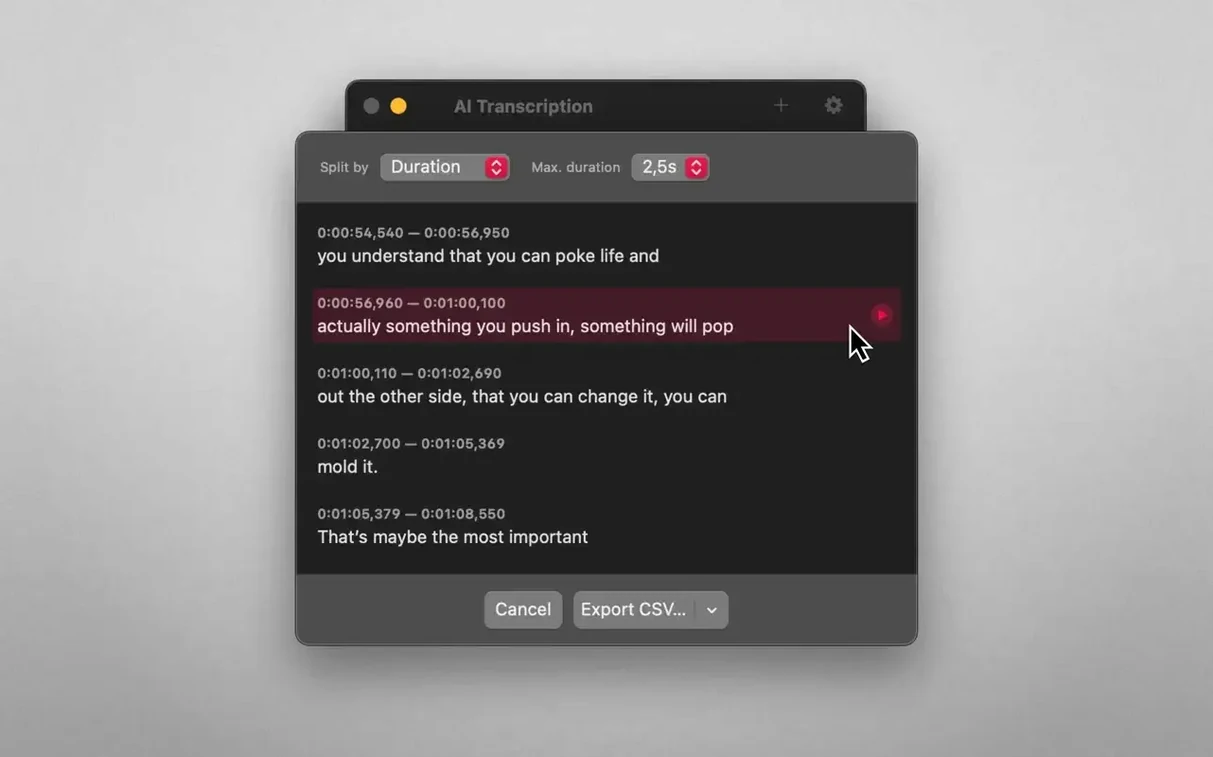
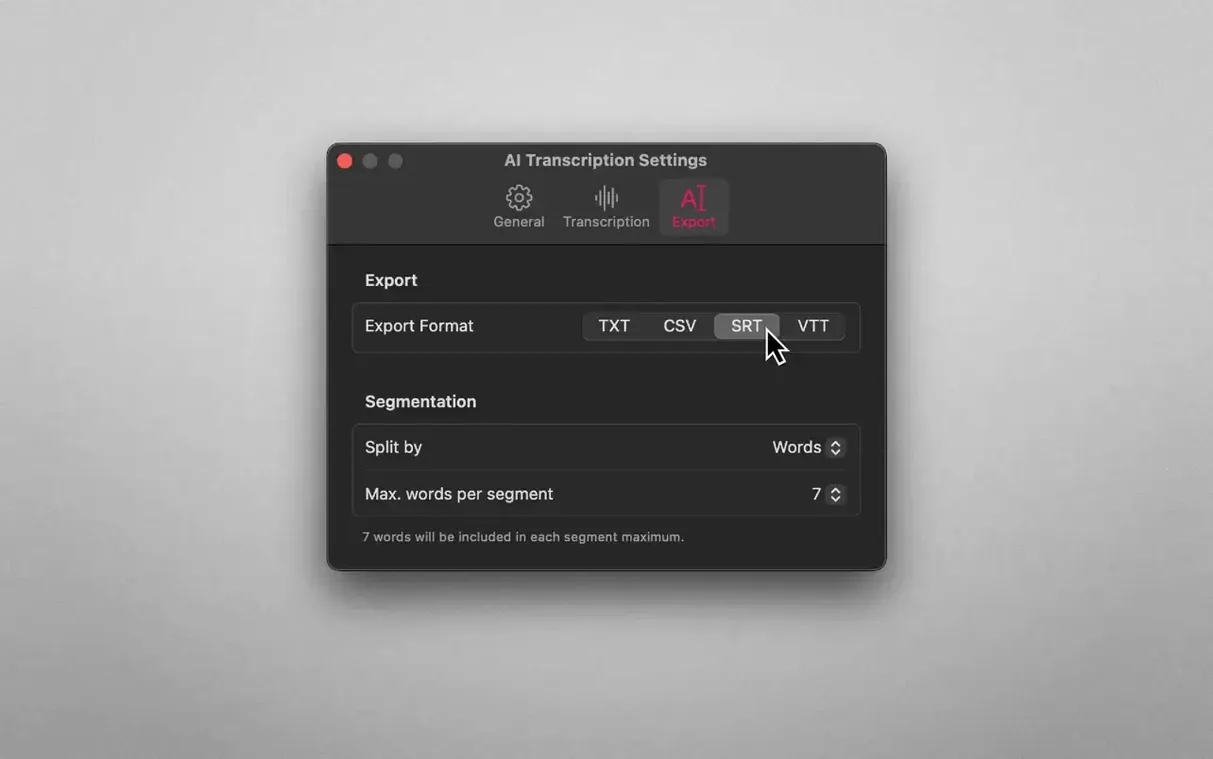
An entirely offline Mac application, AI Transcription converts audio and video files to text using Apple Speech Recognition and OpenAI Whisper.
Current version (2.16) — what carries over: drag-and-drop support for MP3, WAV, CAF, AIFC, M4A and MP4 files; transcripts split by words, sentences or duration; audio never leaves the Mac.
What stays the same — the app runs fully offline, works on Intel and Apple Silicon Macs running macOS 14.6, and supports ten interface languages including English, German, Spanish and Japanese.
What's different — there are no feature changes in this version; the focus remains on reliable local transcription without internet dependence.
A podcast editor’s quick-turnaround workflow
I know a podcast editor who gets raw interview recordings in M4A — sometimes an hour long, sometimes three. She used to send them to an online service, wait, then clean up the timestamp mess. With AI Transcription, she drops the file onto the dock icon, picks sentence-level split and CSV export, and gets a clean transcript in a few minutes. No upload bar, no privacy worry. She pastes the text into her show notes draft, trims a few Whisper stumbles, and moves on. For her, the offline part is the whole point: guests often discuss things they wouldn’t say on a cloud server.
Bypass Gatekeeper after install
Drag files to the Dock icon
Open Terminal, type sudo spctl --master-disable, press Enter, then launch the app. Re-enable Gatekeeper afterwards with sudo spctl --master-enable. The install step that says “Press Enter in Terminal to bypass Gatekeeper” does exactly this.
Transcript shows no speaker labels
The app does not separate speakers. If you need diarisation, you get a single block of text. Workaround: listen back and add speaker tags manually after export, or split the recording into individual files before dropping them in.
Long file seems to stall
Whisper processes the whole file before showing results. For a two-hour recording, the progress bar might sit still for a while. Leave the Mac awake and let it finish — the transcript appears once processing is done.
Exported SRT has wrong timings
If you choose “split by duration” and set a very short interval (say 1 second), the SRT becomes cluttered. Sentence split works better for most video work.
Set output format before first run
- Drag a file onto the app icon in the Dock — works the same as the file open dialog, saves a click.
- Change the output format before the first run — set plain text, CSV, SRT or WEBVTT in the preferences so every export uses your default.
- Split options apply to all formats — words, sentences and duration work with every export type, not just text.
- Multiple languages in one file — the app handles mixed-language recordings if the model can detect the switch. Results vary, but it’s worth trying on bilingual interviews.
AI Transcription 2.16 stays a focused tool: drop a file, wait, get text. No cloud, no account, no surprises.
- macOS 14.6 or later
- Intel or Apple Silicon
Kit check at a glance
| System | macOS 14.6 or later |
| Chip | Apple Silicon, Intel 64-bit |
| Download | 5.1 GB |
| Older pressings | 3 in the crate |








Chat from the booth
Sign in or grab a free account to leave a comment.
Nobody has said a word in the booth yet. If you played a set with this build, tell the next person how it went.