- Build in the crate
- 3.15.2
- Made by the team at
- Amico Apps LLC
- Menu languages offered
- Russian, English, Spanish, Chinese (Traditional), French
- How you pay for it
- Included
- macOS it plays on
- macOS 12 or later
- CPU it runs on
- Apple Silicon, Intel 64-bit
Screenshots
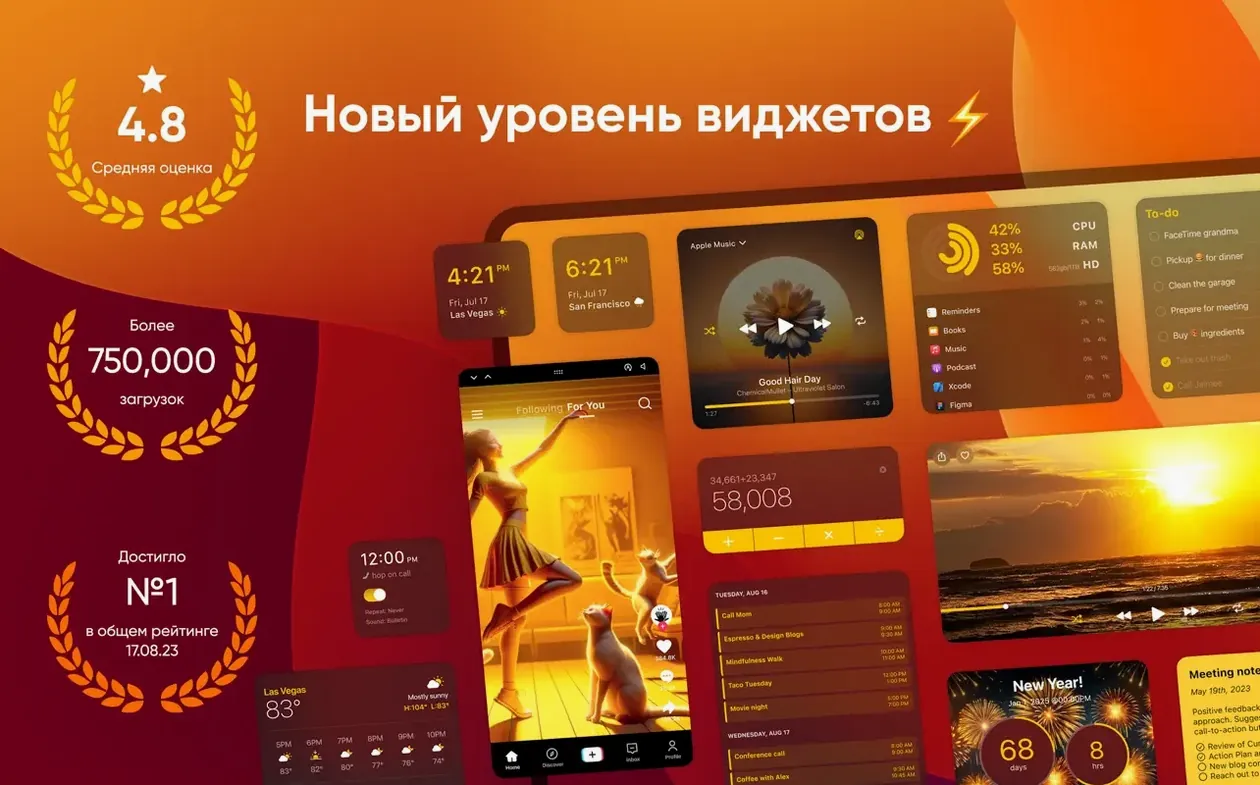
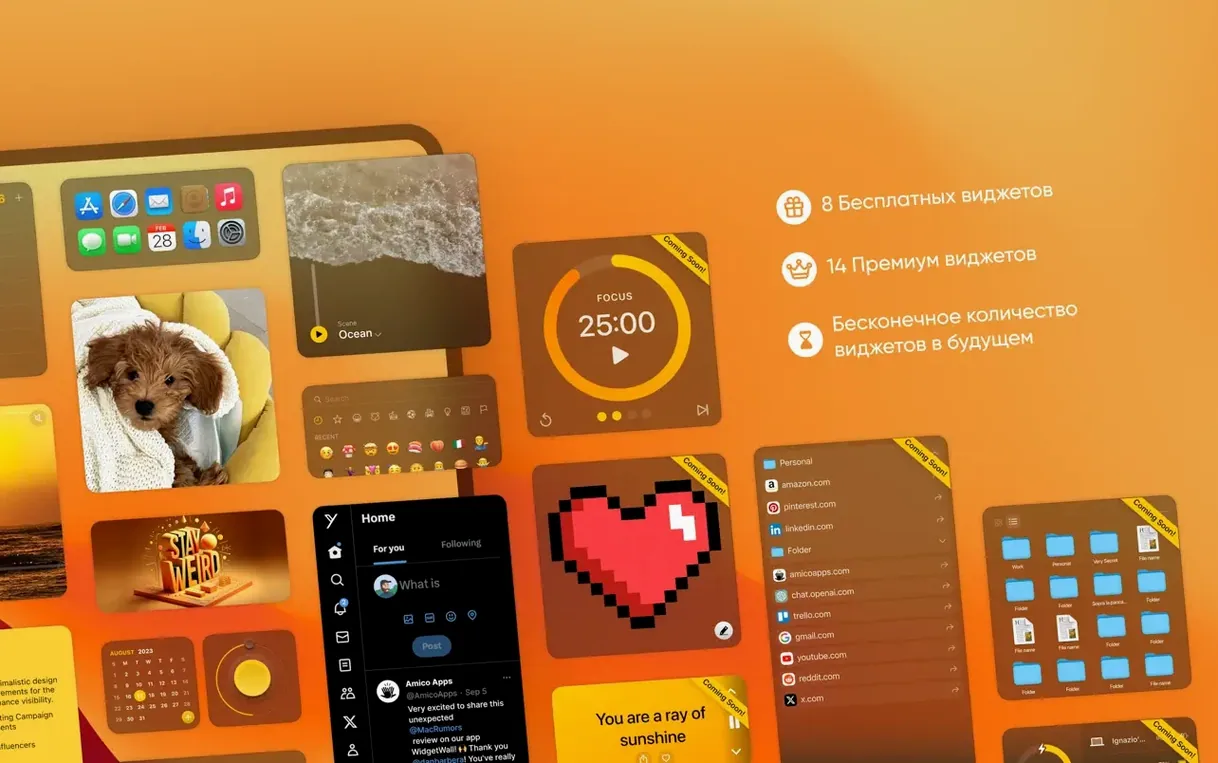
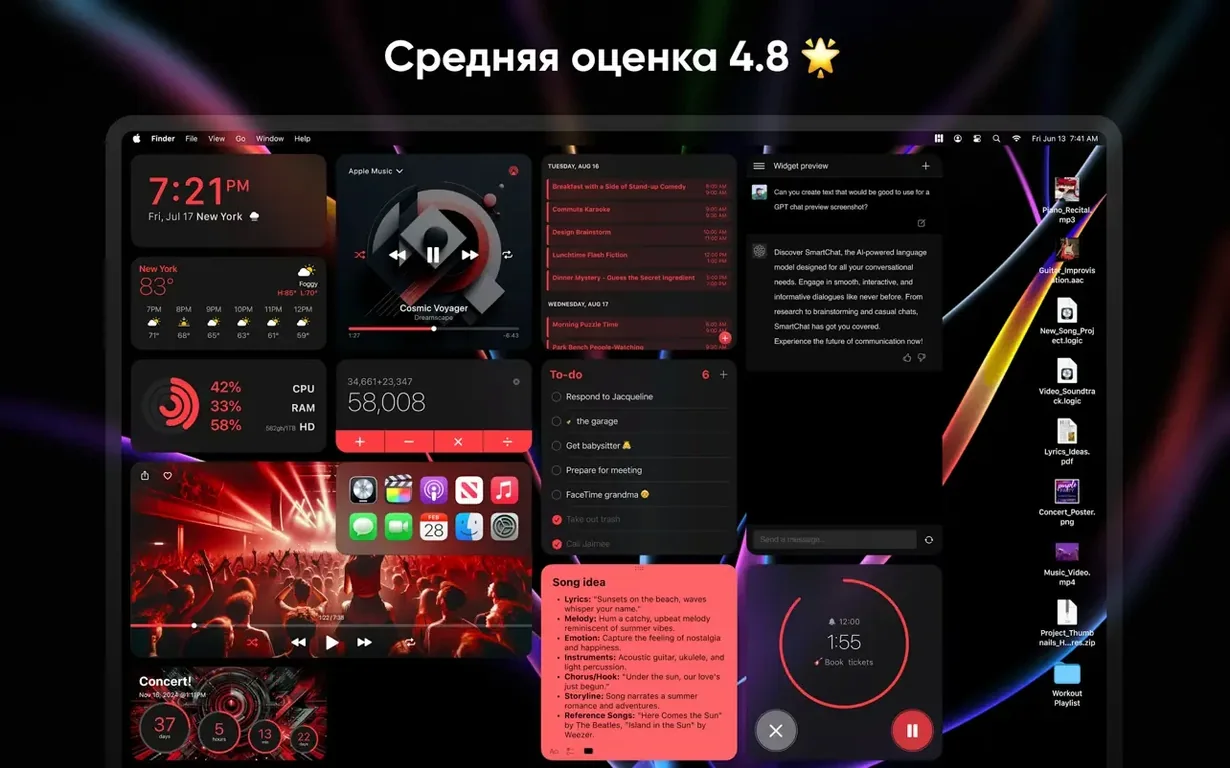
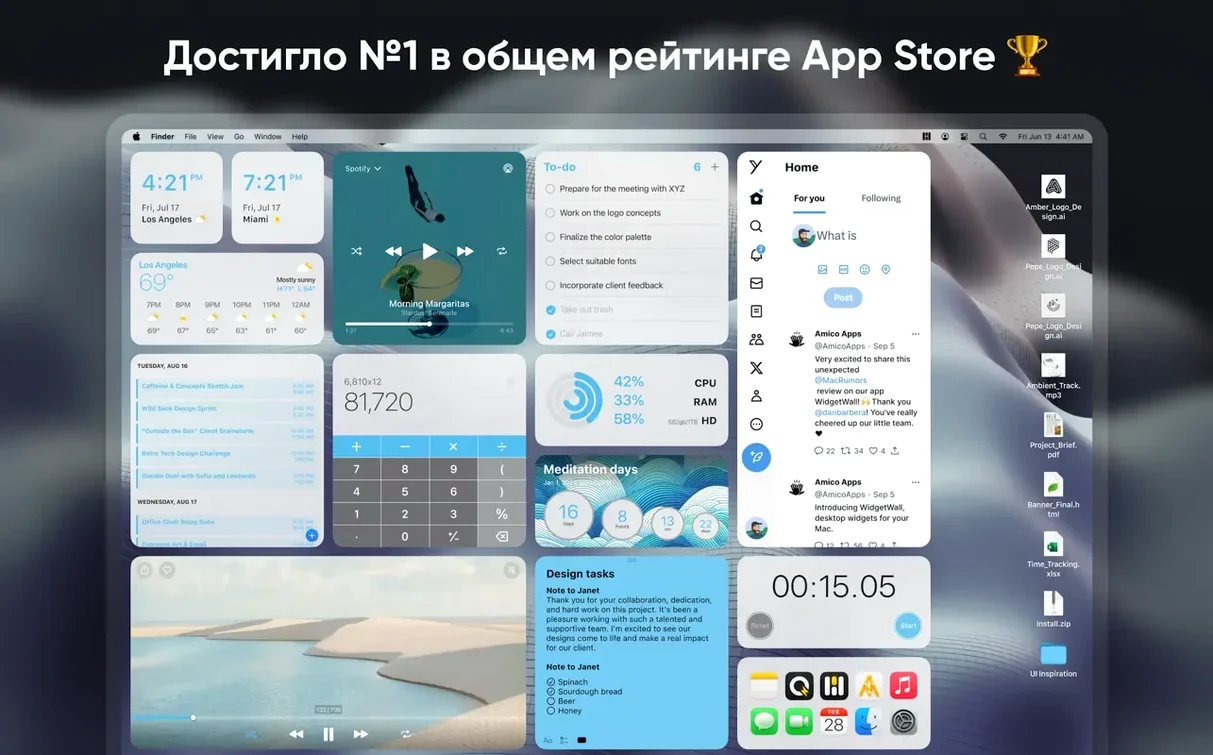
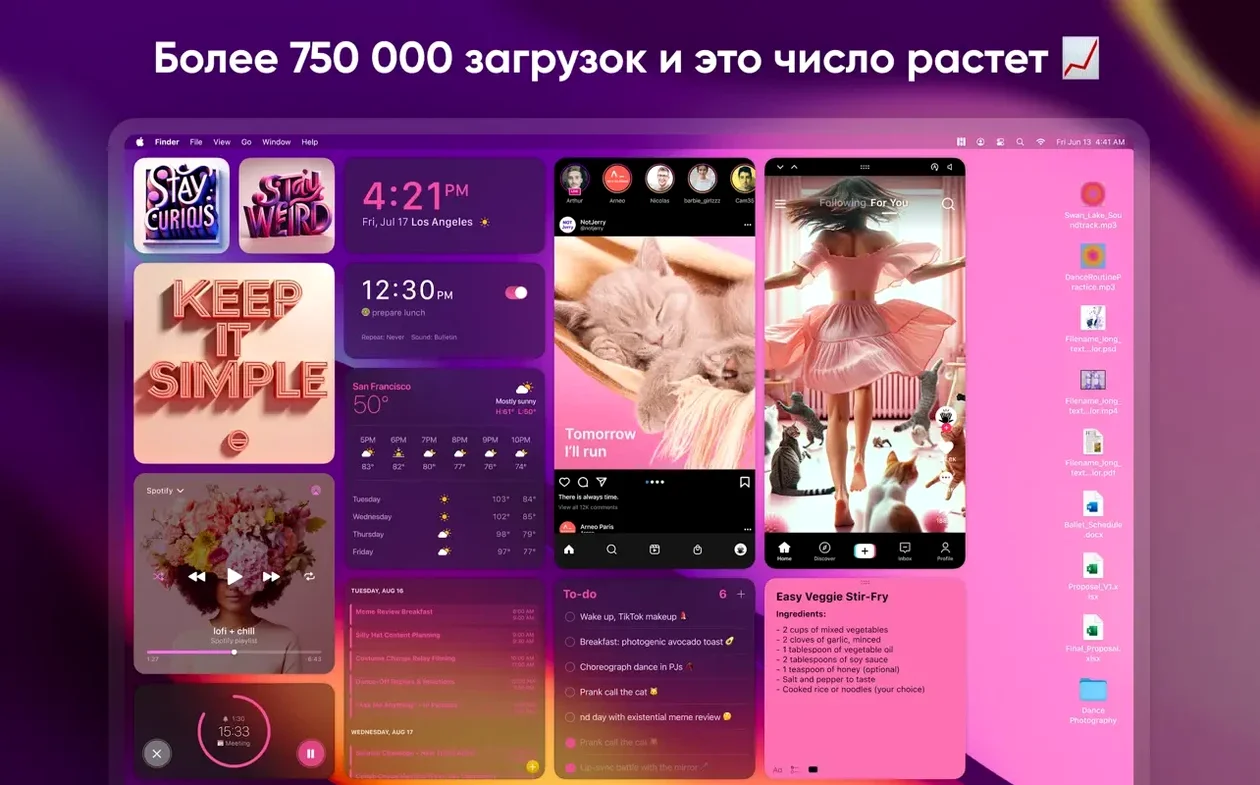
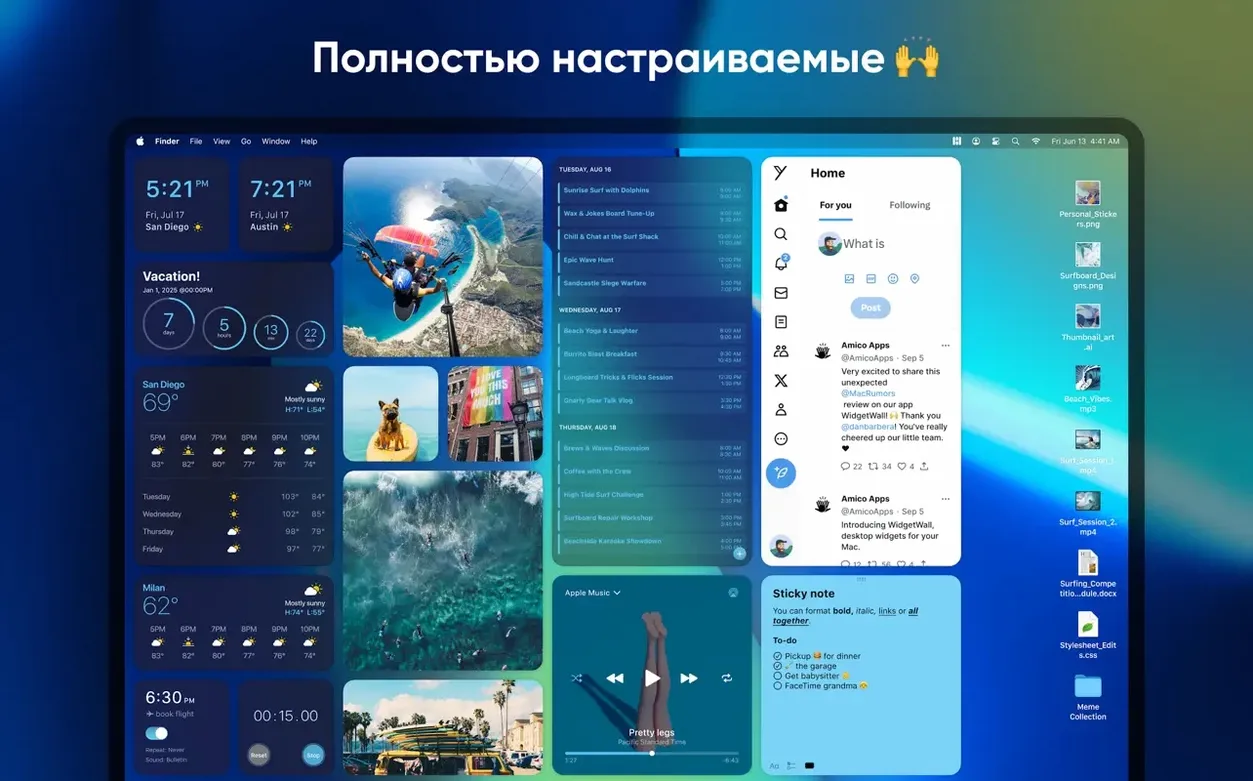
WidgetWall 3.15.2 runs on any Mac with macOS 12 or later, whether it's an Apple Silicon or Intel 64-bit machine. It adds widgets and stickers straight to your desktop — no stage manager tricks involved. Here are the first things a newcomer should try:
- Add a Clock widget to keep time visible without a menu bar glance.
- Drop a Calculator widget on the desktop for quick sums while writing or DJing.
- Pin a Notes or Reminders widget so your set lists and errands stay in view.
- Set a Music or Video widget to control playback without switching apps.
- Try the Weather widget to check conditions before packing gear for a gig.
- Use the Pomodoro Timer or White Noise widget for focused practice sessions.
These are just the start — WidgetWall includes over 20 widget types, from Emoji Browser to TikTok. Open the app from Launchpad after installing to see what fits your workflow.
Most trouble comes down to a handful of things
Most trouble with WidgetWall comes down to a handful of things. Here's what people run into and what usually fixes it.
Widgets don't appear after setup
The app installs several widgets automatically, but sometimes they don't show. Check that WidgetWall has permission to run in the background — go to System Settings > General > Login Items and see if it's listed. If not, add it. A restart of the app usually brings the widgets back.
Widgets disappear after a reboot
This happens when the app isn't set to launch at login. Open WidgetWall once, then find its menu bar icon. Click it and check the preferences for a start-at-login toggle. If that's already on, try removing and re-adding the widgets from the app's panel.
Some widgets feel unresponsive
A quick click outside the widget and back again often wakes it up. If that doesn't work, quit WidgetWall from the menu bar and relaunch it. The widgets should pick up where they left off.
Widgets overlap or sit behind windows
WidgetWall keeps widgets on the desktop layer, but some apps or full-screen modes can push them out of sight. Try moving a widget to a less crowded part of the screen. If you're using multiple spaces, remember that each space shows its own set of widgets.
Start with three or four widgets you check daily
Here's what I'd suggest for the first sessions.
- Start with three or four widgets — too many at once clutters the view. Pick ones you actually check several times a day, like Clock, Weather and Reminders.
- Try each size once — every widget comes in small, medium and large. A small Calendar might be enough, but a large one shows the full month. Same with the Stats widget: small shows one stat, large shows several.
- Keep the app updated — the developer recommends running the latest version. If something feels off, check that you're on 3.15.2 or newer.
- Use the Confetti widget sparingly — it's fun for a moment, but it doesn't help focus during practice or DJ prep.
Puts desktop widgets alongside Notification Centre
WidgetWall sits alongside your normal workflow without getting in the way. It doesn't replace the Notification Centre widgets — those stay in the side panel. Instead, it puts similar tools on the desktop itself, so you see them without swiping or clicking.
The Music and Video widgets control playback from Apple Music, QuickTime and some other apps. If you're using Ableton Live or Rekordbox for DJ sets, the Pomodoro Timer and White Noise widgets help with practice pacing. The Browser widget keeps a mini web view on screen, handy for checking set times or venue details without switching desktops.
macOS Stage Manager works fine alongside WidgetWall, but widgets may shift when you switch between app groups. If that bothers you, try turning Stage Manager off for a cleaner desktop layout. The app also plays well with multiple displays — each screen can have its own set of widgets, which is useful when one monitor shows your DJ software and the other shows notes or a timer.
WidgetWall uses very little system resources, so it won't interfere with music production or streaming. It's one of those apps that becomes invisible after a day or two — until you realise how often you glance at that Clock or Weather widget without thinking about it.
- macOS 12 or later
- Apple Silicon or Intel 64-bit
Kit check at a glance
| System | macOS 12 or later |
| Chip | Apple Silicon, Intel 64-bit |
| Download | 396 MB |
| Older pressings | 2 in the crate |




Chat from the booth
Sign in or grab a free account to leave a comment.
Nobody has said a word in the booth yet. If you played a set with this build, tell the next person how it went.