
- Build in the crate
- 10.5
- Made by the team at
- Twocanoes Software
- Menu languages offered
- English
- How you pay for it
- K'ed by TNT team
- macOS it plays on
- macOS 10.15 or later
- CPU it runs on
- Intel 64-bit
Screenshots
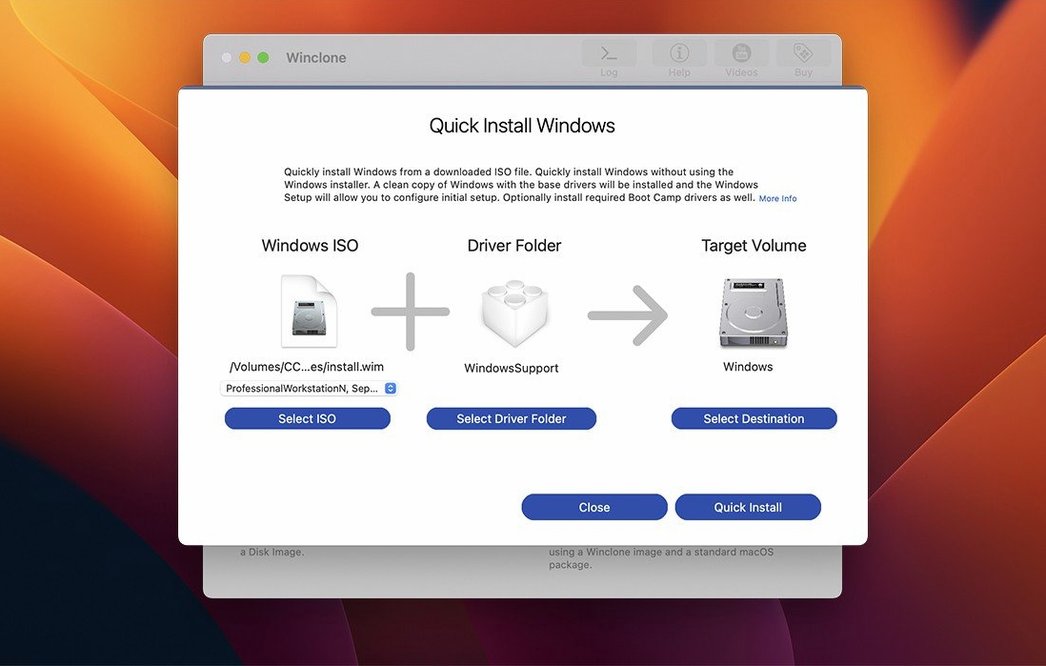
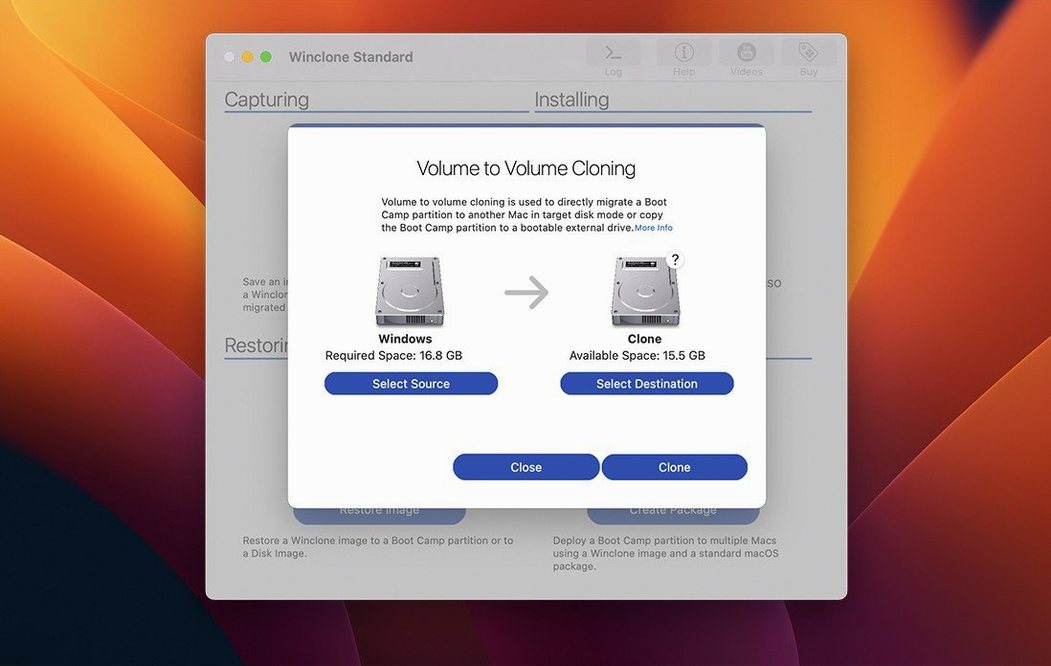
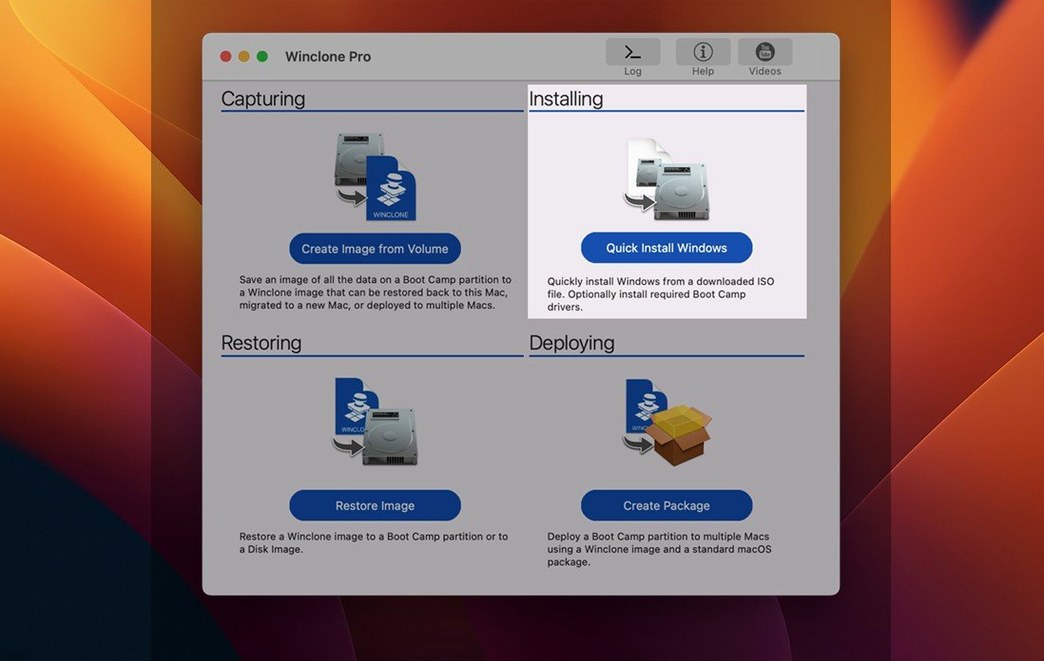
Winclone Pro 10.5 now verifies compatibility with macOS Tahoe, so the cloning tool stays current with the latest operating system. The update also refreshes system requirements, which matters if you manage Boot Camp across lab machines or fleets.
Cloning with confidence
The core job is cloning a Boot Camp Windows partition. Winclone detects and reports inconsistent GPT and MBR boot records, so you know early if something is off before you rely on the image. It can shrink or expand the Boot Camp file system during restore, which gives you flexibility if the target drive is a different size.
Migration without the fuss
For moving Windows to a new Mac, Winclone supports restoring images directly to attached volumes, depending on hardware and Windows version. You can also build a package installer that creates the Boot Camp partition and restores an image into it, which is a tidy way to deploy a standard setup across multiple machines.
Backups that keep up
Incremental images mean you don't re-copy the whole partition every time. Save to external or network storage, and restore to DOS-FAT32, ExFAT, or NTFS volumes. Winclone also includes options for legacy bootable installations and EFI boot on Windows 7 and later.
Disable SIP before first install
A few things catch people out when they start using Winclone Pro. The most frequent one is forgetting to disable SIP before installation. If you skip that step, the app won't install properly. Mount the disk image, run Open Gatekeeper friendly, then press Enter in the Terminal window to bypass Gatekeeper. Drag the app to the Applications folder and you are set.
Another snag comes from inconsistent boot records. Winclone detects and reports mismatched GPT and MBR records, but you still need to act on that information. If you see a warning during cloning, check the partition layout before you rely on the image for deployment. The app flags the issue, but fixing it usually means repartitioning the drive or adjusting the boot configuration on the Windows side.
Restoring to attached volumes can also trip people up. The success depends on hardware and Windows version. If the restore fails, check that the target volume uses one of the supported formats — DOS-FAT32, ExFAT, or NTFS. Also confirm that the drive is connected directly, not through a hub that might cause detection issues.
Progress estimates and completion percentages give you a sense of time, but a large image over a network connection can take a while. Winclone plays a sound notification when the operation finishes, whether it succeeded or failed, so you can walk away and come back when it is done.
Package Winclone images for MDT or SCCM
Winclone Pro fits into a broader Mac admin workflow. If you use MDT or SCCM for Windows deployment, Winclone can create package installers that slot into those tools. You build the image once, package it, and deploy across machines without reinstalling Windows each time.
For macOS, the app interacts with basic storage volumes and respects the system's partition scheme. It does not need third-party drivers to read or write NTFS — it handles that itself during clone and restore operations. That keeps the setup simple and avoids conflicts with other NTFS tools you might have installed.
Network storage works for saving images, so you can centralise backups on a server or NAS. Incremental images make that practical, since only the changed blocks transfer each time. Local disk-to-disk migration is another option if you are swapping drives within the same machine and want to move the Boot Camp partition directly.
Verified Tahoe compatibility in 10.5 update
The 10.5 update is a maintenance release, but the changes matter. The most noticeable one is verified Tahoe compatibility. If you manage Macs running the latest macOS, you can clone and restore Boot Camp partitions without worrying about the app breaking after an OS update.
Updated OS requirements mean Winclone now expects at least macOS 10.15. If you are still on an older system, you need to upgrade before using version 10.5. For everyone else, the requirements are just a refresh of what was already supported.
The user interface also got an update in this version. It is not a complete redesign, but the layout is cleaner and the options are easier to find. If you used an earlier Winclone Pro release, you will notice the difference when you open the app for the first time after updating.
Incremental images, legacy bootable installation, and EFI boot options all work the same as before. The sound notifications for success or failure are still there, and the in-app links to support resources remain unchanged. Version 10.5 keeps everything that worked and just ensures it works with current systems.
- Updated OS requirements.
- Verified Tahoe compatibility.
- macOS 10.15 or later
- Intel-based Mac
Kit check at a glance
| System | macOS 10.15 or later |
| Chip | Intel 64-bit |
| Download | 21 MB |
| Older pressings | 2 in the crate |






Chat from the booth
Sign in or grab a free account to leave a comment.
Nobody has said a word in the booth yet. If you played a set with this build, tell the next person how it went.