

- Build in the crate
- 26H1 (25388279)
- Made by the team at
- VMware
- Menu languages offered
- English
- How you pay for it
- Included
- macOS it plays on
- macOS 13 or later
- CPU it runs on
- Apple Silicon, Intel 64-bit
Screenshots
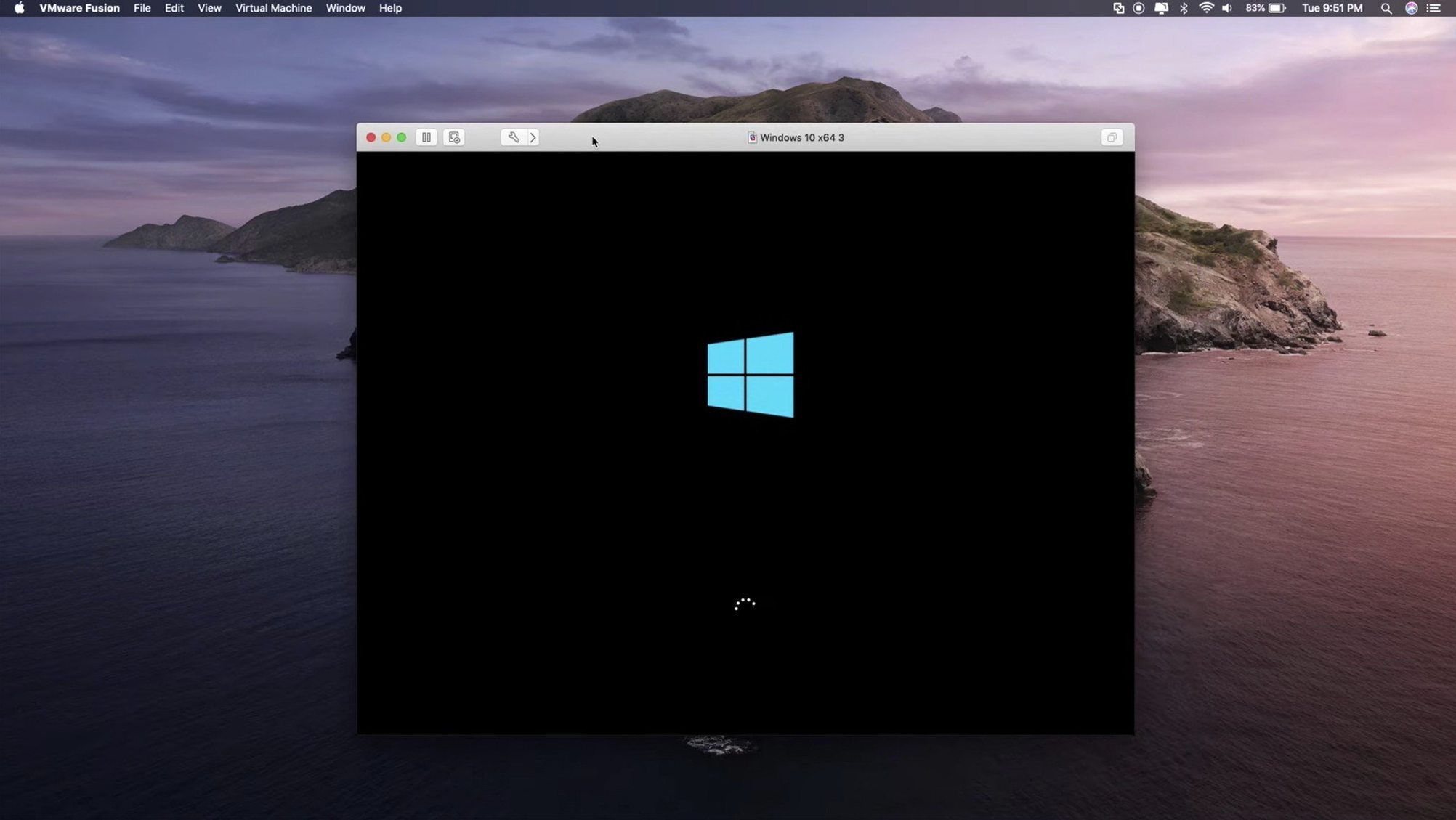
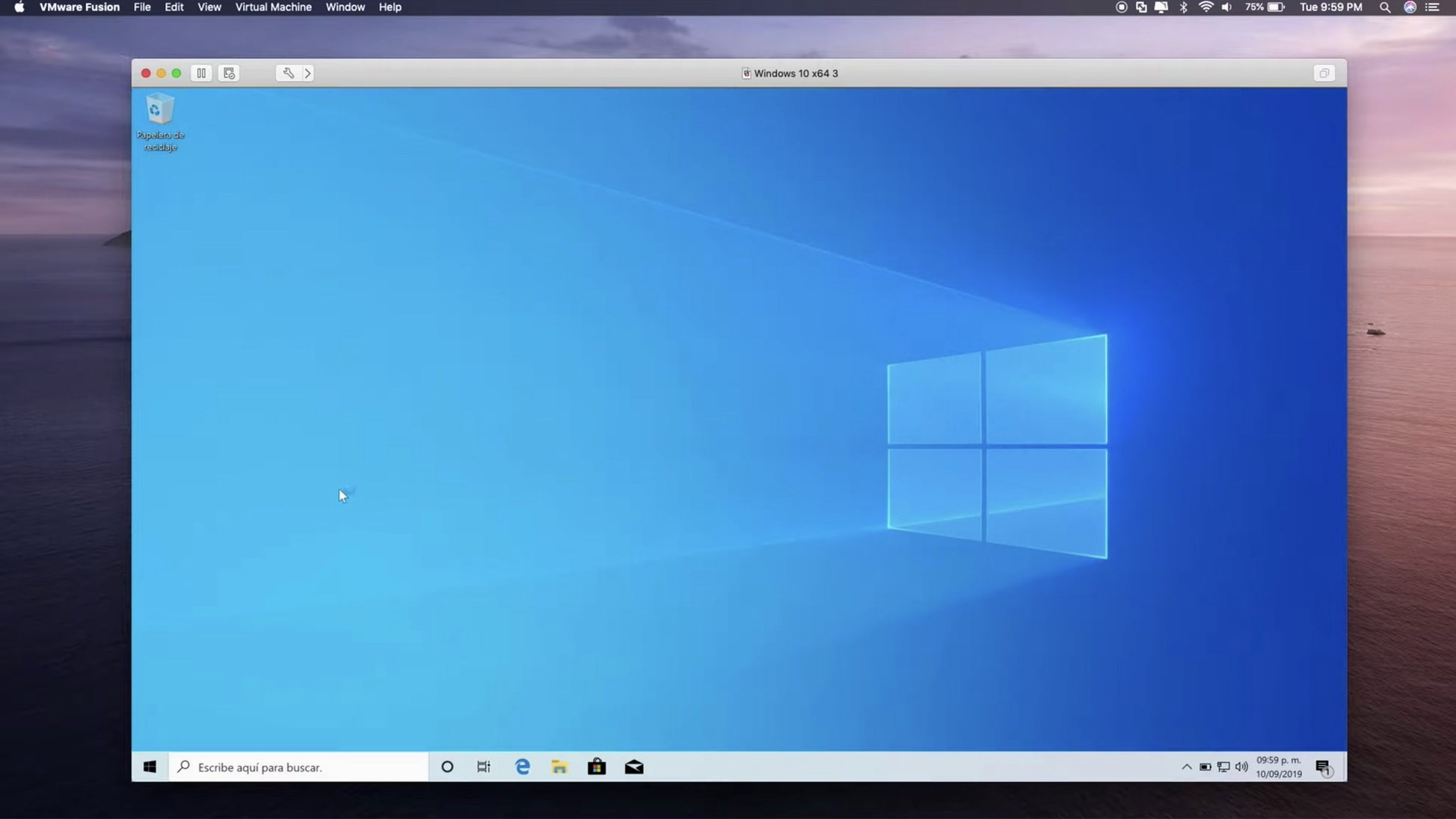
If you need to run Windows or another operating system on your Mac without leaving macOS behind, VMware Fusion Pro does the job. The current version, 26H1 (25388279), keeps the same core purpose and adds a few useful touches.
What the 26H1 update brings
This release focuses on guest OS support. It now handles Ubuntu 26.04 LTS, Fedora 43 and 44, SUSE Linux Enterprise 16, openSUSE 16.0 and FreeBSD 15.0. For anyone managing virtual machines, the new timestamps for creation and last power-on time are a small but handy detail. It also adds support for remote connections to ARM-based ESX hosts, which matters if you work with ARM servers.
Still runs Windows VMs on Intel and Apple Silicon
VMware Fusion Pro still runs Windows virtual machines on Macs, and it supports both Apple Silicon and Intel 64-bit Macs. It works with eGPU devices, and the interface remains in English. The system requirements haven't changed either: macOS 13 or later. If you're after a reliable way to keep a Windows environment around, this version keeps that promise while staying up to date with newer guest systems.
Carla tests IE 11 for a legacy CMS
Take Carla, a freelance web developer who works on a MacBook Air. Her client uses a legacy content management system that only runs on Windows Server 2019, and she needs to test a new theme against Internet Explorer 11. Without leaving macOS, she opens VMware Fusion Pro and starts the Windows Server VM she set up weeks ago. The DirectX 11 hardware acceleration means the Windows desktop feels responsive, even when she has a dozen browser tabs open on the Mac side. She copies the theme files over a shared folder, runs the tests and takes screenshots. The whole thing takes about twenty minutes, and she never reboots.
For Carla, the timestamps in the 26H1 release are a small improvement. She keeps several VMs for different clients, and being able to see at a glance which one she last powered on saves her from booting the wrong server by mistake. The new guest OS support also means she can spin up a Fedora 43 VM for a colleague who needs a Linux environment for CI testing, all from the same application.
Picking a VM from the library with timestamps
You already have VMware Fusion Pro installed and activated. Here is how a normal session might go.
- Pick the VM. You open the Virtual Machine Library. The list shows every VM you have, along with the new timestamps for creation and last power-on. You click the one you need: a Windows 10 VM you use for office software.
- Start it. A single click boots the VM. The window opens in Unity view, so Windows applications appear alongside your Mac apps, but you can switch to full screen if you prefer.
- Move data across. You drag a file from the Mac Finder into a Windows application window. VMware Fusion Pro handles the shared folders you set up earlier, so the file lands where you expect it.
- Connect a device. You plug in a USB 3.1 drive. A notification asks whether you want to connect it to the Mac or the VM. You pick the VM, and the drive appears in Windows Explorer within seconds.
- Do your work. You run the Windows application, edit a document, test a web page or compile some code.
- Suspend or shut down. When you are done, you close the VM window. VMware Fusion Pro offers to suspend the VM, which saves its state so you can resume exactly where you left off next time.
The whole session takes as long as you need. The VM stays out of the way when you do not use it, and it is ready to go when you are.
Default RAM too low for Windows
Most people pick it up quickly, but a few things trip up new users.
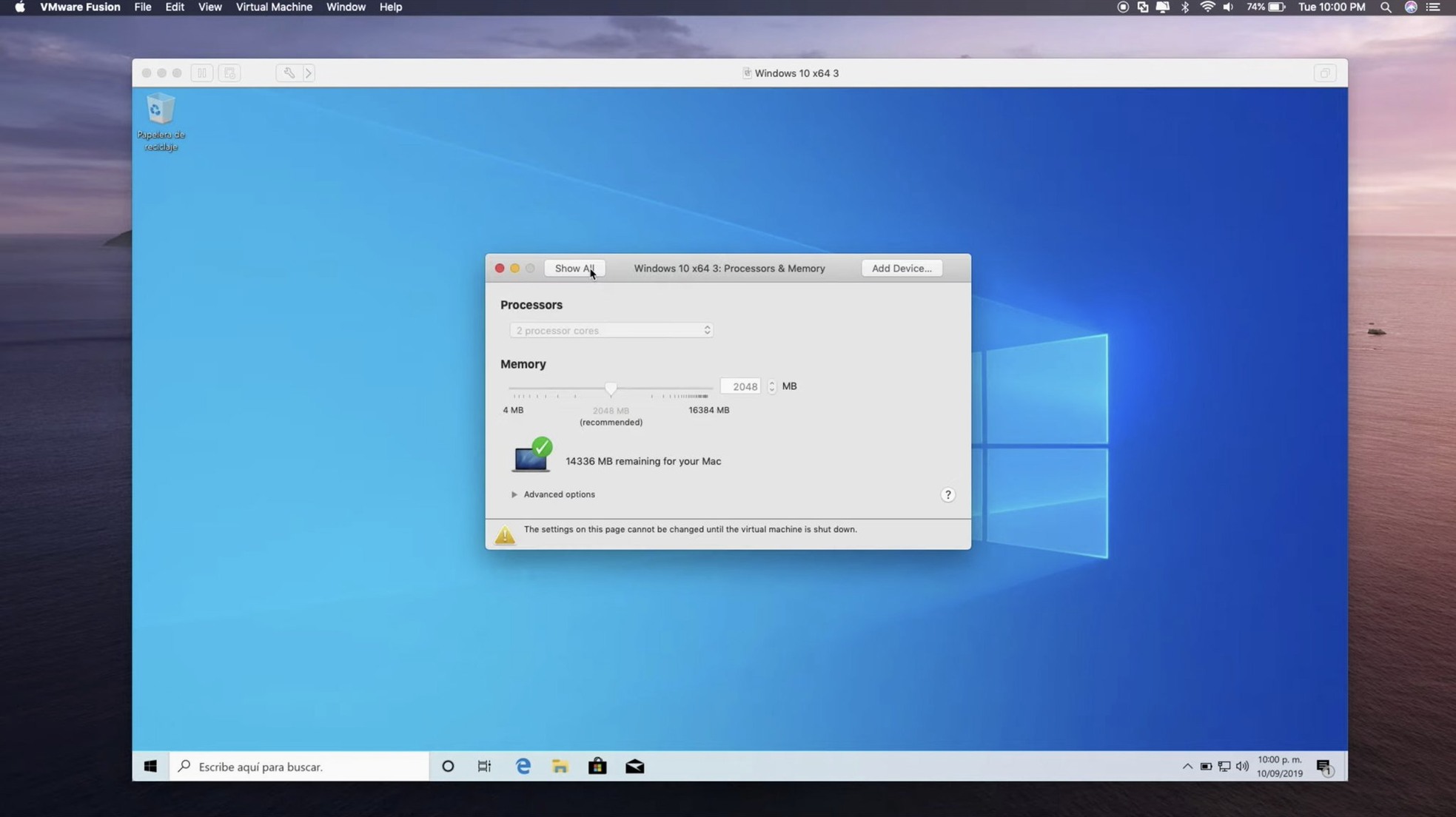
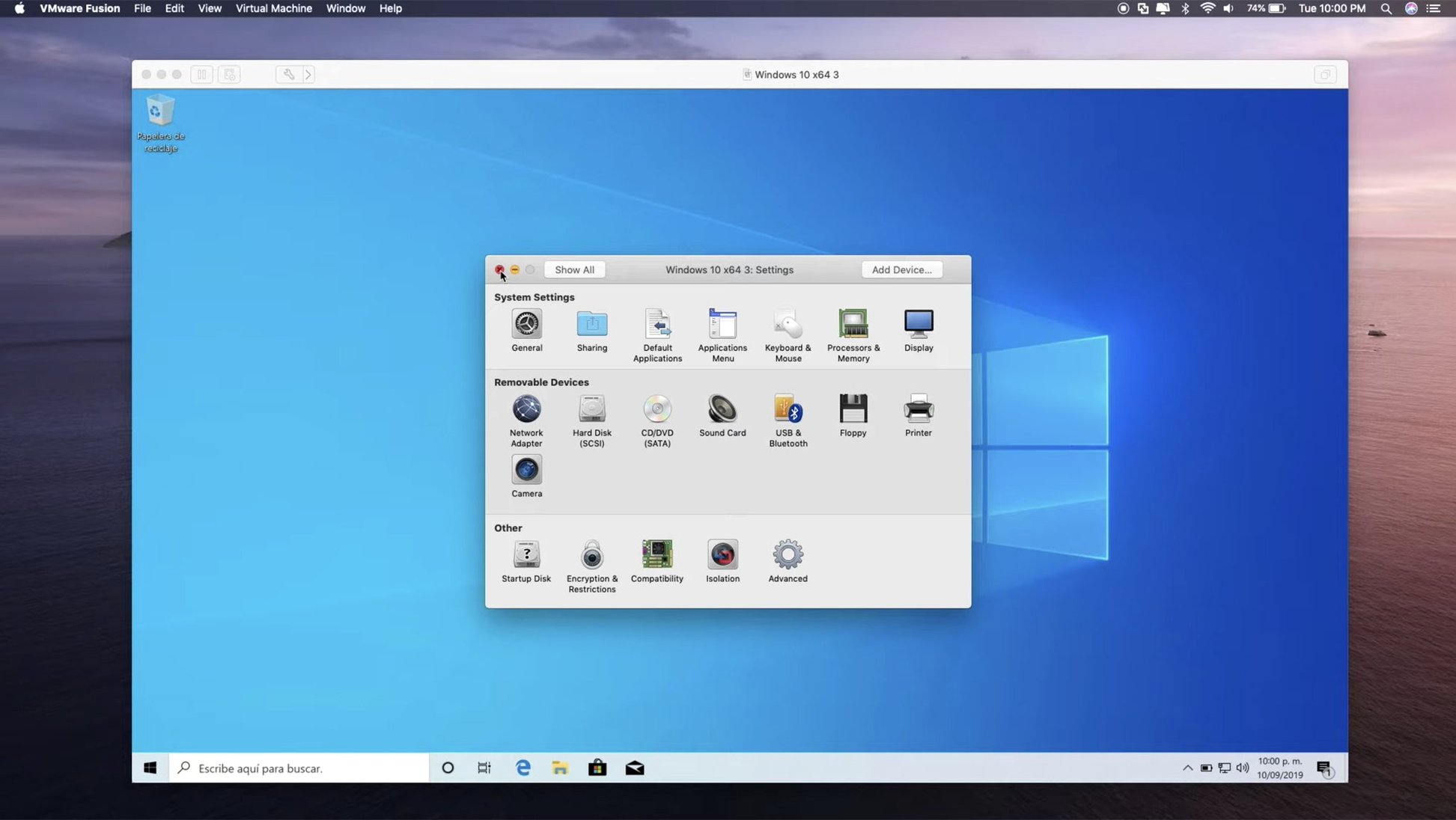
- Not allocating enough RAM. The default settings often give the VM too little memory. If Windows feels sluggish, check the VM settings and increase the RAM. Your Mac needs some left over for macOS, so do not give away everything.
- Forgetting to install VMware Tools. The first time you boot a new VM, you see a prompt to install VMware Tools. Skipping it means worse graphics performance, no shared folders and no drag-and-drop. Let it install.
- Get into the habit of suspending it before you pack up.
- Ignoring snapshots. Beginners often make a change inside the VM and then wish they could undo it. Snapshots let you roll back to a previous state. Take one before you install anything risky.
- Using the wrong network type. The default NAT mode works for most people, but if your VM needs to appear on the same network as your Mac, switch to bridged mode. Beginners sometimes wonder why other devices cannot see their VM.
VM won't start after clicking play
Even with the basics covered, things can go wrong. Here are the snags people run into most often and what to do about them.
- The VM will not start. You click the play button and nothing happens. Check that your Mac has enough free disk space. VMware Fusion Pro needs room for the VM file and for swap space. Also make sure no other hypervisor is running. If you have VirtualBox or Parallels open, close them first.
- USB devices are not recognised. You plug in a USB 3.1 drive and the VM does not see it. Open the VM menu, go to USB and Bluetooth and make sure the device is not greyed out. If it is, disconnect it from the Mac first, then connect it to the VM. Sometimes unplugging and plugging it back in helps.
- The network does not work inside the VM. The VM can browse the internet, but you cannot ping it from the Mac. This is normal with NAT mode. If you need the VM on the local network, switch to bridged networking in the VM settings and restart the VM.
- Graphics are choppy. Windows animations stutter or games lag. Make sure VMware Tools is installed and up to date. Also check that 3D acceleration is enabled in the VM settings. If you are using an eGPU, connect it before you start the VM.
- The VM asks for a product key every time. You installed Windows, entered the key and it activated fine, but the next boot shows the activation screen again. This usually means the VM's virtual BIOS lost its settings. Reset the VM's NVRAM from the Virtual Machine menu, then restart.
- You cannot connect to an ARM-based ESX host. The 26H1 release added support for remote connections to ARM-based ESX hosts, but only if you are running VMware Fusion Pro on an Apple Silicon Mac. If you are on an Intel Mac, the option will not appear. Check your Mac's architecture in the About This Mac window.
Most of these problems have a straightforward fix. If you run into something else, the VMware documentation covers the less common cases, and the user forums have people who have seen it before. For now, these tips should keep your VMs running without surprises.
- Adds timestamps for virtual machine creation and last power-on time
- Adds support for remote connections to ARM-based ESX hosts
- Adds guest OS support for Ubuntu 26.04 LTS, Fedora 43, Fedora 44, SUSE Linux Enterprise 16, openSUSE 16.0, and FreeBSD 15.0
- macOS 13 or later
- Apple Silicon or Intel 64-bit Mac
Kit check at a glance
| System | macOS 13 or later |
| Chip | Apple Silicon, Intel 64-bit |
| Download | 479 MB |
| Older pressings | 6 in the crate |








Chat from the booth
Sign in or grab a free account to leave a comment.
Nobody has said a word in the booth yet. If you played a set with this build, tell the next person how it went.