
- Build in the crate
- 4.0.122
- Made by the team at
- Softorino
- Menu languages offered
- English
- How you pay for it
- K'ed by TNT team
- macOS it plays on
- macOS 10.13 or later
- CPU it runs on
- Intel 64-bit
Screenshots
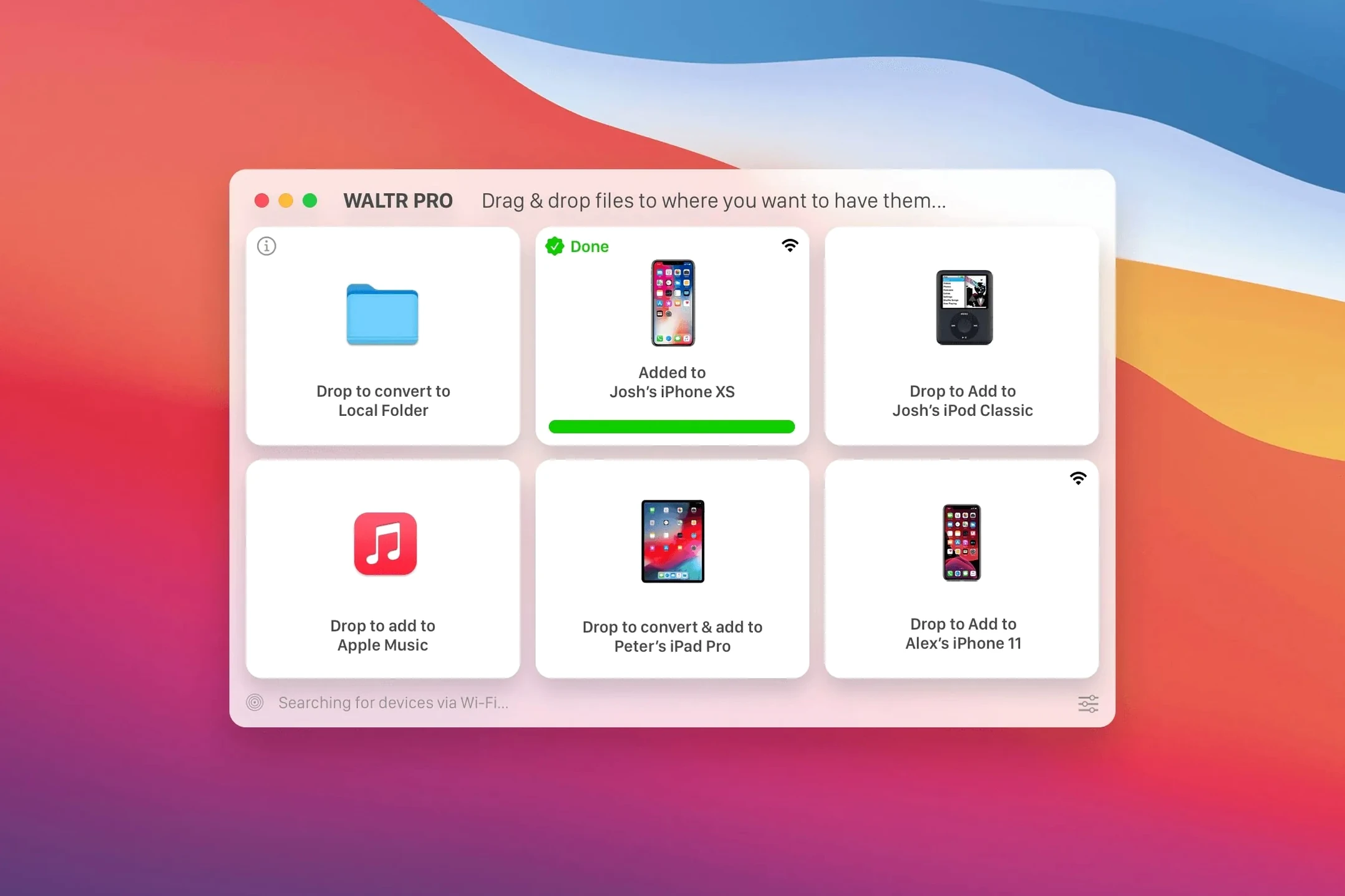
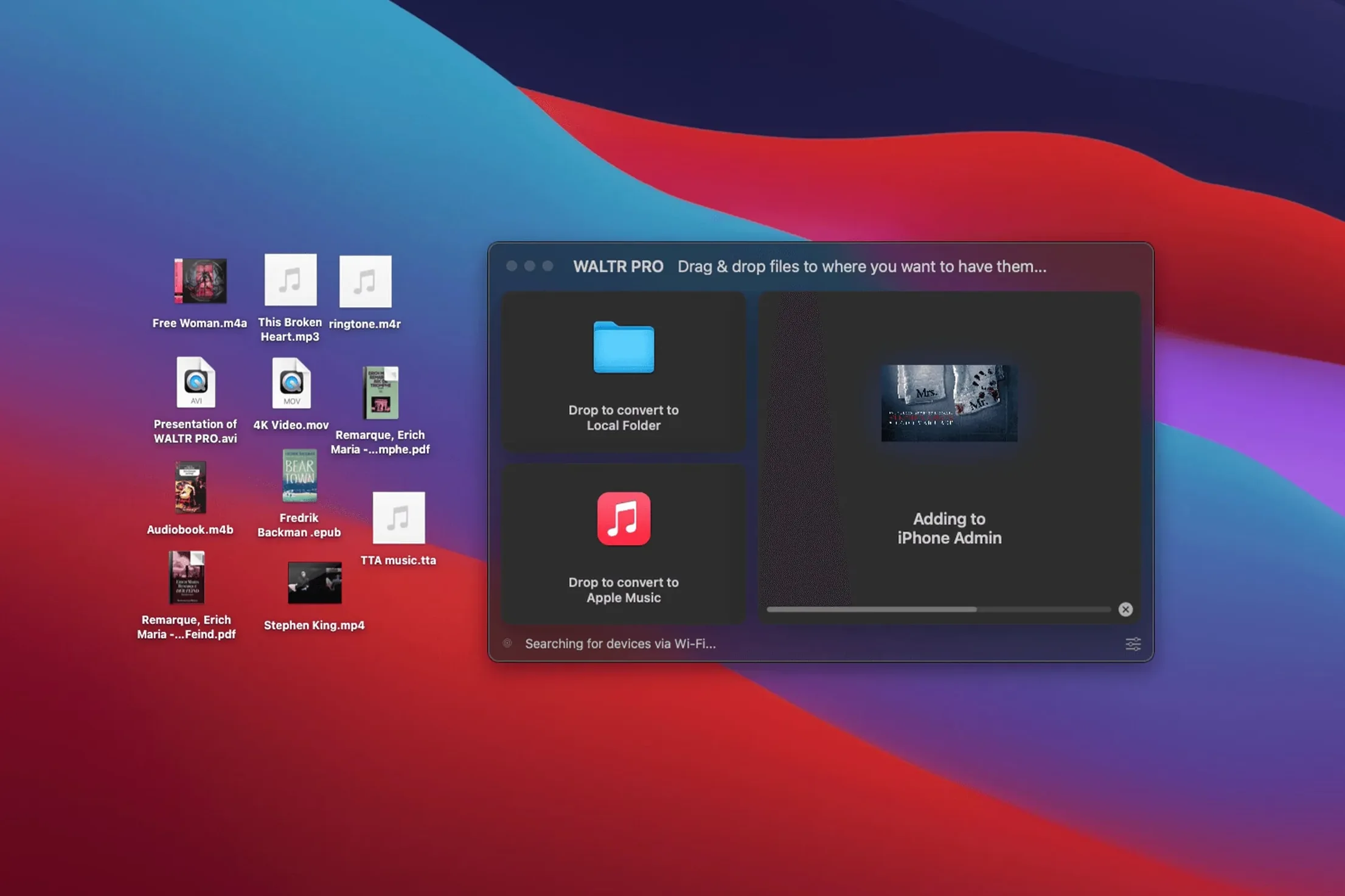
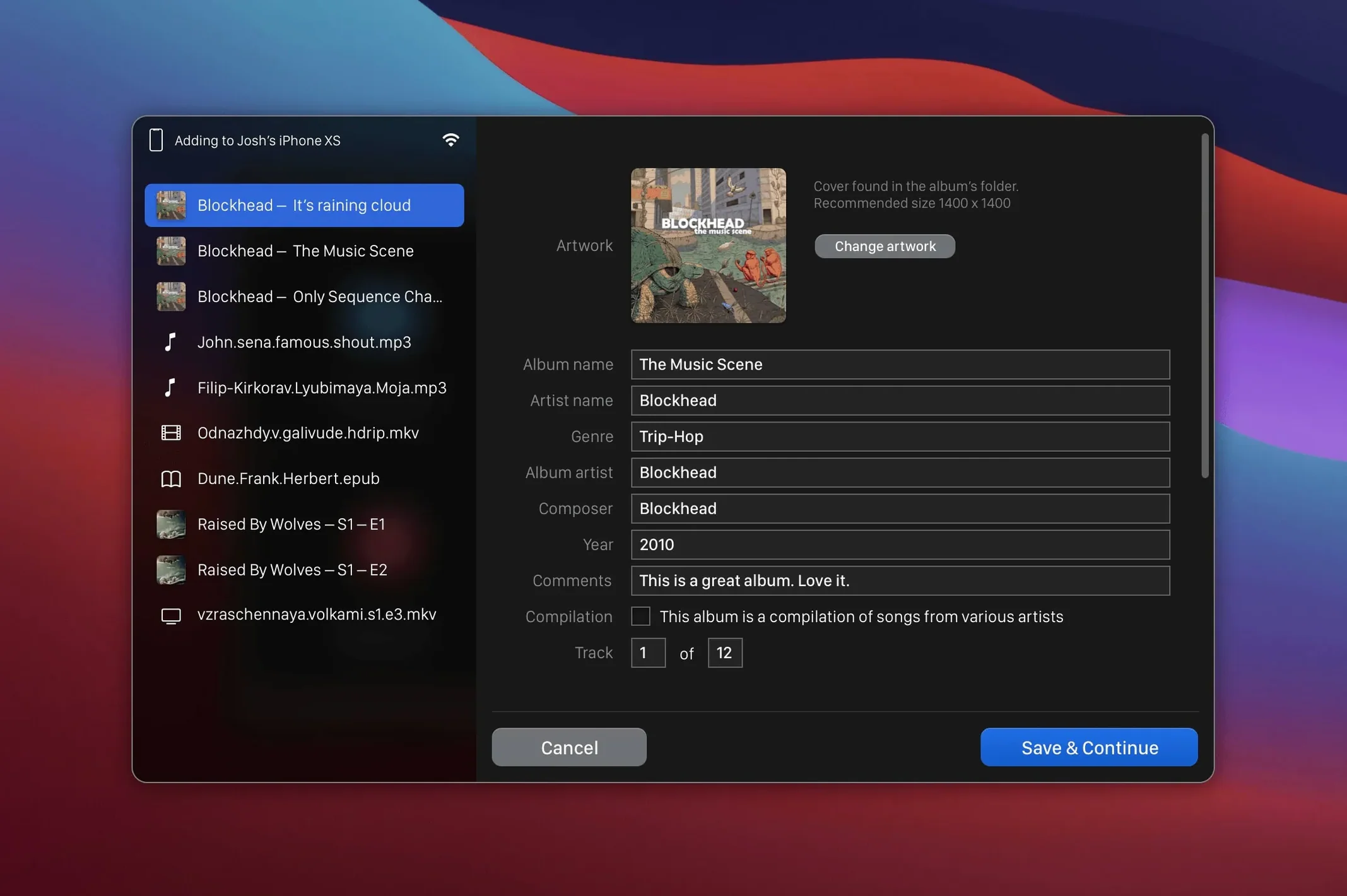
WALTR PRO handles over a dozen formats, from MP3 to MKV, and it converts them as it sends. That means a FLAC file you drag over lands on your iPhone as a playable track in the Music app. No extra steps, no format gymnastics.
Drag an AVI or WMA and it converts instantly
- Open WALTR PRO on your Mac, connect your iPhone or iPad over Wi-Fi.
- Drag an AVI video or a WMA song into the WALTR window.
- The app converts and transfers it in one go.
- Open the Movies or Music app on your device and hit play.
Works with every iPod and over Wi-Fi
It supports every iPhone, iPad, and iPod, even the original iPod Classic. And because it uses Wi-Fi, you are not hunting for a cable. The transfer happens in the background, so you can keep working. For a music student, that is the difference between a quick playlist update and a full syncing session.
First days with WALTR PRO
After you drag WALTR PRO into Applications and run the Gatekeeper bypass, there are a few things worth doing early on. They save time later.
- Check the Wi-Fi connection. Both your Mac and your iOS device need to be on the same network. Open WALTR PRO and see if your iPhone or iPad appears in the sidebar. If it does not, a quick restart of the app or a toggle of Wi-Fi on the device usually sorts it.
- Test one file first. Drag a single MP3 or MP4 into the window. Watch the progress bar. When it finishes, open the Music or Movies app on your device to confirm it landed. That one test tells you everything works before you queue up a whole folder.
- Try an incompatible format early. Drop an MKV or a FLAC file. WALTR PRO converts it silently, so you can see how long the conversion takes for a typical file. For a music student, this is the real test: if your FLAC collection transfers cleanly, you are set.
- Keep the app in the Dock. WALTR PRO runs in the background. Having it one click away means you can drag files in whenever you come across something you want on your phone.
A real-world scenario: building a practice playlist
Say you are a jazz guitarist preparing for a gig. Your phone has the Music app and that is where you want everything.
With WALTR PRO, you open the folder on your Mac, select the tracks, and drop them into the WALTR window. The app converts the FLAC and MKV files as it sends them. Five minutes later, you have a single playlist in the Music app on your iPhone with all the material. No need to convert files separately, no need to use iTunes or Finder sync. You just play.
Faster than cable-based transfer tools
iMazing
iMazing gives you deep control over your iOS device: backups, messages, ringtones, and file management. It can transfer music and videos too, but it works more like a file manager. You pick what goes where. WALTR PRO is narrower — it does one thing (convert and send) and does it in a single drag. For a quick transfer of mixed-format media, WALTR PRO is faster because you skip the extra steps.
AnyTrans
AnyTrans handles music, photos, and app data, and it also converts files during transfer. The difference is in the workflow. AnyTrans has a multi-panel interface with tabs for each media type. WALTR PRO keeps a single drop zone. If you know exactly what you want to move and you want it done in one motion, WALTR PRO feels lighter.
VLC for Mobile with iTunes file sharing
You can drag files into the VLC app on your iPhone using Finder or iTunes, and VLC plays almost anything. That works, but it puts the files inside VLC, not the native Music or Movies apps. WALTR PRO sends files straight to Apple's own apps, which means they show up in CarPlay, on your Apple Watch, and in the standard Now Playing interface. For a music student who lives inside the Apple ecosystem, that integration matters.
- macOS 10.13 or later
- Intel or Apple silicon
- Interface language: English
Kit check at a glance
| System | macOS 10.13 or later |
| Chip | Intel 64-bit |
| Download | 29 MB |
| Older pressings | 2 in the crate |



Chat from the booth
Sign in or grab a free account to leave a comment.
Nobody has said a word in the booth yet. If you played a set with this build, tell the next person how it went.