

- Build in the crate
- 4.2.0 [MAS]
- Made by the team at
- Lihua Yang
- Menu languages offered
- English
- How you pay for it
- K'ed by TNT team
- macOS it plays on
- macOS 10.13 or later
- CPU it runs on
- Apple Silicon, Intel 64-bit
Screenshots
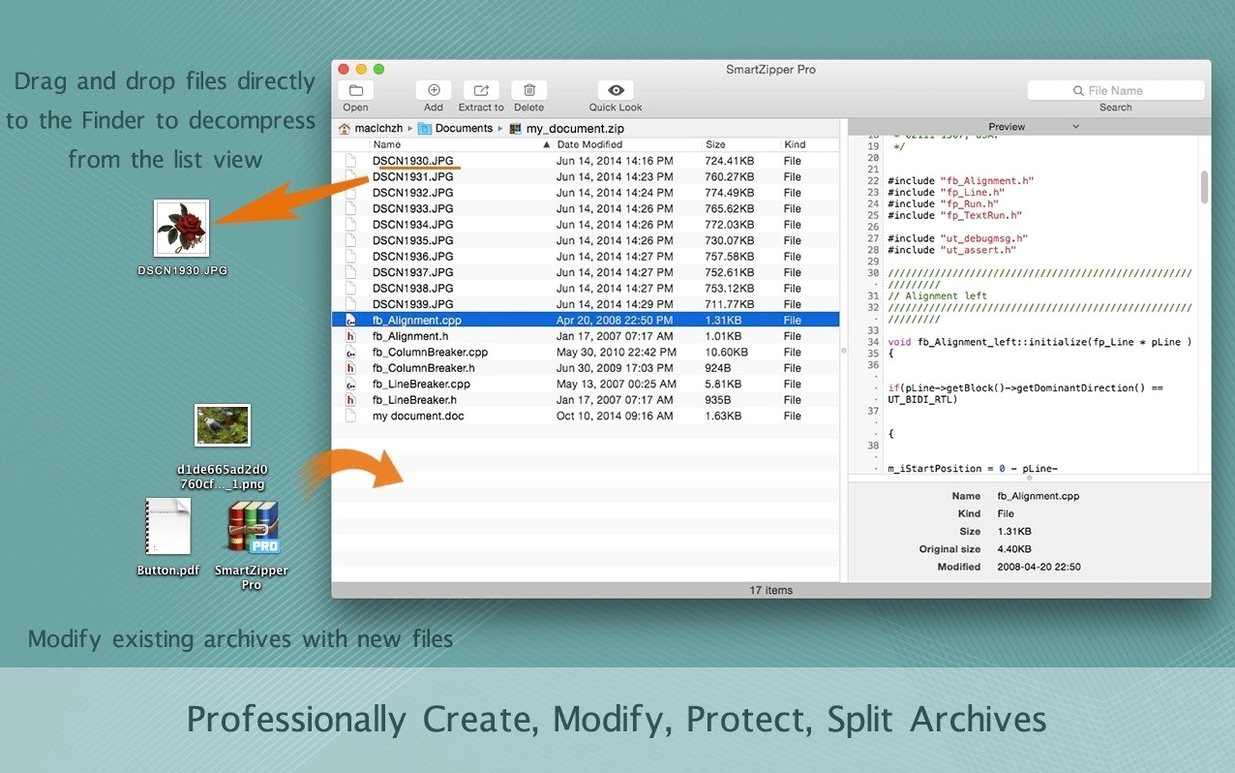
Smart Zipper Pro handles a lot of formats — RAR, RAR5, 7z, ISO, CAB, Zip, StuffIt, Lzma, Tar, Gzip, Bzip2, PAX, MSI, Arj, and Z. That covers most of what you'll run into, and it does more than just unpack.
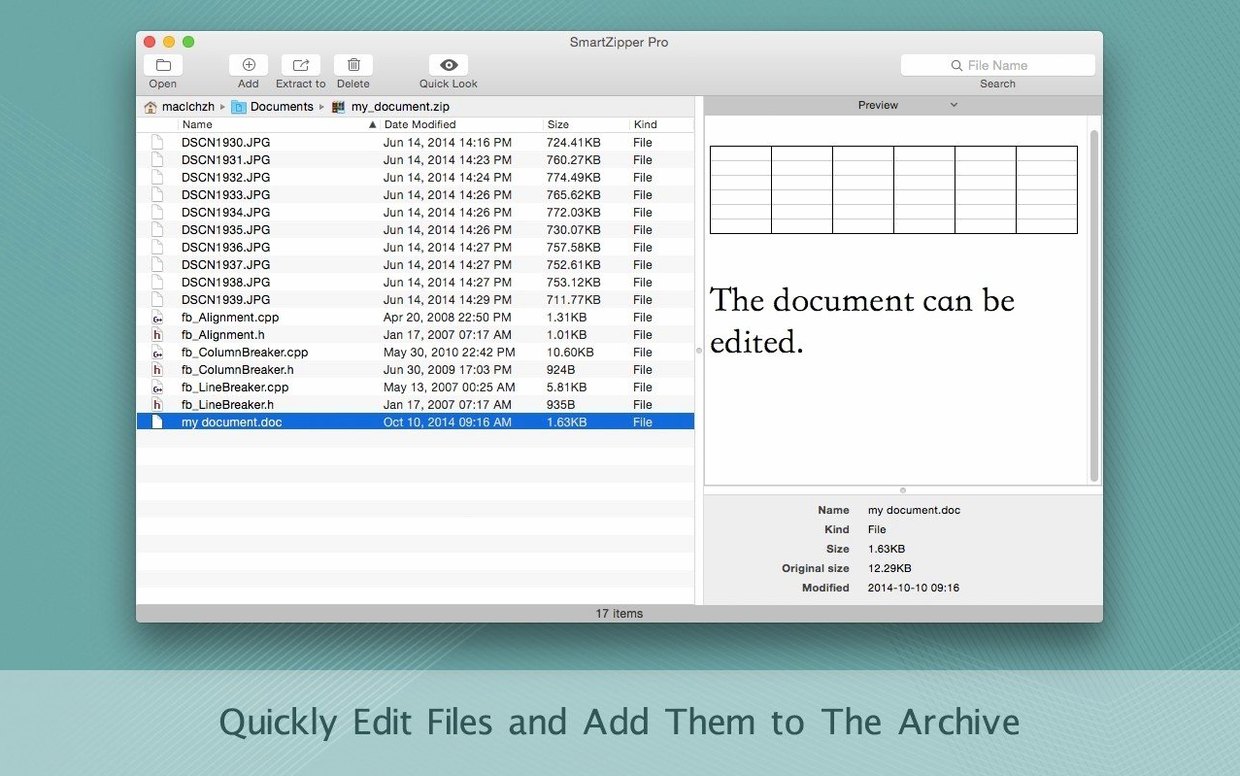
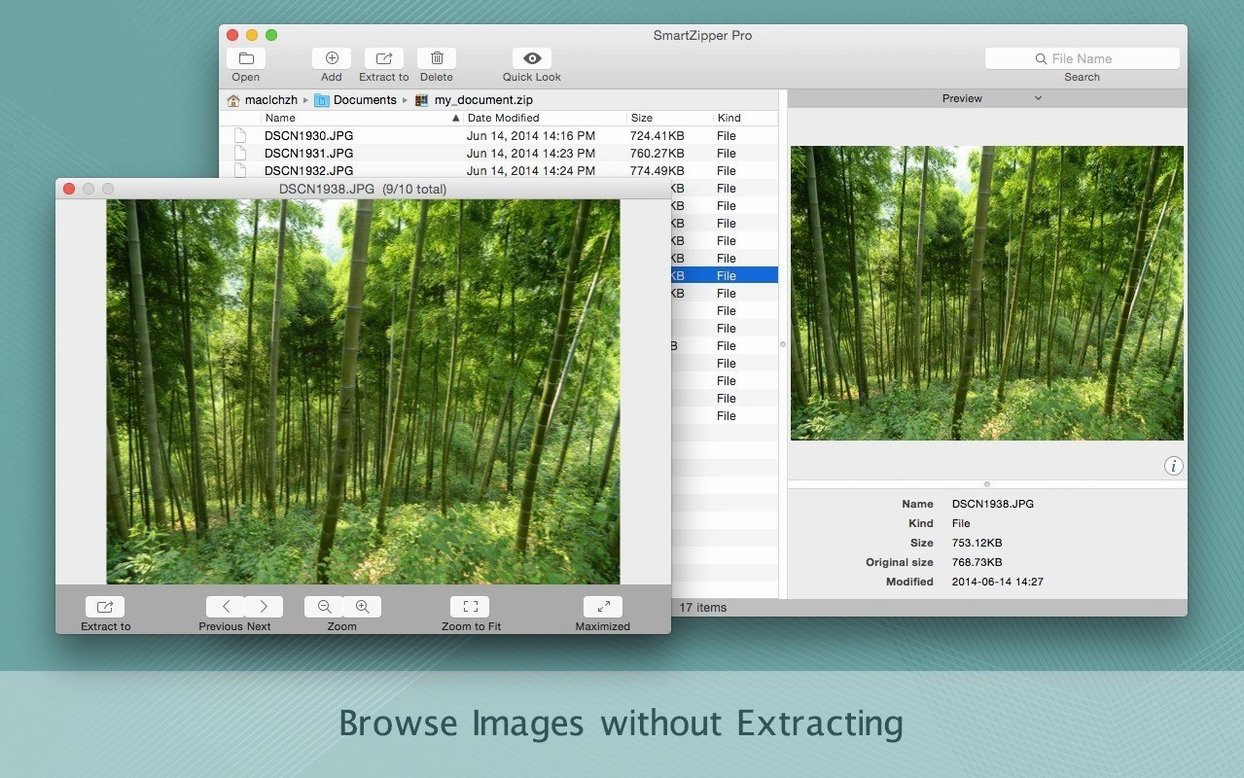
For an experienced user, the deeper tools matter. You can preview images inside an archive without extracting them, which saves time when you're checking a batch of files. You can also filter out unwanted files before you extract, so you don't have to clean up afterwards. Password protection is there when you need it, and six compression levels give you control over the trade-off between size and speed for 7z, Zip, Gzip, Tar, and Bzip2.
Here's a typical workflow:
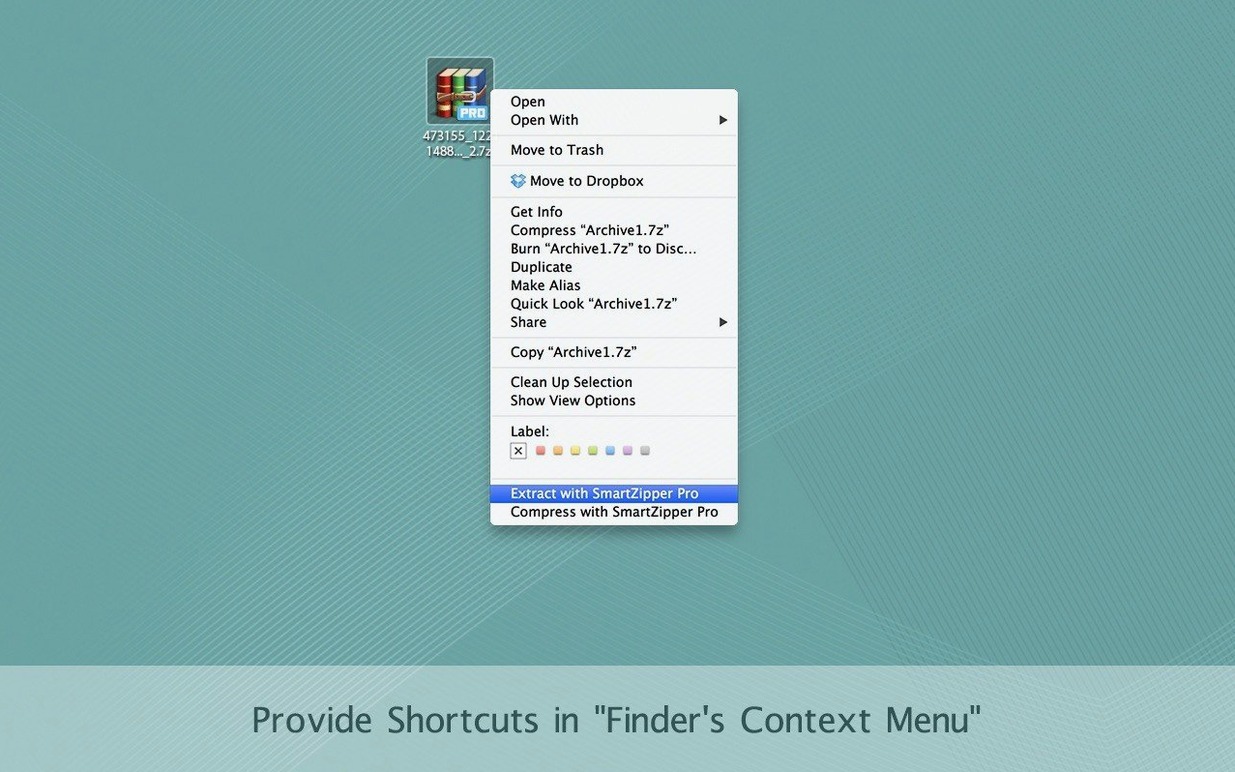
- Right-click an archive in Finder and choose Smart Zipper Pro from the context menu.
- Preview the contents, check a few images, and filter out the files you don't need.
- Pick a compression level and extract to the folder you want.
Runs on macOS 10.13 and later
Smart Zipper Pro runs on macOS 10.13 or later, which covers High Sierra through the latest versions. Both Apple Silicon and Intel 64-bit Macs are supported, so it works on M-series and older Intel machines without any compatibility issues.
The app is a standard Mac application — you mount the disk image, drag it to Applications, and you're set. The Gatekeeper bypass step is a one-time thing, handled through a quick Terminal command. After that, the app opens normally like any other from your Applications folder.
It's an English-language utility, so the interface is straightforward. No multi-language menus to navigate, just clean labels and controls.
Works instantly on Apple Silicon and Intel
Set up the Finder context menu
The Finder integration is where Smart Zipper Pro saves the most time. Right-click any archive and the extract option appears immediately. Get used to using that instead of opening the app first — it becomes second nature quickly.
Try the preview feature early
When you receive a collection of images in a RAR or Zip file, use the preview function before extracting. It shows thumbnails inside the archive, and you can check EXIF data for photos without unpacking a single file. Audio and video info is also available, which helps when you're sorting media archives.
Experiment with compression levels
Create a few test archives at different compression levels — especially for 7z and Zip. The six levels let you balance file size against compression time. For daily use, a middle setting usually works, but knowing where the extremes land helps when you're archiving large folders.
Use the split function for large archives
If you regularly move big archives between drives or upload them, splitting into smaller parts is useful. Smart Zipper Pro handles that from within the app, so you don't need a separate tool.
Spend the first couple of days running your usual archive tasks through the app — extracting, creating, editing. The password protection and file filtering are there when you need them, but the core workflow is what you'll rely on most.
The Finder integration makes the whole thing feel native. It's a solid utility for anyone who deals with archives regularly.
- Version 4.2.0 is the latest release.
- macOS 10.13 or later
- Works on both Intel and Apple Silicon
Kit check at a glance
| System | macOS 10.13 or later |
| Chip | Apple Silicon, Intel 64-bit |
| Download | 11 MB |
| Older pressings | 1 in the crate |








Chat from the booth
Sign in or grab a free account to leave a comment.
Nobody has said a word in the booth yet. If you played a set with this build, tell the next person how it went.