

- Build in the crate
- 2026.4.3
- Made by the team at
- TechSmith Corporation
- Menu languages offered
- English, German, Spanish, Portuguese, French, Japanese
- How you pay for it
- K'ed by TNT team
- macOS it plays on
- macOS 15 or later
- CPU it runs on
- Apple Silicon, Intel 64-bit
Screenshots
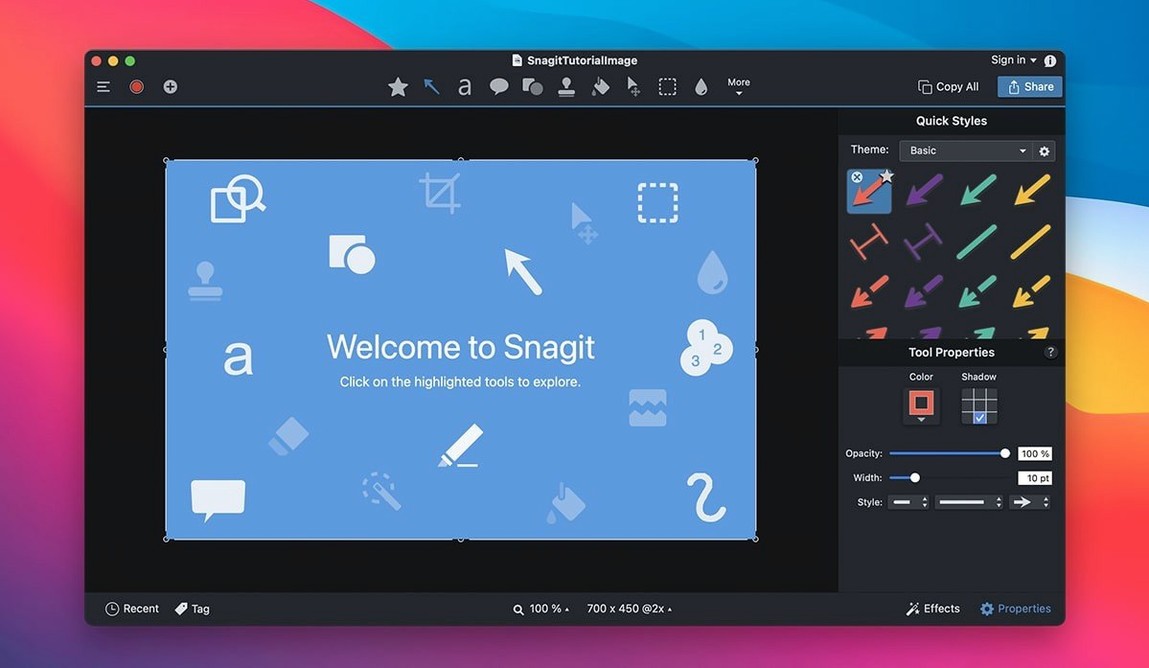
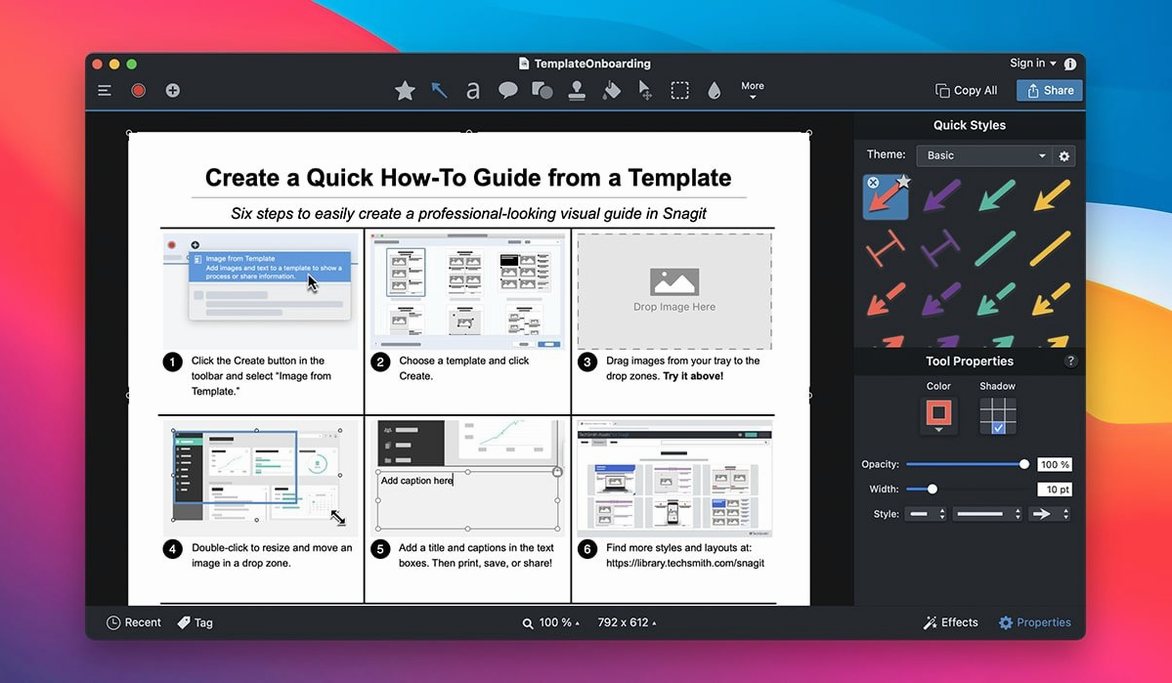
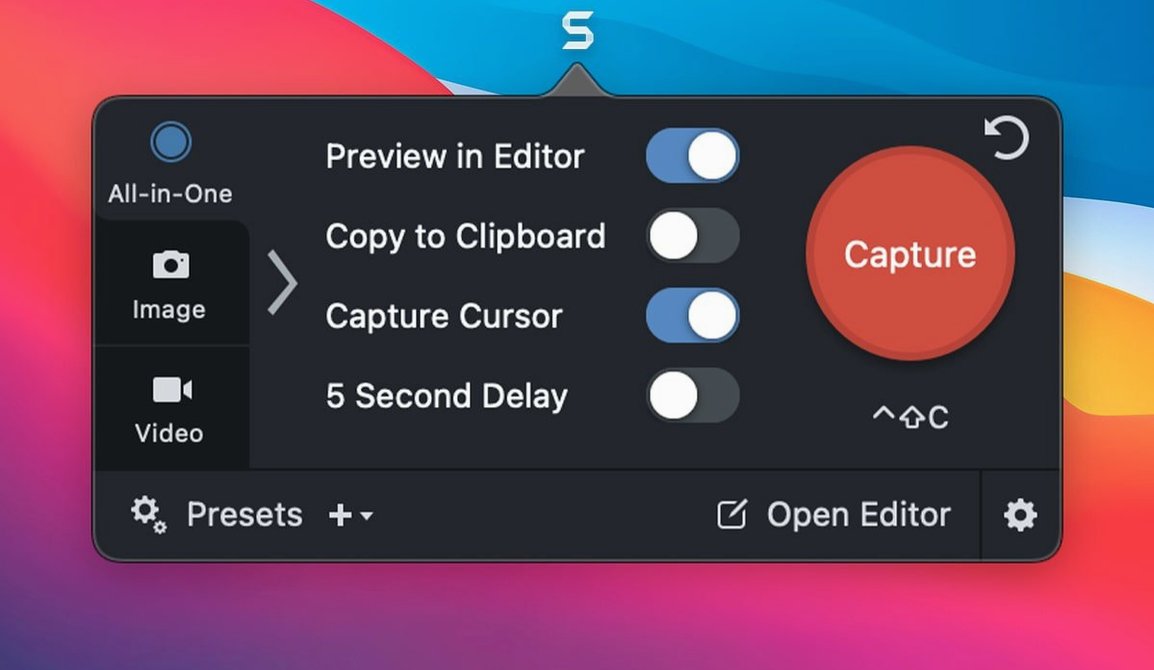
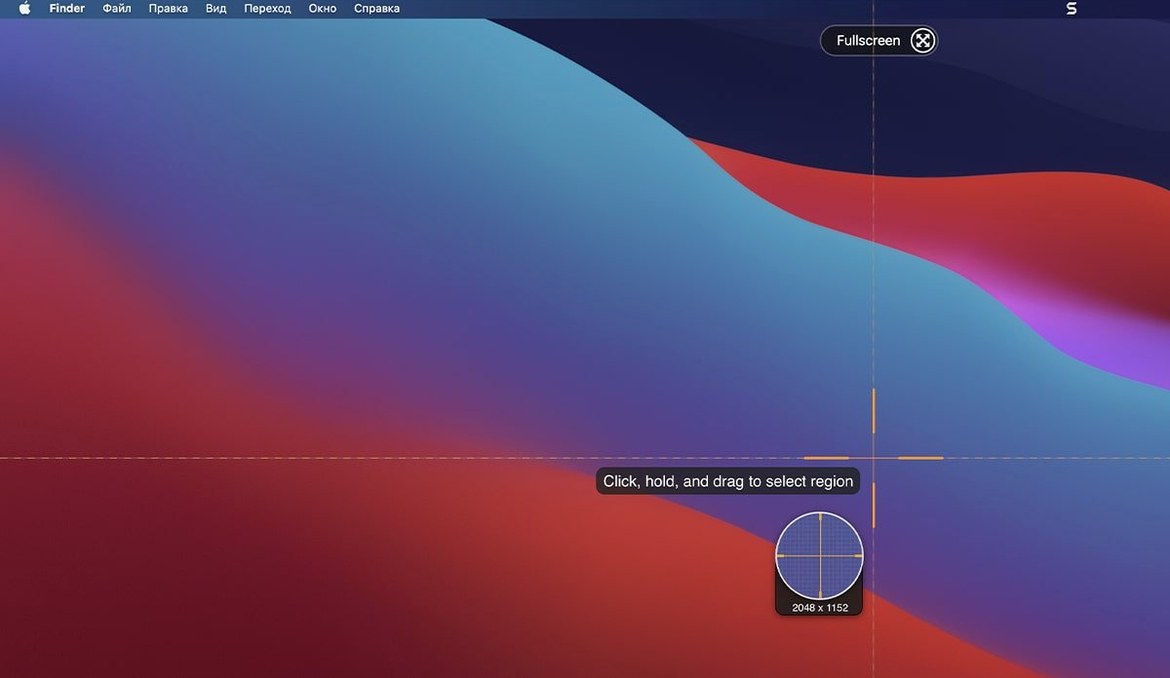
Snagit 2026.3.3 handles the common stuff — screen grabs, recordings, basic annotations — but the real value for an experienced user is in the deeper tools that save time and keep your workflow crisp. Here’s one sequence that shows what I mean.
- Capture with a preset. Instead of fiddling with region selection every time, pick a saved preset. Snagit remembers the area, the format, and any effects you want applied on capture.
- Clean up in the editor. The built-in editor lets you remove parts of an image, add callouts with arrows and labels, or change the background. Combine multiple captures into a single collage without leaving the app.
- Add focus with effects. Apply shadow, highlight, or dimming to draw attention to exactly what matters. No external image editor needed.
- Publish straight to a blog or FTP. Snagit can push the finished shot or recording to your destination without you manually uploading it. Search your library by creation date or source if you need to find something later.
Version 2026.3.3 also fixes capture toolbars and video playback controls that wouldn’t move or work on macOS 27, and arrow keys now behave in QuickLook inside the Snagit Library. These aren’t headline features — they’re the kind of polish that keeps a tool out of your way.
Custom capture presets for frequent tasks
Snagit works well out of the box, but a few small adjustments early on make a difference. Start by creating a couple of custom capture presets for your most frequent tasks. If you grab a specific region of the screen several times a day, save it once and pick it from the preset menu later. No need to reselect the area each time.
Set up a keyboard shortcut for that preset too. Snagit supports shortcuts for capture presets, so you can trigger your most-used setup with a keypress instead of clicking through menus. It’s one of those conveniences that feels minor until you’ve used it for a week.
Spend a few minutes tagging your first batch of captures. Snagit organises everything into libraries automatically, but tags are what make searching fast later. Assign a couple of tags per image as you go, and you’ll thank yourself when you need to find that screenshot from three months ago.
Easy to miss features
A few things in Snagit don’t jump out at first but end up being useful regularly.
- Text capture from web pages. Snagit can grab text that’s not selectable by normal means. Handy for pulling content out of a web page without retyping it.
- Rounded corners on images. A small visual polish that makes screenshots look less harsh in documentation. It’s in the editor, easy to apply.
- Page‑curl effect. Gives a capture a slightly more polished, magazine‑style look. Works well for tutorial images where you want to indicate the bottom of a page.
- Sending captures by email. No need to save a file, open your mail client, and attach it. Snagit does it from inside the app.
- Publishing to Microsoft Office Project, MindManager, or OneNote. If your workflow touches any of those, the direct publish option saves a couple of export‑import steps.
Stuck toolbars fix for macOS 27
Capture toolbars and controls won’t move. On macOS 27, the 2026.3.3 release fixed an issue where toolbars and controls were stuck in place. If you’re on that version and still see the problem, make sure you’re running the latest build — the fix is included.
Video playback controls not responding. Same version, same fix. If playback buttons aren’t working, update to 2026.3.3. The release notes specifically address this.
Arrow keys not working in QuickLook inside the Library. This was another macOS 27 quirk that the current release resolves. If you use QuickLook to preview captures, the arrow keys for navigation should now behave correctly.
Can’t find a capture later. The library organises everything by date, but if you didn’t tag at capture time, search by creation date or source is your fallback. Both are available in the library view. It’s not as fast as tags, but it gets you there.
Scrolling window capture doesn’t work as expected. Snagit includes a scrolling window capture mode, but it expects a standard scrollable area. If the app or web page uses a custom scroll implementation, the result can be uneven. Try reducing the scroll speed in the capture settings, or switch to recording the screen and grabbing the content from the video later.
- Fixed some video playback controls not working on macOS 27.
- Fixed arrow keys not working when QuickLook is active in the Snagit Library on macOS 27.
- Fixed an issue where capture toolbars and controls could not be moved on macOS 27.
- macOS 15
- Intel or Apple Silicon
Kit check at a glance
| System | macOS 15 or later |
| Chip | Apple Silicon, Intel 64-bit |
| Download | 195 MB |
| Older pressings | 8 in the crate |








Chat from the booth
Sign in or grab a free account to leave a comment.
Nobody has said a word in the booth yet. If you played a set with this build, tell the next person how it went.