
- Build in the crate
- 4.14.2
- Made by the team at
- Stéphane Madrau
- Menu languages offered
- English
- How you pay for it
- Included
- macOS it plays on
- OS X 10.10 or later
- CPU it runs on
- Apple Silicon, Intel 64-bit
Screenshots
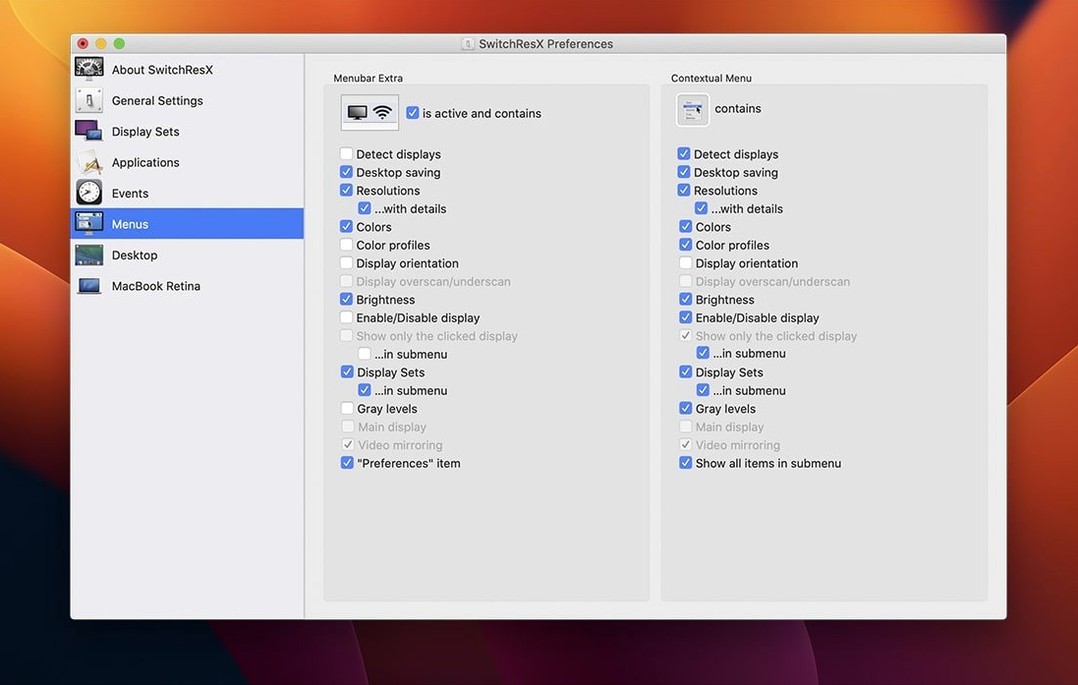
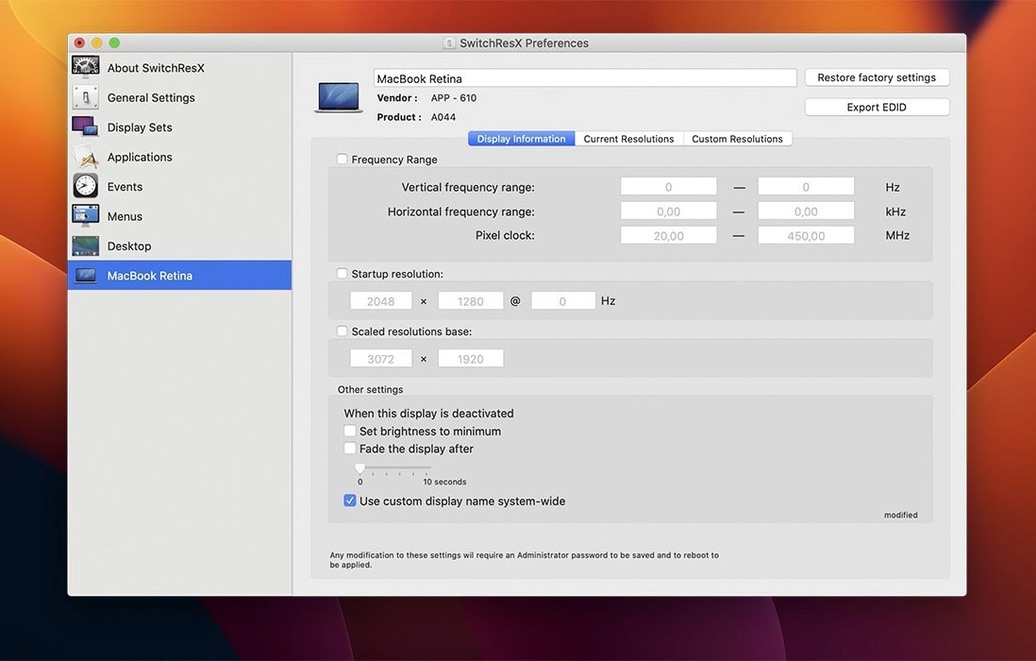
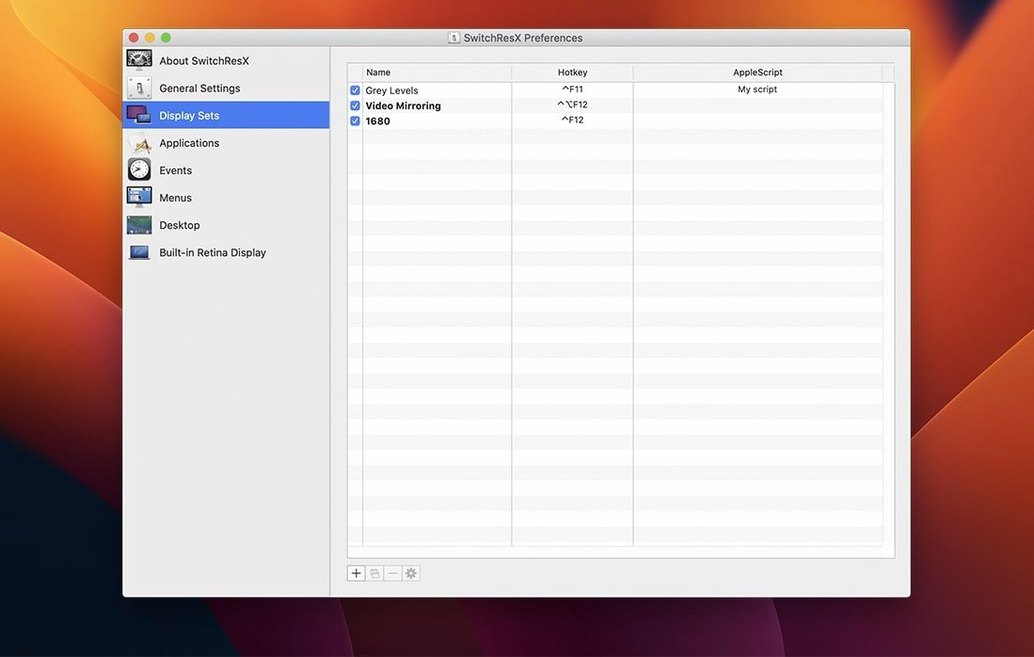
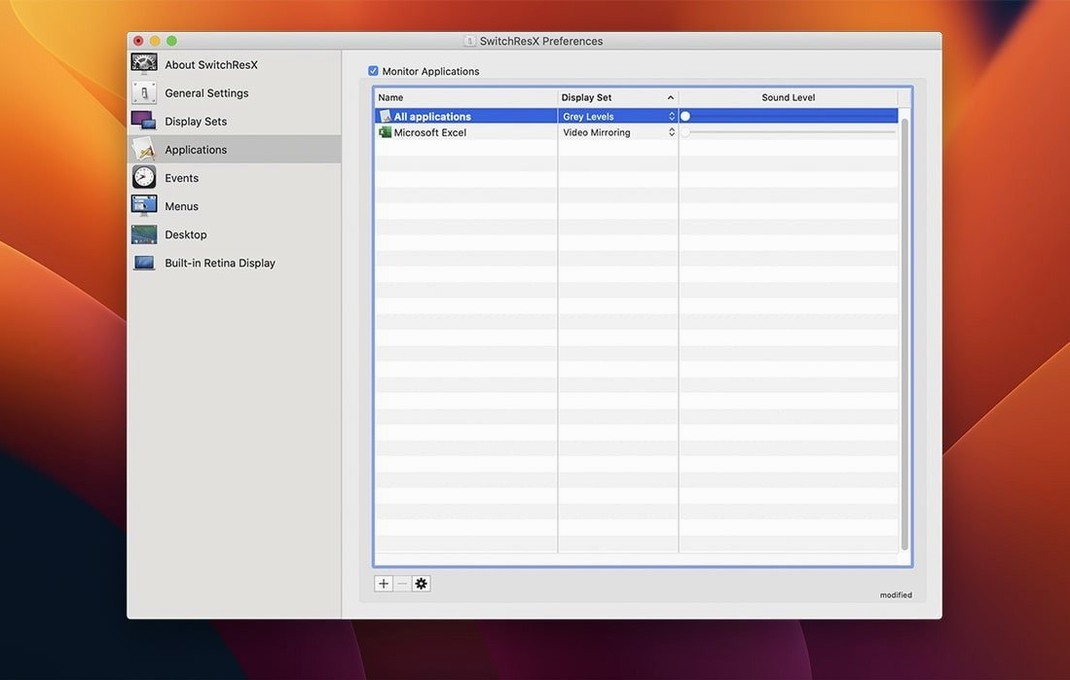
The "Custom Resolutions" tab in SwitchResX is where the real control starts. Plug in an external monitor that macOS doesn't recognise properly — say an old plasma panel or a third-party display — and it might show only a handful of standard options. With SwitchResX you can type in the exact horizontal and vertical pixel count, set a refresh rate, and save it as a new resolution. The display then appears in the normal System Preferences panel as if it were a native mode.
Version 4.14.2 makes this workflow more reliable on Apple Silicon Macs. It now allows the Dock to quit cleanly when you disable a display, and it fixes a bug where displays with no name in macOS would cause the app to keep updating settings in a loop. If you use display sets — groups of resolutions for different monitors — the update also stops a crash when you delete a set that another set depends on.
Fix resolutions that won't appear in the list
A few things tend to trip people up when they first use SwitchResX. The most frequent one: you create a custom resolution, save it, but it doesn't show up in the list. Nine times out of ten the refresh rate or pixel clock is slightly outside what the display can handle. Try a lower refresh rate first — 60 Hz is safe for most monitors — and check the "Summary" tab in SwitchResX to see if the mode is marked as "Active" or "Inactive". If it's inactive, the display driver rejected it. Adjust the timings down until it sticks.
Another common snag: after installing SwitchResX, the System Preferences pane for Displays stops showing some options you had before. That's usually because SwitchResX takes over resolution management when its helper is running. Open SwitchResX's own preferences and look for the setting that lets you choose which tool controls the display. Toggle it back to macOS if you prefer the simpler view.
Some users report that custom resolutions disappear after a macOS update. That's expected — Apple's display subsystem can change between versions, and SwitchResX needs to rebuild its database. The fix is simple: open the app, go to the "Custom Resolutions" tab, and re-save any resolutions you added. The app will regenerate the necessary driver caches on reboot.
If SwitchResX free download or switchresx cracked versions float around forums, be aware that older builds don't handle Apple Silicon well. The 4.14.2 update specifically addressed a loop issue on those Macs. If you see the app constantly writing to its settings file, that was the exact bug the latest version fixed.
Mac users with non-Apple external displays
Three groups of Mac users benefit most. First, anyone working with external displays that aren't Apple's own. Projectors, HDTVs, and older plasma panels often report weird EDID data to macOS, leaving you with resolutions that stretch the image or letterbox it badly. SwitchResX lets you override that with the exact mode the panel needs.
Second, people who switch between multiple monitors regularly — for example, a laptop user who docks at home with a 4K screen, then connects to a 1080p projector at a client site. Using Display Sets, you can assign a custom resolution to each monitor and have SwitchResX swap them automatically when you plug in. Combine that with AppleScript and you can trigger a display change from a keyboard shortcut or a calendar event.
Third, users who care about colour accuracy. SwitchResX lets you pair a colour profile with a resolution, so when you switch to a monitor that needs a specific calibration, the app loads both the resolution and the colour settings together. That's useful for photographers and video editors who move between a calibrated external monitor and the laptop's built-in screen.
Retina display users also get something here. macOS normally hides certain HiDPI modes to keep things simple, but if you want a non-standard Retina resolution — say a 1920×1200 HiDPI mode on a 13-inch MacBook — SwitchResX can expose and create those modes too. It's a niche need, but it makes a real difference when you want more screen real estate without losing sharpness.
- Fixes repeated self-updating of settings when no display is attached.
- Fixes an issue with displays that have no name in macOS.
- Fixes an issue deleting a Display Set used after another Display Set.
- Allows quitting the Dock when disabling a display on Apple Silicon Macs.
- macOS OS X 10.10 or later
- Intel or Apple Silicon
Kit check at a glance
| System | OS X 10.10 or later |
| Chip | Apple Silicon, Intel 64-bit |
| Download | 6 MB |





Chat from the booth
Sign in or grab a free account to leave a comment.
Nobody has said a word in the booth yet. If you played a set with this build, tell the next person how it went.