

- Build in the crate
- 6.2.6
- Made by the team at
- Edward Lawford
- Menu languages offered
- English
- How you pay for it
- Not required
- macOS it plays on
- macOS 14.6 or later
- CPU it runs on
- Apple Silicon, Intel 64-bit
Screenshots
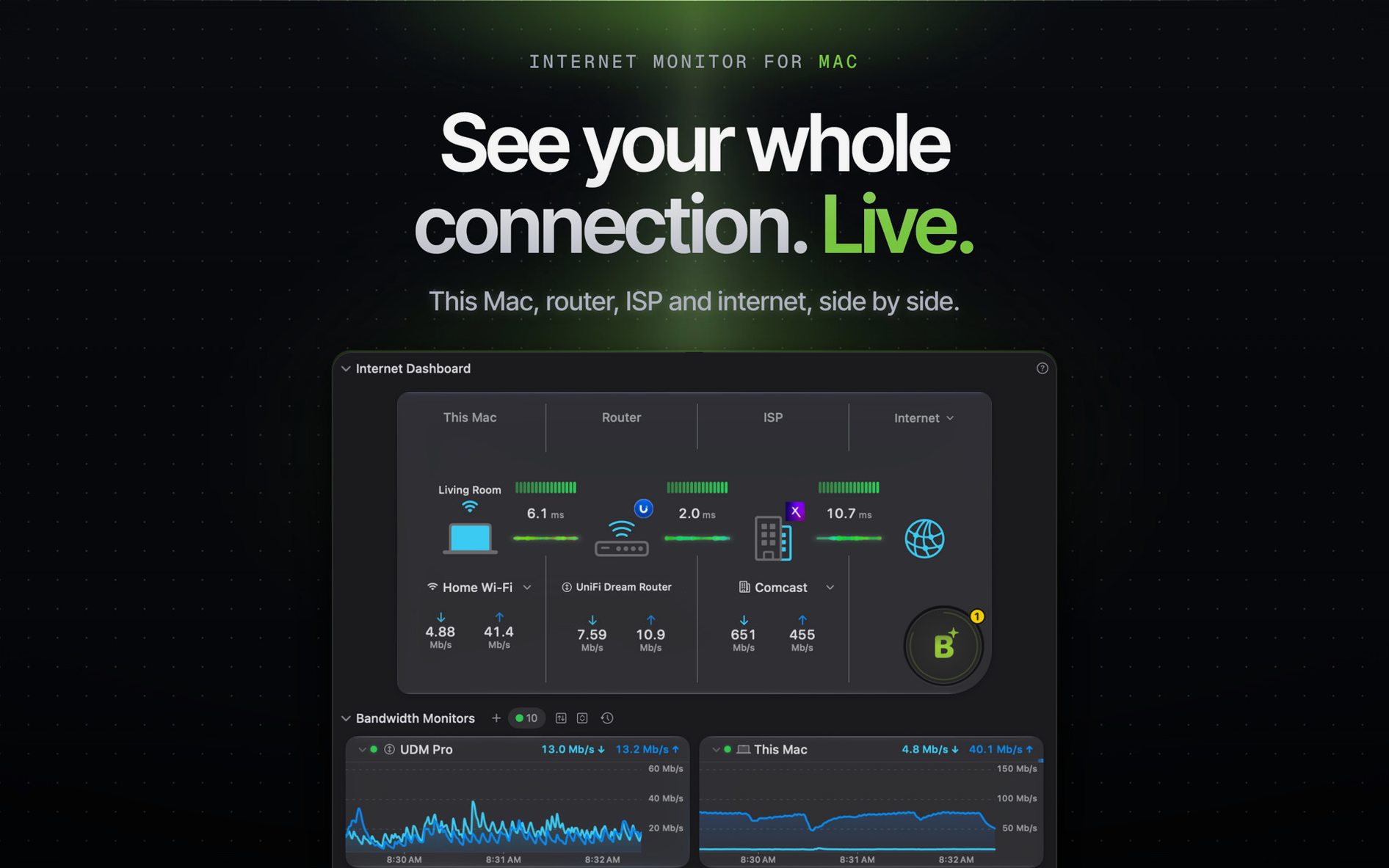
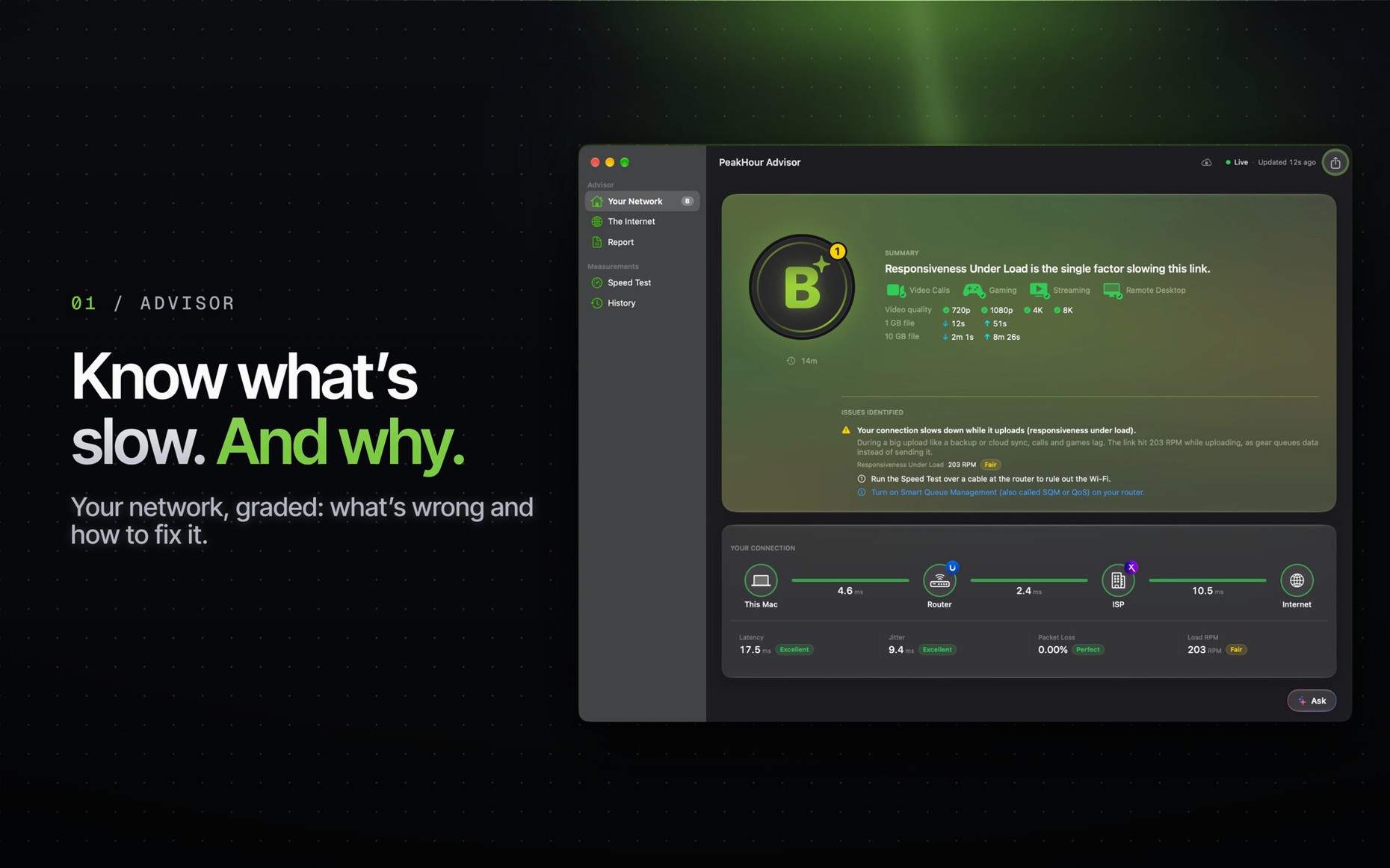
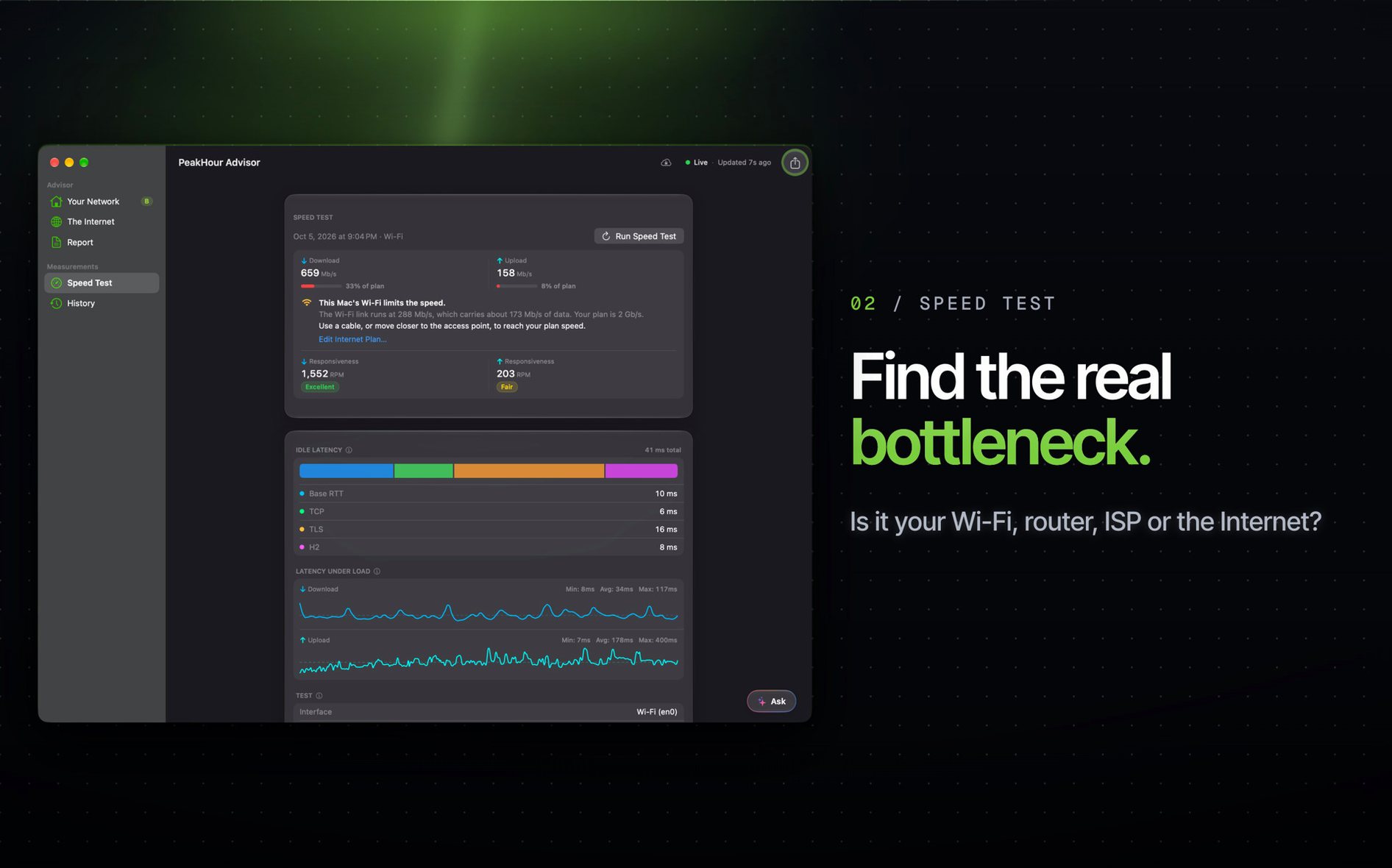
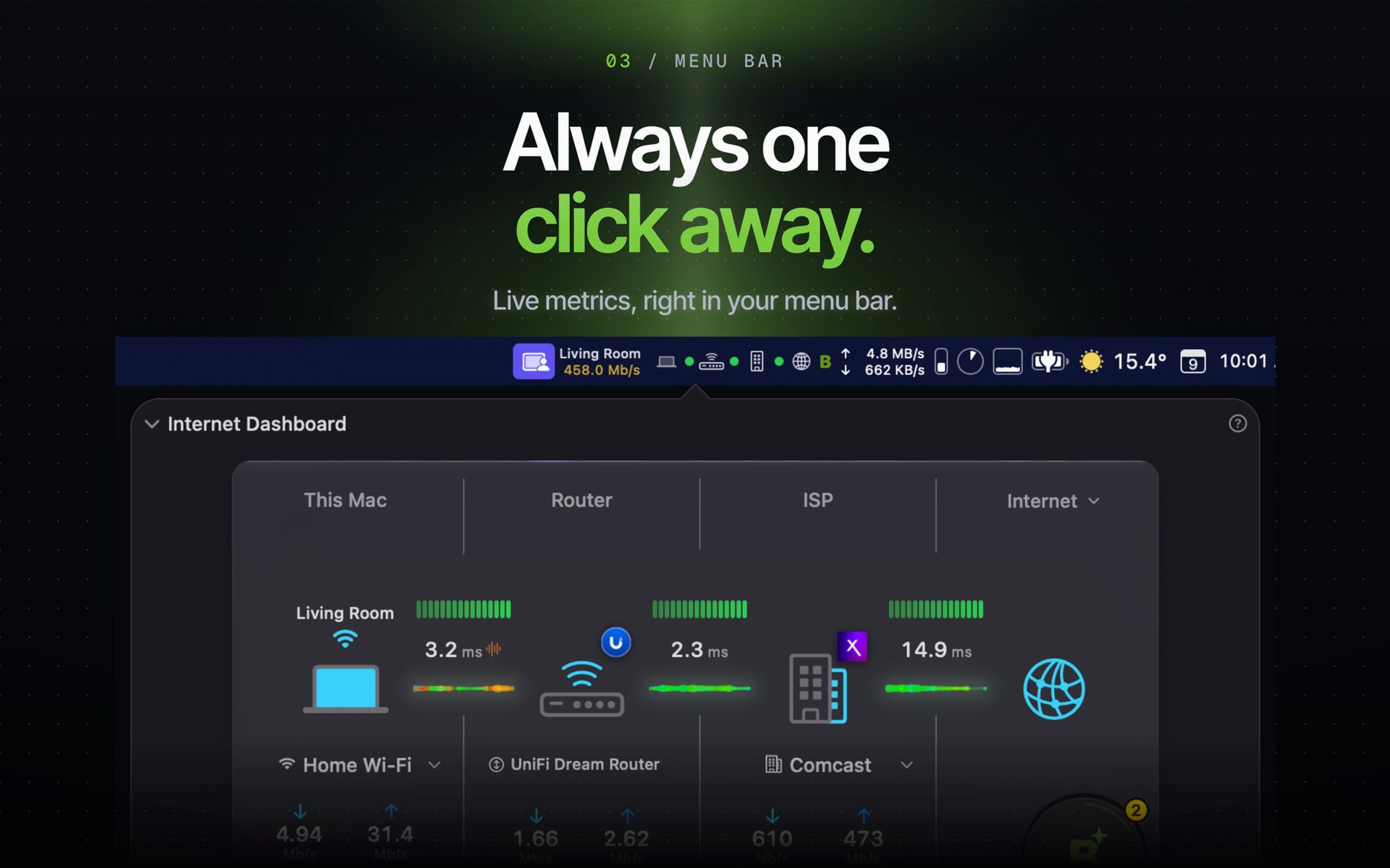
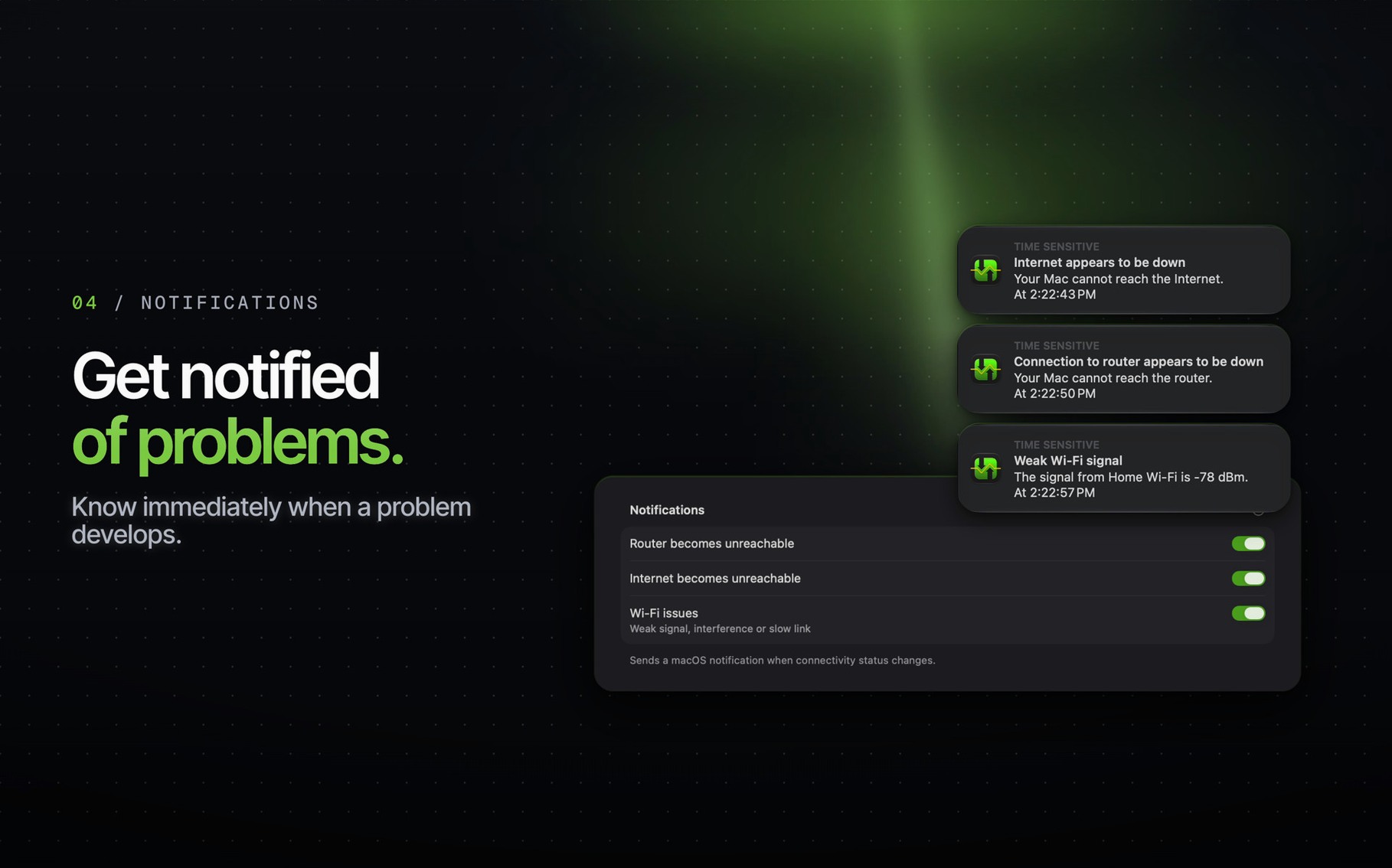
Ever wonder if your internet connection is actually running slow or if it’s just a website loading badly? PeakHour 6 sits in your Mac’s menu bar and shows you exactly how much data is coming and going, in real time. No need to open a separate app or dig through router logs — the traffic graph is always a glance away.
Monitors media servers, torrent clients and NAS devices
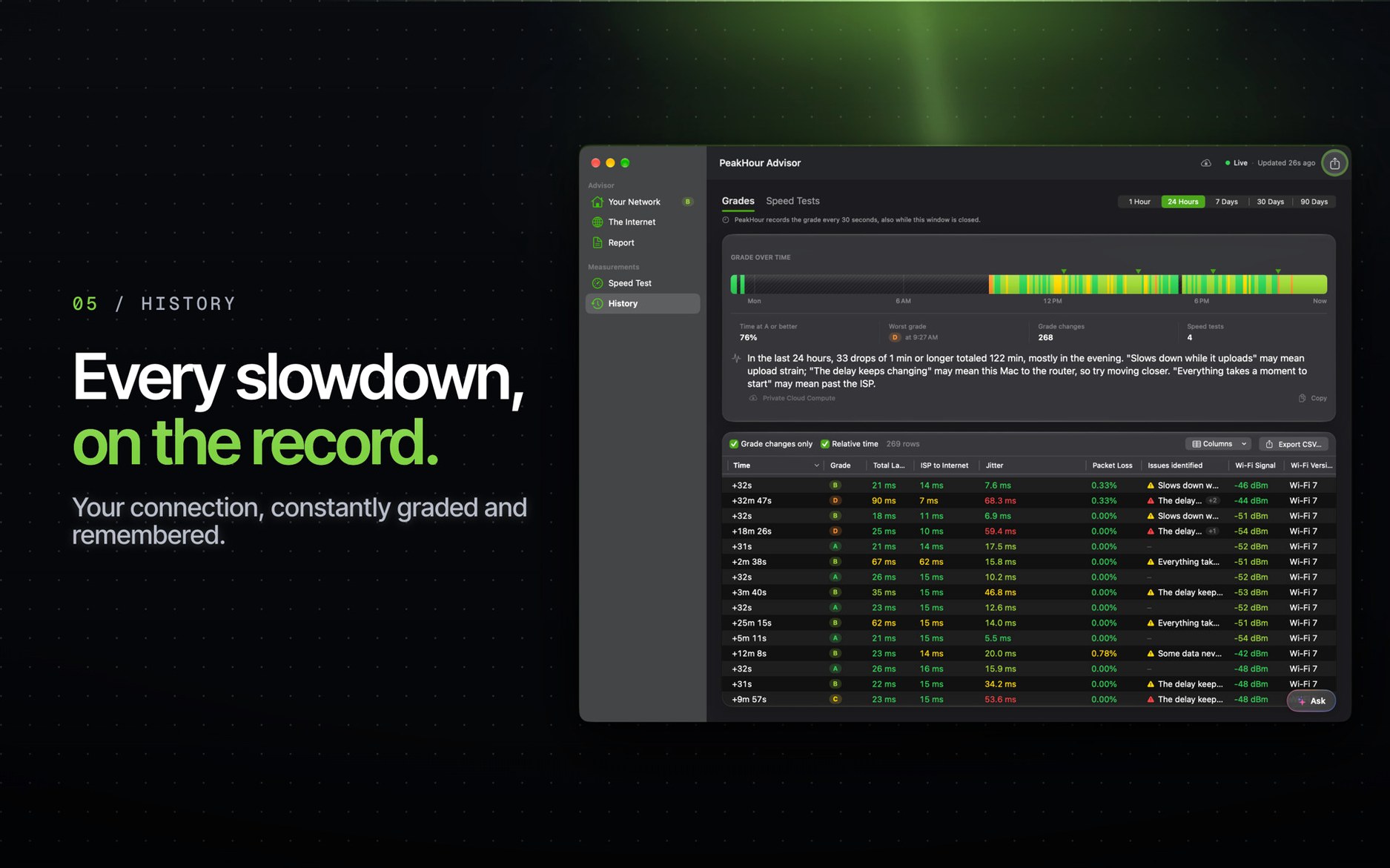
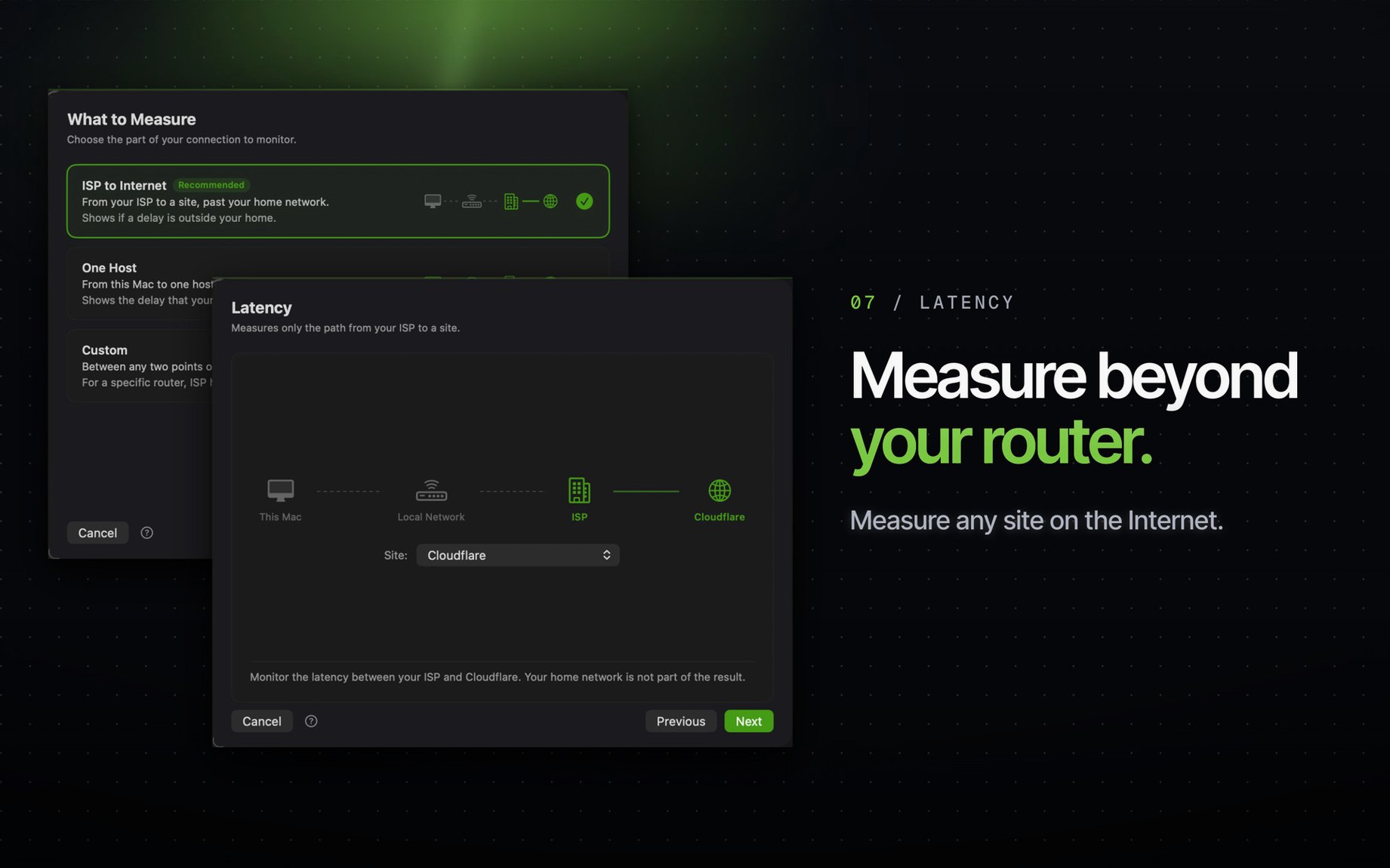
If you already run a media server, torrent client or NAS on your network, PeakHour 6 can monitor them too. It talks to your router via SNMP or UPnP, so you see transmitted and received data for each device. The redesigned history charts in version 6 make it easier to spot patterns — like when your ISP slows down during peak hours. The self-healing outage recovery means you don’t have to restart the app after a brief connection drop; it picks back up on its own.
Extra features for real-world use
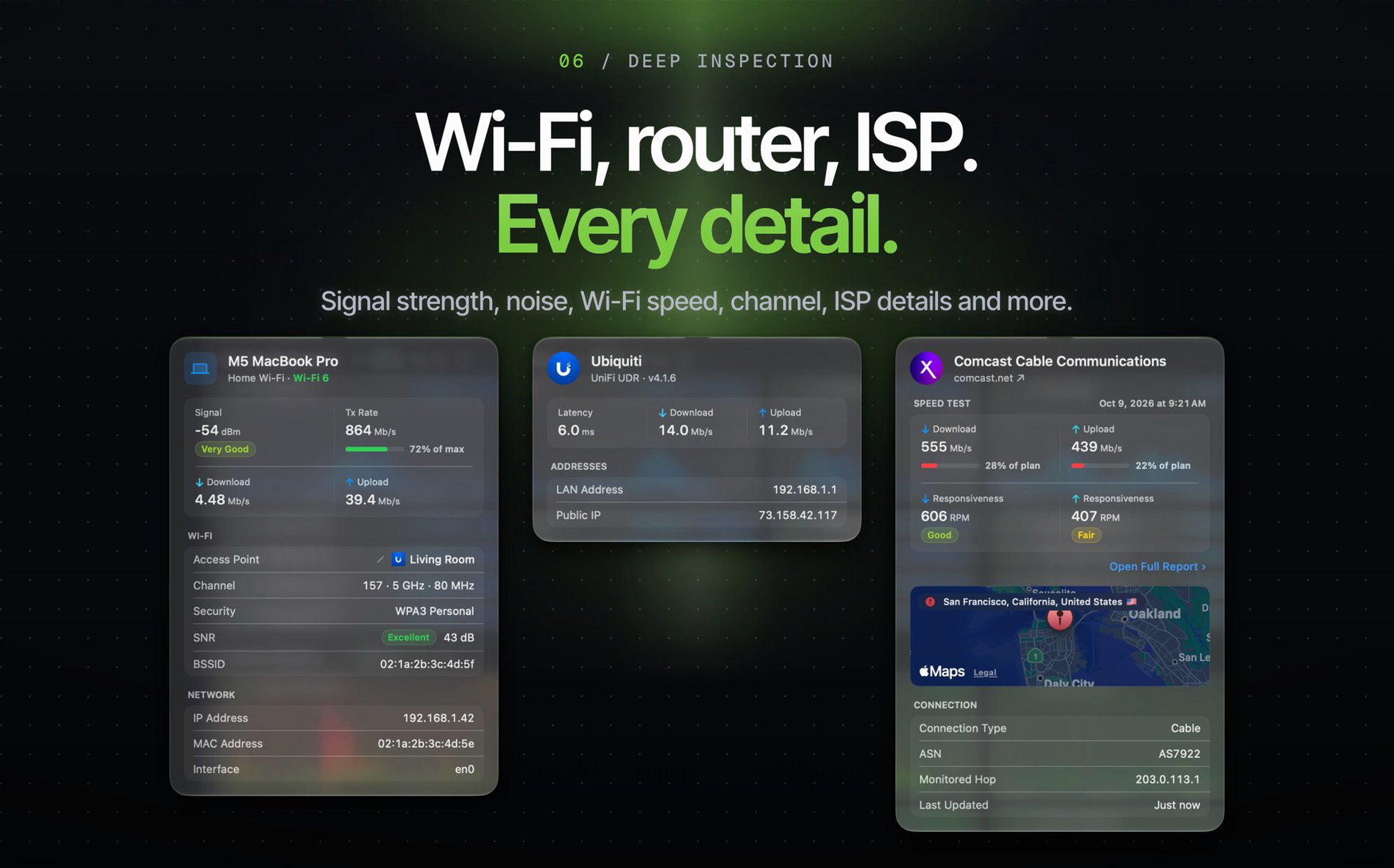
The Wi‑Fi Intelligence feature gives you a live read of your wireless signal quality, which is handy if you move between rooms or work near interference. The Liquid Glass Dashboard reworks the visual layout so the numbers and graphs stay readable even when you only glance at the menu bar. It’s all in English, requires macOS 14.6 or later, and works on both Intel and Apple Silicon Macs.
Menu bar icon tracks traffic patterns from boot
I usually leave PeakHour 6 running in the background from the moment I start my Mac. The menu bar icon updates constantly, so I get a feel for normal traffic patterns early on. During a typical evening, I might notice the graph spiking while I’m uploading a mix to SoundCloud. A quick glance at the menu bar confirms the upload is saturating the line, which explains why my web browsing feels sluggish.
When I suspect a problem, I open the Liquid Glass Dashboard from the menu bar icon. It shows separate readouts for each monitored device — my Mac, the NAS in the living room, and the router itself. If the NAS shows zero traffic when it should be backing up, I know the issue is local, not with my ISP. The rewritten history charts let me compare today’s pattern with yesterday’s, so I can see if the slowdown is new or normal for this time of day.
After I finish, I close the dashboard and PeakHour 6 stays in the menu bar, ready for the next check. I don’t need to think about it — it just works quietly in the background.
Liquid Glass Dashboard and self-healing outage recovery
The latest update brings a few practical improvements. The Liquid Glass Dashboard is new for version 6, giving you a clearer, more modern view of your network data. The self-healing outage recovery is a real time-saver — if your Wi‑Fi drops briefly, PeakHour 6 reconnects on its own instead of sitting frozen until you relaunch it. The rewritten history charts load faster and show more detail, which helps when you’re trying to track down a recurring slowdown. And the Wi‑Fi Intelligence feature gives you a live signal quality readout, so you can see if moving your Mac a few feet improves things.
No data fix: enable SNMP or UPnP on your router
One thing people hit: PeakHour 6 shows no data for a device. This usually means your router doesn’t have SNMP or UPnP enabled. Check your router’s settings page and turn on one of those protocols, then restart the app. Another common issue — the menu bar icon stays grey or shows zero traffic even when you’re online. That often happens after the Mac wakes from sleep. Give it a minute; the self-healing feature should kick in and reconnect. If it doesn’t, quit and relaunch PeakHour 6 from the Applications folder.
If you’re monitoring a NAS or server and it stops appearing in the device list, verify that the device still has a stable IP address on your network. A DHCP lease renewal can change the IP, which breaks the connection until you re-add it in PeakHour 6’s preferences. For the best results, set a static IP for any device you monitor regularly.
PeakHour 6.2.6 landed — just a maintenance bump to keep things running smooth on the latest macOS.
- macOS 14.6 or later
- Apple Silicon & Intel 64-bit
Kit check at a glance
| System | macOS 14.6 or later |
| Chip | Apple Silicon, Intel 64-bit |
| Download | 18 MB |
| Older pressings | 4 in the crate |








Chat from the booth
Sign in or grab a free account to leave a comment.
Nobody has said a word in the booth yet. If you played a set with this build, tell the next person how it went.