

- Build in the crate
- 26.1.10
- Made by the team at
- COCOATECH
- Menu languages offered
- Russian, English, German, Danish, Spanish, Italian, Chinese (Traditional), Chinese (Simplified), Korean, Dutch, Norwegian, Polish, Portuguese, Slovak, Finnish, French, Czech, Swedish, Japanese
- How you pay for it
- K'ed by TNT team
- macOS it plays on
- macOS 13 or later
- CPU it runs on
- Apple Silicon, Intel 64-bit
Screenshots
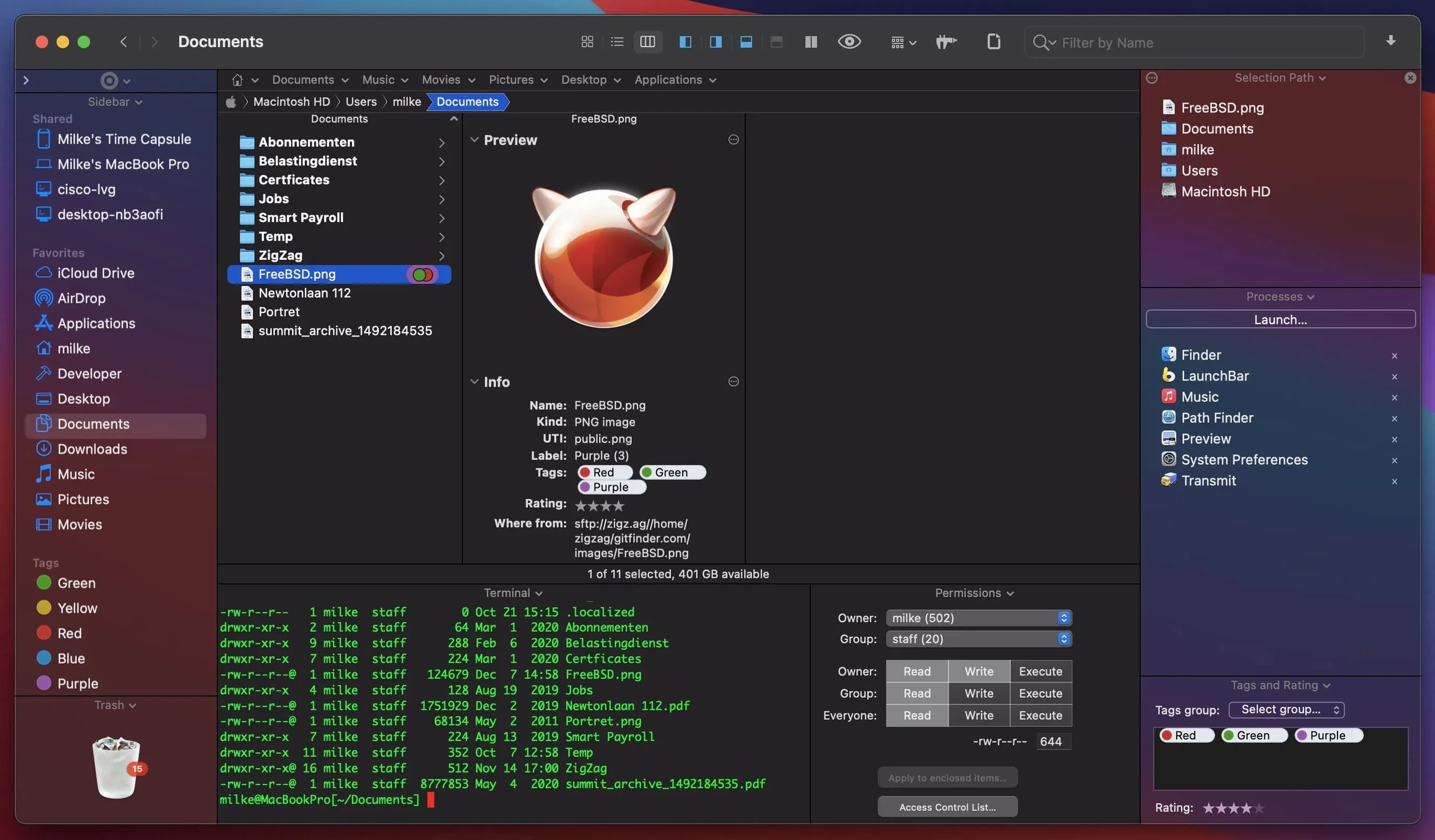
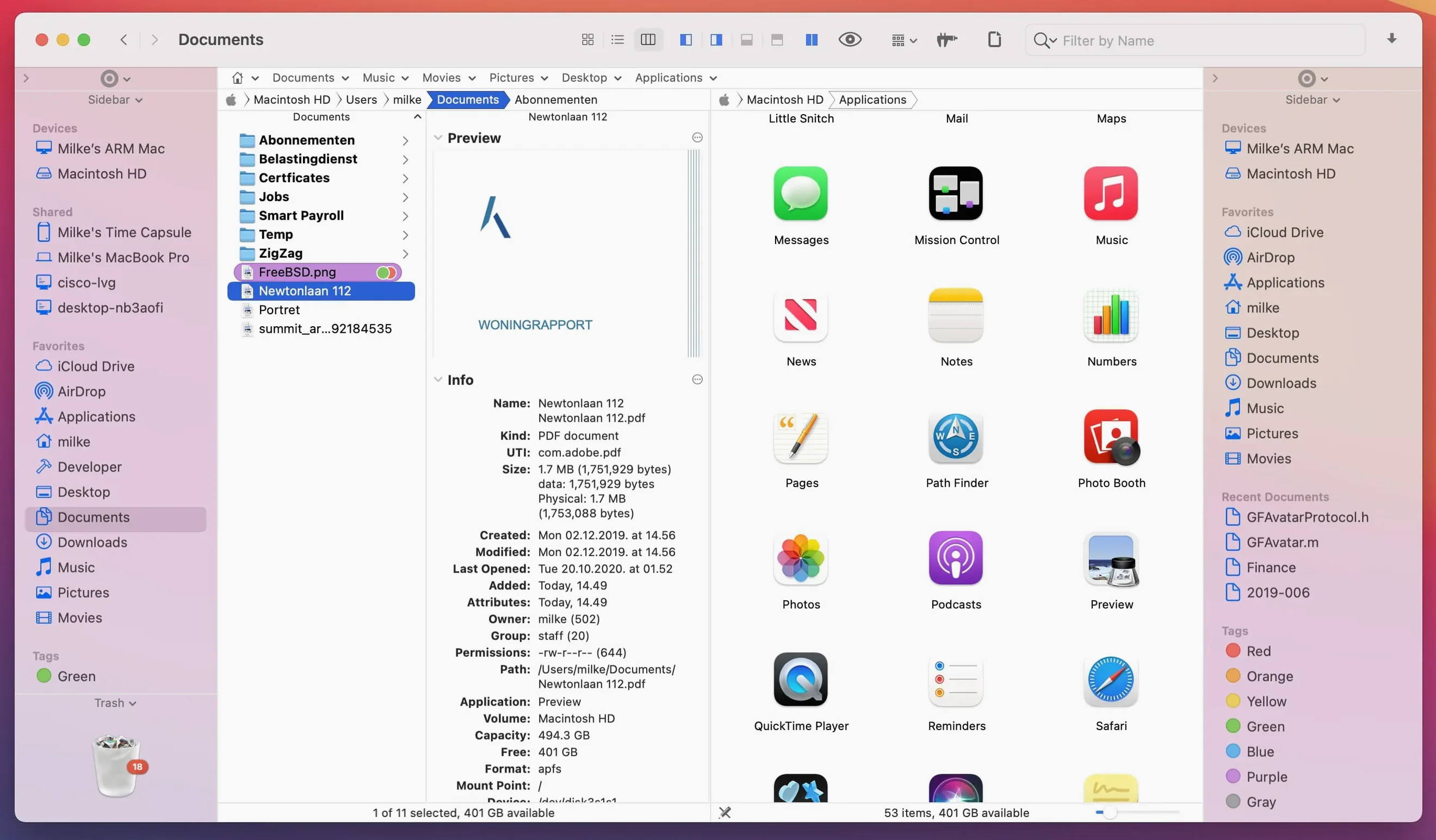
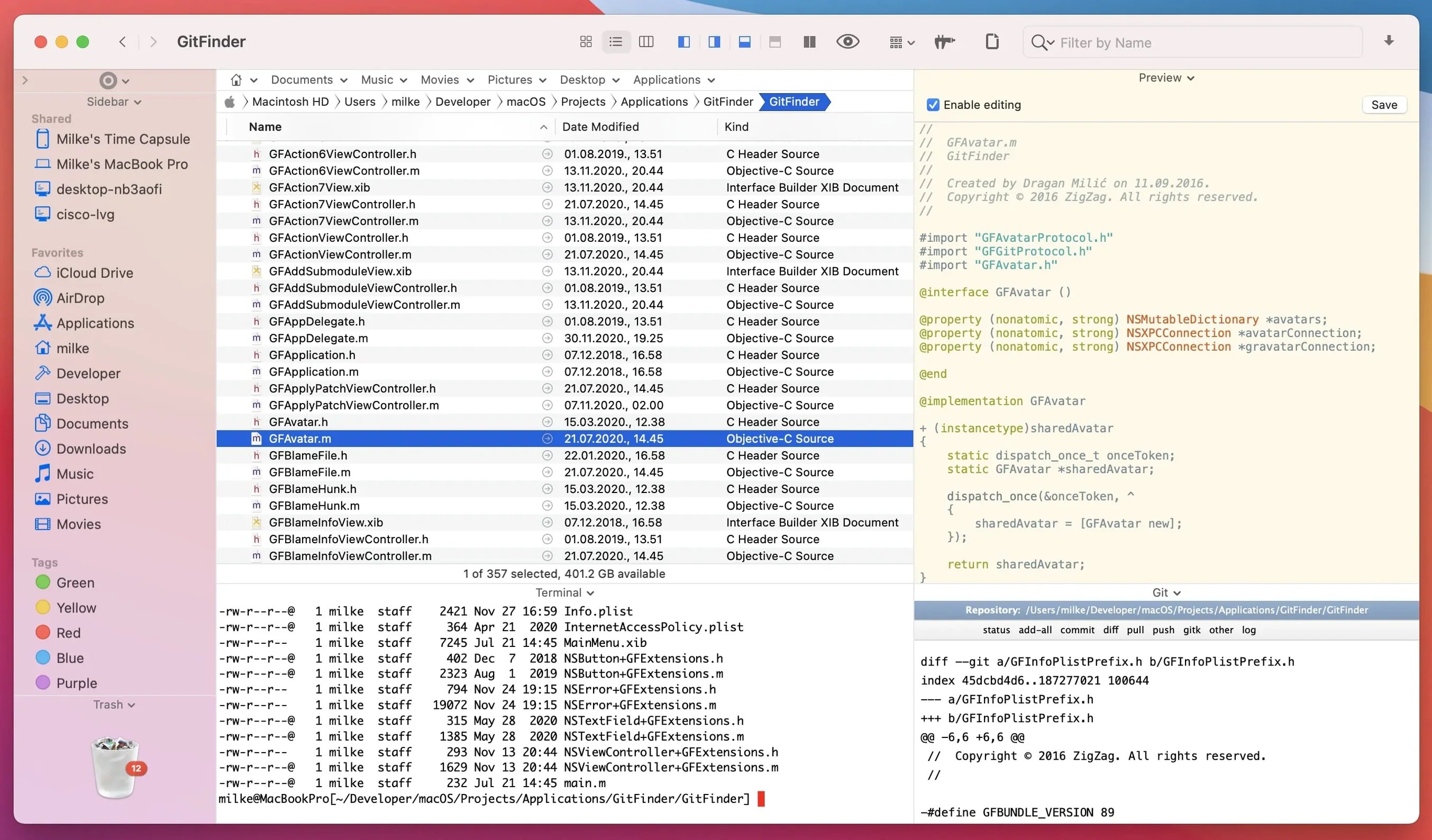
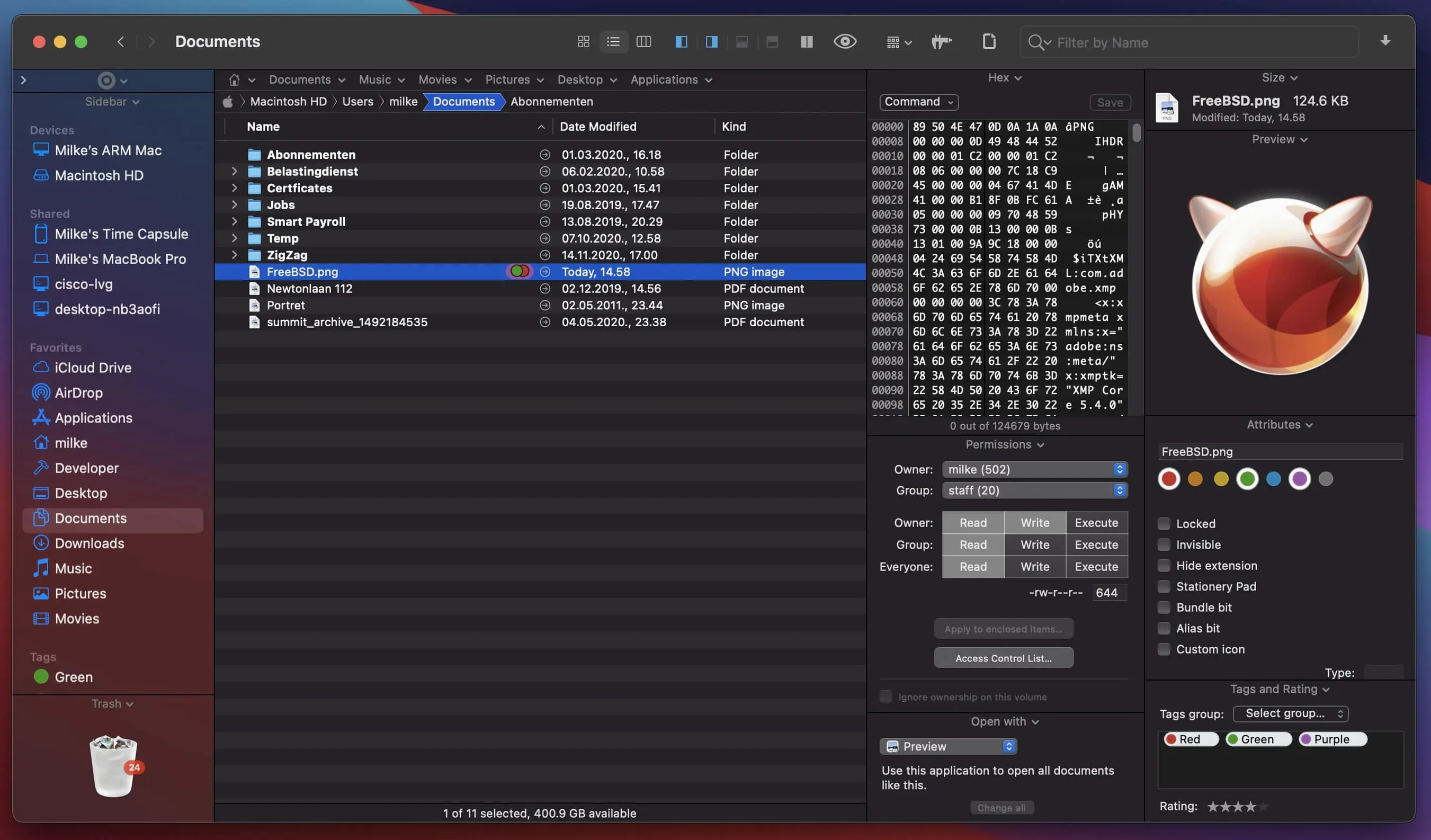
macOS Finder is fine for the basics. But when you regularly work with two folders at once, need an FTP client built in, or want to browse files entirely from the keyboard, the default file manager starts to feel cramped. That is where Path Finder comes in.
Version 26.1.9 keeps the same core toolkit: dual-pane browsing, a text editor, an image editor, an app launcher, and an archive handler. The built-in FTP client saves you opening a separate app. You can also install and uninstall applications from the same window, and change system hotkeys if the defaults don’t suit you.
Good for
- Keyboard-driven file browsing without touching the trackpad.
- Managing files across two panes side by side.
- Running quick edits or launching apps without leaving the file manager.
Keep in mind
- Requires macOS 13 Ventura or later.
- Interface available in 19 languages including English, Spanish, French, Chinese, and Japanese.
- Version 26.1.9 focuses on bug fixes — no new headline features this time.
Fixing a collapsed dual-pane view
Even a solid file manager throws up the occasional odd behaviour. Here are a few things people bump into with Path Finder and the usual way out.
- Dual-pane view won't stay open. Check you haven't accidentally collapsed one pane by dragging the divider too far. Reset the layout under the View menu, or restart the app.
- FTP connection fails. Double-check the server address and port. Path Finder's FTP client expects standard credentials; if you use SFTP, make sure the server supports it. A firewall on your Mac can also block the connection.
- Keyboard shortcuts clash with system ones. Path Finder lets you reassign hotkeys from the Preferences panel. If a shortcut doesn't trigger, look for a conflict in macOS System Settings > Keyboard > Keyboard Shortcuts.
- App installer or uninstaller doesn't see the application. Some apps store components outside the standard
/Applicationsfolder. Drag the main .app bundle into the Path Finder window manually, or use the search by type to locate it. - Preview window shows nothing for certain file types. Path Finder uses Quick Look for previews. If a file doesn't preview, it might lack a Quick Look generator on your system. Installing the right generator usually fixes it.
- List View double-click behaviour feels off. Version 26.1.9 fixed a specific issue where clicking an icon in List View didn't behave as expected. If you still see odd results, reset the view options to defaults.
Most snags come down to settings or system-level conflicts rather than the app itself. A quick check of Preferences and macOS permissions covers the ground.
Compatibility with Ventura and Apple Silicon
Path Finder 26.1.9 runs on macOS 13 Ventura and later. It works on both Intel and Apple Silicon Macs, so whether you're on an older Intel machine or an M-series chip, it will install without trouble.
The app ships as a disk image. You mount it, drag the application to your Applications folder, and open it. Once installed, the app asks for the usual permissions: accessibility access if you want keyboard control, and disk access if you manage files outside your home folder.
Languages cover 19 options including English, Russian, Spanish, French, German, Chinese, Japanese, and Korean. The interface switches immediately when you change the system language or select one inside the app.
Sorting WAV exports into subfolders
You open Path Finder and land on a dual-pane view. On the left, your Downloads folder. On the right, a project folder for a client's music files. You've got a dozen WAV exports to sort into subfolders by track name.
Instead of dragging each file one by one, you switch to keyboard browsing. Arrow keys move the selection; Return opens a folder. You select a batch of files and hit the batch rename tool. The dialog lets you add a prefix, change case, or renumber the lot. In version 26.1.9, a previous limitation on renaming 31 files at once is fixed, so larger batches work without glitches.
Later, you need to grab a PDF from a remote server. You open the built-in FTP client from the toolbar, enter the address and credentials, and the remote folder appears in one pane. Drag the PDF to the local pane. Done.
One of the WAV files has a silent section at the start. You right-click and choose Edit with Text Editor (or the image editor for album art). The quick edit tool opens in a tab, you trim the silence, save, and close.
Path Finder scans for the app's support files and preferences, lists them, and removes everything in one pass. No leftover plists cluttering your Library.
The session never leaves the same window. Tabs keep your places, the dual panes show source and destination, and the preview panel lets you check files before moving them. It's a workflow that stays out of your way once you learn the few quirks.
- Fixed double-click behaviour in List View.
- Fixed batch rename limit when renaming 31 files.
- Fixed multiple-item selection in List View.
- Fixed label, tag colour badges and iCloud status icons in Icons, List, and Columns views.
- Fixed drag-and-drop selection drawing in Icons View.
- Fixed drag-and-drop slide-back animation in all view types.
- Fixed menu item icons on macOS 27 Golden Gate.
- Fixed minor UI and compatibility issues on macOS 27 Golden Gate.
- macOS 13 Ventura or later
- Intel or Apple Silicon
Kit check at a glance
| System | macOS 13 or later |
| Chip | Apple Silicon, Intel 64-bit |
| Download | 26 MB |
| Older pressings | 2 in the crate |







Chat from the booth
Sign in or grab a free account to leave a comment.
Nobody has said a word in the booth yet. If you played a set with this build, tell the next person how it went.