
- Build in the crate
- 27.0.3-58680
- Made by the team at
- Parallels International GmbH
- Menu languages offered
- Russian, English, German, Spanish, Italian, Chinese (Simplified), French, Japanese
- How you pay for it
- K'ed by QiuChenly Crack Team
- macOS it plays on
- macOS 26 or later
- CPU it runs on
- Apple Silicon
Screenshots
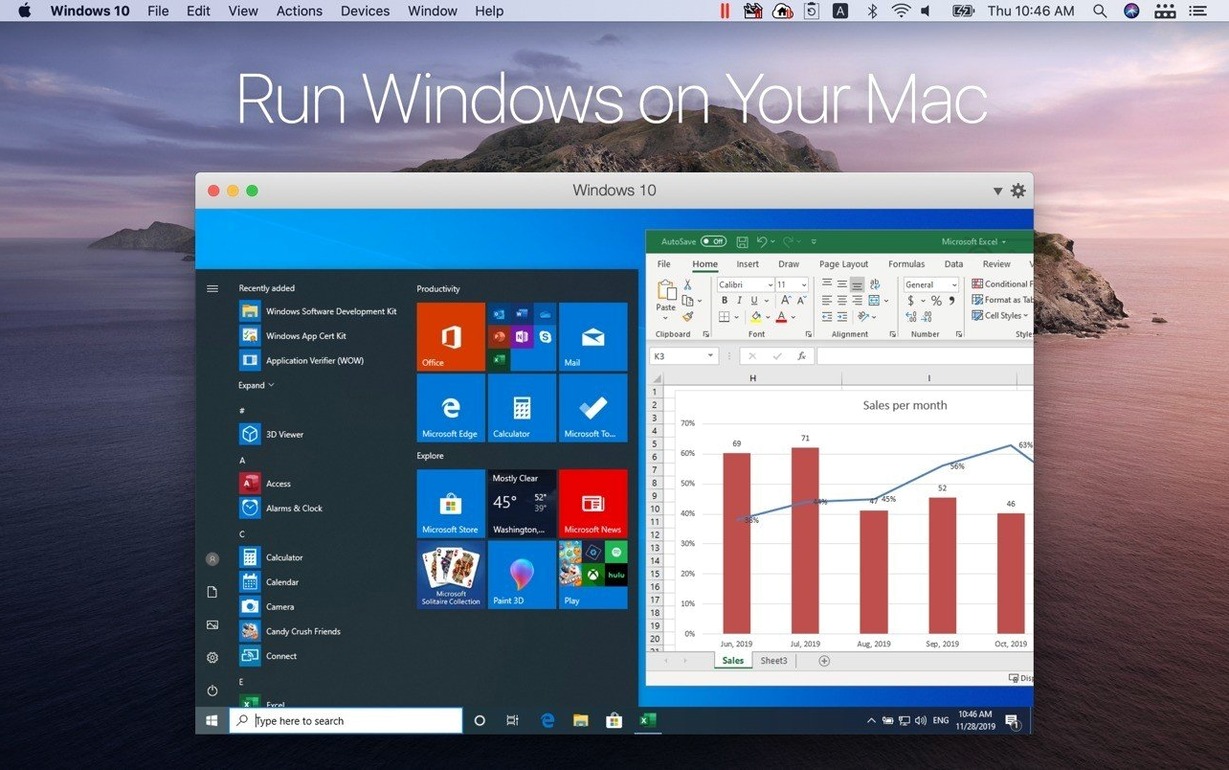
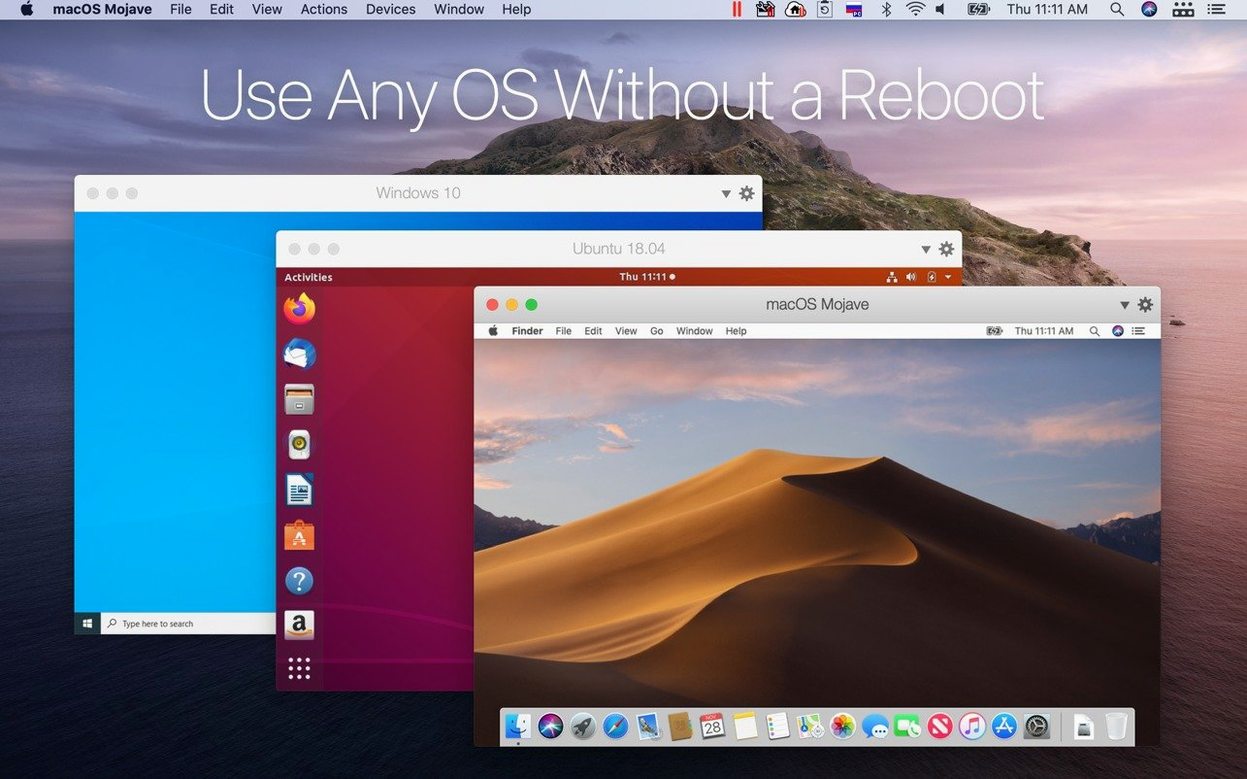
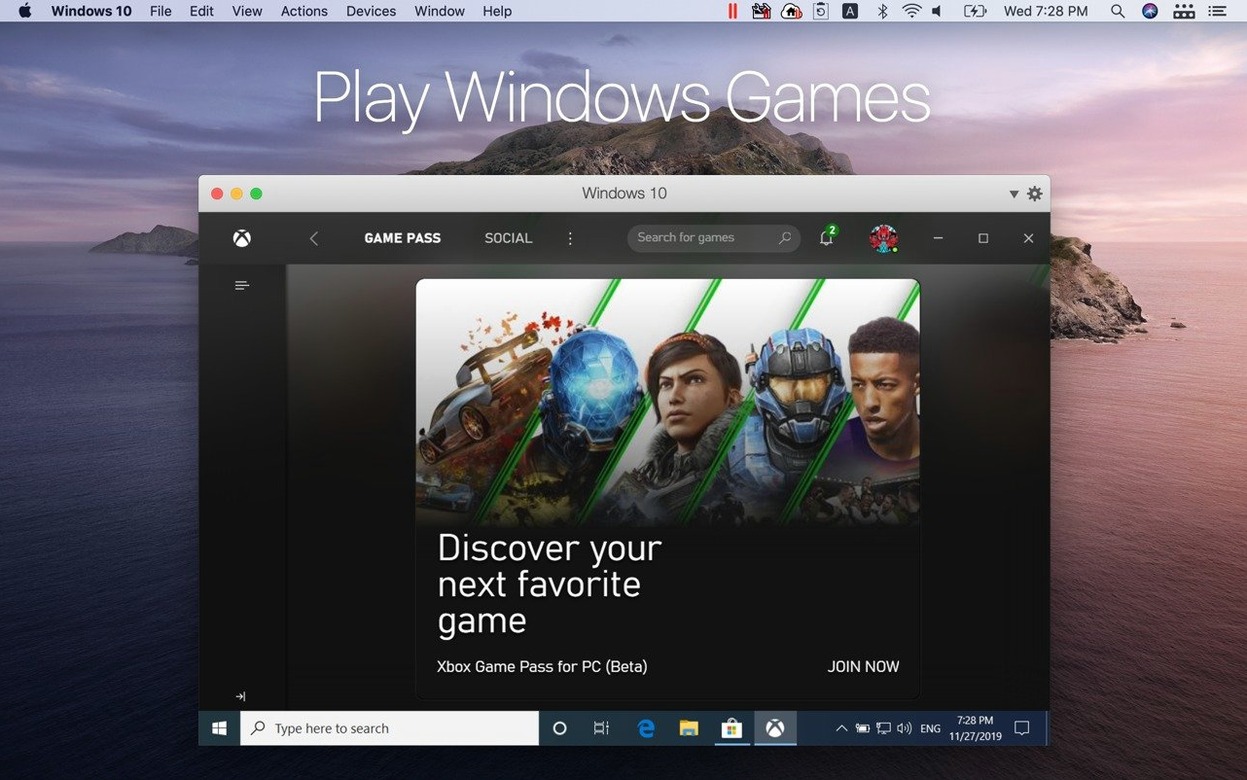
Parallels Desktop 27.0.2 (58673) landed with a focus on stability and security, plus out-of-the-box support for the latest Linux releases: Ubuntu 26.04 LTS, Fedora 44, Debian 13.6, and Kali Linux 2026.2. It also picks up ARM SystemReady SR 3.1 certification, which keeps the virtual machines aligned with the hardware standards.
For a music student who lives in both macOS and Windows worlds, this is the bridge. You can run Windows in a window or go full screen, copy and paste text and images between the two systems, and drag files straight from a Mac folder into a Windows app. Coherence mode goes further: it hides the Windows desktop entirely, so you just see the Windows apps sitting next to your Mac ones.
Here's what the main terms mean:
- Virtual machine — a full operating system running inside a window on your Mac, isolated from macOS.
- Coherence mode — Windows apps appear on the Mac desktop without the Windows interface around them.
- ARM SystemReady — a certification that ensures the virtual hardware works smoothly with ARM-based operating systems.
- Apple Silicon — the M-series chips in modern Macs; this version is built for them.
Parallels Desktop is a utility that makes sense if you need Windows software, Linux tools, or just want to test things without leaving macOS. It's the kind of tool that quietly does its job until you need it — then it's essential.
Setting up your first virtual machine
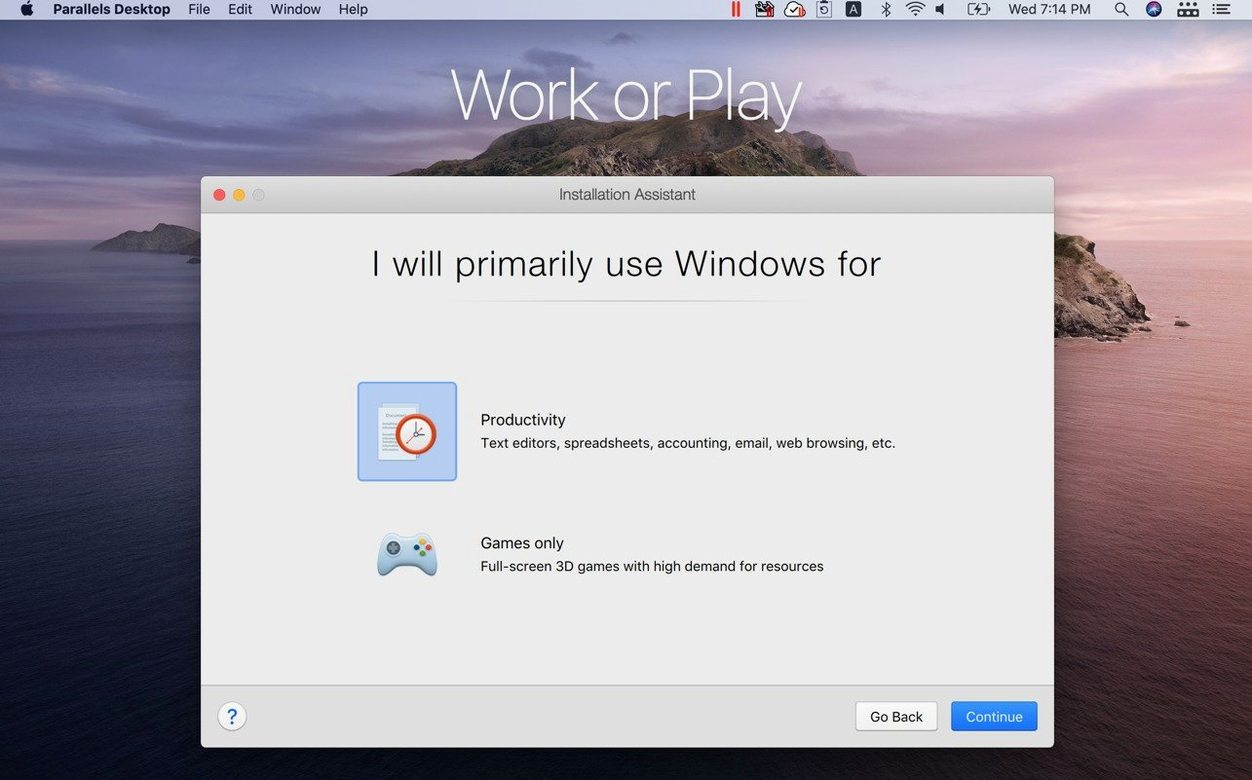
Once Parallels Desktop is up and running, spend a few minutes setting up your first virtual machine. The assistant walks you through it: pick Windows or Linux, point it at an installation image, and let it do the initial setup. For Windows on Apple Silicon, you need the ARM version of Windows — the standard x86 version won't install. The process is straightforward, and the assistant handles the partitioning and driver setup on its own.
After the guest system boots, check the shared folders. By default, Parallels Desktop creates a shared folder between macOS and the virtual machine. Drag a test file from your Mac desktop into the Windows Documents folder and back again — if that works, you're set. Copy some text on the Mac side, then paste it into a Windows app. If the clipboard doesn't work straight away, restart the guest once; the Parallels Tools install during the first boot and sometimes need a reboot to activate fully.
Try Coherence mode early. It's one of those features that changes how you think about having two operating systems. Click the Coherence button in the Parallels menu bar, and the Windows desktop disappears. Your Windows apps get their own icons in the Mac Dock, and you can launch them like any Mac app. It takes a moment to get used to, but after an hour you'll wonder why you ever ran Windows in a window.
Set up a snapshot before you install anything. Snapshots let you roll back the virtual machine to a clean state if something goes wrong. Take one right after the guest OS finishes installing, then another after you install your main applications. It's a safety net that costs nothing and saves time.
Carla tests Linux builds on an M2 MacBook Air
Mateo's friend Carla is a web developer who works on a MacBook Air M2. She needs to test her code on Linux, but she doesn't want to dual-boot or carry a second machine. She downloads Parallels Desktop and sets up Ubuntu 26.04 LTS from the supported list. The virtual machine boots in a few minutes, and she installs Node.js, Python, and her usual toolchain.
She keeps the VM in full-screen mode on a second desktop. When she writes code in VS Code on macOS, she copies the files to the shared folder, switches to the Linux desktop with a three-finger swipe, and runs the tests. Dragging a build script from the Mac Finder into the Linux terminal works without a hitch. The clipboard shares between the two systems, so she can copy error messages from the terminal and paste them into a Slack message on the Mac side.
Carla also runs a Windows virtual machine for testing in Internet Explorer — she uses the same Parallels Desktop installation, just a different VM file. She keeps the Windows VM in Coherence mode so the browser window sits on her Mac desktop like a regular app. For her, Parallels Desktop is the only tool that lets her test across three operating systems without rebooting.
Before installing Parallels Desktop
Built exclusively for Apple Silicon
Yes, this version is built exclusively for Apple Silicon. Support for Intel Macs was dropped in Parallels Desktop 27, so if you're on an older Intel Mac, you need an earlier version. On M-series chips, the virtual machines run natively on ARM — Windows for ARM, Linux for ARM, and x86 emulation for older Linux distributions when needed. The performance is good enough for everyday tasks, office work, and development.
Boot Camp support removed in version 27
No. Boot Camp support was removed in version 27. If you relied on Boot Camp to run Windows on Intel, you won't be able to import that partition into this release. You'll need to install a fresh copy of Windows ARM inside Parallels Desktop.
Which operating systems can I run?
Windows ARM, Ubuntu 26.04 LTS, Fedora 44, Debian 13.6, Kali Linux 2026.2, and other Linux distributions that support ARM. The list of officially tested systems grows with each update — version 27.0.2 added support for those five releases. You can try other ARM-compatible OS images, but they may not have the same level of driver support.
Separate Windows licence required
Yes. Parallels Desktop is the virtualisation layer, but Windows itself requires its own licence.
Modest disk space for the app
The Parallels Desktop application itself is modest.
Shared printer and other hidden features
Parallels Desktop includes a few features that aren't obvious from the main interface but make daily use smoother.
- Shared printer — any printer configured on macOS appears inside the virtual machine automatically. No need to install separate drivers for the guest OS.
- USB device pass-through — plug in a USB drive or a hardware dongle, and you can assign it to the virtual machine from the menu bar. It disconnects from macOS and appears in the guest as if plugged directly into that machine.
- Multiple virtual machine profiles — you can set up separate VMs for different tasks: one for Windows work, one for Linux testing, one for an older project. Each keeps its own settings and snapshots.
- Shared Bluetooth — if you pair a Bluetooth device with macOS, it can also be used inside the virtual machine without re-pairing.
- Automatic Mac-to-Windows folder mapping — the Documents, Desktop, and Downloads folders on the Mac side appear inside the Windows VM automatically, so you don't have to configure them manually.
These aren't flashy, but they cut out the little frictions that make running two operating systems feel like a chore.
- Addresses overall stability and security issues.
- Adds out-of-the-box support for Ubuntu 26.04 LTS, Ubuntu 26.04 LTS x86_64 emulation, Fedora 44, Debian 13.6, and Kali Linux 2026.2.
- Certified as ARM SystemReady SR 3.1 (VE band).
- macOS 26 or later
- Apple Silicon
Kit check at a glance
| System | macOS 26 or later |
| Chip | Apple Silicon |
| Download | 186 MB |
| Older pressings | 98 in the crate |
Chat from the booth
Sign in or grab a free account to leave a comment.
Nobody has said a word in the booth yet. If you played a set with this build, tell the next person how it went.