

- Build in the crate
- 9.3.0 [MAS]
- Made by the team at
- Fausto Ristagno
- Menu languages offered
- English, German, Spanish, Italian, French
- How you pay for it
- K'ed by TNT team
- macOS it plays on
- macOS 14.6 or later
- CPU it runs on
- Apple Silicon, Intel 64-bit
Screenshots
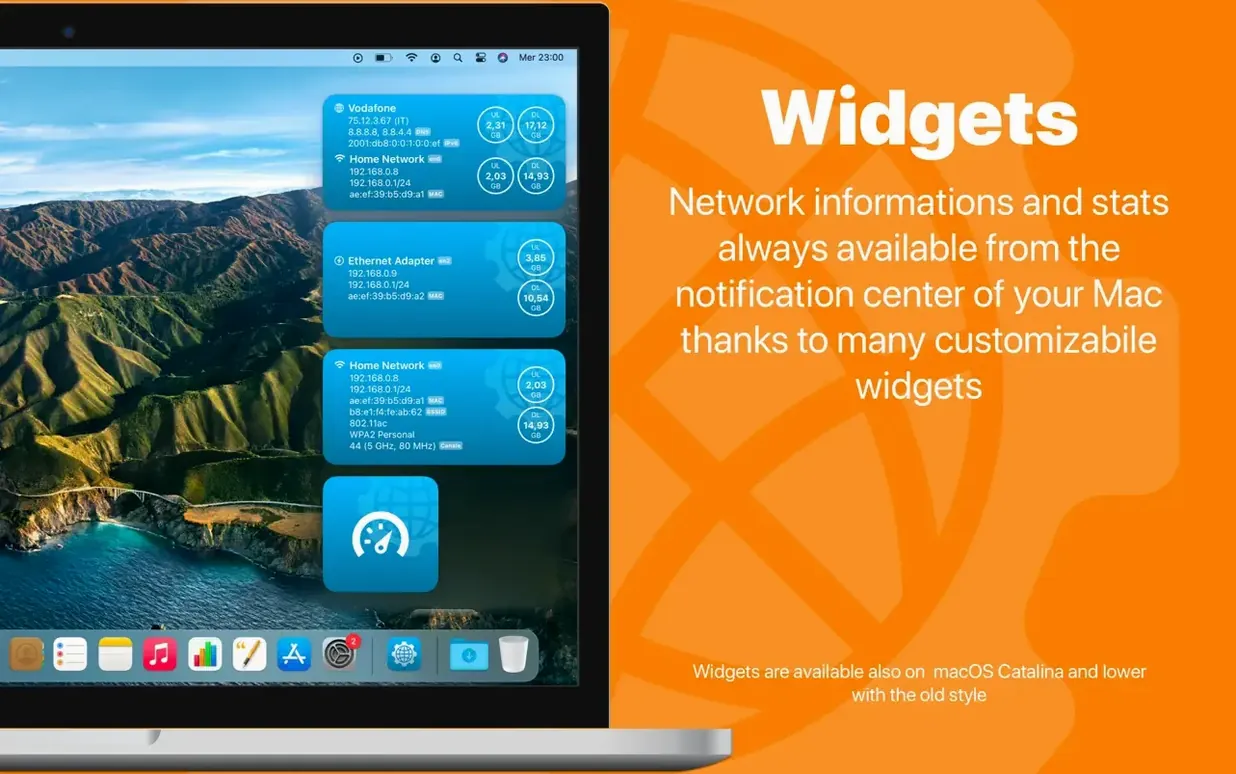

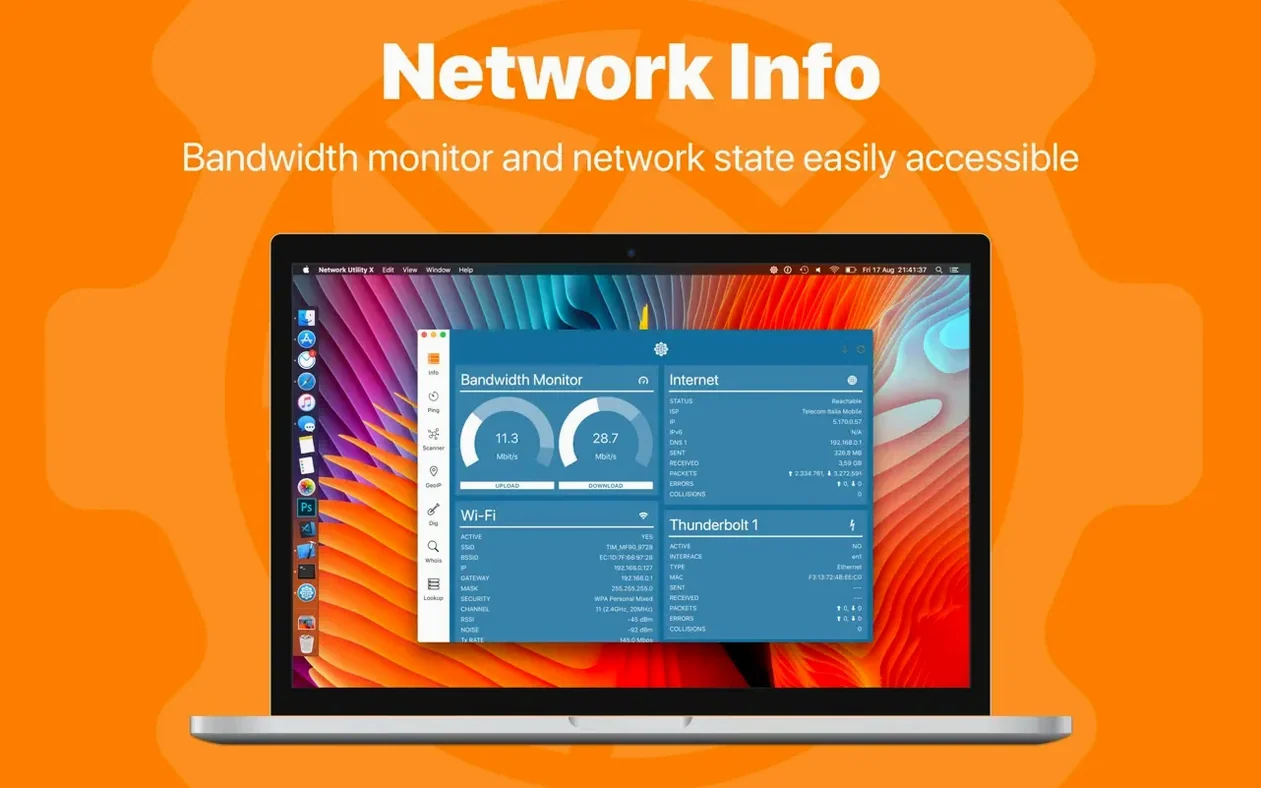
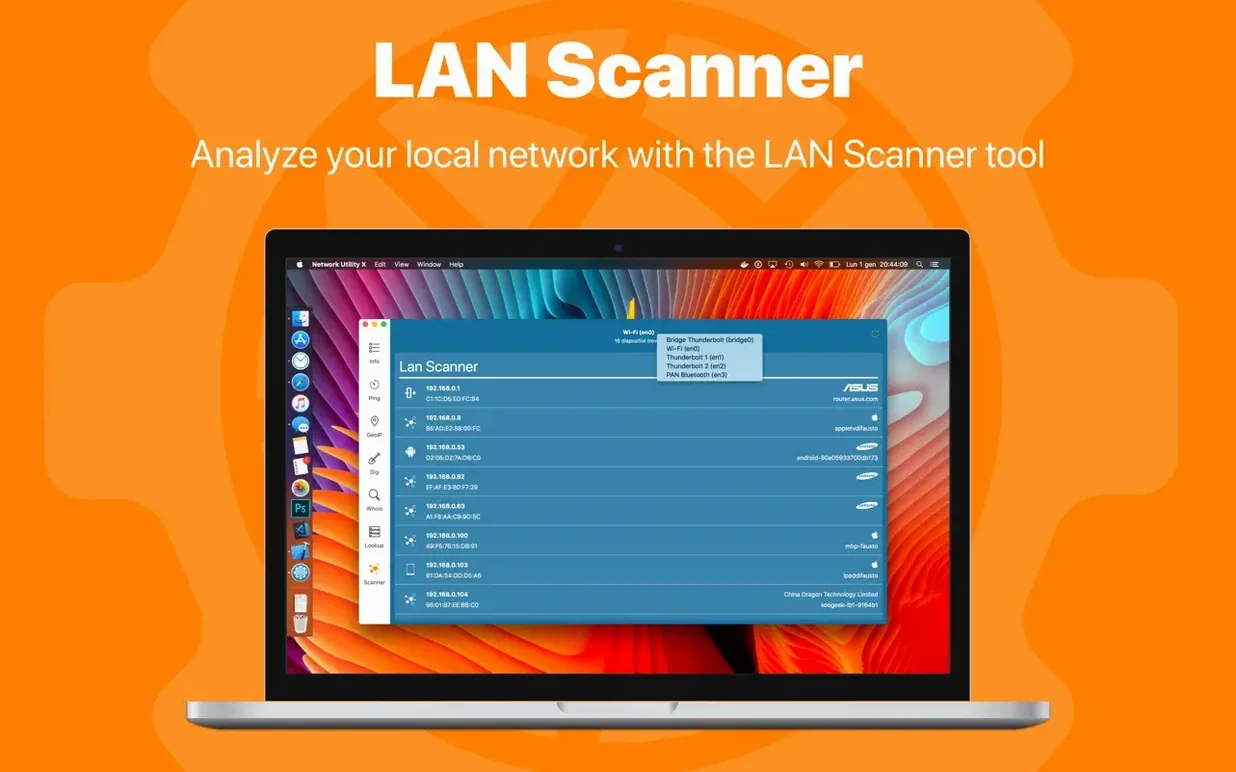


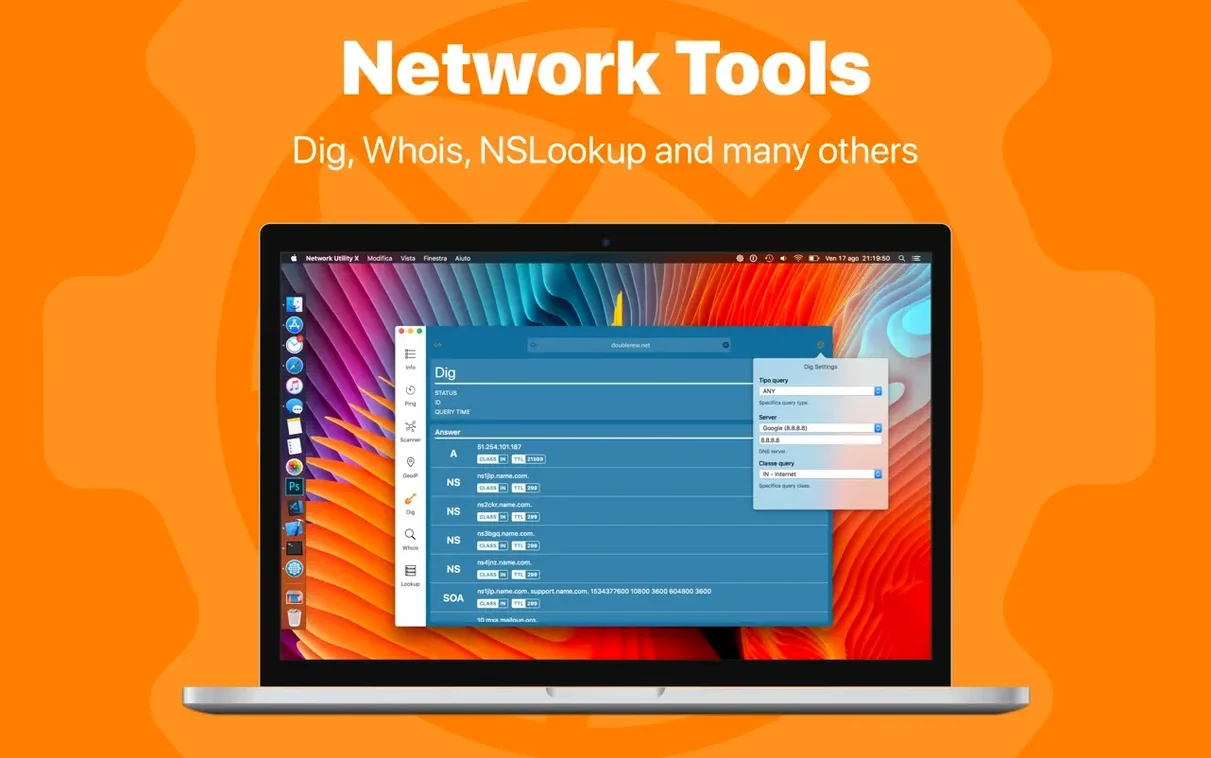
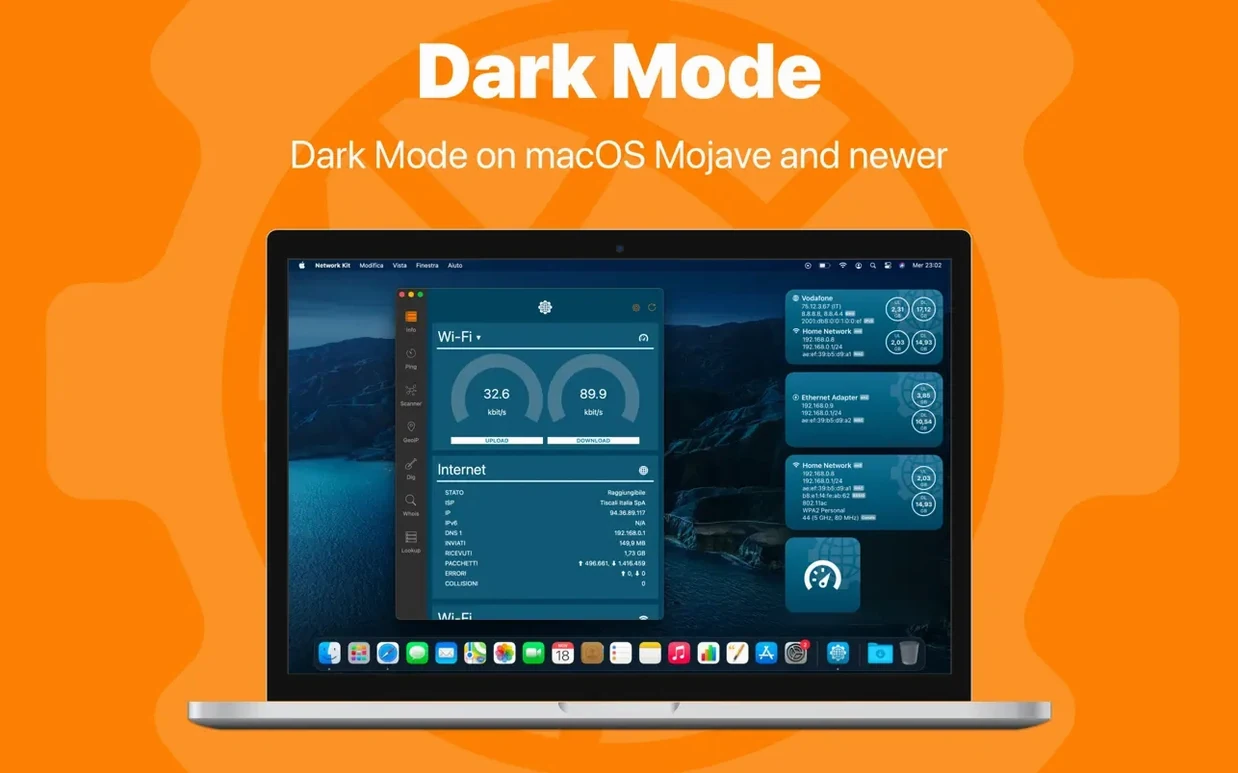
The current version of Network Kit, 9.3.0, keeps the same solid feature set while requiring macOS 14.6 or later. Nothing flashy changed — just the app you know for checking network info.
Check your IP and network details
Network Kit shows internal IP, external IP, ISP name, network name, MAC address, gateway address, subnet mask, and DNS addresses. One glance and you know what your Mac is connected to.
Run a ping test
Ping a domain with a single click. Useful when you want to see if a site is reachable or how your connection holds up.
NSLookup and Dig at your fingertips
DNS troubleshooting is often fiddly, but Network Kit gives you NSLookup and Dig services right in the app. Type a domain, pick the record type, and see what the DNS servers return. No need to open Terminal and remember the flags — it’s all there in a clean interface.
Compatibility with macOS 14.6
The jump to 9.3.0 brought compatibility with macOS 14.6, so the app runs on the latest system without hiccups. For daily use, the core tools are identical: you still get the same one-click ping, Whois, NSLookup and Dig. The real update is under the hood — the app now supports both ARM and x86 64-bit architectures natively, which means it works well on Apple Silicon Macs and older Intel ones alike. No feature was removed, no workflow was disrupted.
Coffee shop Wi‑Fi troubleshooting in action
Picture this: you’re at a coffee shop and your Mac connects to the Wi‑Fi, but a website won’t load. You open Network Kit. First, you check the network interfaces panel to see your current connection details — internal IP, gateway, DNS addresses. Everything looks normal. Next, you run a ping to the domain that’s failing. The results show packet loss. That rules out a local config issue. You switch to the NSLookup tool and query the domain’s A records. The DNS server responds, but with an unexpected IP. A quick Dig query confirms the same. You now know the problem is upstream, not on your machine. Export the raw results with the export button and send them to a colleague. The whole session takes under a minute.
Menu bar IP glance and interface reports
- Status bar mini app — Network Kit lives in your Mac’s menu bar. A click shows your current IP and connection status without opening the full window. Perfect for quick glances.
- Complete report of network interfaces — The app generates a full report of every network interface on your Mac, including IPv6 addresses and data usage statistics. Useful when you need to document your setup for a network kit mac download scenario.
- Export button on every utility — Each tool has an export button that saves the raw textual result. No screenshots, no copying by hand — just a clean text file of what the tool returned.
- Handoff and Continuity — If you use the iPhone or iPad counterpart called Network Utility, you can start a lookup on your Mac and pick it up on your mobile device. The app feels like part of a larger ecosystem.
You can also look up domain ownership through a Whois server. Handy for quick checks on who owns a domain.
- macOS 14.6 or later
- Intel or Apple Silicon
Kit check at a glance
| System | macOS 14.6 or later |
| Chip | Apple Silicon, Intel 64-bit |
| Download | 9 MB |
| Older pressings | 5 in the crate |








Chat from the booth
Sign in or grab a free account to leave a comment.
Nobody has said a word in the booth yet. If you played a set with this build, tell the next person how it went.