

- Build in the crate
- 5.6.3
- Made by the team at
- Figure 53 LLC
- Menu languages offered
- English
- How you pay for it
- K'ed by TNT team
- macOS it plays on
- macOS 11 or later
- CPU it runs on
- Apple Silicon, Intel 64-bit
Screenshots
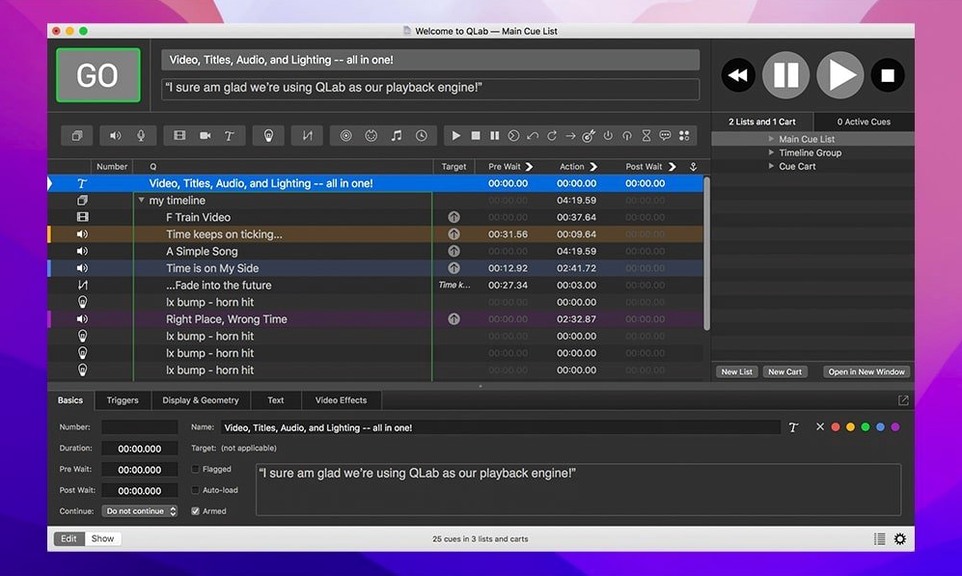
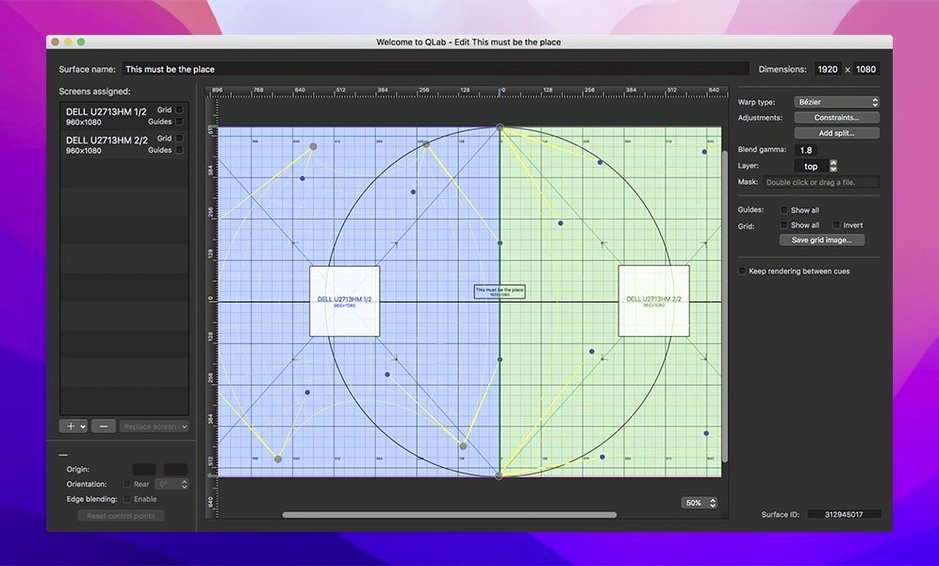
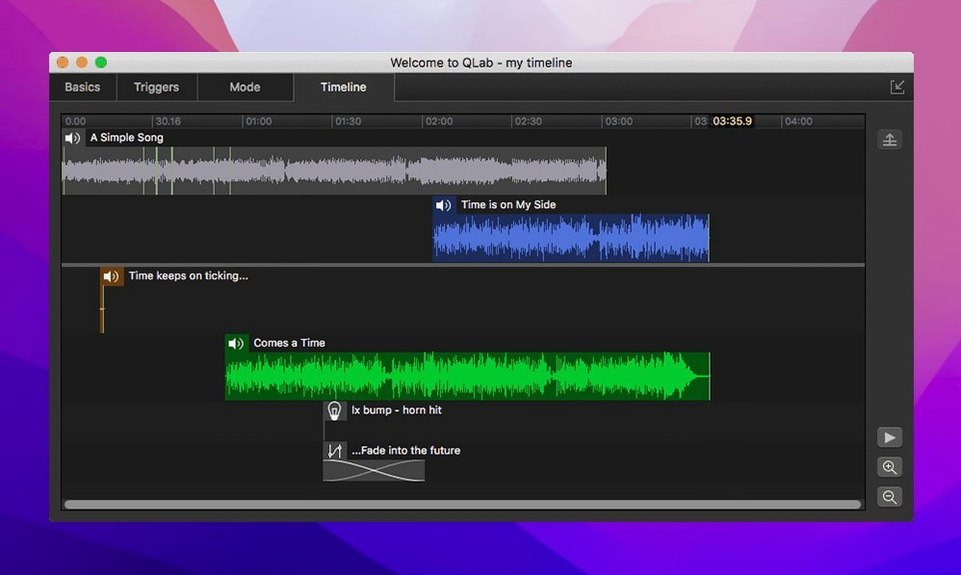
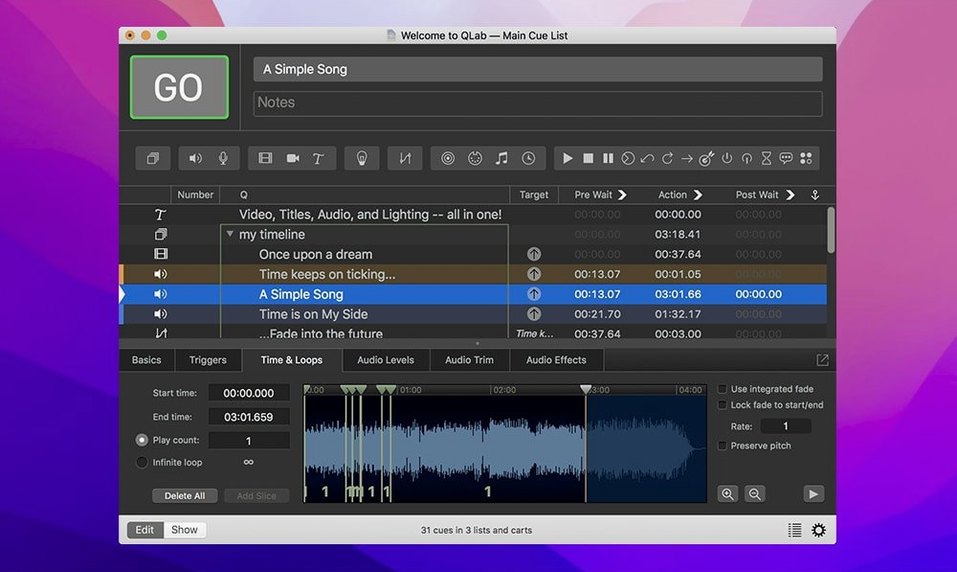
The latest QLab 5.6.3 release fixes a rare crash that could happen when you stop video playback – a small but welcome stability bump for anyone running long shows or installations. If you use the Light Library or Light Definition editor, you'll also notice rows now change colour when an instrument definition is misconfigured, which makes troubleshooting a lot faster when you're setting up a rig.
QLab sits nicely next to the other tools on a Mac. It handles the show control side – sound, video, light and cue triggers – while your usual audio editor or DAW handles the heavy lifting of music production. The integrated audio editor for trimming track starts and ends means you don't have to bounce back and forth for quick edits, and Syphon integration lets you send video out to other apps on the same machine.
With support for 48 audio outputs and 24 inputs, plus keystone correction and corner pinning for projectors, QLab covers a lot of ground. Undo works across changes you make in the app, so you can experiment without fear. It's a solid piece of software for anyone building multimedia projects for live performance.
works alongside Logic Pro and Reaper
QLab doesn't try to replace your audio editor or video editor – it works alongside them. On a typical show Mac, I'd have Logic Pro or Reaper for recording and mixing stems, then QLab handles the playback and cue sequencing. The Syphon integration means you can route QLab's video output straight into apps like Resolume or OBS for further processing or live streaming, all without extra cables or capture cards.
macOS features like Mission Control and Spaces help keep your workspace organised. I'll often put QLab on one full-screen Space, with a MIDI monitor or OSC utility on another. Because QLab supports both MIDI and OSC, you can trigger cues from hardware controllers, touch surfaces, or even a second Mac running a remote app. The built-in network device definition for Right On Cue Services Stage|Tracks in version 5.6.3 makes this workflow smoother if you use that ecosystem.
Audio routing through BlackHole or Soundflower (or macOS's built-in multi-output device) lets you send QLab's 48 outputs to different destinations – front-of-house, monitors, recording bus – while keeping everything in sync. For video, Syphon again shines: you can pipe QLab's output into a capture app or a streaming encoder without visible latency. It's a tidy ecosystem once you've set it up once.
check the Light Patch first
Friday afternoon, the theatre is quiet. The cue list is already laid out – audio files for scene changes, video clips for the projection screen, a few MIDI cues to trigger the house lights.
First, I check the Light Patch editor. Version 5.6.3's new Broken status immediately flags a misconfigured instrument definition in one of the lighting rows. I fix the patching error – a wrong DMX address – and the row turns back to normal. That alone saves me a walk to the lighting desk.
Next, I adjust playback speed on one audio cue – a voiceover that needs to run a bit slower for tonight's performance. The pitch control keeps it natural, no chipmunk effect. I trim the start of the video cue using the integrated editor so it fades in exactly on the beat. A quick test run through the first ten cues confirms everything is in sync.
During the show, I use a MIDI foot controller to advance cues, keeping my hands free. The Syphon feed goes to a second Mac running a live-stream encoder. After the performance, I hit undo to revert a few experimental changes I made during rehearsal, and save the workspace as a new version. That's it – no drama, no fumbling with separate apps.
audio outputs missing? check Audio MIDI Setup
- Audio outputs not showing up. Check macOS Audio MIDI Setup first. QLab sees whatever the system sees. If you've created a multi-output device, make sure it's selected in QLab's audio preferences. Restarting QLab after changing audio devices often helps.
- Video won't play on the projector. Keystone correction and corner pinning are great, but if the output window isn't positioned correctly, you'll see nothing. Set the video output to full-screen on the correct display in QLab's workspace settings.
- MIDI cues not triggering. Verify the MIDI port is enabled in QLab's MIDI settings. If you're using a USB controller, macOS should see it – but sometimes unplugging and reconnecting it while QLab is open does the trick.
- Light Library rows stay red after fixing. The misconfiguration colour in version 5.6.3 only updates when you close and reopen the editor. Do that, and the row should reflect the corrected definition.
- QLab crashes on stopping video. The 5.6.3 release fixed a rare crash there. If you're still seeing it, check that your video files are in a supported format (H.264 or ProRes usually work best). Also, avoid having too many video cues running simultaneously – macOS memory management has limits.
- Syphon output not showing in other apps. Make sure both QLab and the receiving app are running on the same Mac. Syphon is local only – it doesn't work over a network. Restart both apps if the feed doesn't appear.
runs on Intel and Apple Silicon Macs
Will it work on an Intel Mac? Yes, QLab 5.6.3 runs natively on both Apple Silicon and Intel Macs. I use it on an M2 machine, but colleagues with older Intel Macs report no issues – just make sure you're on macOS 11 or later.
Do I need a powerful Mac? For audio-only shows, almost any Mac that meets the system requirements will do. Video-heavy projects with multiple layers or live input benefit from more GPU memory and RAM. A MacBook Air with M2 handles moderate video cues fine; a MacBook Pro with extra GPU cores gives you more headroom for complex projection mapping.
Can I control it from an iPad or another computer? Yes, through MIDI over network or OSC. You can set up a remote control workspace on a second device using the same network. The Stage|Tracks integration in 5.6.3 makes this even more straightforward if you're using that service.
What about Blackmagic devices? QLab supports live video input from external devices, including Blackmagic capture cards. This is useful for live camera feeds that need to be mixed with pre-recorded video in the same cue list.
Is the integrated audio editor enough? For trimming start and end points, yes. If you need to compress, EQ or mix multiple tracks, you'll still want a proper DAW. QLab is a playback and control tool, not a full audio workstation – and that's fine. It does one job well.
Can I use it for installations? Absolutely. The cue-based timeline, MIDI and OSC support, and 48 audio outputs make it suitable for museum installations, art galleries or any environment where you need timed playback with external triggers. The undo feature is especially handy when you're iterating on a sequence on-site.
- Rows in the Light Library or Light Definition editor now turn a different colour when an instrument definition in the row is misconfigured.
- Workspaces from 5.6.2 and earlier migrate to the built-in network device definition for Right On Cue Services Stage|Tracks.
- macOS 11 or later
- Intel or Apple Silicon
- Interface in English
Kit check at a glance
| System | macOS 11 or later |
| Chip | Apple Silicon, Intel 64-bit |
| Download | 34 MB |
| Older pressings | 1 in the crate |


Chat from the booth
Sign in or grab a free account to leave a comment.
Nobody has said a word in the booth yet. If you played a set with this build, tell the next person how it went.