

- Build in the crate
- 4.3.1
- Made by the team at
- Apple
- Menu languages offered
- English, German, Spanish, Chinese (Simplified), French, Japanese
- How you pay for it
- K'ed by Antibiotics x TEAM EDiSO
- macOS it plays on
- macOS 15.6 or later
- CPU it runs on
- Apple Silicon
Screenshots
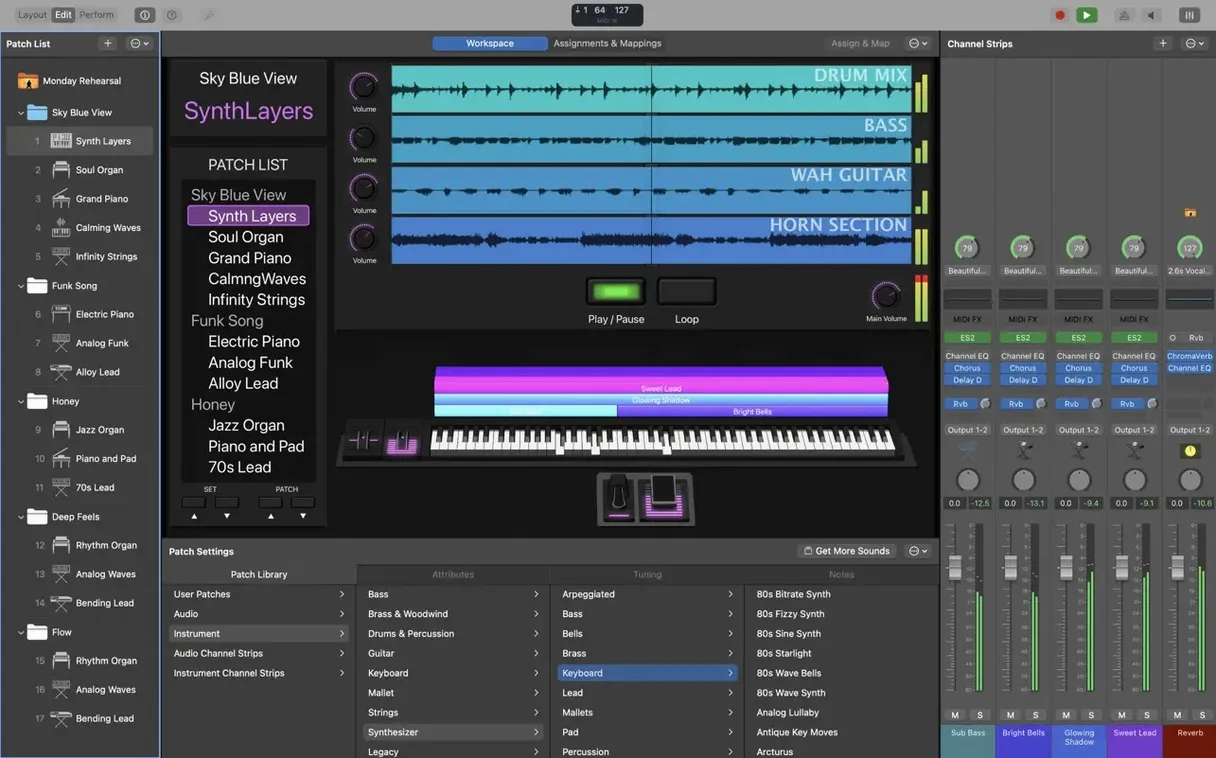
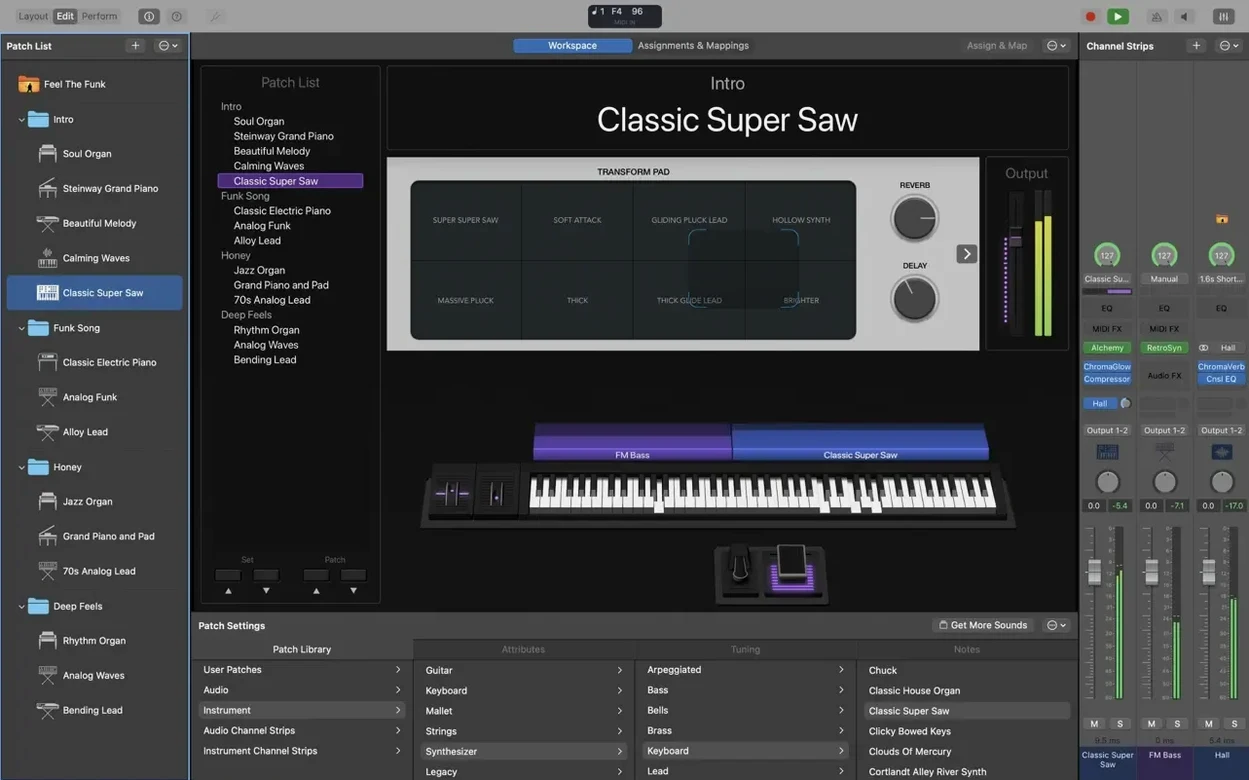
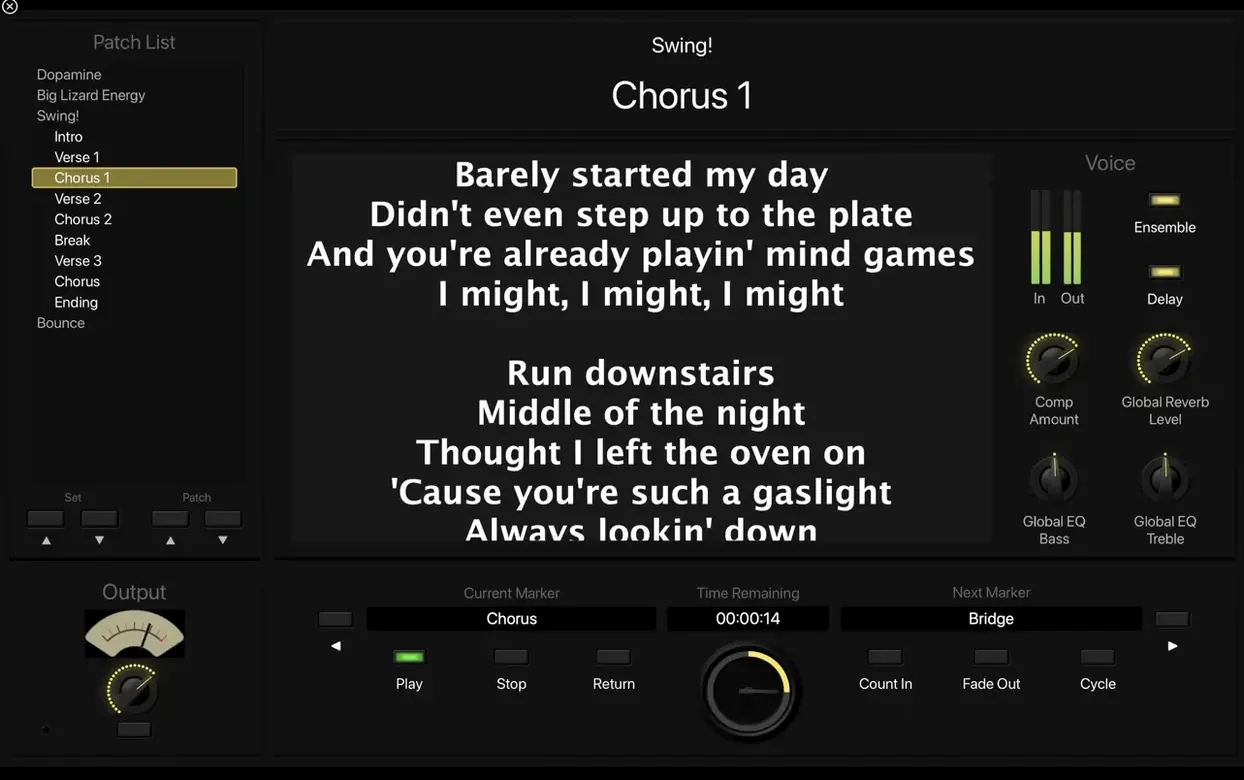
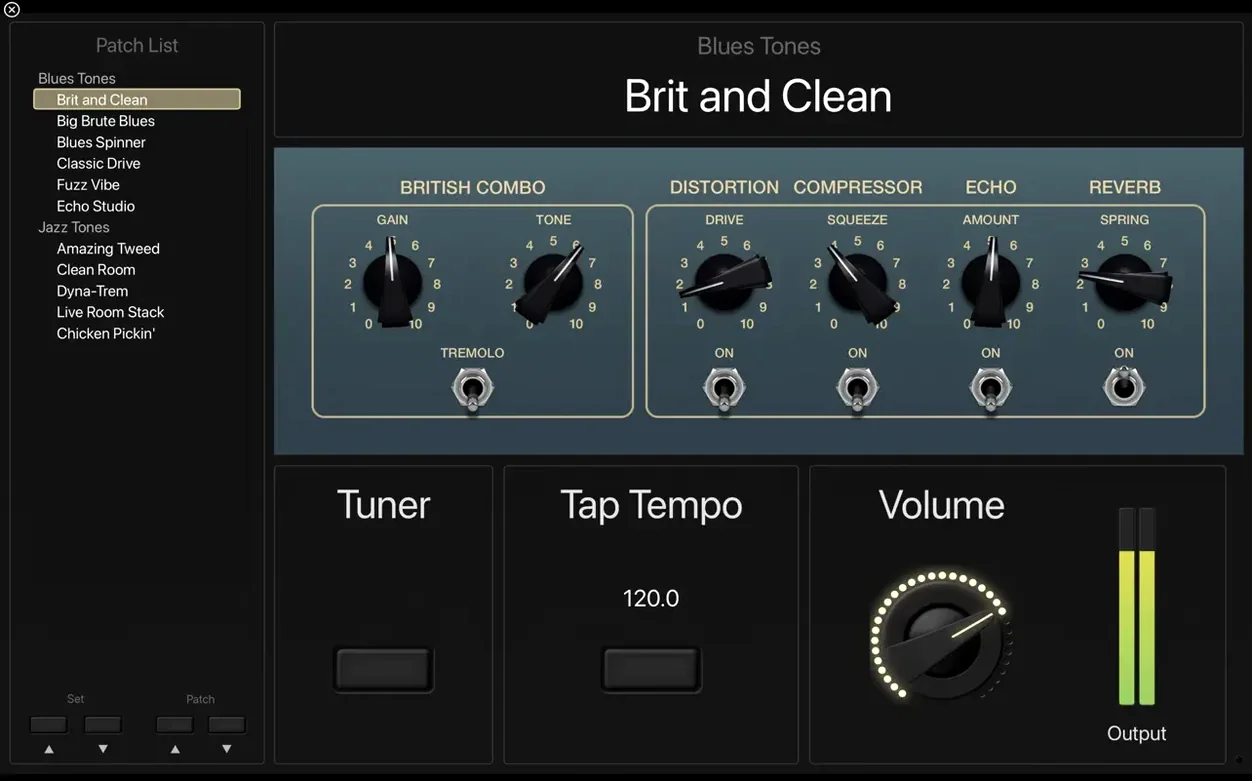
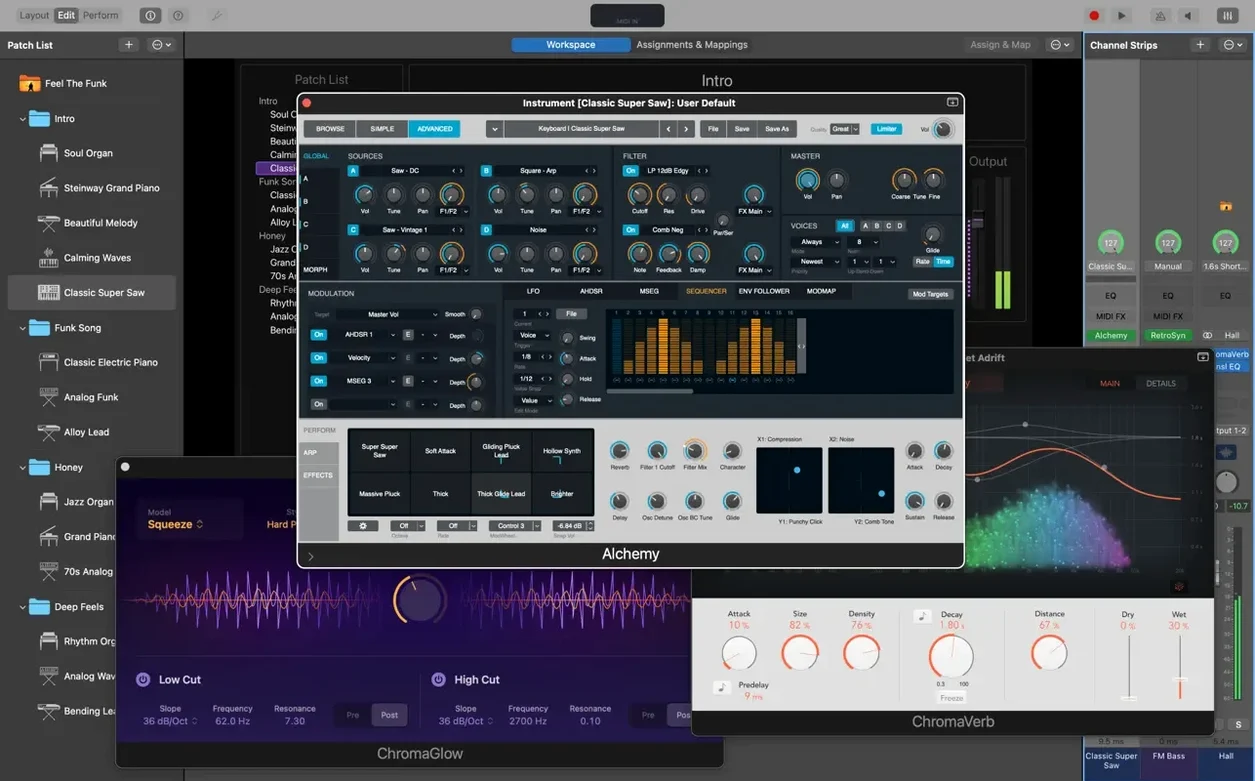
MainStage is Apple's Mac app for live performance, built to turn your laptop into a stage-ready rig with full-screen control and a deep library of instruments and effects.
For experienced users, the real depth sits in the details:
- Guitar and bass tools — Amp Designer, Pedalboard, and a full-screen tuner cover the essentials without extra hardware.
- Space Designer and tape delays — plus multi-tap and stereo delays, so you can shape ambience and rhythm live.
- Touch Bar support on MacBook Pro for quick edits and workspace control mid-set.
- Logic and GarageBand sounds — your existing patches and loops work here too.
- Over 750 sampled instruments and 80-plus instruments, effects, and MIDI plug-ins, including 4,600 Apple Loops in dance and electronic genres.
- 64-bit Audio Unit plug-ins — the current standard, so your third-party gear stays compatible.
Choose how much of the 57 GB Sound Library to install
Once MainStage 4.3.1 is on your Mac, the first thing to do is decide how much of the Sound Library you need. A full installation takes 57 GB. If you mainly play piano and organ, the minimal 6 GB installation covers you. You can add individual instrument packs later through the Sound Library manager inside the app.
Next, set up a simple test concert. Create one patch with a piano sound from the library. Assign a MIDI controller if you have one — any class-compliant keyboard should work over USB. Play through a few notes to confirm audio output. This basic check saves headaches later.
After that, try a patch with two instruments layered. Pick a pad sound and add a bass synth underneath. Use the channel strip controls to balance their levels. This is where MainStage starts to feel like a real performance tool rather than a practice toy.
Finally, run through a few patch changes while holding a note. The app is built to switch without cutting off sound, but it is worth testing with your specific patches. If you hear a gap, check whether the previous patch has long reverb tails or sustain that need to fade naturally.
Fix audio drops by raising the buffer size
A few issues come up regularly, especially when people first move from a DAW to a live environment.
Audio drops or crackles. This usually points to the buffer size being too low for the patch load. Open the audio preferences and increase the I/O buffer size. 256 or 512 samples is a safe starting point for live use. Higher settings add latency but keep the sound stable.
MIDI controller not responding. Check that the controller appears in the MIDI preferences and that its port is enabled. If you are using a multi-channel controller, make sure each channel strip is set to receive on the correct MIDI channel. The default is Omni, which works for most setups.
Patch changes take too long. Complex patches with many plug-ins can cause a short delay. The workaround is to use the Set and Patch organisation wisely. Keep your most-used sounds in a single Set so the app can preload them. Avoid jumping between drastically different Set configurations mid-song.
Plug-ins from Logic or GarageBand don't appear. MainStage scans Audio Unit plug-ins at launch. If a plug-in is missing, run the Audio Unit Manager from the Preferences menu and rescan. Some older 32-bit plug-ins will not load — only 64-bit Audio Units are supported.
Sound Library downloads stall. If you are installing the full library and the download pauses, pause and resume from the Sound Library manager. A stable internet connection helps. You can also download individual instrument packs instead of the whole library at once.
Open the full-screen tuner from the toolbar
MainStage has several details that are not obvious on first look but make a difference during a set.
- The full-screen tuner is always accessible from the toolbar. It works with both electric and acoustic instruments, no extra pedal needed.
- Smart Controls let you assign the most important knobs and faders for each patch. Set up once, and every patch shows only what you need for that song.
- The Playback plug-in handles stereo or multichannel backing tracks. You can trigger them from the same patch that contains your live instruments, so no second app is required.
- Patch List keyboard entry was fixed in version 4.3.1 — you can now type numbers directly into the Add Channel Strip window without accidentally switching patches. A small fix that saves frustration when building sets quickly.
- MIDI SysEx messages were blocked in earlier versions. That is fixed now, so hardware synths and controllers that rely on system exclusive data will work properly.
- Scripter receives MIDI messages on patch change — if you use Scripter for custom MIDI processing, it now gets the message reliably when you move between patches.
Set up for a club gig with just a MacBook and interface
Friday evening, a small club gig. I arrive an hour early, plug the MacBook Air into the house sound system via a USB audio interface. My MIDI keyboard connects over a single USB cable. No mixer, no extra gear.
I open MainStage and load the concert I prepared the night before. The first patch is a Vintage Electric Piano layered with a soft pad from Retro Synth. I test a few chords — the sound is clean, the latency is low. I check the tuner on my guitar channel strip, just in case.
The set starts. First song uses a basic piano patch. I switch to the second patch during a break between songs — the transition is silent, no cut-off. The third song needs a fast arpeggio pattern, so I use the Arpeggiator MIDI plug-in. I set the rate from the Smart Controls panel without diving into menus.
Halfway through, I need a distorted organ sound. The Vintage B3 plug-in loads with the rotary speaker effect already assigned to a Smart Control knob. I twist it during a solo and the speed changes smoothly.
For the last song, I trigger a backing track from the Playback plug-in. The track is a stereo file with click and guide parts. I press the space bar to start it, play the main synth part over it, and the whole thing stays in sync.
After the gig, I close the laptop. No cables to pack except the audio interface and the keyboard. The whole setup fits in a backpack. That is the point of MainStage — you carry the rig in the computer, and the app handles the rest.
It's a practical choice when you need reliability on stage and the flexibility to tweak on the fly.
- Fixes an issue where incoming MIDI SysEx messages were blocked.
- Restores the ability to type numbers into the Add Channel Strip window.
- Sampler instruments now load the correct sounds.
- macOS 15.6 or later
- Apple Silicon
- Requires 64-bit Audio Unit plug-ins
- 6 GB free disk space for a minimal installation
- 57 GB free disk space for a full Sound Library installation
Kit check at a glance
| System | macOS 15.6 or later |
| Chip | Apple Silicon |
| Download | 1 GB |
| Older pressings | 7 in the crate |




Chat from the booth
Sign in or grab a free account to leave a comment.
Nobody has said a word in the booth yet. If you played a set with this build, tell the next person how it went.