

- Build in the crate
- 9.35.4
- Made by the team at
- Termius Corporation
- Menu languages offered
- English
- How you pay for it
- K'ed by Antibiotics
- macOS it plays on
- macOS 10.13 or later
- CPU it runs on
- Apple Silicon, Intel 64-bit
Screenshots
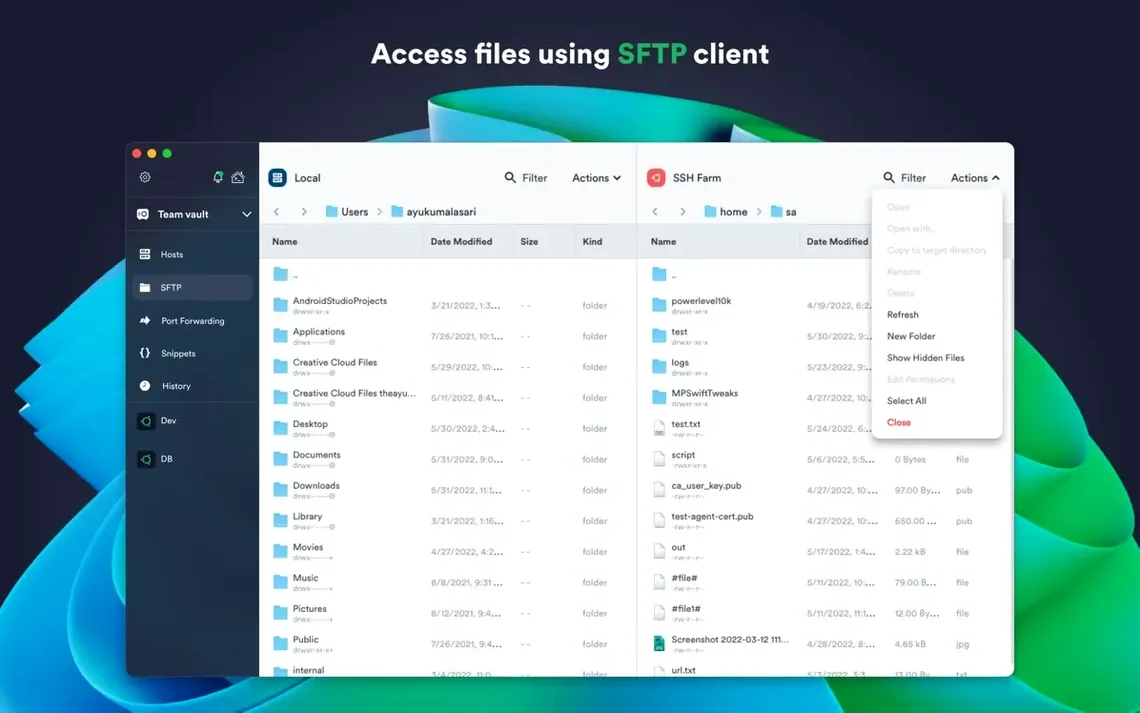
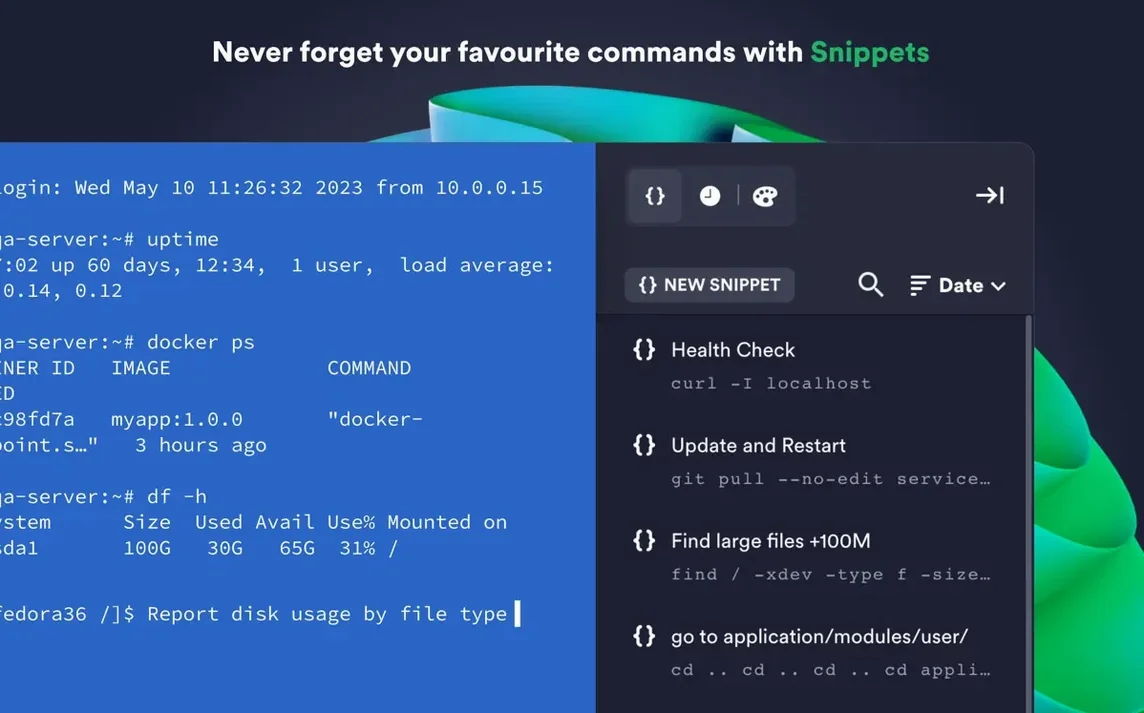
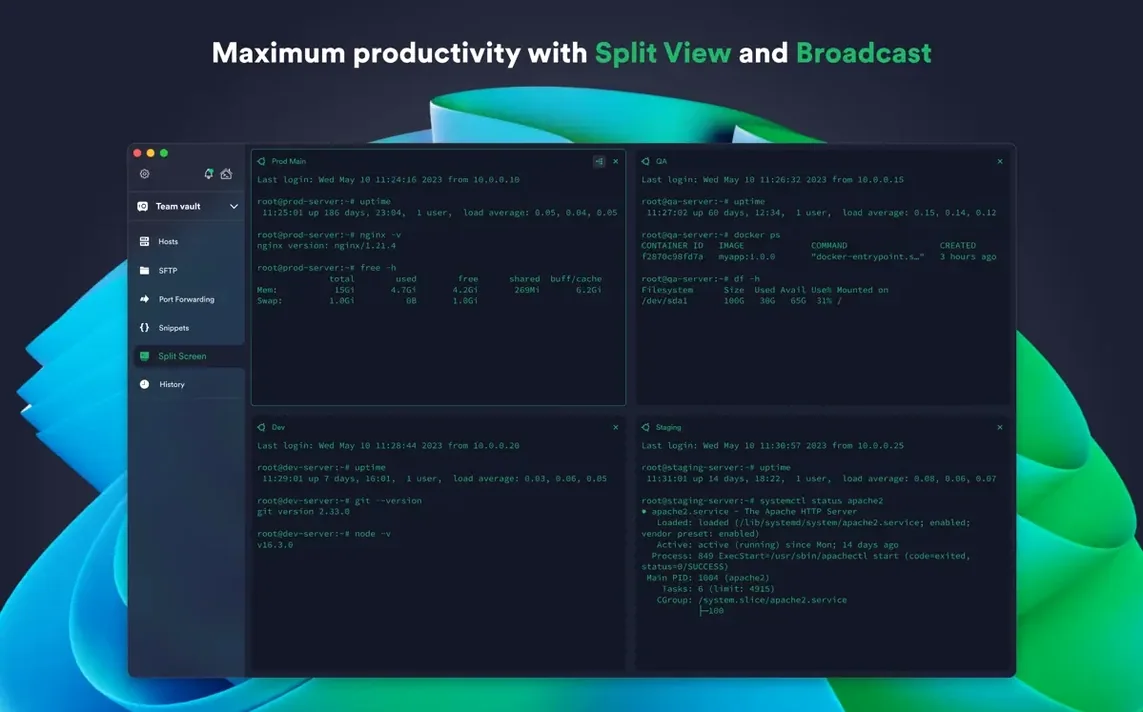
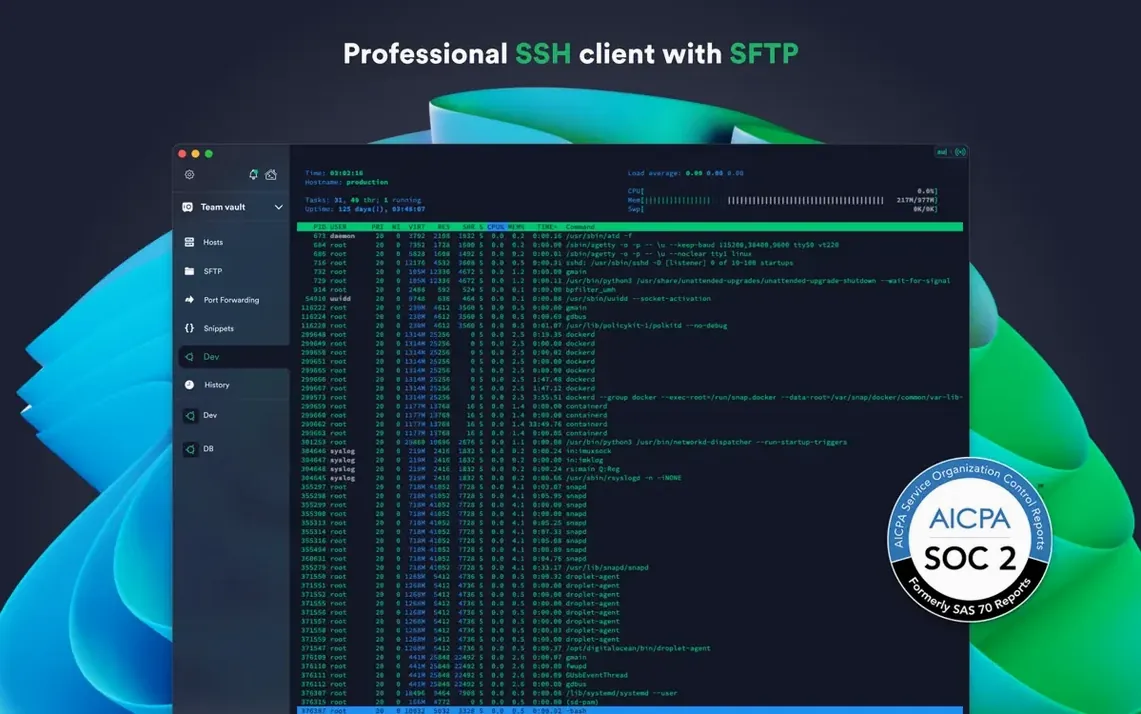
You are halfway through a late-night deploy, juggling three servers from different providers, and your terminal tabs are a mess. Termius is the kind of app that makes that chaos feel manageable.
Tabbed and split sessions for multiple hosts
- Keeping multiple remote sessions open at once with a tabbed interface and split view.
- Reaching hosts through SSH, Mosh, Telnet, port forwarding or SFTP.
- Working around restricted networks with proxy servers and jump servers.
- Pulling up cloud instances directly, thanks to AWS and DigitalOcean integration.
- Reusing commands and shell scripts you save as one-tap favourites.
- Carrying your connection settings and credentials across devices via encrypted cloud sync.
macOS requirements and English-only interface
- Runs on macOS 10.13 or later, on both Apple Silicon and Intel Macs.
- The interface is English only.
- It stores a shared history of terminal commands, which is handy but worth knowing about.
- You can set custom environment variables per host.
Even with a solid app, you can run into a few snags. Here is what I have seen people bump into most, and how to sort them out.
Fix idle disconnects with keepalive packets
Connection drops on idle. You walk away, come back, and the session is dead. Check your host's keepalive settings — most SSH servers let you send a null packet every so often. Termius itself does not have a built-in keepalive toggle, so you will want to set ServerAliveInterval on the host side or in your SSH config file.
That version is sandboxed, which means SFTP sessions cannot browse your local computer's file system. The fix is simple: download the desktop version from the Termius website instead. The sandboxed build also lacks the local terminal, so if you need full local access, stick with the desktop build.
Keys not working. You generated an ECDSA or ed25519 key, added it to the host, but Termius still asks for a password. Check that the private key path is correct in the host settings. Also make sure the key is in the right format — OpenSSH format works best. If you are using a FIDO2 hardware key, Termius handles that separately, so you need to set it up under the host authentication options.
Sync not matching up. Your desktop has the right hosts, but your phone is showing an old list. Encrypted cloud sync works, but it is not instant. Give it a few seconds, or force a sync by toggling the sync setting off and on again. If the credentials are protected with Touch ID, you will need to authenticate before the sync completes.
Stability polish in the latest build
The current build, 9.35.4, is a stability release. That means no new flashy features, but the kind of polish that stops a session from hanging on you mid-command. The SSH agent forwarding still works the same way — keys stay on your local machine, which is the right behaviour. If you were on an earlier version and noticed the occasional glitch with split view not resizing properly, that sort of thing is what 9.35.4 addresses.
For anyone running the website version, the app auto-updates, so you are probably already on it without noticing.
Add a cloud server in under two minutes
Here is a practical run-through for adding a fresh cloud instance, start to finish.
- Open Termius and click the New Host button.
- Enter the hostname or IP address. If the server is on AWS or DigitalOcean, you can use the built-in integration to pull the instance details directly — no manual typing.
- Set the connection type to SSH. Leave the port as 22 unless your host uses a custom one.
- Under Authentication, choose the key pair you want to use. If you are using a FIDO2 hardware key, select that option instead. For most setups, an ed25519 key is fast and secure.
- Add a label so you recognise the host later. I use the server's purpose and region, like "staging-eu-west".
- If the server sits behind a jump box, go to the Proxy section and add the jump server's details. Termius will tunnel through it automatically.
- Set any custom environment variables under the Environment section. For example, you might want
NODE_ENV=productionset per host. - Save the host. It appears in your list with the rest.
- Double-click to connect. Termius saves the session to your shared history, so you can scroll back later if you need to re-run a command.
That is it. From clicking New Host to an active shell, it takes about ninety seconds once you know the IP and have your key ready.
For a music student who spends weekends DJing and weekdays in the terminal, Termius is a solid companion.
- Stability improvements.
- macOS 10.13 or later
- Apple Silicon or Intel 64-bit
- English language interface
Kit check at a glance
| System | macOS 10.13 or later |
| Chip | Apple Silicon, Intel 64-bit |
| Download | 220 MB |
| Older pressings | 1 in the crate |








Chat from the booth
Sign in or grab a free account to leave a comment.
Nobody has said a word in the booth yet. If you played a set with this build, tell the next person how it went.