

- Build in the crate
- 4.0 Build 4215
- Made by the team at
- Sublime HQ Pty Ltd
- Menu languages offered
- English
- How you pay for it
- K'ed by TNT team
- macOS it plays on
- OS X 10.9 or later
- CPU it runs on
- Apple Silicon, Intel 64-bit
Screenshots
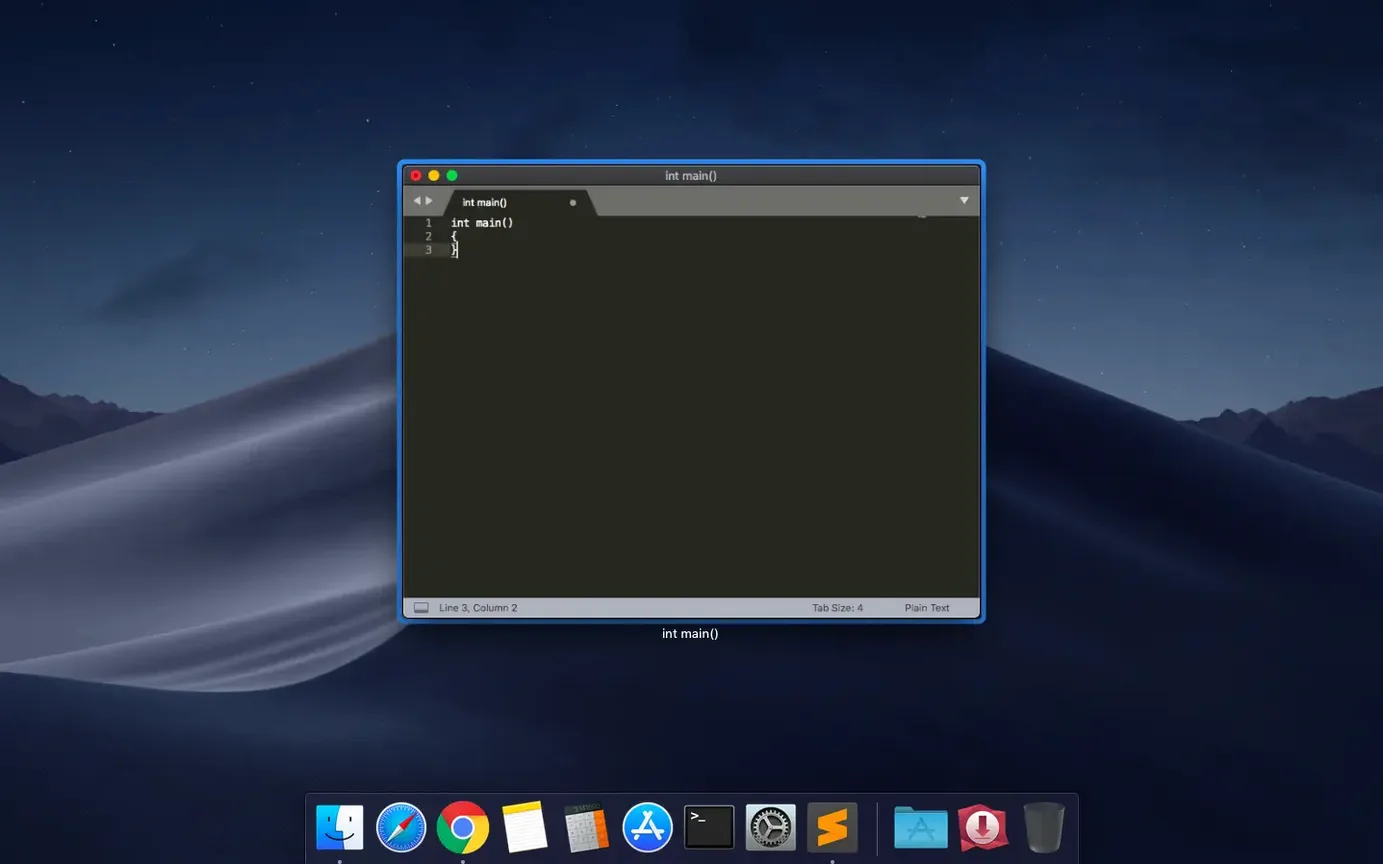
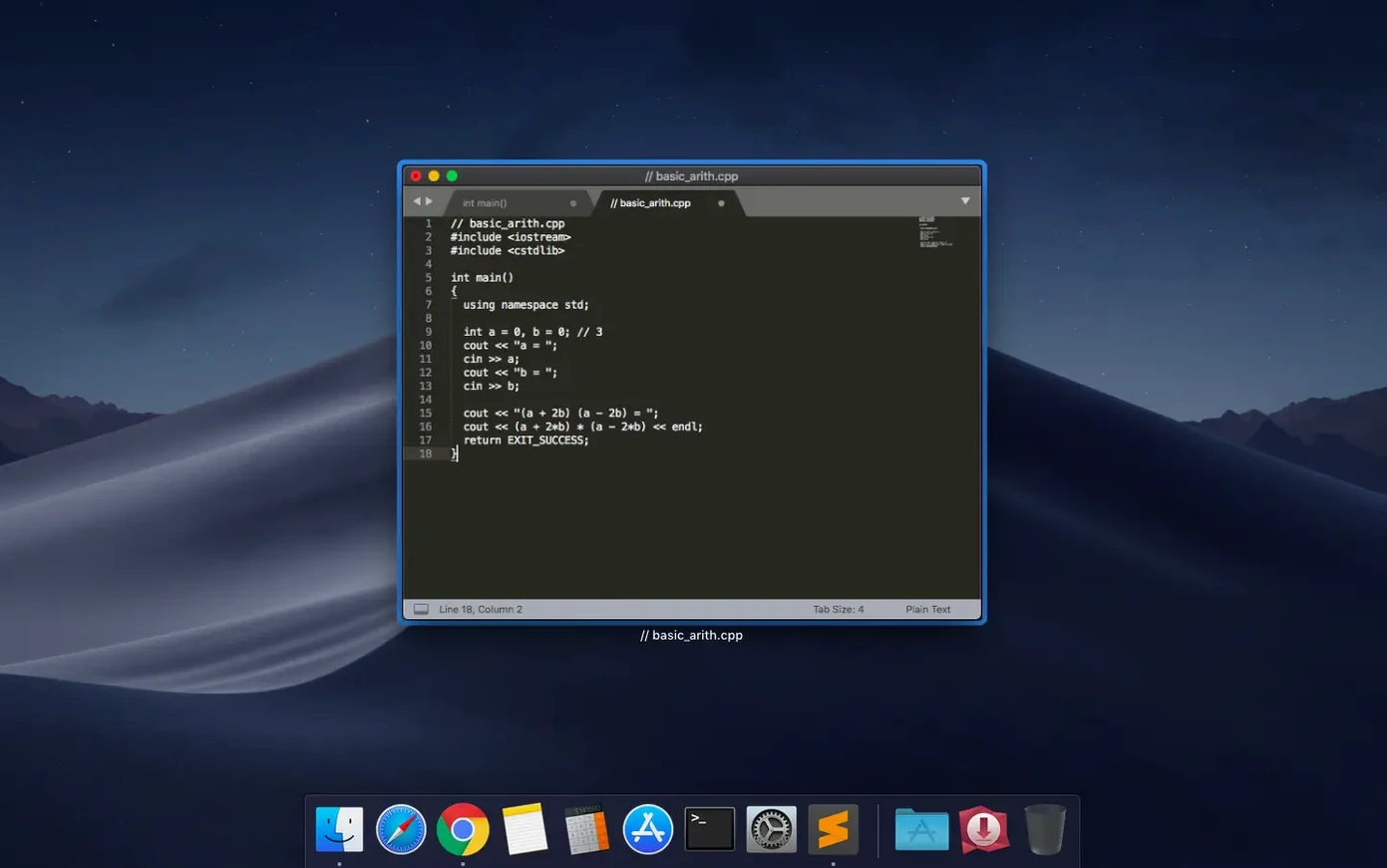
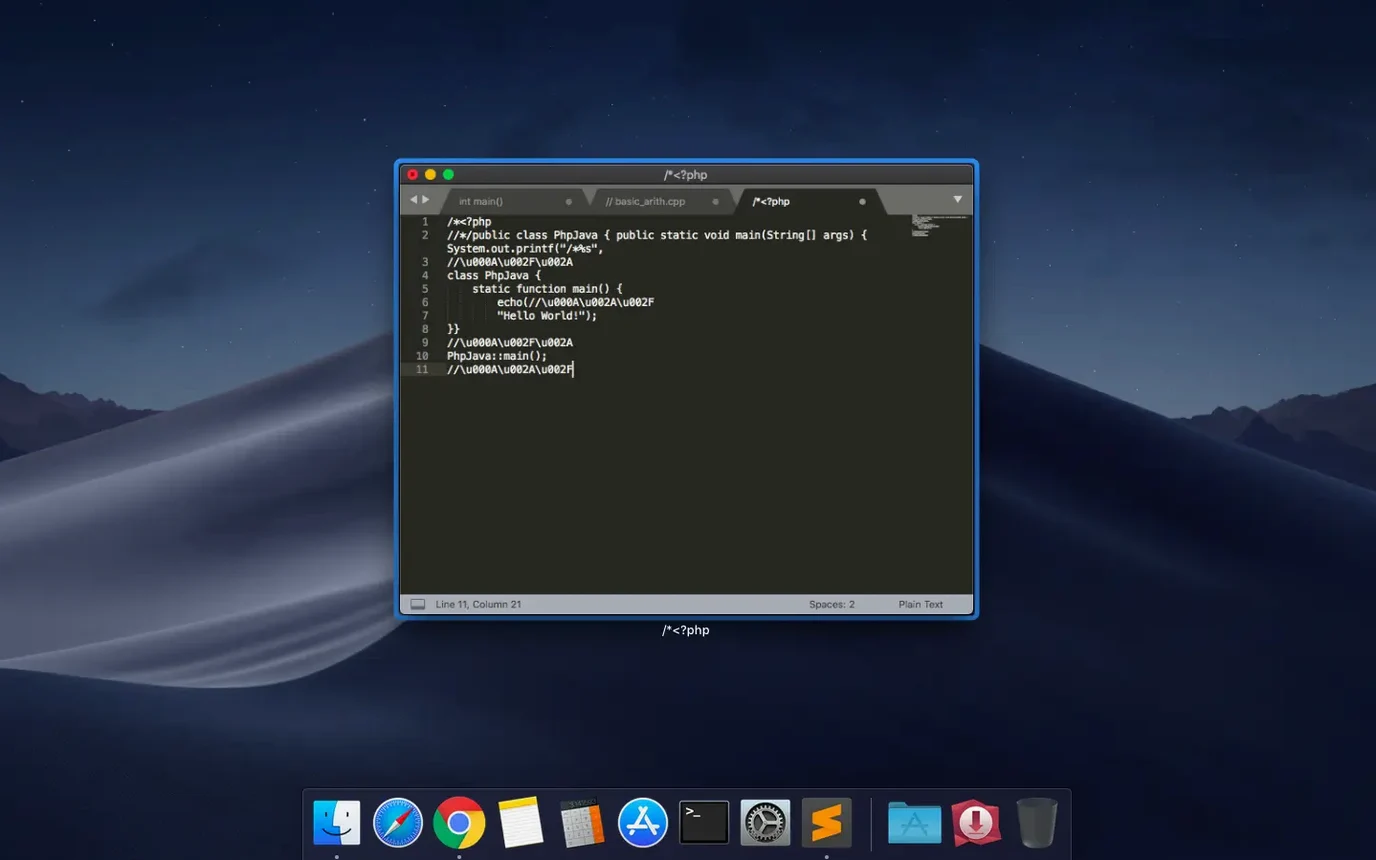
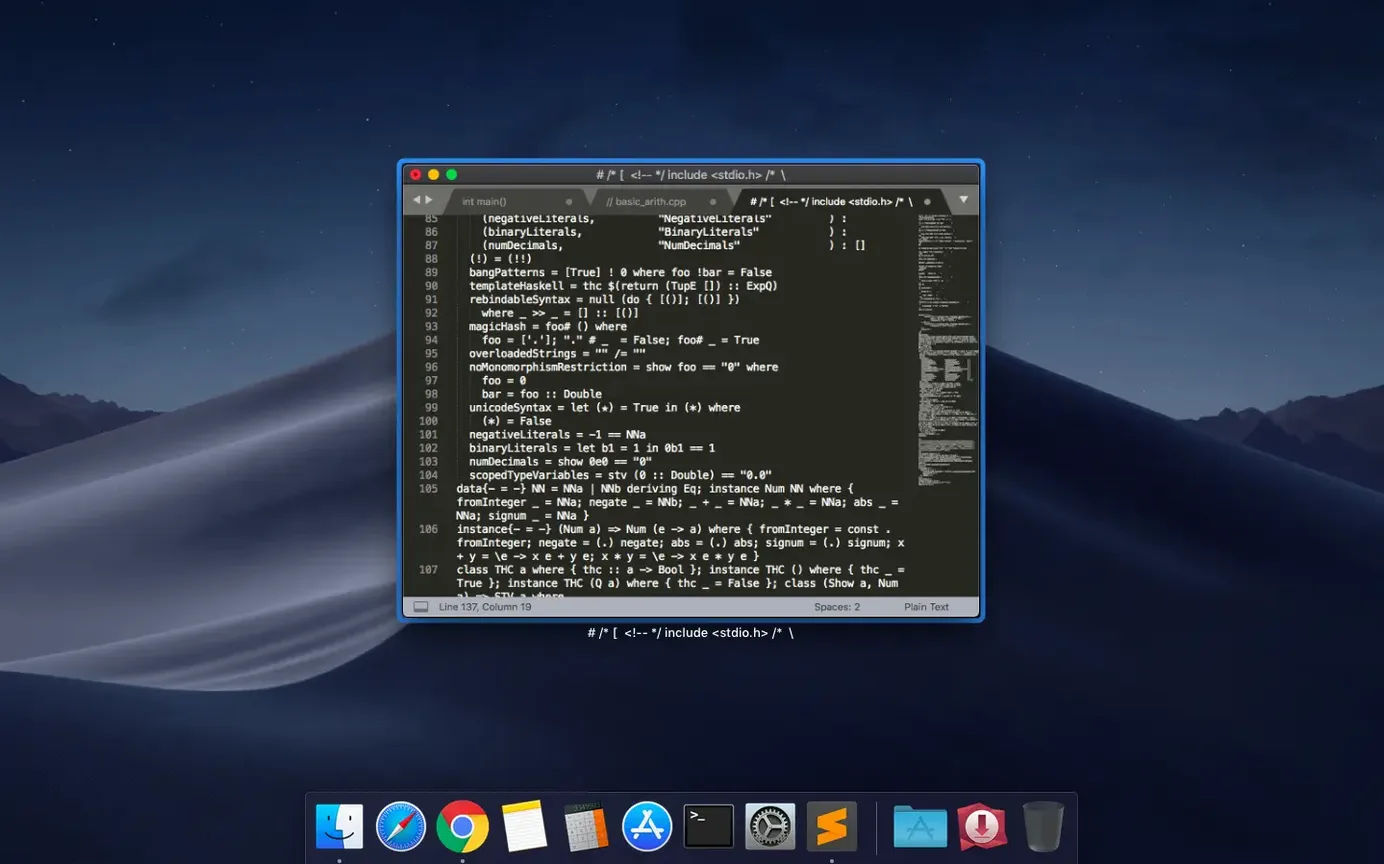
Anyone who writes code, markup, or plain text on a Mac will find a place for Sublime Text 4. Build 4215 runs natively on both Intel and Apple Silicon machines, so it slots in neatly alongside your other tools without extra translation layers.
Editing code
Column selection and multiple cursors let you change several lines at once. Syntax checking runs as you type, and the command palette handles indentation, reformatting, and line joining without reaching for the mouse.
Markup and prose
Auto-save keeps your work safe, and the split-pane view shows up to four files side by side — handy when you’re tweaking CSS alongside HTML or referencing documentation while you write. Visual themes are easy to swap, and more are available from the package ecosystem.
Keeping your setup current
Installed packages update themselves from their repositories, so your editor stays in sync with the projects you work on. Sublime Text works on macOS, Windows, and Linux, making it a consistent companion across machines.
Customise defaults before opening a project
Before you open a project, it pays to customise a few defaults. Open Preferences > Settings from the menu and you’ll see two panes: the defaults on the left and your user overrides on the right. Start with these:
font_size– the default is 10, which is small on modern displays. Try 12 or 14.translate_tabs_to_spaces– set totrueif your team uses spaces. Sublime Text will convert every tab as you type.tab_size– most projects expect 2 or 4. Set it once and forget it.word_wrap– ticktruefor Markdown or prose; leavefalsefor code.auto_save– I turn this on for anything I edit more than once. Theon_focus_lostoption saves when you switch windows.
These tweaks take effect immediately. No restart required.
Workflow: building and testing a Python script
Here’s a typical task from start to finish. You want to write a short Python script, run it, and fix any errors without leaving the editor.
- Open a file. Create a new file (Cmd+N) and save it as
hello.py. The syntax highlighting kicks in as soon as Sublime Text sees the.pyextension. - Write your code. Autocomplete suggests keywords and variable names as you type. For a quick test, type
print("hello"). The minimap on the right shows the file structure at a glance. - Switch to a build system. Open the Tools menu, pick Build System, and choose Python. Sublime Text already knows how to run a Python script through your system’s Python interpreter.
- Run the script. Hit Cmd+B. The output appears in a panel at the bottom of the window. If there’s a syntax error, Sublime Text highlights the line so you can fix it straight away.
- Edit and rerun. Change the code and press Cmd+B again. The build panel updates in place.
You never opened a terminal. The whole cycle stays inside the editor.
Universal binary for Intel and Apple Silicon Macs
Sublime Text 4 Build 4215 is a Universal 2 binary, so it runs on Intel and Apple Silicon Macs alike. The minimum macOS version is 10.13, and the latest build fixed a compatibility issue with 10.13 and 10.14, so older machines are still supported. The app itself is lightweight by design — no background services, no forced updates. Installed packages update themselves quietly when you launch the editor, and the package manager lets you add or remove them without restarting. You’ll find the editor responsive even with several panes open and a minimap visible. Everything stays in one window.
- Fixed the vintage M command not working.
- Fixed a compatibility issue with macOS 10.13 and 10.14.
- macOS 10.13 or later
- Intel or Apple Silicon processor
- Interface language: English
Kit check at a glance
| System | OS X 10.9 or later |
| Chip | Apple Silicon, Intel 64-bit |
| Download | 54 MB |








Chat from the booth
Sign in or grab a free account to leave a comment.
Nobody has said a word in the booth yet. If you played a set with this build, tell the next person how it went.