
- Build in the crate
- 13.3.1
- Made by the team at
- Nitro Software
- Menu languages offered
- English
- How you pay for it
- K'ed by TNT team
- macOS it plays on
- macOS 10.14 or later
- CPU it runs on
- Apple Silicon, Intel 64-bit
Screenshots
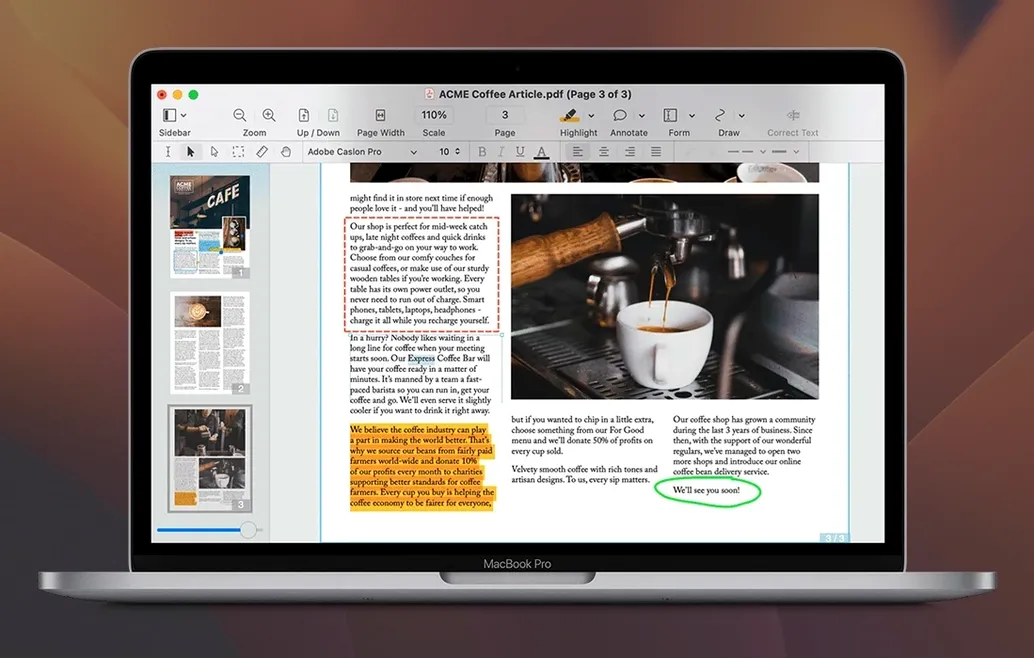
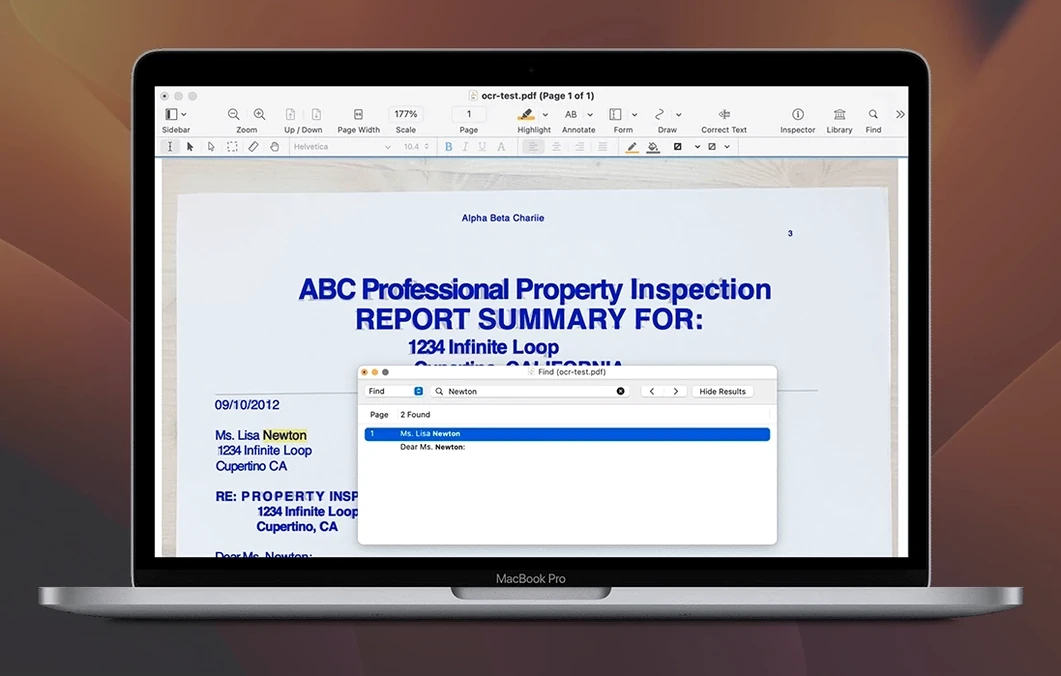
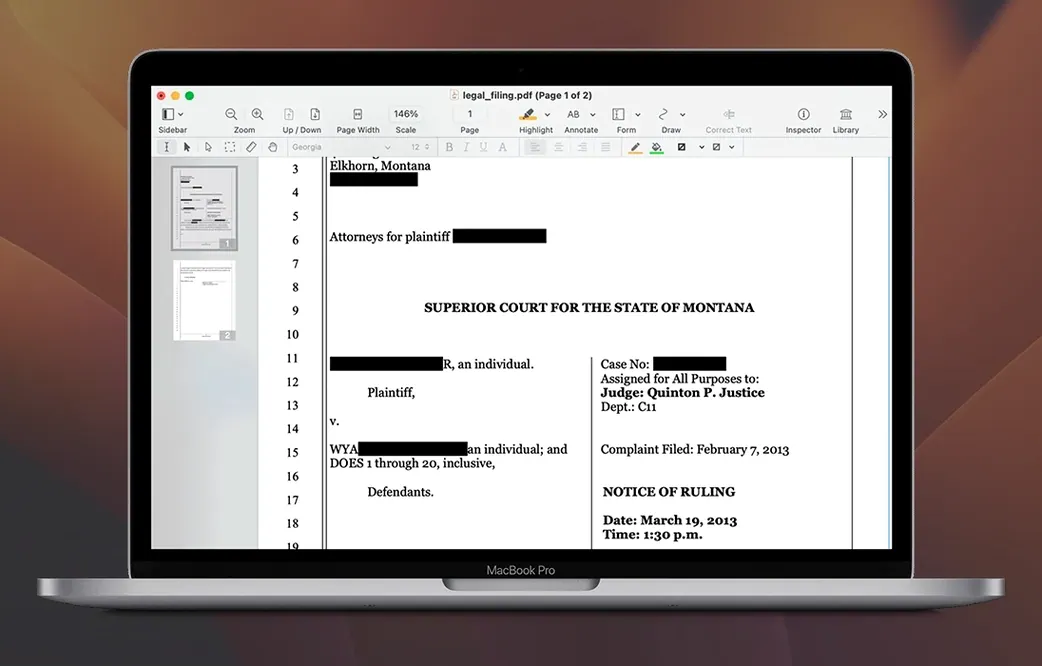
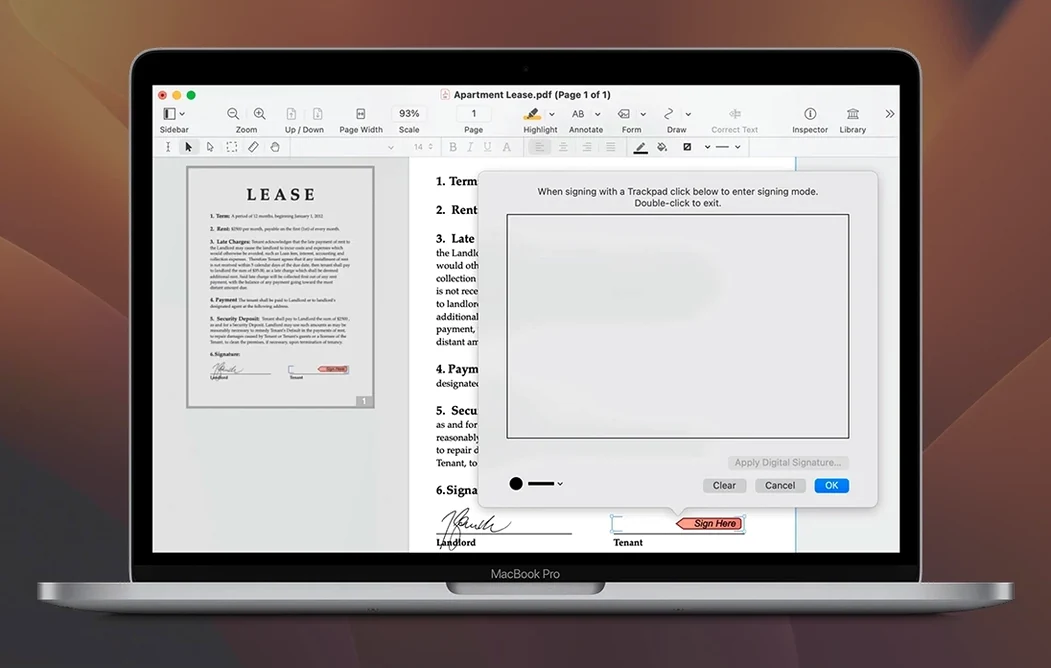
Anyone who works with PDFs daily — students, office workers, freelancers — might want a tool that does more than just read files. Nitro PDF Pro for Mac gives you a proper editor with OCR, signing, and export tools built in. If you’ve just got it running, here are the first things to try so you see what it can actually do.
- Edit text directly in a PDF. Open any PDF and click on a text block to edit it — no need to convert to Word first. The formatting usually stays put, even in columns.
- Add a signature. You can draw, type, or upload an image of your signature and place it anywhere on the page. Useful for contracts without printing a single sheet.
- Create a document portfolio. Merge several related files — PDFs, images, spreadsheets — into one portfolio that keeps them organised. Great for project handovers.
- Use OCR on a scanned document. If you’ve got a scanned page with no selectable text, run OCR through Nitro to make it searchable and editable.
- Annotate with highlights and comments. Mark up a PDF with highlighting, underlining, strikethrough, and sticky notes. Handy for reviewing drafts or studying.
- Fill and create forms. Open a form, fill it in, and save it. You can also build your own fillable forms from scratch.
These six tasks cover most of what people need from a PDF editor. Once you’ve tried them, you’ll know whether Nitro PDF Pro fits your workflow.
Small OCR accuracy improvements
The current build, version 13.3.1, refines the tools that matter in day-to-day PDF work. Nothing drastic, but a few small improvements that add up when you use it every day. The OCR engine handles scanned documents a bit more accurately — less manual correction on misread text. The export to Word and Excel preserves formatting better, especially tables and multi-column layouts that used to shift around. Form creation feels slightly more responsive when adding fields to a layout. These aren't headline features, but they cut down on the little frustrations that slow you down.
Saves office workers time weekly
Not every Mac user needs a full PDF editor. But some people will find it saves them time every single week.
- Office workers and admin staff. If your day involves filling forms, signing contracts, or sending documents in different formats, Nitro covers all of that without switching apps. The batch processing feature also helps when you need to apply the same change to dozens of files at once.
- Students and researchers. Annotating PDFs with highlights, comments, and bookmarks is standard for reading papers or textbooks. The OCR is especially useful if you work with scanned articles or old books — you can search for keywords across the whole document.
- Freelancers and small business owners. Creating fillable forms, merging project files into portfolios, and redacting sensitive info before sharing documents are all tasks that come up regularly. Having one tool for them keeps things simple.
- Legal and compliance roles. Redaction is a big deal here. Nitro lets you permanently remove sensitive text or images from a PDF before sending it out. Combined with the signing and annotation tools, it covers most document workflows in a small firm or department.
If you mostly just read PDFs and rarely need to edit or sign them, a basic reader might be enough. But for anyone who regularly modifies, exports, or reviews PDFs, Nitro PDF Pro is worth the space on the drive.
Pre-install questions answered
A few things come up often when someone is deciding whether to put Nitro PDF Pro on their Mac. Here are the straightforward answers.
Native on both Intel and Apple Silicon
Yes. Nitro PDF Pro runs natively on Intel Macs and Apple Silicon (M1, M2, M3) machines. The same installer works on both architectures, so you don't need to check which version to download.
Runs on macOS 10.14 Mojave and newer
The minimum requirement is macOS 10.14 Mojave. If your Mac still runs High Sierra or earlier, you'd need to update first. Most users on Mojave or newer will be fine, including those on Catalina, Big Sur, Monterey, Ventura, and later.
Requires about 2 GB of free space
You need about 2 GB of free disk space for the installation. That's not a lot by today's standards — roughly the size of a handful of high-resolution photos or a short video clip.
Can I edit a scanned PDF like a normal document?
Not exactly like a native PDF, but close. Run the OCR tool first, which recognises the text in the scan and makes it searchable and selectable. After that, you can edit the recognised text, copy it out, or export it to Word. It works well on clean scans with standard fonts. Handwritten notes or poor-quality scans are trickier, but that's true of any OCR tool.
Does Nitro PDF Pro handle batch processing?
Yes. You can apply actions like OCR, export, or watermarking to multiple files at once. This is a real time-saver if you have a folder of scanned invoices or contracts that all need the same treatment.
These answers cover the practical side. If you've got a specific workflow in mind, the documentation goes into more detail for each feature.
- macOS 10.14 Mojave or later
- Intel or Apple Silicon
- 1 GB RAM
- Up to 2 GB disk space
- Display resolution at least 1280x800
Kit check at a glance
| System | macOS 10.14 or later |
| Chip | Apple Silicon, Intel 64-bit |
| Download | 272 MB |
| Older pressings | 1 in the crate |


Chat from the booth
Sign in or grab a free account to leave a comment.
Nobody has said a word in the booth yet. If you played a set with this build, tell the next person how it went.