
- Build in the crate
- 7.26
- Made by the team at
- The Omni Group
- Menu languages offered
- Russian, English, German, Spanish, Italian, Chinese (Simplified), Korean, Dutch, Portuguese, French, Japanese
- How you pay for it
- K'ed by TNT team
- macOS it plays on
- macOS 11 or later
- CPU it runs on
- Apple Silicon, Intel 64-bit
Screenshots
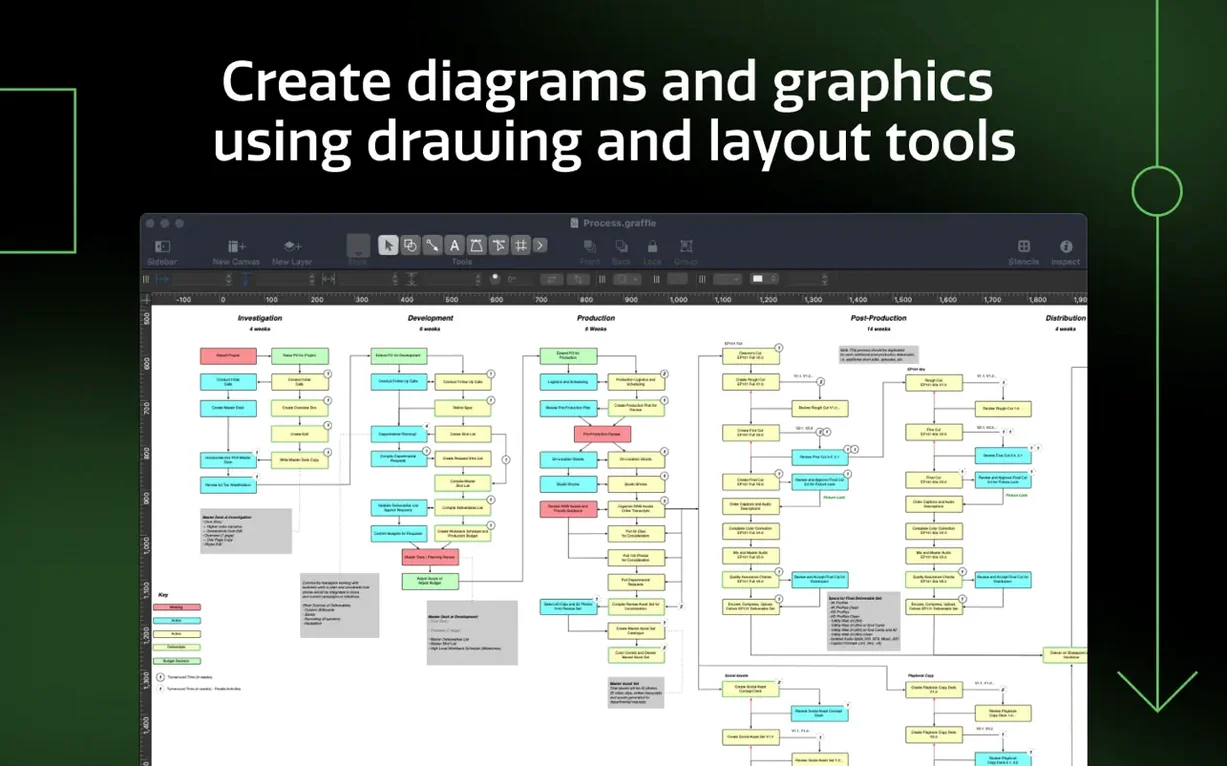
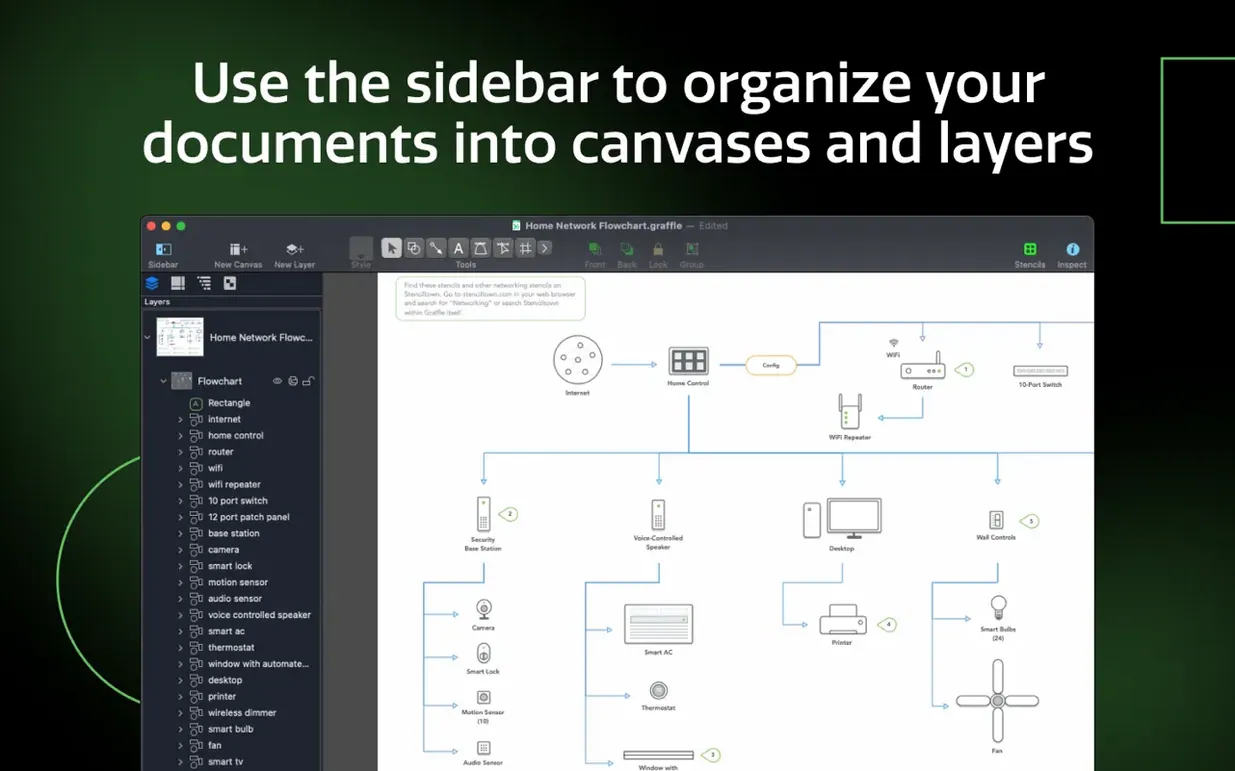
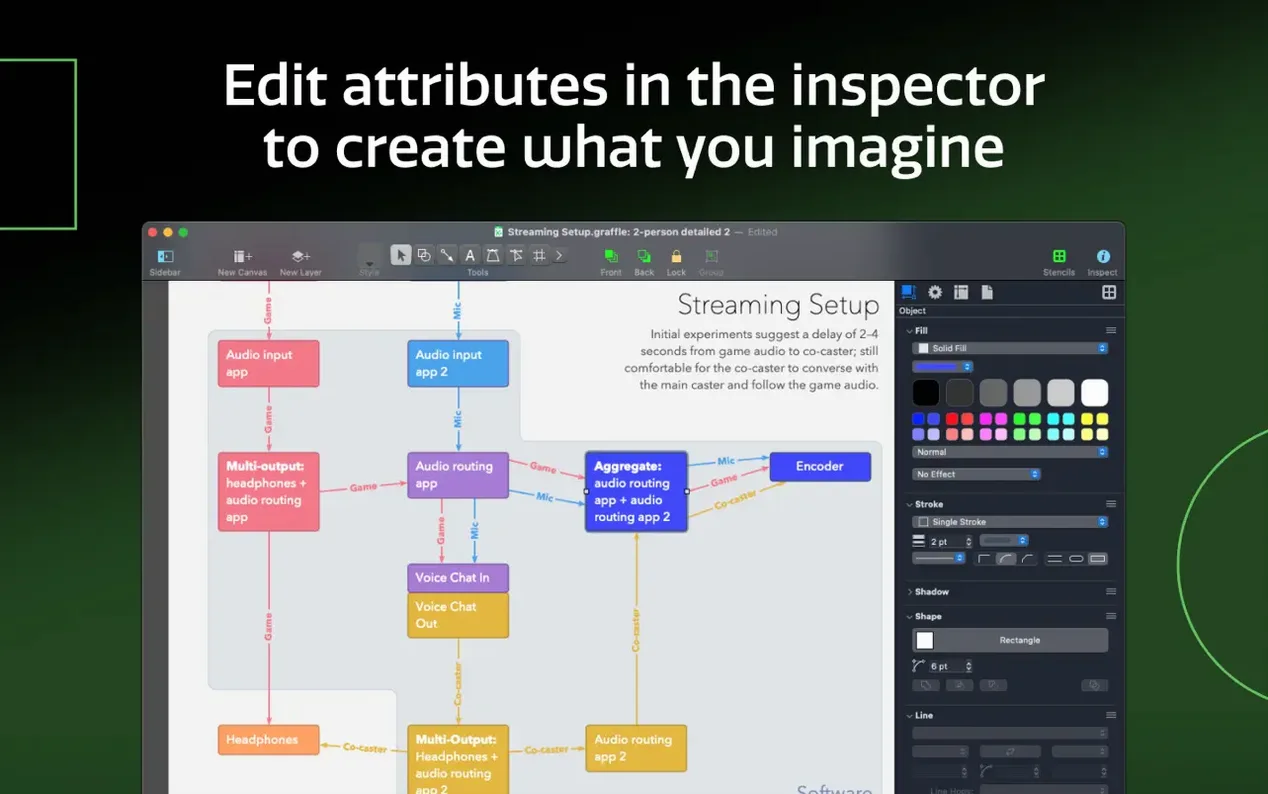
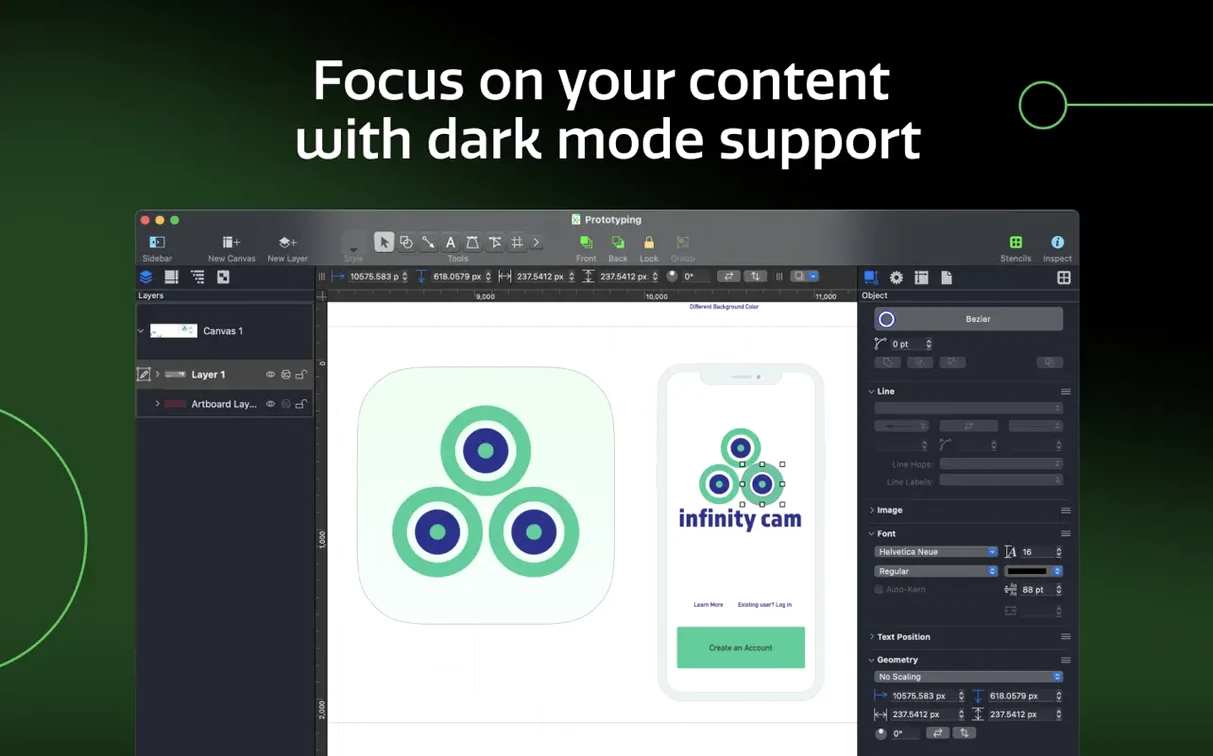
You're laying out a network map or a process flow, and you need the boxes and lines to behave. OmniGraffle Pro for macOS is the diagramming tool that lets you shape ideas quickly, whether you're storyboarding an app or mapping out a studio setup. Before you get to the drawing board, here's what you need to know about running it on your Mac.
- OmniGraffle Pro 7.26 requires macOS 14 or newer, and runs on both Apple Silicon and Intel Macs.
- It can export OmniGraffle layers directly to Photoshop layers, which is handy when you're handing off visuals to a designer.
- Tables let you group shapes and add rows or columns on the fly, so reorganising a chart doesn't mean redrawing it.
- Convert lines or text into shapes when you want to edit them like any other object.
- It imports Microsoft Visio VSS stencils and VST templates, so you can open files from colleagues on Windows.
- There's even a feature to automatically create Xcode project diagrams, saving time when you need a visual of your code structure.
ignoring the sidebar and canvas list
When you first open OmniGraffle Pro, the canvas looks straightforward — and that's where people trip up. The most frequent error is treating it like a basic drawing app and ignoring the sidebar. The canvas list and inspectors aren't extra clutter; they're where you control layers, adjust object properties and manage artboards. Jumping straight into drawing without setting up your layers means you'll spend time later moving objects around instead of editing them.
Another one: forgetting about shared layers. Beginners draw the same header or footer shape on every canvas, then have to update each one when something changes. A shared layer keeps that element consistent across all artboards — change it once and it updates everywhere. It's one of those features that saves real time once you get used to it.
Then there's the table tool. New users often miss that tables aren't just for data — they group shapes into rows and columns that you can rearrange without breaking the layout. Instead of drawing individual boxes and aligning them by eye, create a table and add or remove rows as you go. It keeps your diagrams clean and saves you from manual alignment headaches.
Finally, people tend to ignore the Visio import until they need it. If you work with Windows colleagues, you'll get VSD or VDX files that seem impossible to open. OmniGraffle Pro handles those imports, but the trick is to check the layers and styling after import — Visio files don't always map perfectly, so a little cleanup goes a long way.
indispensable for wireframers and UX designers
OmniGraffle Pro isn't a one-size-fits-all app, but certain Mac users will find it indispensable. Wireframers and UX designers who sketch out app layouts or website flows will appreciate the artboards and shared layers — you can mock up multiple screens in one document and keep navigation bars consistent across them.
Technical illustrators and process modelers are another natural fit. If you're mapping network infrastructure, software architecture or business workflows, the ability to create complex diagrams with precise alignment and custom shapes is essential. The convert text to shapes and convert lines to shapes features let you turn rough sketches into editable objects, which is a big help when you're iterating on a design.
Developers working on Xcode projects get a direct benefit from the automatic diagramming feature. Instead of manually drawing class hierarchies or dependency maps, you can generate them from your project structure. It saves time and reduces errors when documenting code.
And anyone who collaborates with Windows users will appreciate the Visio compatibility. Importing VSS stencils and VST templates means you're not stuck rebuilding diagrams from scratch when a colleague sends a Visio file. Exporting to VDX keeps the workflow going both ways.
compatibility with macOS Golden Gate 27
The latest release, version 7.26, focuses on compatibility. It improves support for macOS Golden Gate 27, which is the system update that affects how apps handle graphics and memory. If you're on macOS 14 or newer, you'll notice that OmniGraffle Pro opens and works without the odd visual glitches that sometimes appear after a major OS update.
The practical effect for everyday use is subtle but real. Diagrams that use complex gradients or large canvases should render correctly on the latest macOS, and importing Visio files from Windows users should be more reliable. The requirement bump to macOS 14 means older Macs running earlier systems won't work, but for anyone on a current OS, the update is a straightforward maintenance release that keeps the app stable.
If you've been using an earlier version and hesitated to update because of macOS changes, 7.26 is the one that bridges the gap. It doesn't add flashy new tools, but it keeps the existing ones working the way they should.
OmniGraffle Pro covers a lot of ground, from quick sketches to detailed technical drawings. If your Mac meets the requirements, you're good to go.
- Improves compatibility with macOS Golden Gate 27.
- Requires macOS 14 or newer.
- macOS 14 or newer
- Apple Silicon or Intel Mac
Kit check at a glance
| System | macOS 11 or later |
| Chip | Apple Silicon, Intel 64-bit |
| Download | 73 MB |
| Older pressings | 2 in the crate |





Chat from the booth
Sign in or grab a free account to leave a comment.
Nobody has said a word in the booth yet. If you played a set with this build, tell the next person how it went.